Renaming
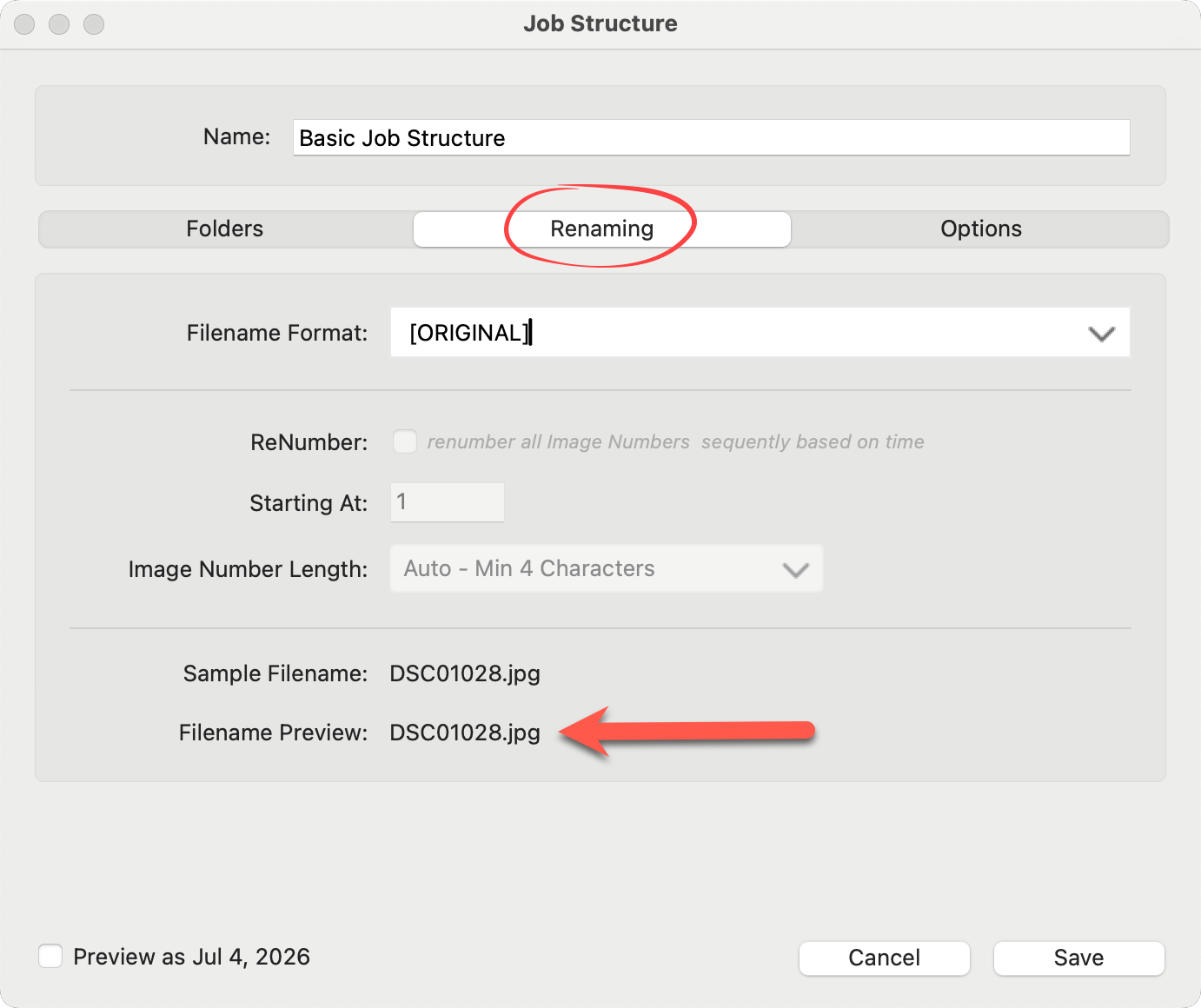
Renaming files in ProCapture Backup™ helps keep your images organized, consistent, and easy to find—especially when you’re working with multiple memory cards. When you merge cards, you can also renumber the files to maintain a clean, uninterrupted sequence across the entire job. This prevents duplicate file names and keeps your images in the correct order from start to finish. Renaming is handled in the "Renaming" tab within the Job Structure.

When you first run ProCapture Backup, the setup wizard asks whether you want renaming enabled. If you choose Yes, the default job structures include renaming. You can change this at any time by editing the job structure and setting the filename format back to [ORIGINAL].
If you choose to use the original filename during setup, you can still enable renumbering later by editing the job structure.
ProCapture Backup gives you several renaming options, including:
- Keeping the original image name (the default setting)
- Renumbering images automatically
- Adding padding (for example: 0001, 0002, 0003)
- Using the Job Name + Image Name
- Mixing and matching other naming formats to fit your workflow
Simplifying image names is helpful because it makes files easier to sort, share, and reference later—whether you’re delivering to a client, importing into editing software, or searching for a specific image. A clear naming system also reduces confusion when multiple cameras or cards are involved.
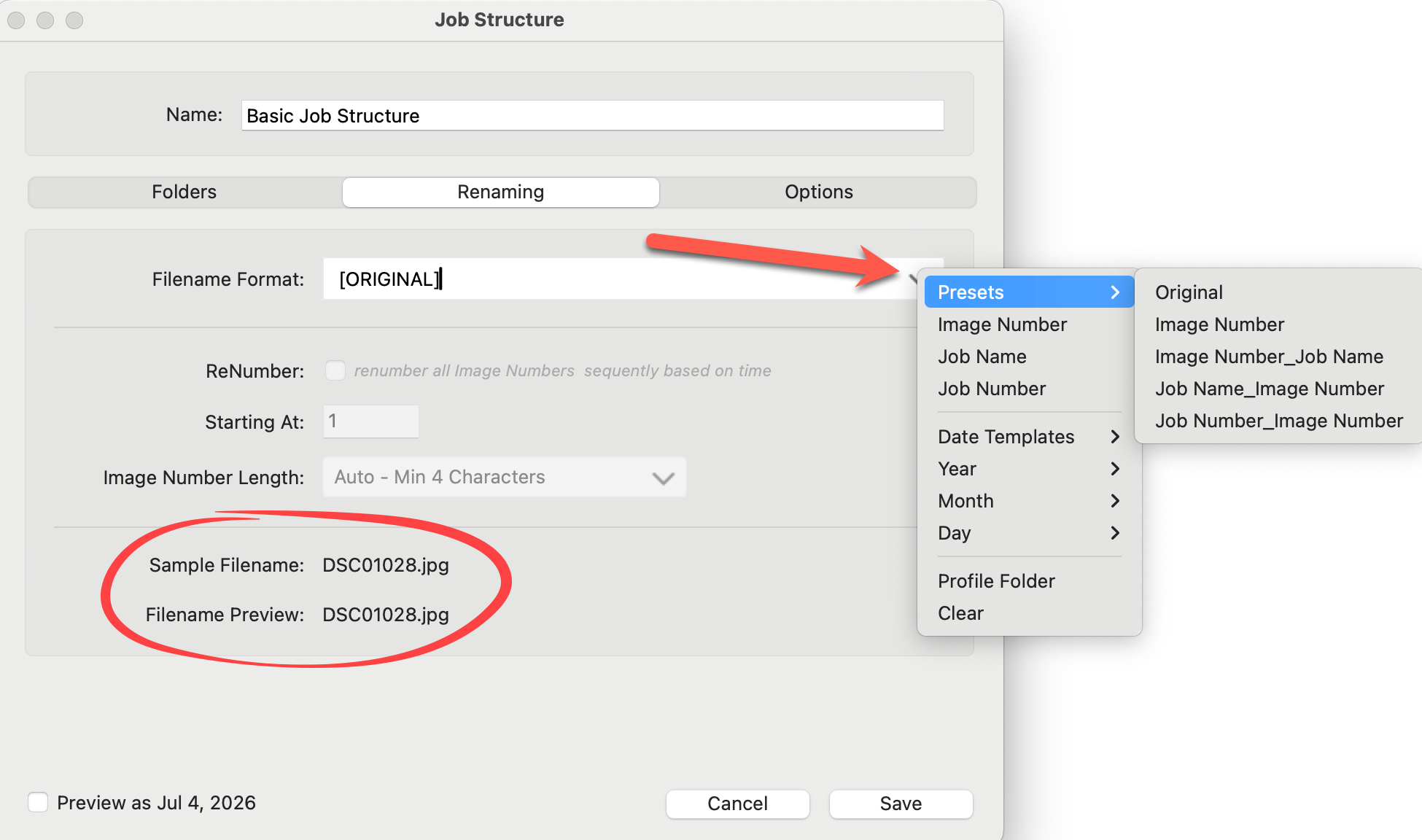
ProCapture Backup™ offers a variety of presets for filename format selection:
- Original
- Image Number
- Image Number_Job Name
- Job Name_Image Number
- Job Number_Image Number
You can also use dynamic text such as dates, job names, job numbers, and image numbers to build your own filename format. See Build My Own Format.
Select your filename format by using one of the presets. Alternatively, build up your own format using the dynamic text options provided. Note the preview area: this will display an example of what the selected format will look like.
Practical Example - Using Presets
Here’s a simple example to show exactly what each Preset looks like:
- Job Name: Smith_Aaron
- Job Date: July 4, 2026
- Original camera filename: DSC01028
1) [Original]
This keeps the original camera filename. Result after backup:
- DSC01028.jpg
2) [IMAGE_NUMBER]
This uses the last 4 digits of the original filename. Result after backup:
- 1028.jpg
3) [IMAGE_NUMBER] + Renumber ON
This renumbers your images starting at 0001, 0002, 0003, and so on. Renumbering always uses at least 4 digits. Result after backup:
- 0001.jpg
4) [IMAGE_NUMBER]_[JOB_NAME]
This adds the job name after the image number. Result after backup:
- 1028_Smith_Aaron.jpg
Optional: Turn Renumber ON. Results after backup:
- 0001_Smith_Aaron.jpg
5) [JOB_NAME]_[IMAGE_NUMBER]
This places the job name first, followed by the image number. Result after backup:
- Smith_Aaron_1028.jpg
Optional: Turn Renumber ON. Results after backup:
- Smith_Aaron_0001.jpg
6) Build Your Own Format
If the format you want to use is not listed as a preset, you can build up your own. See Build My Own Format for more information.
Renumbering is highly recommended when you are merging cards. When you merge multiple cards, each card often starts numbering at similar values (for example, every card might contain files like DSC0001, DSC0002, etc.). This can create duplicate file names, which can cause files to overwrite each other or become confusing to sort and manage.
Turning on Renumber solves this by assigning a single continuous sequence across the entire job. Instead of keeping the camera’s original numbering, ProCapture Backup™ will rename the images in order, starting at 0001 and continuing upward.
Renumbering is especially useful when:
- You’re combining images from multiple memory cards
- You’re working with two or more cameras
- You want clean, consistent file names for editing, sharing, or delivery
- You want your images to sort correctly in order from start to finish
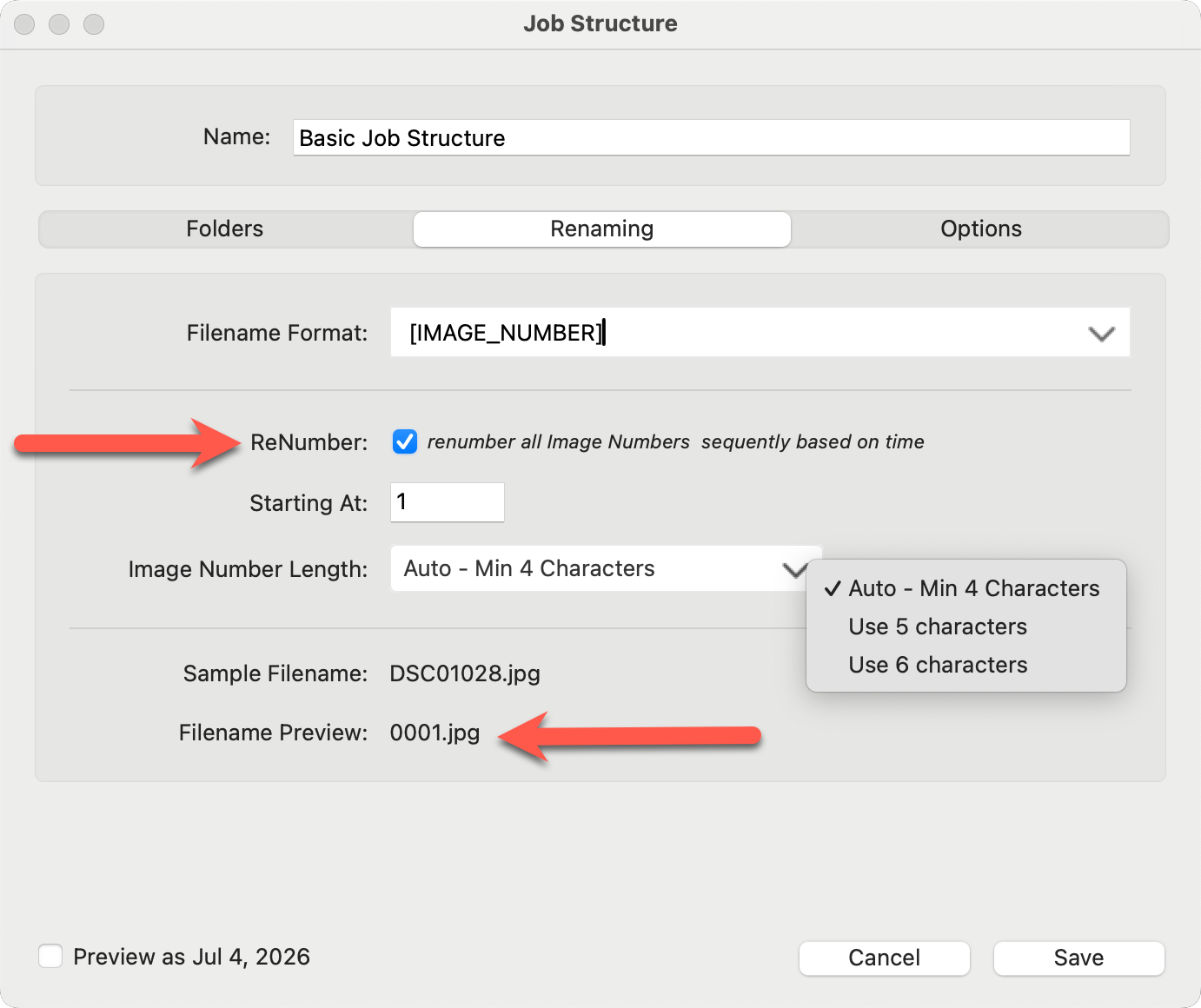
- Use the checkbox to enable renumbering.
- Note: in order to use the renumbering feature, you must have [IMAGE_NUMBER] present in your filename format.
- Optionally enter a "Starting At" number. By default, numbering starts with "1."
- Optionally select an "Image Number Length." By default, 4 characters are used.
- A preview of your selections appears in the Filename Preview.
When using renumbering, add all cards one after another before importing into Lightroom or ProSelect. Once imported, you cannot append images, and renumbering again will cause issues.
You can also create your own custom filename format.
- Type any text you want directly into the File Format box.
- Click the drop-down arrow to insert dynamic text.
- Don’t choose a preset—use the individual building blocks to create your format.
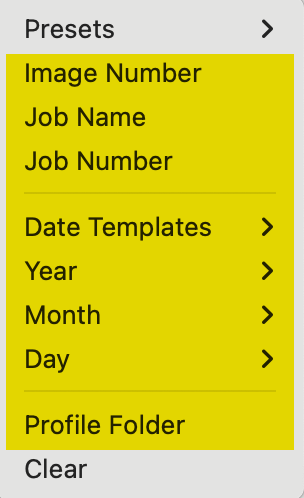
- Don’t choose a preset—use the individual building blocks to create your format.
- You can add multiple dynamic text options, and each one will be inserted into your filename format.
- We recommend using underscores (_) between words to avoid naming issues on some systems.
- Note: If you select a Preset from the drop-down list, it will replace everything currently in the File Format box.
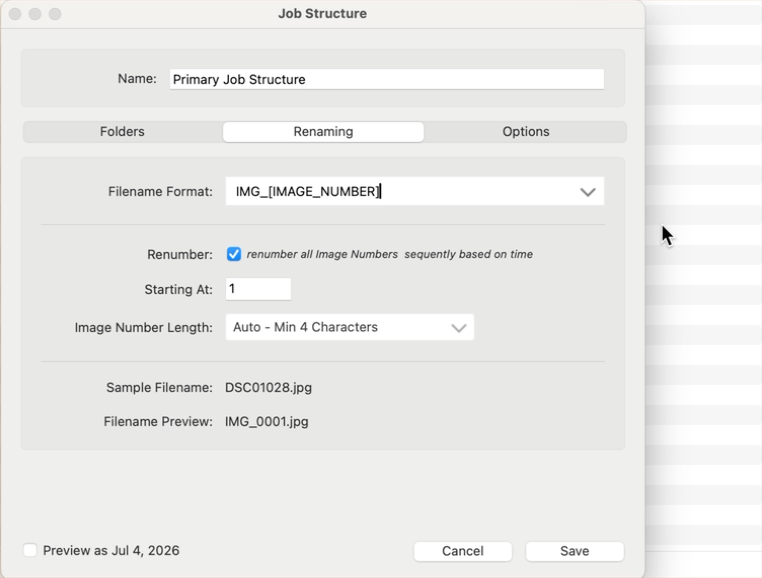
In the Renaming tab, you will see:
- A sample filename
- A filename preview underneath it
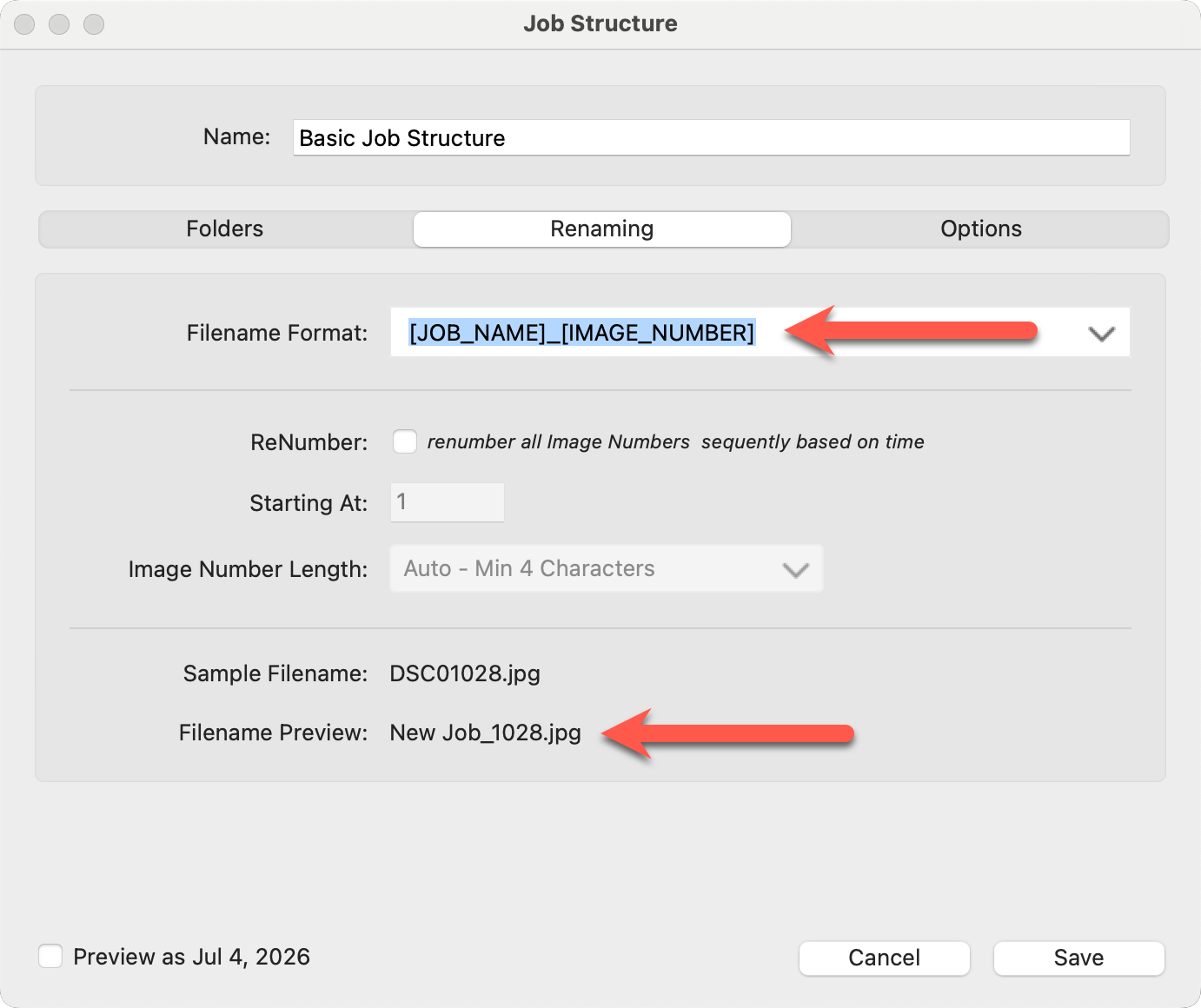
The preview updates automatically based on:
- The filename format you choose
- Whether Renumber is turned on or off
- Any other renaming options you enable
Whatever format is shown in the preview is exactly how your image files will appear on your computer after the backup.

Toggle the Preview as Jul 4, 2026 checkbox to display an actual date and see how it will appear in your file renaming. This is especially helpful for checking spacing and formatting, such as when using underscores.