 Categories
A Category is an optional extra folder level that sits between your Working Folder and your Job folder. ProCapture Backup comes preloaded with numerous categories. Use these, create your own, or edit the preloaded categories to customize them to your workflow.
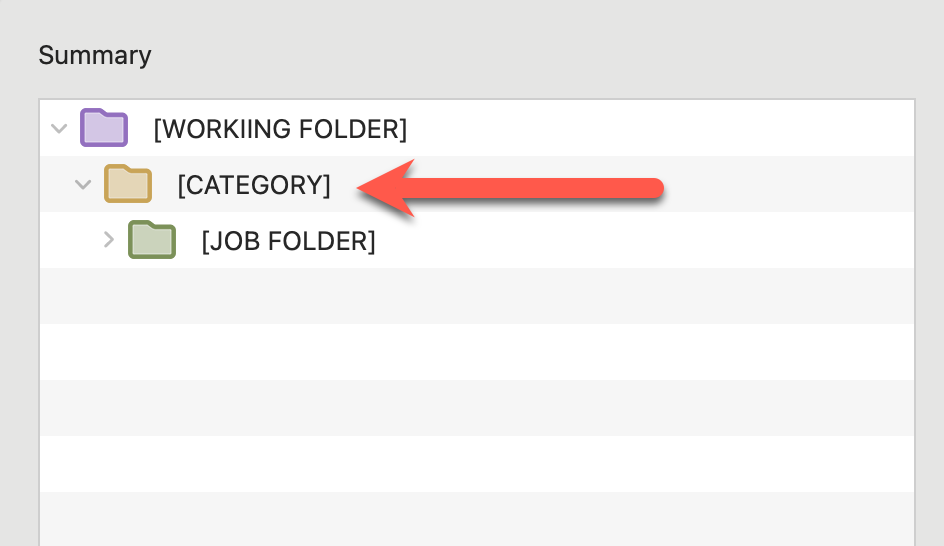
Instead of saving every job directly inside the Working Folder, the Category lets you group jobs into organized sections, such as:
- Weddings
- Families
- Seniors
- Commercial
- 2025 (by year)
- Click on the Settings button
 .
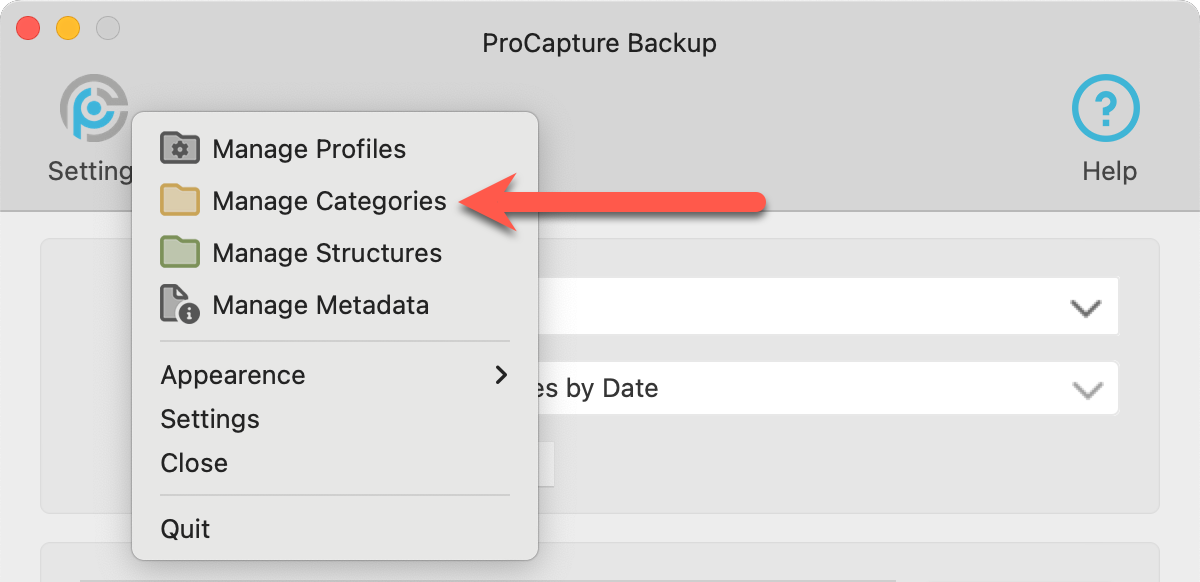
. - Select "Manage Categories" from the list.
- The Manage Categories window is structured so that a list of the categories appears on the left. Once a category is selected, a preview of the folder structure appears on the right.
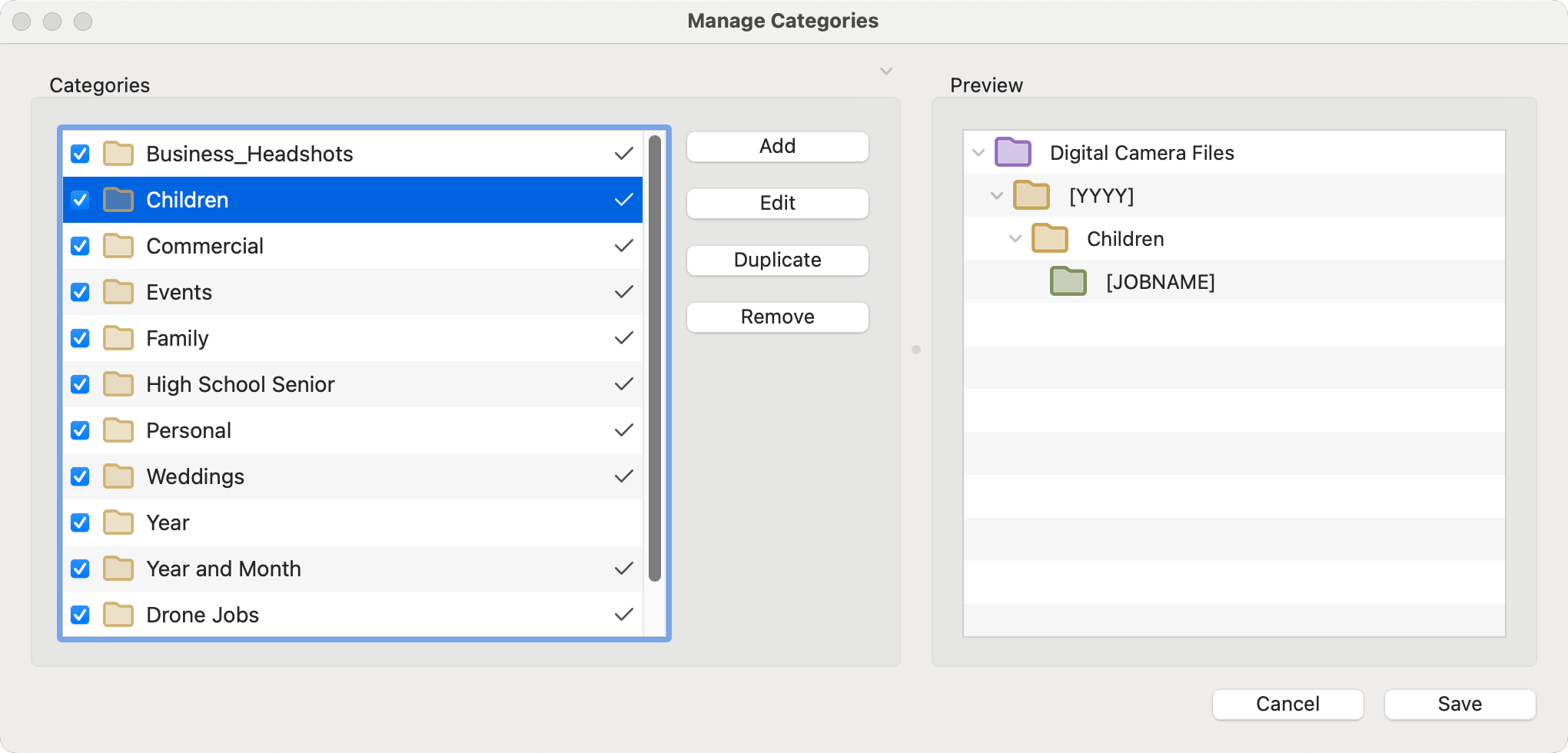
- Hide the preview area on the right by clicking the gray arrow next to "Preview."
 Use the checkboxes in the Category list to enable/disable a category for use.
 A checkmark next to a category indicates the category is currently being used in a Profile.
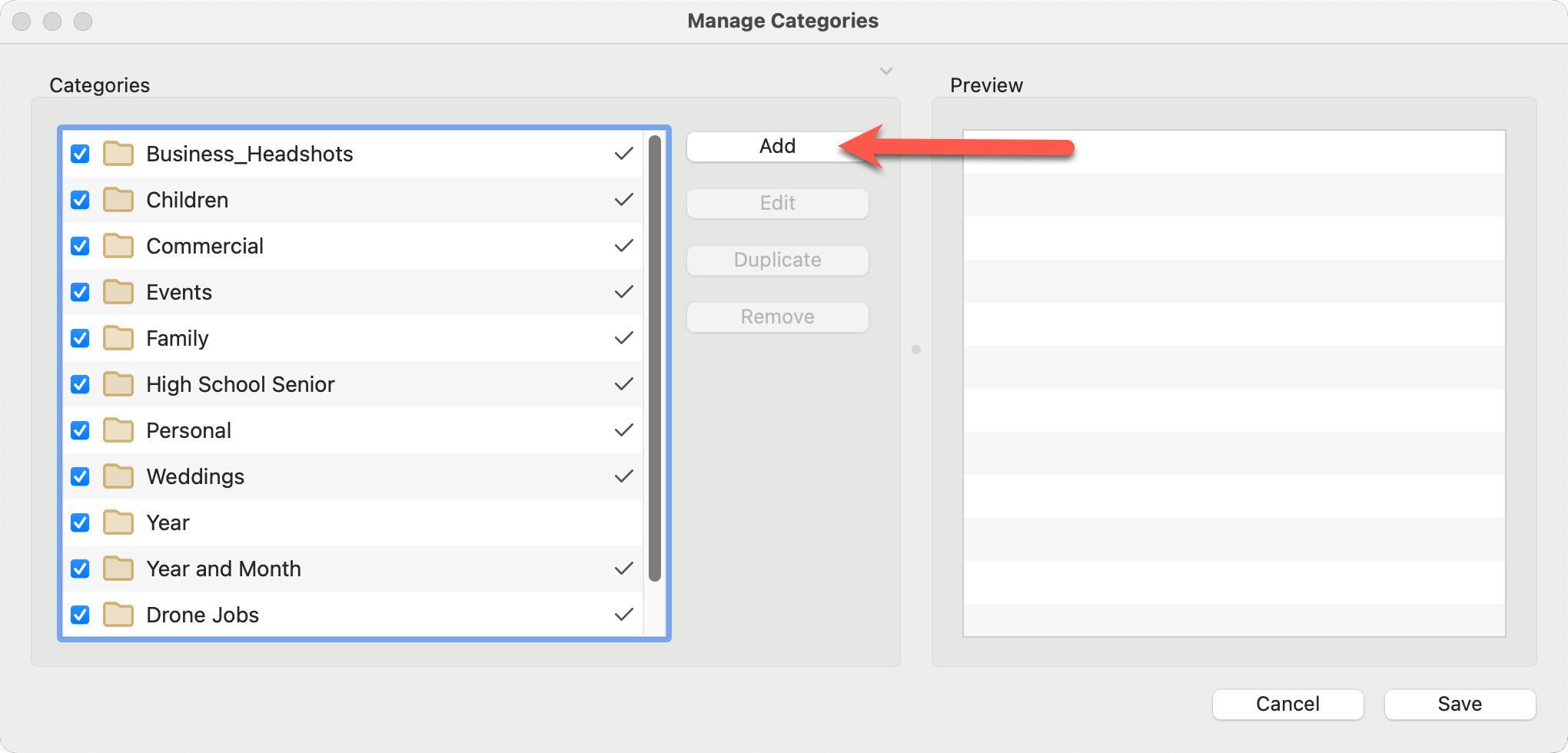
- Click on the Add button to create a new category.
- From this window, you can edit, duplicate, or remove an existing category.
- From the Manage Categories window, click on the Add button.
- Enter a name for the category.
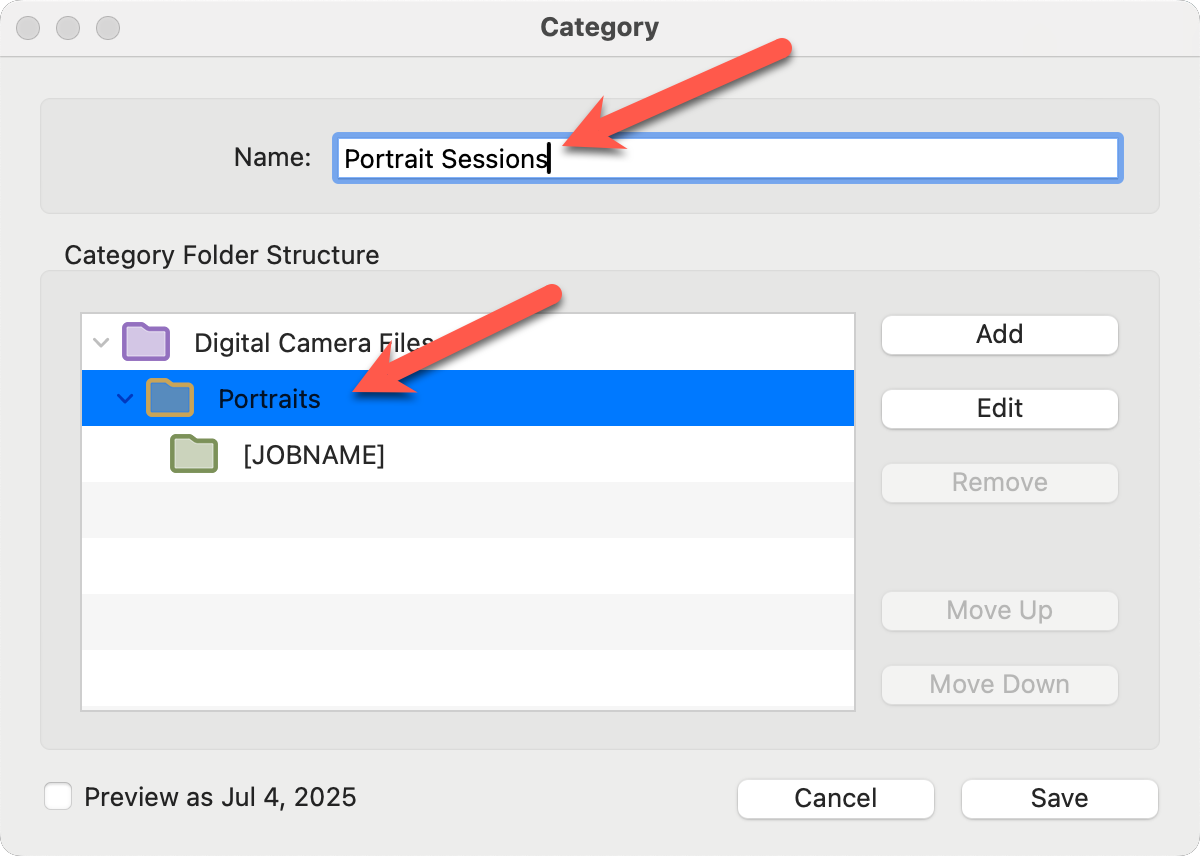
- Name the category folder by double-clicking on it or using the Edit button. Category folders appear orange.
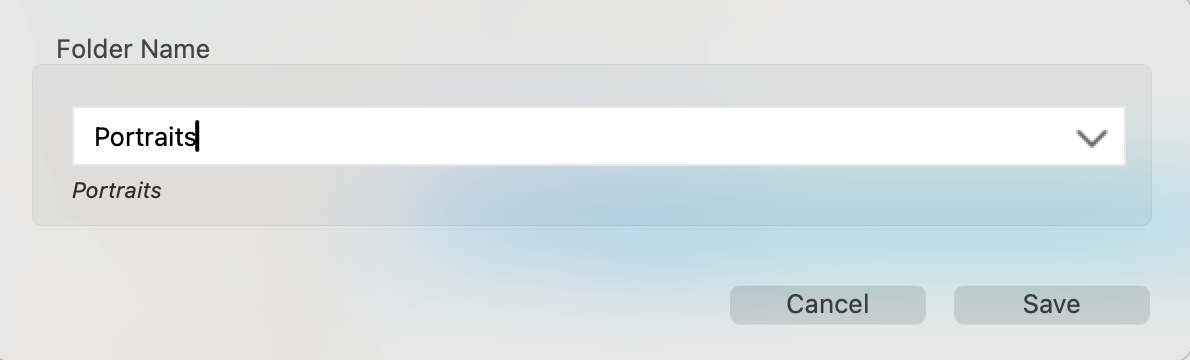
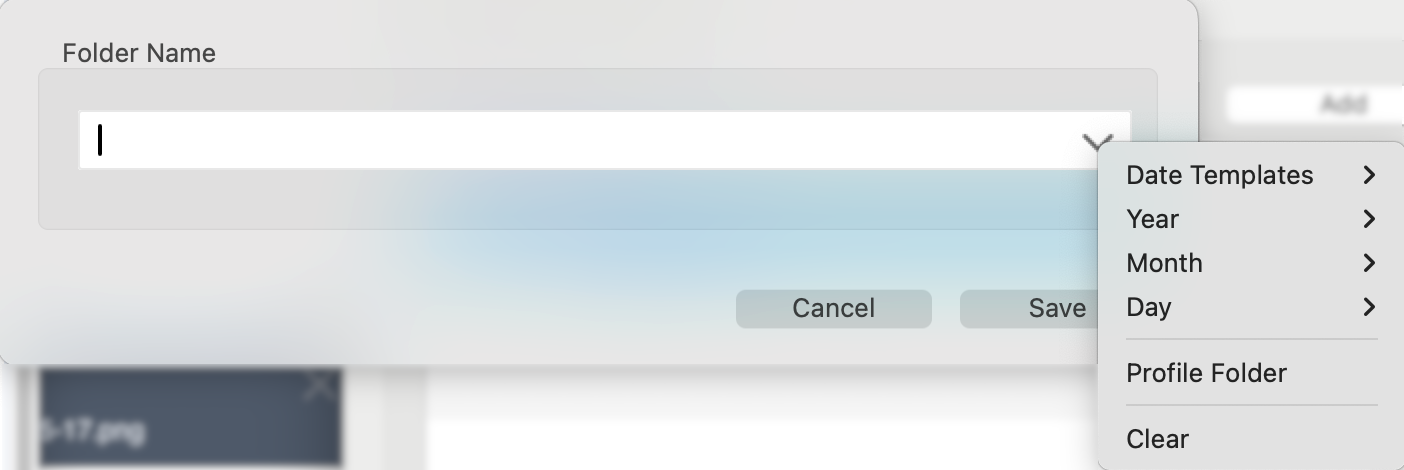
- ProCapture Backup™ comes preloaded with dynamic text options, which are especially useful when your folder structure includes dates. For example, the dynamic text [YYYY] automatically inserts the current year based on the job date. This means you don’t have to type 2025 now and then update the category later to 2026. Select a dynamic text from the drop-down list. Click on Using Dynamic Text to learn more.
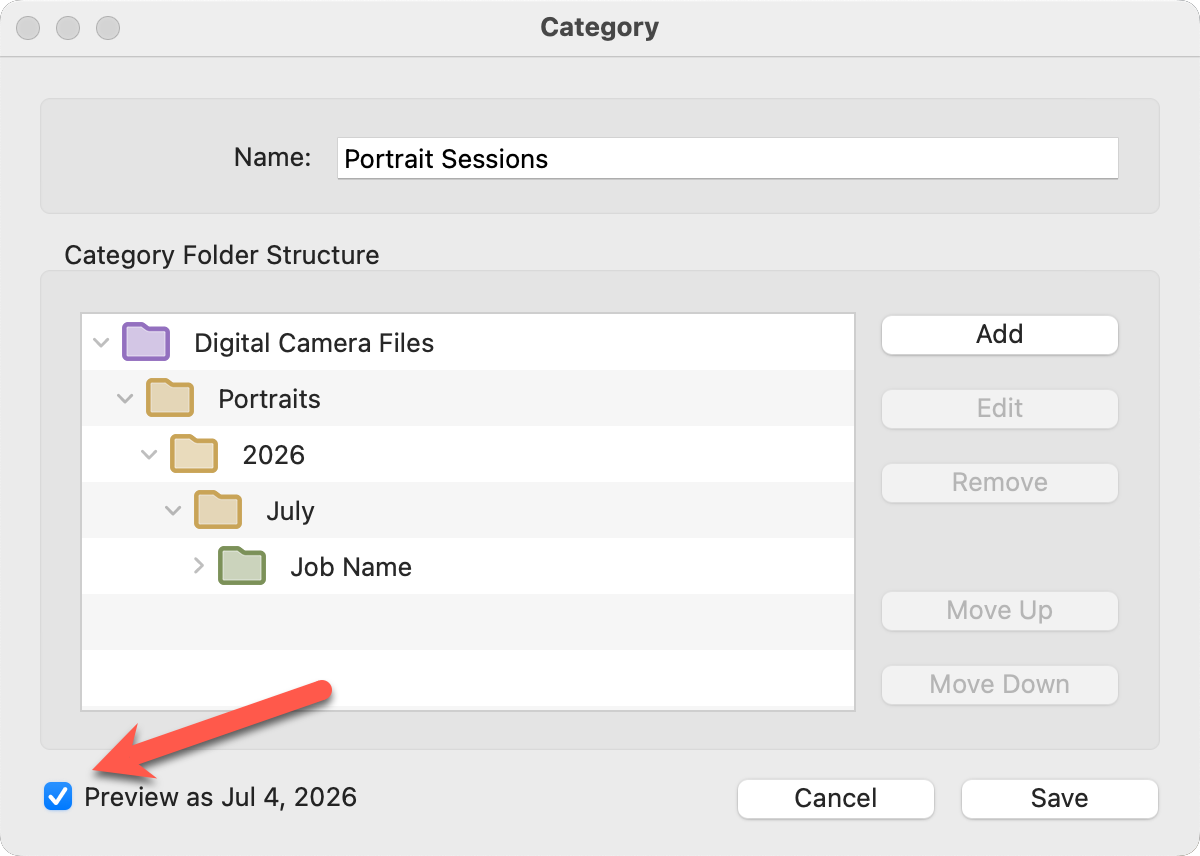
- Use the "Preview" checkbox to show what the dynamic text will look like when populated with a date.
- Add additional category folders as needed.
- Category folders are orange and will always appear between your Working Folder
 and your Job Structure
  .
.
- Save to exit.
- A Preview of the Category will appear in the Manage Category window.
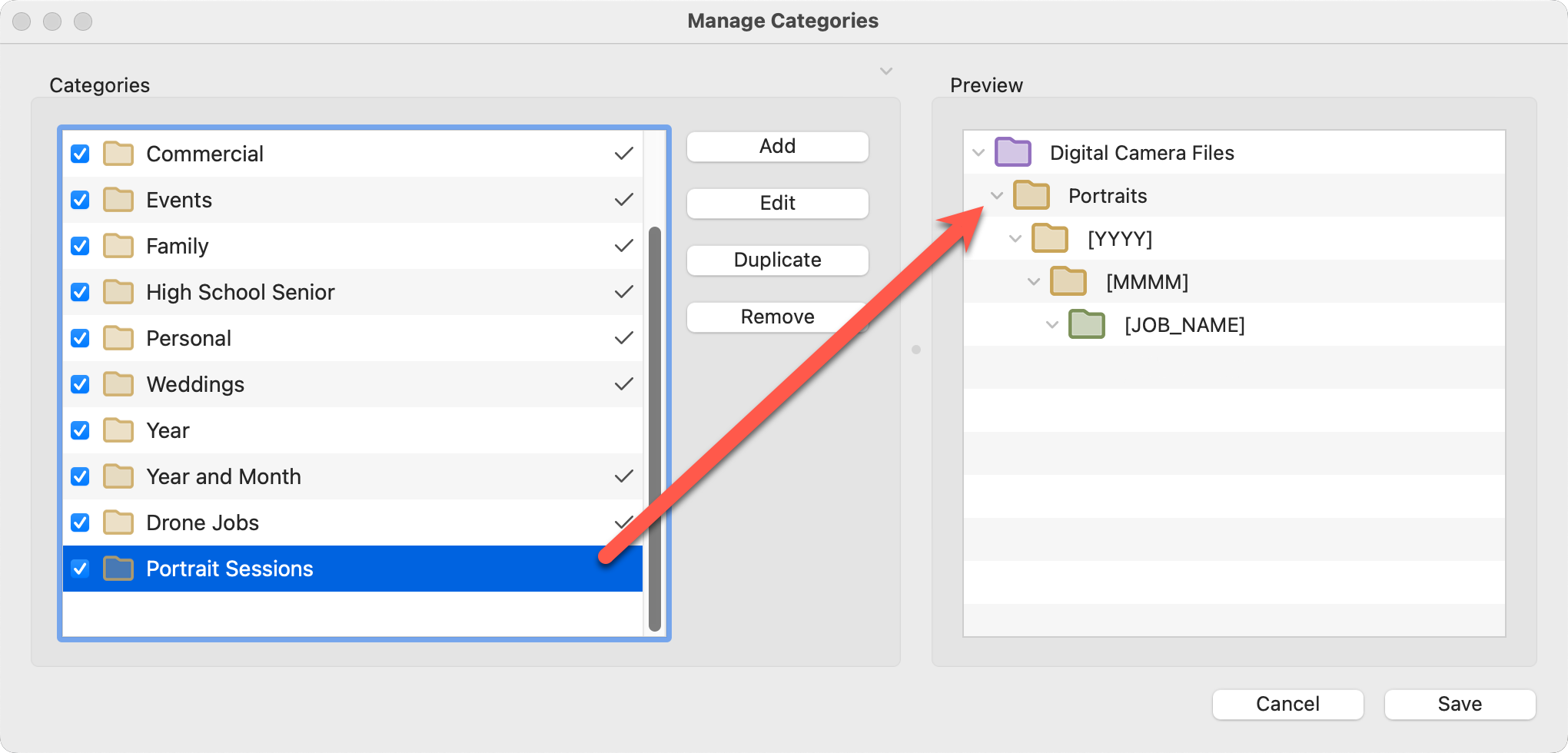
Categories can include more than one folder. In many cases, you’ll want to use multiple folders. For example, adding a Year or Month folder to your structure.
- In the Category window, keep clicking "Add" to include as many folders as you need.
- Category folders are orange and will always appear between your Working Folder and your Job Structure .
- Use "Move Up" and "Move Down" to reorder the folders you’ve added.
- ProCapture Backup™ comes preloaded with dynamic text options, which are especially useful when your folder structure includes dates. For example, the dynamic text [YYYY] automatically inserts the current year based on the actual date. This means you don’t have to type 2025 now and then update the category later to 2026. Click on Using Dynamic Text to learn more.