Using Dynamic Text
Dynamic text is a set of placeholders you can use in ProCapture Backup for folder names and file names. These placeholders are automatically replaced with the job information you enter in the main interface—so you don’t have to type the same details over and over.
How Dynamic Text Works
- Automatic replacement: Dynamic text updates automatically using the information you enter during the offload. For example, [JOB_NAME] is replaced with the job name you type in the main interface.
- Faster folder organization: Dynamic text is especially useful for creating and naming folders automatically. If your profile uses [JOB_NAME] as part of the folder structure, ProCapture Backup builds the folders for you and keeps each job neatly separated.
- Customizable structure: You can combine multiple dynamic text options to create a folder or filename format that matches your workflow—such as including a date.
Practical Example
Profiles use [JOB_NAME] as the root folder name in Job Structures. If you type in Smith Wedding as the job name, ProCapture Backup will create a folder called:
- Smith Wedding
You can also combine dynamic text options to build a more detailed folder structure, such as:
- Smith Wedding_2021-06-05
Dynamic Dates are a type of dynamic text that automatically inserts date information into your folder names or file names. Instead of typing a date manually for every job, ProCapture Backup pulls the date for you and fills it in automatically.
Dynamic Dates are especially useful if you:
- Organize jobs by year, month, or full date
- Want consistent naming across every job
- Don’t want to update folder structures each new year
Practical Examples
For example, using [YYYY] automatically inserts the current year. So you can build a folder structure like:
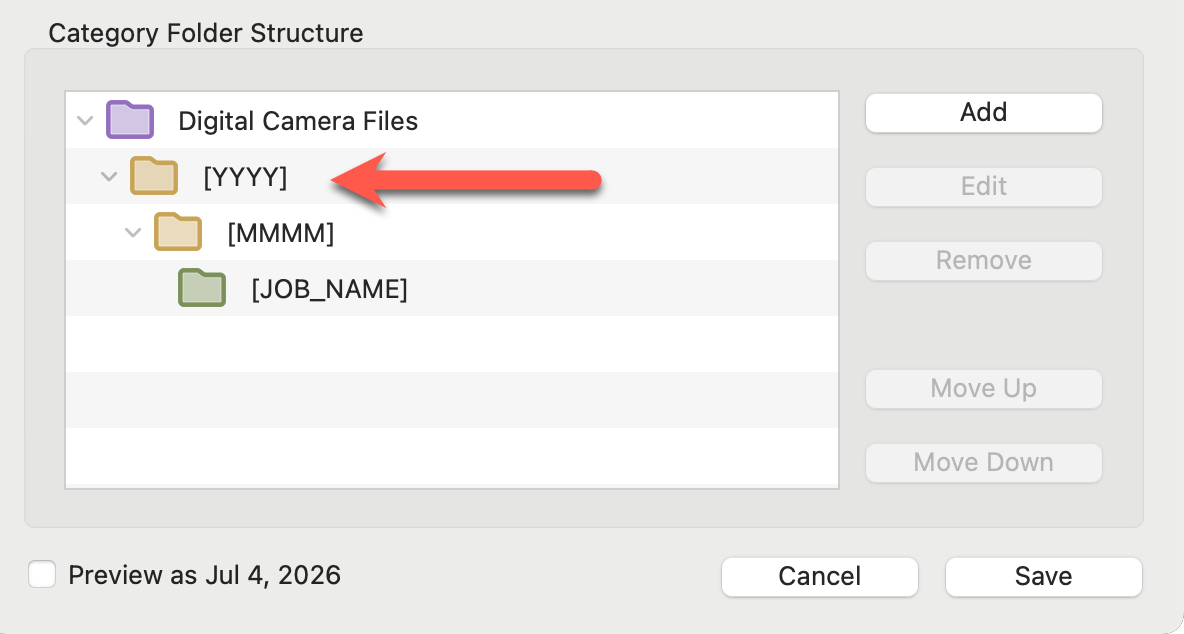
Check the "Preview as Jul 4, 2026" box to visually see what your dynamic text will look like with real values.
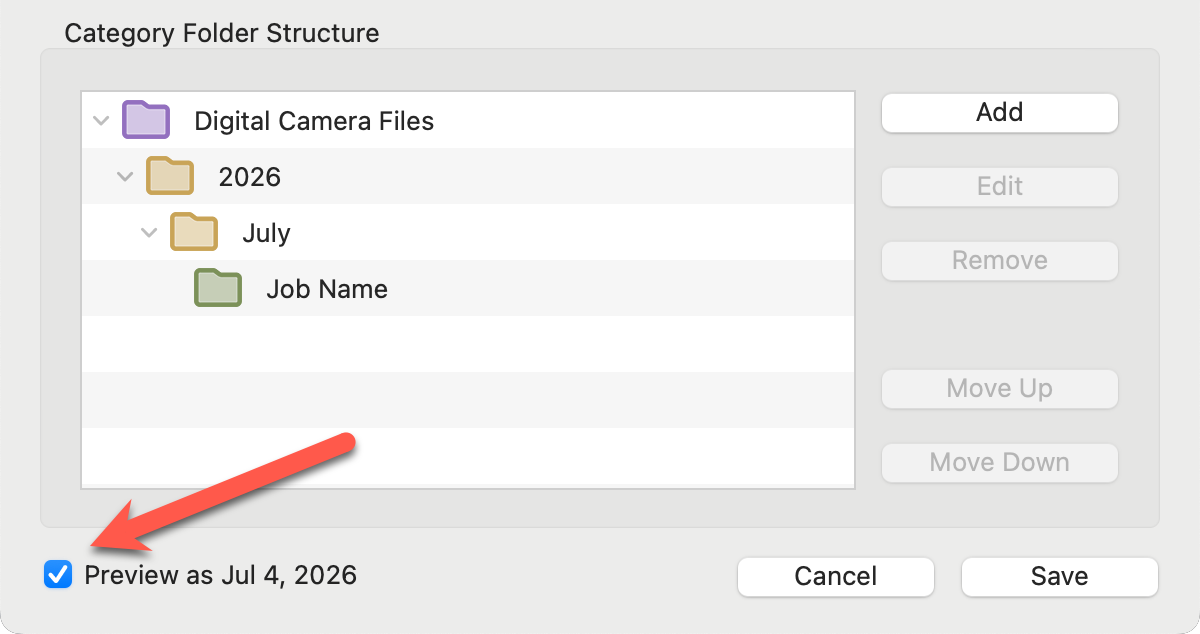
This makes it easy to keep jobs sorted by date—without having to rename categories or folder structures later.
Dynamic Text lets you automatically include the job date in your filenames, so every file is labeled consistently without typing dates manually. Here are a few practical examples using the same sample job:
Job Name: Smith_Aaron
Job Date: July 4, 2026
Original filename: DSC01028
Example 1: Job Name + Date
If you want each file to include the job name and the job date, you could use:
[JOB_NAME]_[YYYY]_[MM]_[DD]
Result:
Smith_Aaron_2026_07_04.jpg
This is great for keeping filenames clear and searchable—especially if you shoot multiple jobs with similar names.
Example 2: Image Number + Job Name + Date
If you want the image number first, followed by the job name and date:
[IMAGE_NAME]_[JOB_NAME]_[YYYY]_[MM]_[DD]
Result:
1028_Smith_Aaron_2026_07_04.jpg
This works well when you want the filename to still sort in image order while including job details.
Example 3: Renumbering + Job Name + Date
If you turn Renumber ON, you can create clean, consistent filenames for the entire job:
[IMAGE_NAME]_[JOB_NAME]_[YYYY]_[MM]_[DD]
Results:
0001_Smith_Aaron_2026_07_04.jpg
0002_Smith_Aaron_2026_07_04.jpg
0003_Smith_Aaron_2026_07_04.jpg
This is especially useful when you’re merging multiple memory cards and want one continuous sequence.