Completion Tasks
Completion Tasks are actions ProCapture Backup can perform automatically after an offload finishes. They help streamline your workflow by launching the next step right away, so you don’t have to do it manually each time. Completion tasks are enabled or disabled in Profiles.
Depending on your setup, Completion Tasks can:
- Send the job to Lightroom Classic so you can start reviewing and editing immediately
- Create a ProSelect album
- Open the job folder in FinderFile Explorer so you can quickly access the files
- Eject the card when the backup is complete, so it’s safe to remove and reuse
Lightroom Classic Import is a Completion Task that can automatically add your backed-up images to Adobe Lightroom Classic. ProCapture Backup includes a Lightroom Classic plugin that makes this process fast and seamless.
You can choose from two import options:
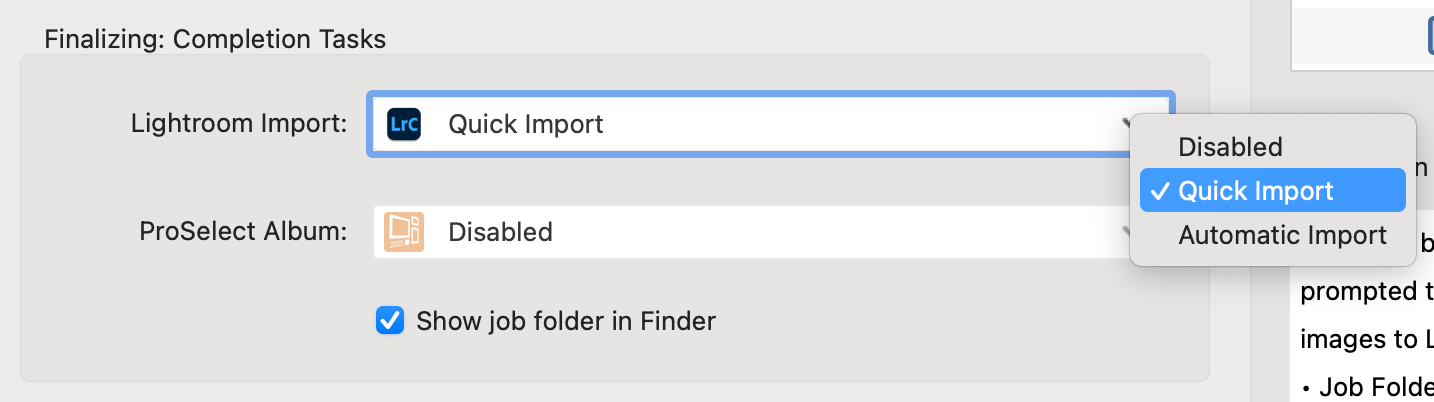
- Quick Import: After all backups finish, you’ll be prompted to click Import to add your images to Lightroom.
- Automatic Import: After all backups finish, your images are imported into Lightroom automatically—no extra steps required.
Automatic Import is the most hands-off option, but it can take a little longer.
Enable Lightroom Import
- Select a profile.
- Click on the Edit button to edit the profile.
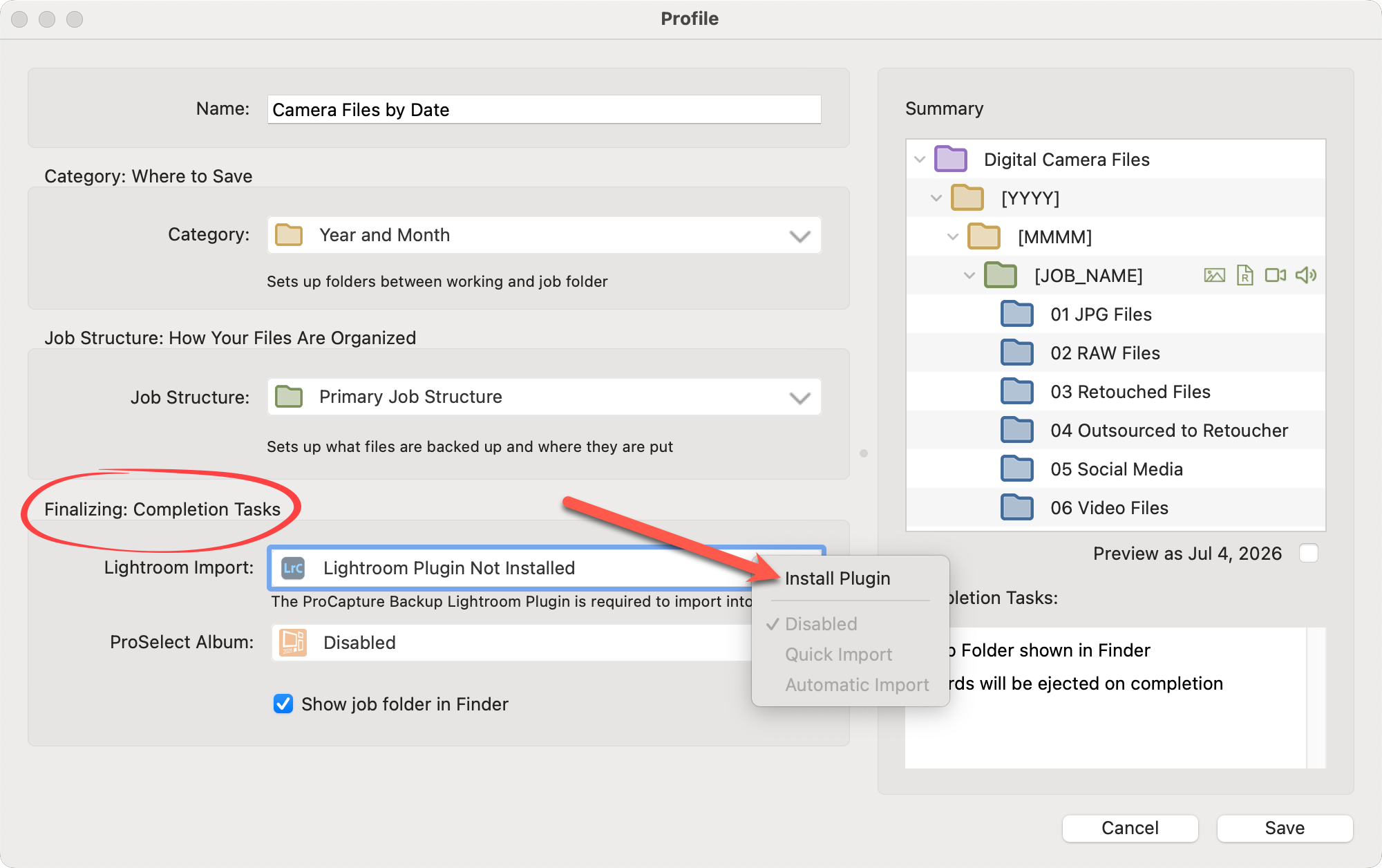
- In the Completion Task area, select "Install Plugin" from the drop-down list.
- Once the plugin is installed, select either Quick Import or Automatic Import from the list.
- Save the profile.
ProSelect Album Creation is a Completion Task that can automatically create a new ProSelect album after your backups finish. This helps you move directly into your ProSelect workflow without having to set anything up manually. ProSelect does not need to be installed on the computer doing the offload. The album file can be opened later on any machine running ProSelect.
Enable ProSelect Album Generation
- Select a profile.
- Click on the Edit button to edit the profile.
- In the Completion Task area, click on "Disabled" in the ProSelect Album field.
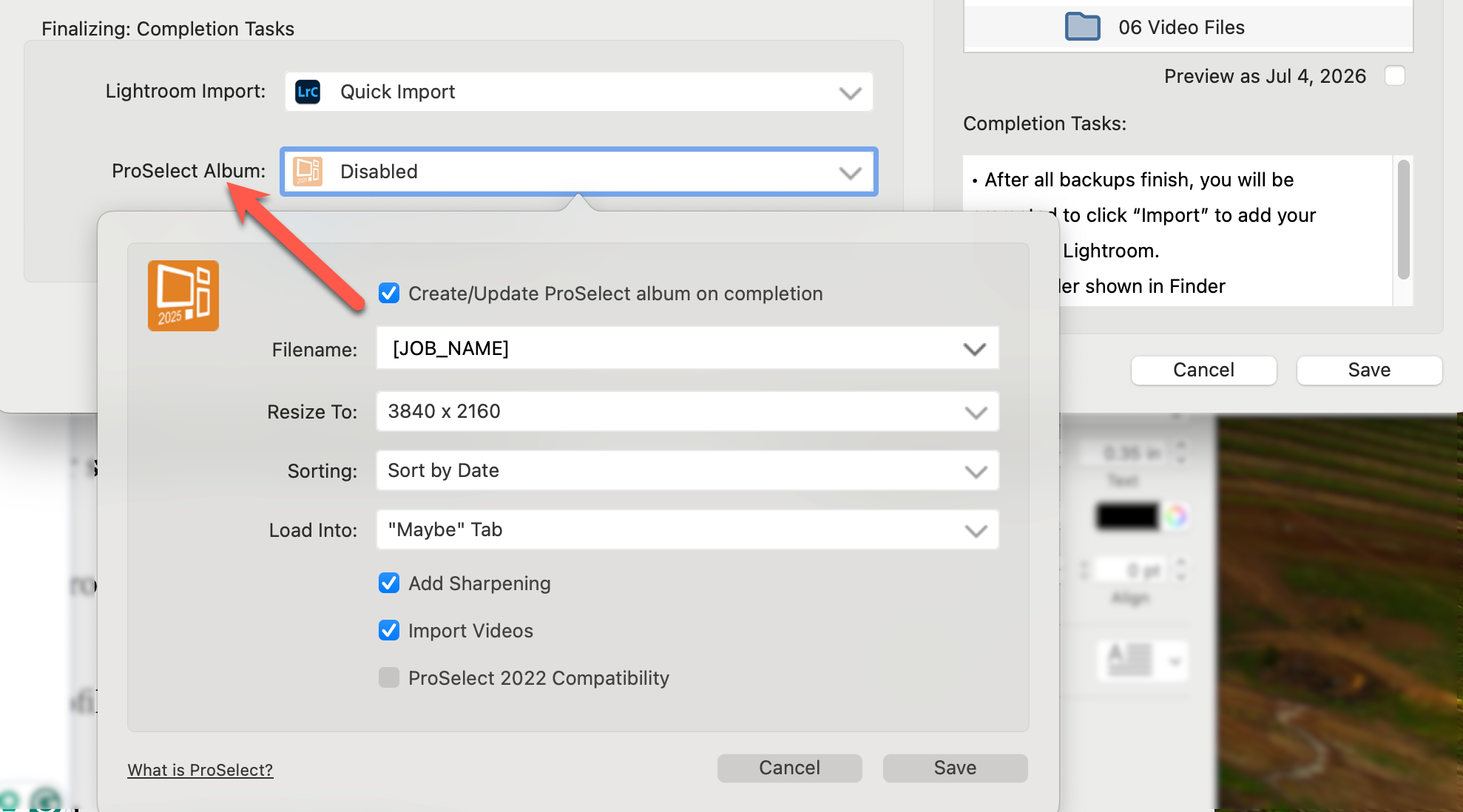
- Check the box "Create/Update ProSelect album on completion.
- Customize your ProSelect album setup.
- If you are using ProSelect 2022, be sure to check the compatibility box.
- Save.
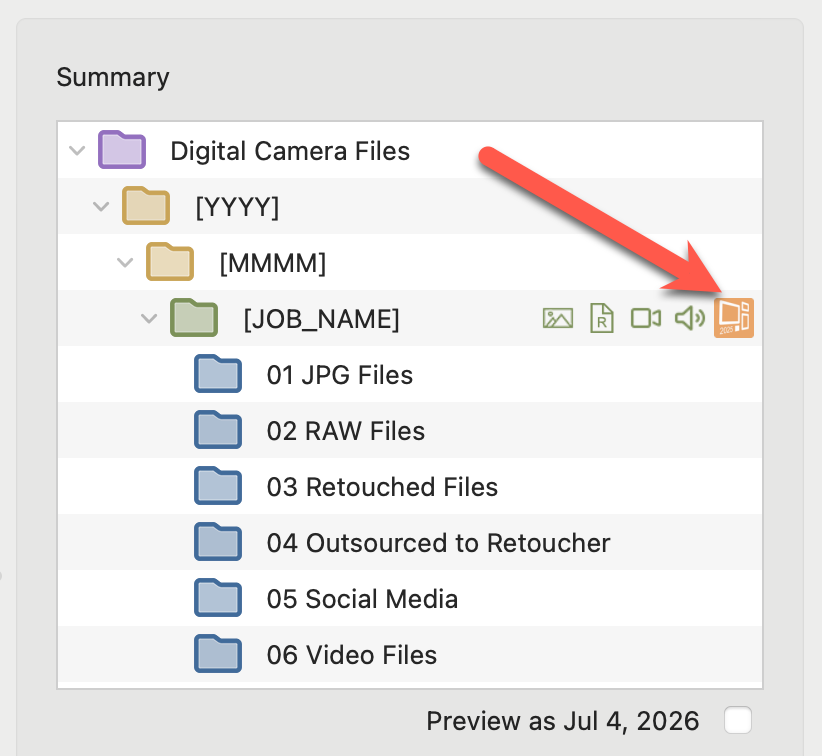
- The ProSelect icon indicates where the ProSelect album file will be saved after backup. As per ProSelect requirements, the album file is saved alongside the image files in the job folder. See Tips on Creating Your Job Structure for more information.
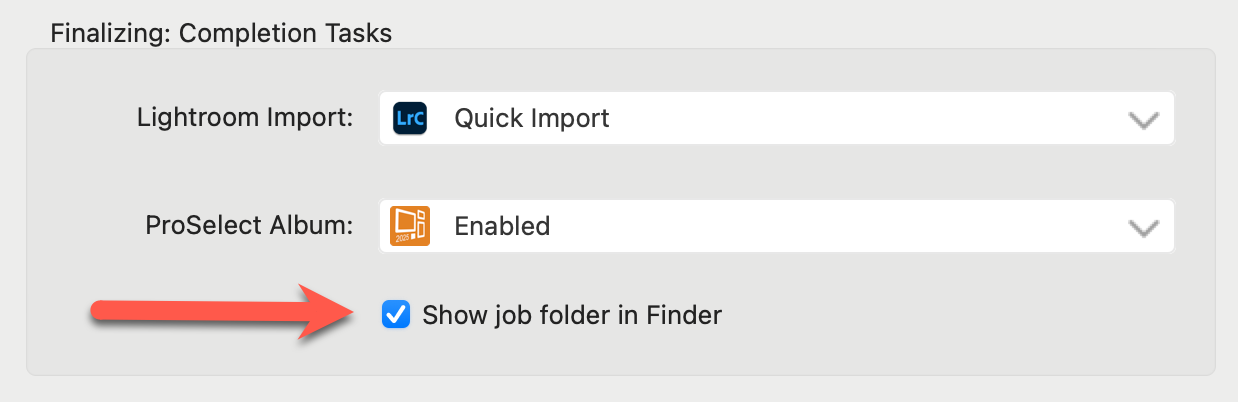
When this option is checked, ProCapture Backup will automatically open the job folder in FinderFile Explorer when the backup is complete. This makes it easy to quickly verify that the backup finished successfully and that all expected files are present in the correct location. It’s a convenient way to double-check that everything is backed up correctly.
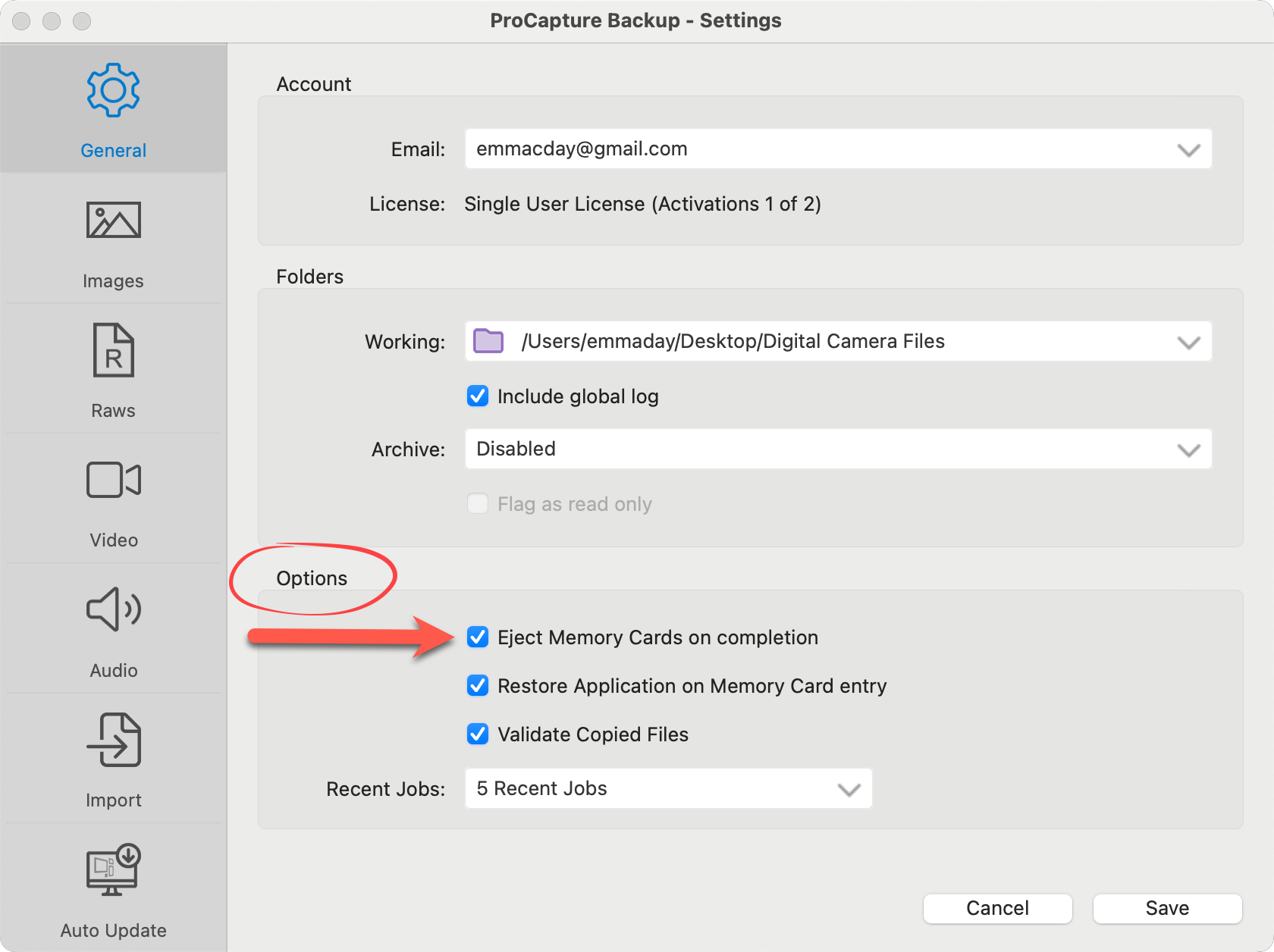
The "Eject memory cards on completion" option isn’t set per profile. It’s a global setting that you enable in the main Settings.
- On the main interface, click on the Settings button
 .
. - Select "Settings" from the list.
- Enable or disable "Eject Memory Cards on completion" in the Options box, in General Settings.