Set Up Working and Archive Folder Locations
When offloading camera cards, it is recommended to create two copies of the original camera files and save them to two separate hard drives. This approach protects your files and ensures you always have a clean, untouched backup.
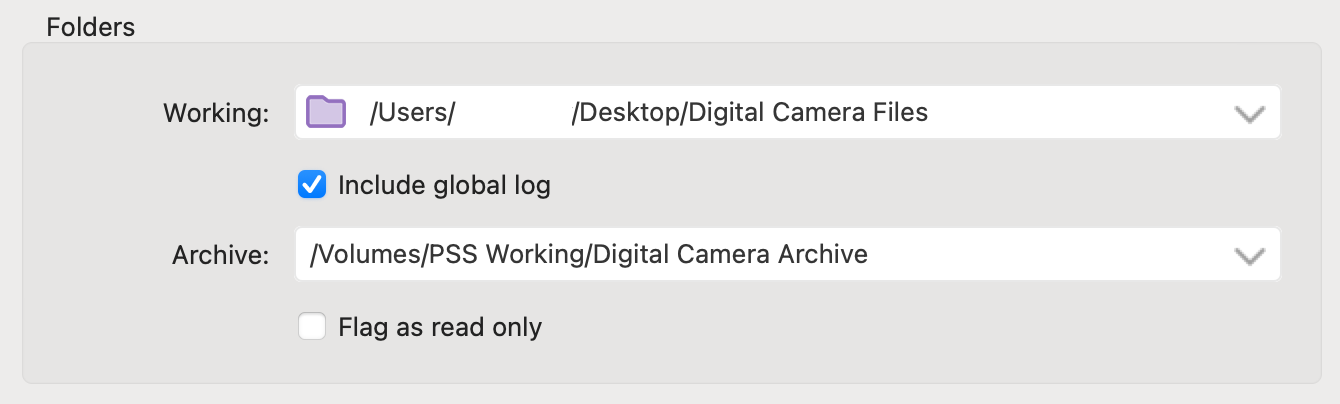
- Creating an archive copy is optional, but it is recommended for added backup and peace of mind.
When offloading camera cards, it is recommended to create two copies of the original camera files and save them to two separate hard drives. This approach protects your files and ensures you always have a clean, untouched backup. These two sets of files are typically referred to as:
- Working Images
- Archive Images
Working Images
These files are stored in a location that allows for quick access for editing and production work.
- These are the files you open to process, adjust, or retouch.
- Lightroom, ProSelect, and other software should link to these files.
- Think of this as your active working set—the images you actually use day-to-day.
Archive Images
These files are a complete backup of your original camera files.
- They should remain untouched and unaltered at all times.
- If something happens to the Working Images (accidental deletion, drive failure, corruption, etc.), you would copy the files from the Archive and move them into your Working directory.
- This set is your safety net—a clean, original copy of everything.
Before using ProCapture Backup™, it is important to choose your Working and Archive folder locations. Each time a new set of images is uploaded, they will be saved twice. One copy is saved in the Working folder, and another is saved to the Archive folder.
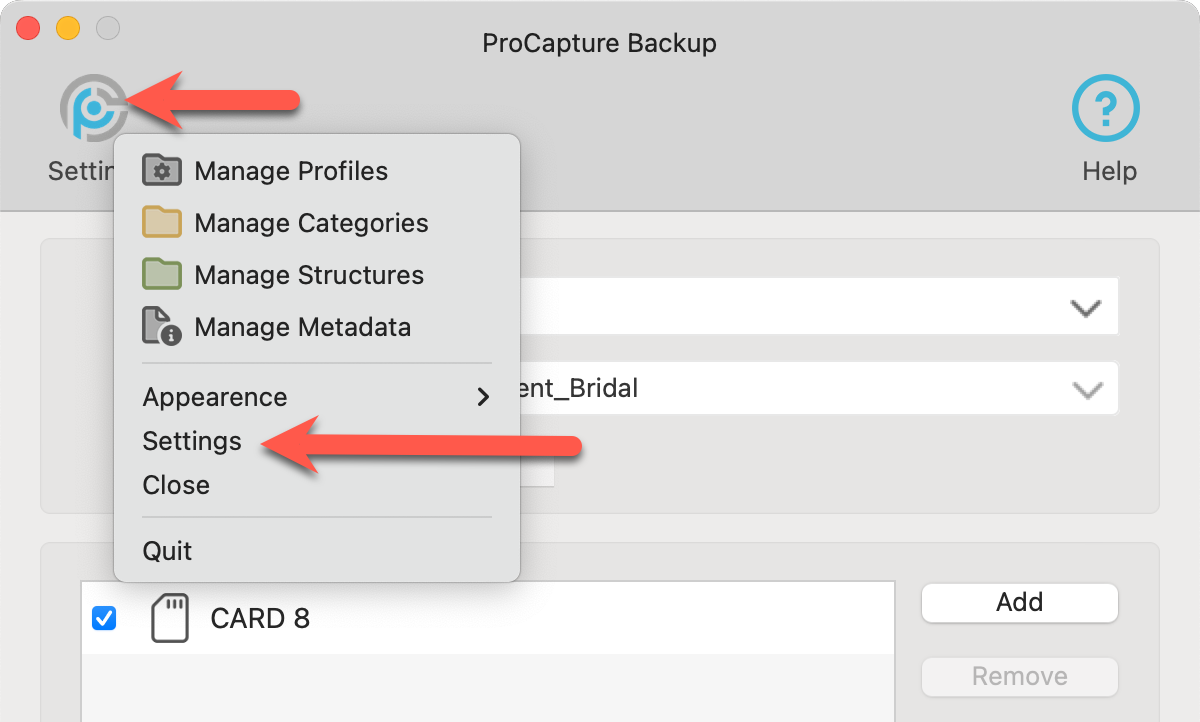
- Click on the ProCapture Backup logo, then select Settings.
- Navigate to the General tab.
- In the Folders section, select your Working folder location. This should be easily accessible on your computer, as it is your working folder.
- Next, select your Archive folder location. This can be located on your computer, an external drive, or cloud-based.
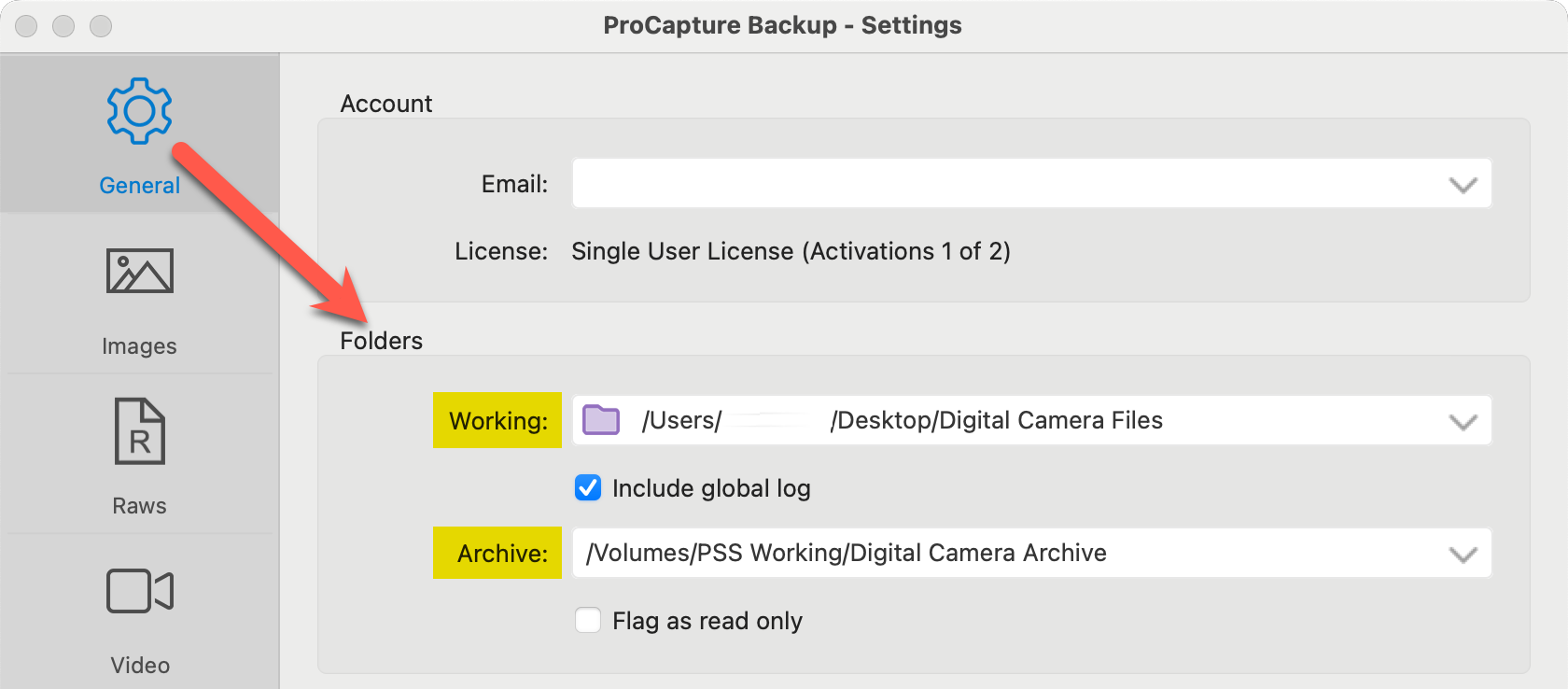
- Click the Save button.
- If you do not want to use the Archive feature, select "Disabled" from the drop-down list.
There are many ways to set up your Working and Archive locations. See the following examples:
Example 1
- Working: Local computer (C: Drive or Macintosh HD)
- Archive: USB-connected external drive
Example 2
- Working: USB-connected external drive #1
- Archive: USB-connected external drive #2
Example 3
- Working: Network-connected RAID
- Archive: USB-connected external drive
Example 4
- Working: Network-connected RAID with cloud backup that includes versioning support*
- Archive: Not required in this case (see note below)
Example 5
- Working: Local computer (C: Drive or Macintosh HD)
- Archive: Cloud storage service such as Dropbox, Google Drive, or OneDrive
* In Example 4, a separate Archive drive may not be needed if your RAID system is automatically backed up to an off-site cloud service with versioning. Versioning means the backup system keeps multiple historical copies of each file, allowing you to restore earlier versions if a file is changed, corrupted, or deleted. This offers the same protection as maintaining a separate Archive copy on another drive.