Operating System Requirements for Windows
- Operating System
- Windows 10 build 1903+, 64-bit
- Windows 11 (Recommended)
- Minimum Hardware
- Windows 11 compatible PC
- Modern Intel or AMD processor
- 8GB RAM
- Solid-state drive, SSD, recommended
- Full HD display, 1920 x 1080 or higher
- Recommended Hardware for ProSelect Pro
- Modern Intel Core, Intel Core Ultra, AMD Ryzen, or AMD Ryzen AI processor
- 16GB RAM or more
- SSD storage
- Dedicated graphics card, GPU, with dedicated video memory, VRAM, recommended for Presentation Mode with projectors, TVs, or multiple displays
- Full HD display, 1920 x 1080 or higher
- Additional Requirements
- Microsoft Visual C++ 2015 redistributable libraries are required
- Some features require Adobe Photoshop CC
- ARM-Based Windows PCs
- ProSelect® does not currently run natively on ARM-based Windows systems, including Microsoft SQ1, SQ3, Qualcomm Snapdragon, and Snapdragon X processors
- These systems may run ProSelect® using Windows emulation
- ARM-based Windows systems are not recommended for ProSelect Pro workflows
- Best Recommendation
- For the best performance and compatibility, choose a Windows PC with a modern Intel or AMD processor, 16GB RAM or more, SSD storage, and a dedicated GPU when using external displays for Presentation Mode.
Operating System Requirements for Mac
- Operating System
- macOS 11 or later
- Minimum Hardware
- Intel-based Mac, 1.6GHz or faster
- 8GB RAM
- Full HD display, 1920 x 1080 or 1920 x 1050 or higher
- Recommended Hardware for ProSelect
- Apple silicon Mac with M1 processor or newer
- 16GB RAM or more
- Full HD display, 1920 x 1080 or 1920 x 1050 or higher
- Additional Requirements
- Some features require Adobe Photoshop CC
- macOS will require permission to allow ProSelect® to access certain system resources, including System Events, Finder, other applications such as Photoshop, and user folders such as Desktop, Documents, and Downloads
- MacBook Neo
- The MacBook Neo will run ProSelect, as it meets the current macOS and minimum system requirements
- However, it is not our recommended Mac choice for use with ProSelect Pro
- Best Recommendation
- For the best performance and compatibility, choose an Apple silicon Mac with an M1 processor or newer and 16GB RAM or more.
To allow ProSelect to connect to Photoshop and perform automated functions, macOS requires you to grant specific permissions. Follow these steps:
- Open System Settings (or System Preferences)
- On macOS Ventura or later: Go to System Settings → Privacy & Security
- On earlier macOS versions: Open System Preferences → Security & Privacy
- Select the Privacy tab
- In the sidebar, scroll down and click Privacy (macOS Ventura+)
- Or click the Privacy tab in older macOS versions
- Go to the Automation section.
- In the list of privacy categories, choose Automation.
- Find and expand ProSelect.
- Make sure the checkboxes are enabled for:
- System Events
- Adobe Photoshop (your installed version)
- Finder (if shown)
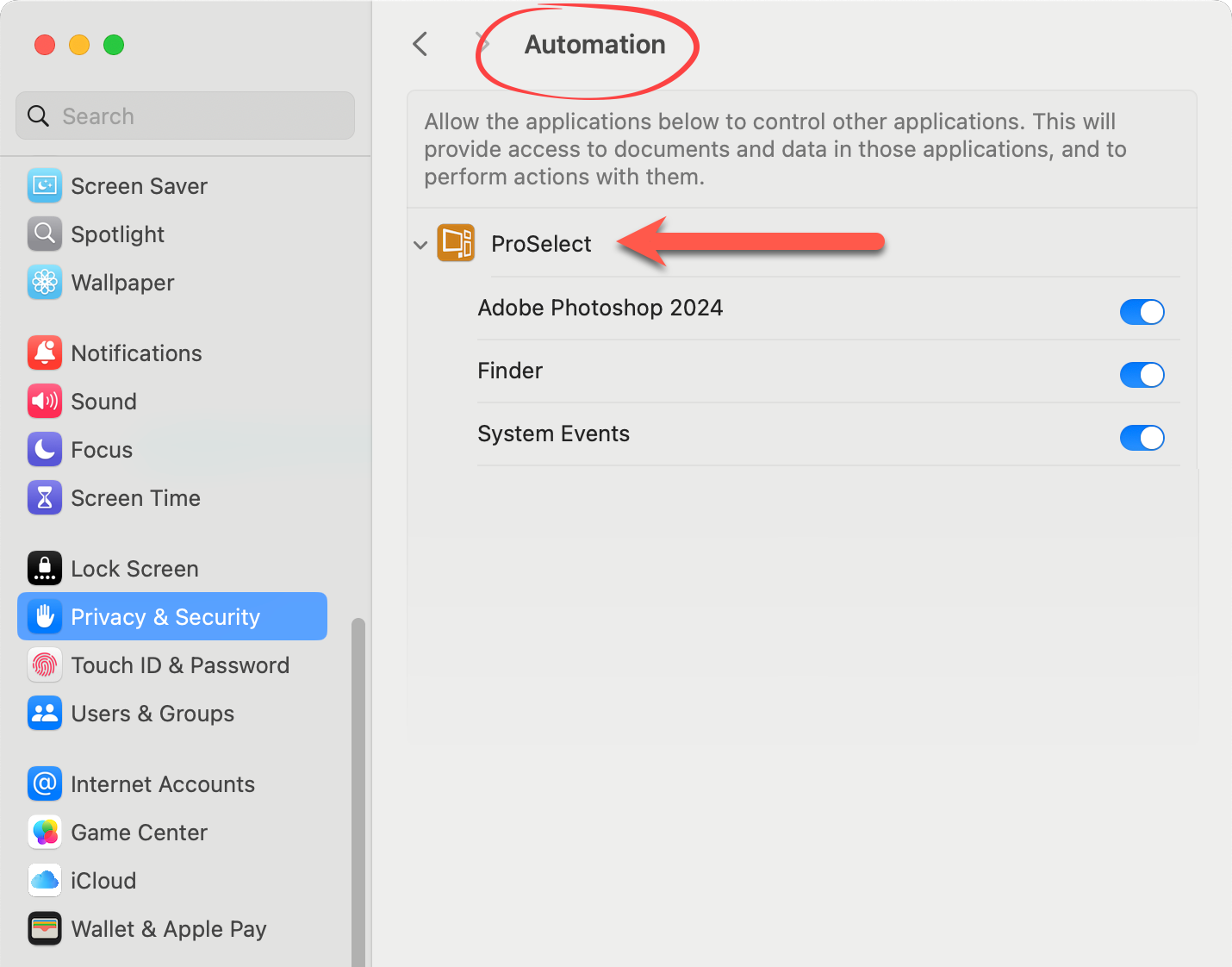
- Restart ProSelect (and Photoshop)
Starting with OSX 10.14 (Mojave), Your permission is needed to access certain system resources such as System Events, the Finder, and other applications (such as connecting to Photoshop during High-Res Production).
OSX 10.15.x (Catalina) and macOS 11.x (Big Sur) extends this even further. You now have to give permission for applications to access your Desktop, Documents folder, and other areas of your disk.
Allowing Permissions
With any application on these versions of macOS, the first time that you try to read or write to a restricted location on your hard disk or a system resource, macOS will prompt you for permission to allow the program to have this access. Restricted locations now include your Desktop and your Documents folder as well as any other areas on your hard disk outside your account area where you might wish to store your files.
ProSelect needs to have Full Disc Access enabled:
- Go to System Preferences > Security & Privacy > Privacy Tab > Full Disk Access
- Check the button next to ProSelect

To make any changes in this area, you will need to click the lock icon in the bottom left corner of the System Preferences window. A login password is required.