 Show Pages View
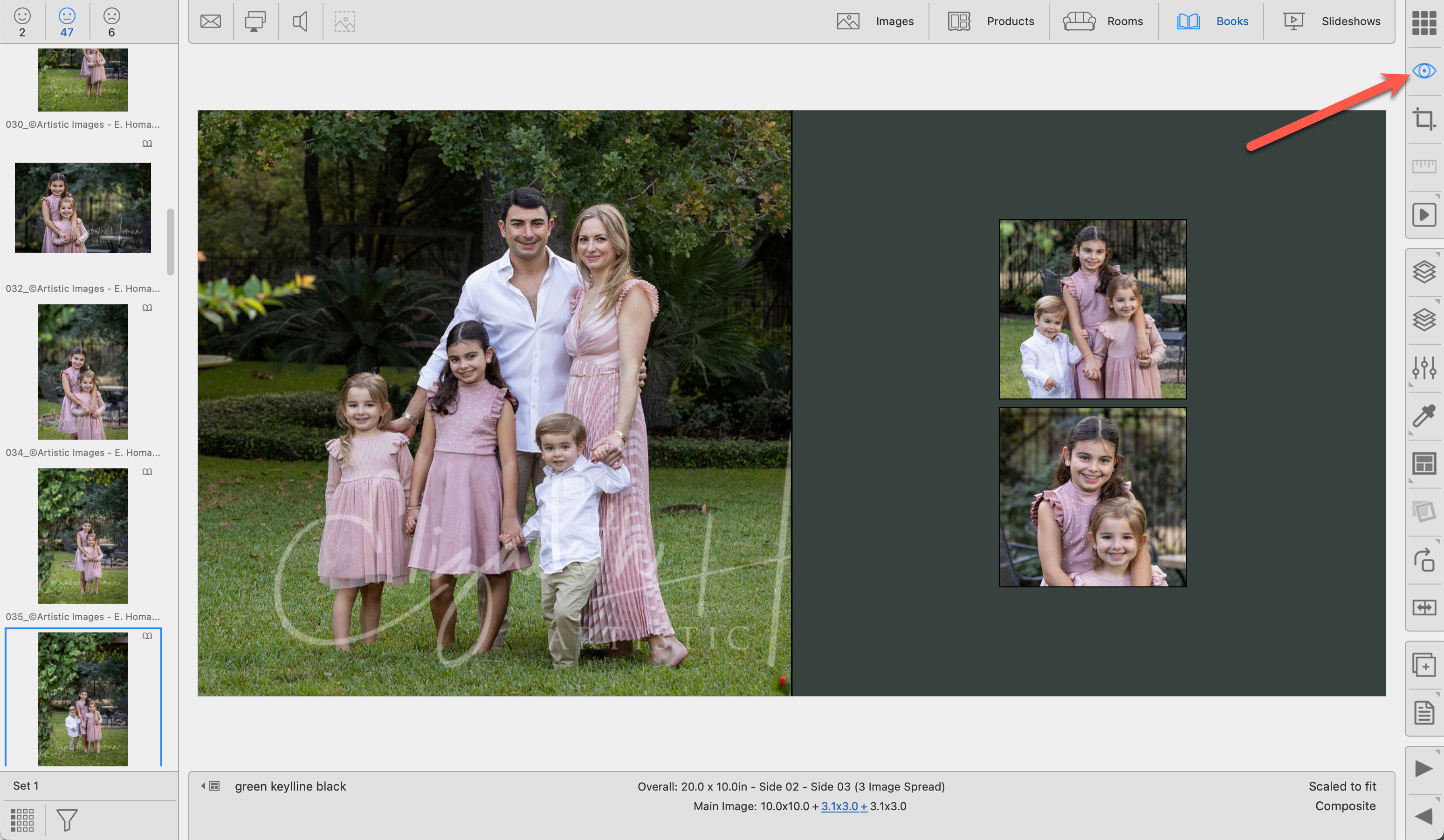
When Working with Books, Show Pages view will magnify the currently selected page or pair of pages (for double-sided books) scaled to fit within the display area. For composite book designs, the bleed area is visible when in Cropping view.
How to Access Show Pages View
- Double-click on a page in Thumbnail view.
- Select a page in Thumbnail view and click on the Show Pages view button . It is located on the right-hand side under the Thumbnail view button.
- With a page selected, go to the top menu, View > Show Book Pages.
Using Show Pages View
- Add images to a book page by dragging them from the Image List on the left side and dropping them into one of the page openings.
- Select an image to apply Custom Effects using the toolbar.
- Dropping a different image into the same opening will replace the existing image.
- You can swap images by dragging an image from one opening to another.
- Perform minor crops by holding the OptionAlt key while dragging an image.
- Use the Next
 and Previous
  tools to scroll through your book pages. Alternatively, use the Left and Right arrow keys on your keyboard.
 - To remove an image from the page, right-click and select "Remove Image" from the popup menu. Alternatively, use the DeleteBackspace key.
When adding images to a book, ProSelect automatically alerts you if an image is being reused within the same book. This feature helps prevent duplication and maintains variety across your pages. If you prefer not to receive these warnings, you can disable them.
- Go to the top menu, ProSelect > Settings > General Settings > Templates, Rooms & Books.
- In the Book Design area, uncheck the option "Warn when an Image has already been used."
- Alternatively, you can bypass the warning for specific instances by holding down the OptionAlt key while placing the images.
Filter By
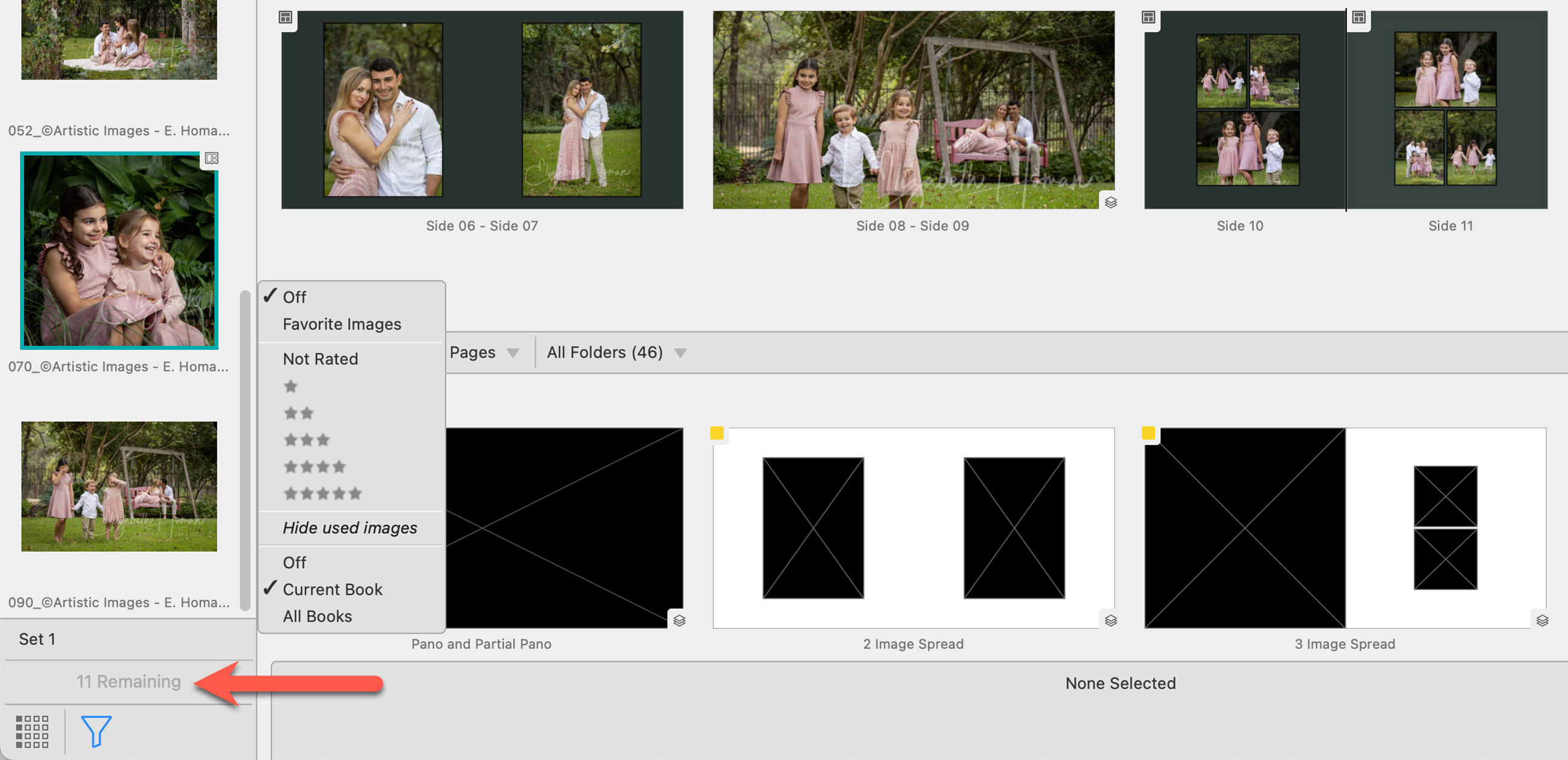
The image list filter will allow you to view only your "favorite" images or images with a star rating.
- Click on the Image List Filter
 . It is located below the Image List.
 - Select "Favorite Images" or a star rating from the list.
- The Filter is now highlighted. Only images matching the selection criteria will display in the image list. The number of images remaining to be used is listed above the filter.
Hide Used Images
The image list filter allows you to hide images that have already been used either in the Current Book you're working on or across All Books you've created. This helps streamline your selection process by focusing on unused images, ensuring variety, and preventing duplicates in your book projects.
- Click on the Image List Filter . It is located below the Image List.
- Select "Current Book" or "All Books" from the list.
- The Filter is now highlighted. The number of images remaining to be used is listed above.
Tools Available in Show Pages View
Use the Previous/Next Stack tools to cycle through your stacked sizes. Wall Groupings, for example, are always a fixed size. To show different sizing options, you can create Stacked Sizes in the Product Editor. Book Pages also utilize stacked sizing. Click on Using Stacked Templates to learn more.
- Click on the Previous
 or Next
  Stack tools to go up or down a size.
 - Right-Click on the Previous or Next Stack tool and choose a size from the list.
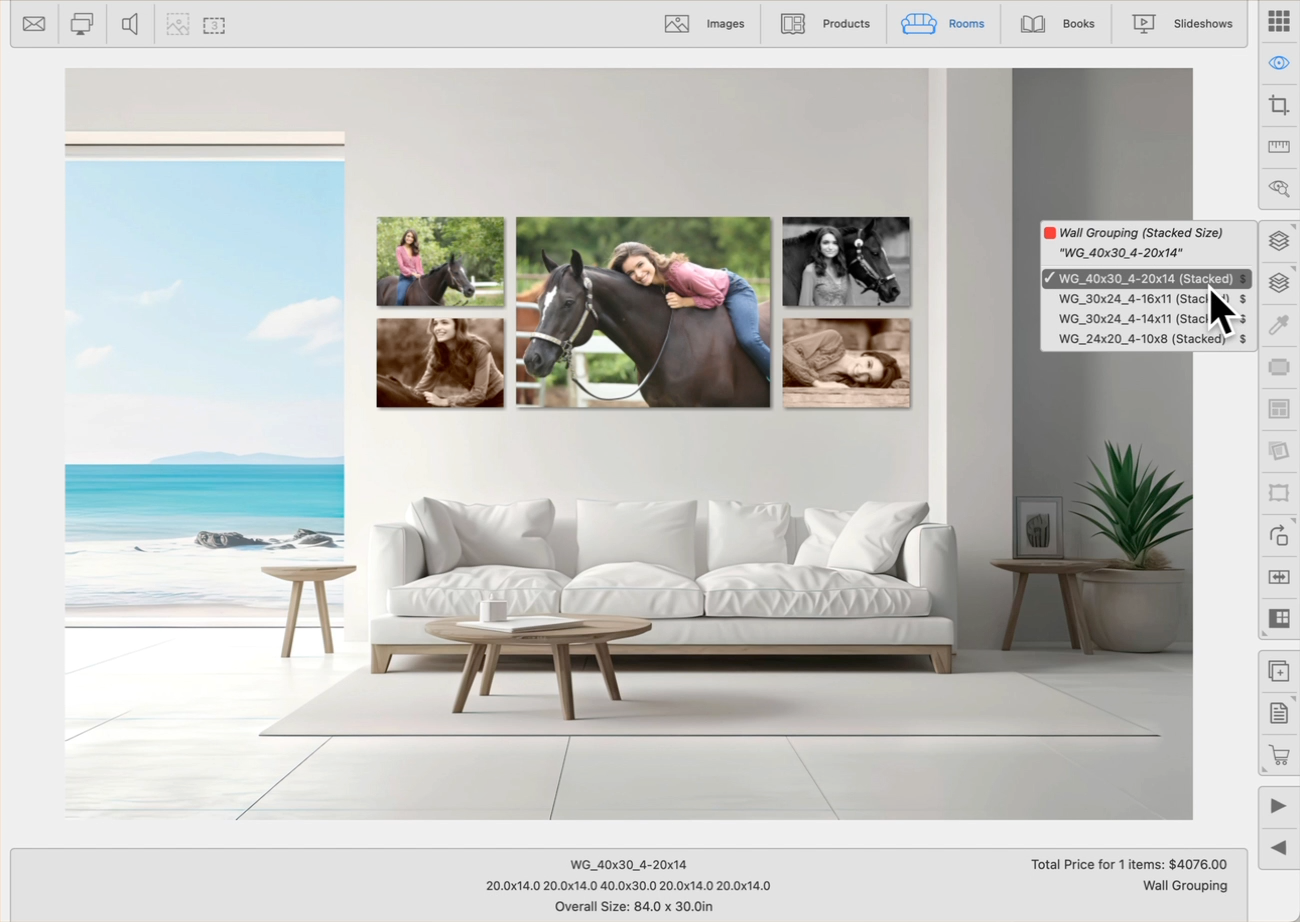
Right-Clicking on the Previous/Next Stack tool:
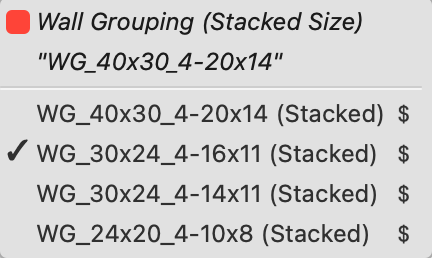
- The Product Type (Wall Grouping) is listed at the top, followed by the template name.
- All available stacked sizes will be listed.
- A checkmark appears next to the currently selected Stack.
This same concept also works for Books:
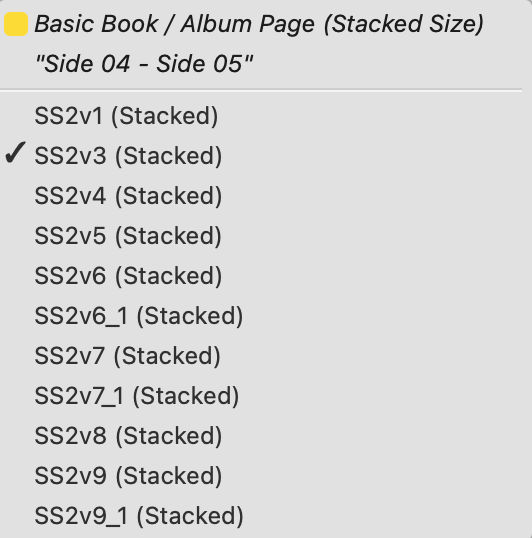
Use the Previous/Next Stack tools to cycle through your stacked sizes. Wall Groupings, for example, are always a fixed size. To show different sizing options, you can create Stacked Sizes in the Product Editor. Book Pages also utilize stacked sizing. Click on Using Stacked Templates to learn more.
- Click on the Previous or Next Stack tools to go up or down a size.
- Right-Click on the Previous or Next Stack tool and choose a size from the list.
Right-Clicking on the Previous/Next Stack tool:
- The Product Type (Wall Grouping) is listed at the top, followed by the template name.
- All available stacked sizes will be listed.
- A checkmark appears next to the currently selected Stack.
This same concept also works for Books:
Select an image (on its own, within a product, or in a book page) and click the Apply Effect tool. You can choose to apply an image effect or a custom effect. For more information, click on Applying Effects.
Image Effects
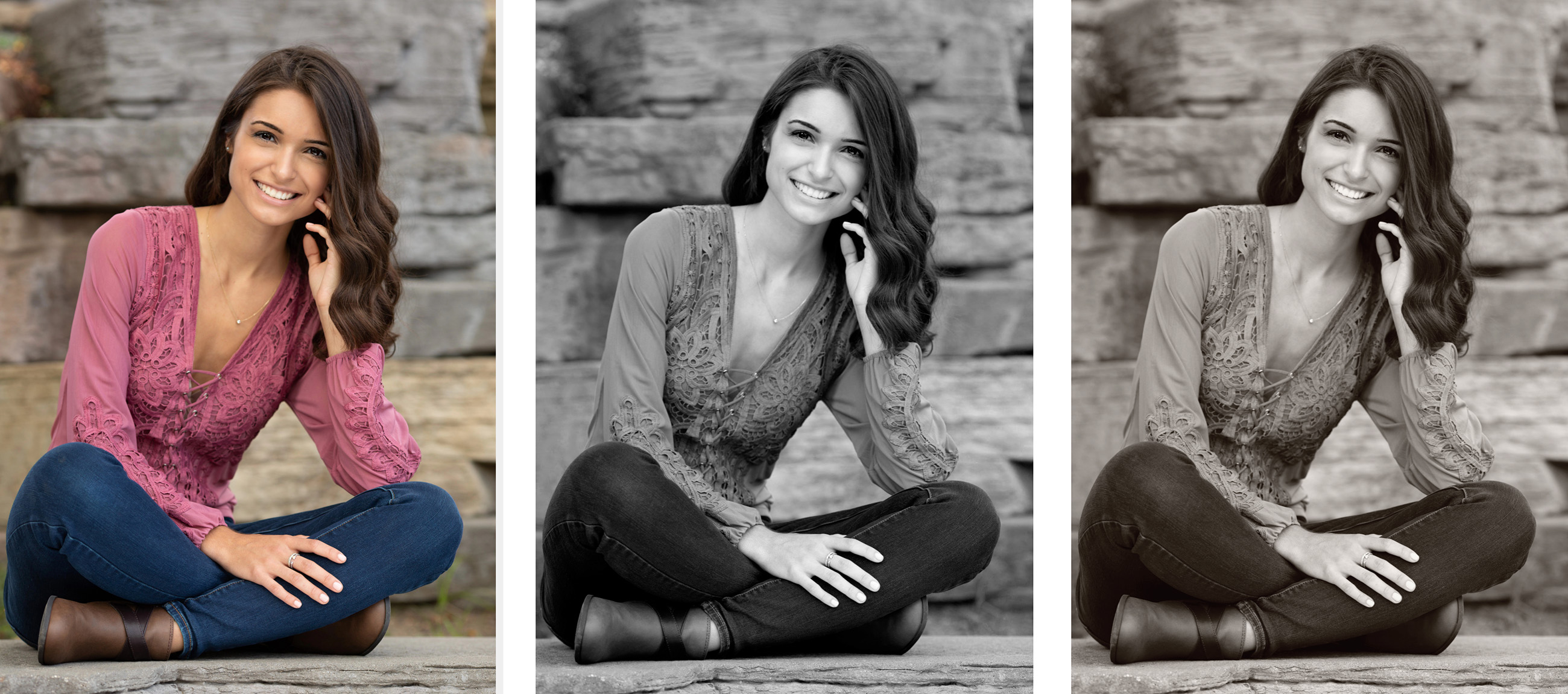
- Black & White: Press B to apply or remove a black & white effect.
- Special Tint: Press S to apply or remove a special tint.
- Original: Press O to revert the image to its original state.
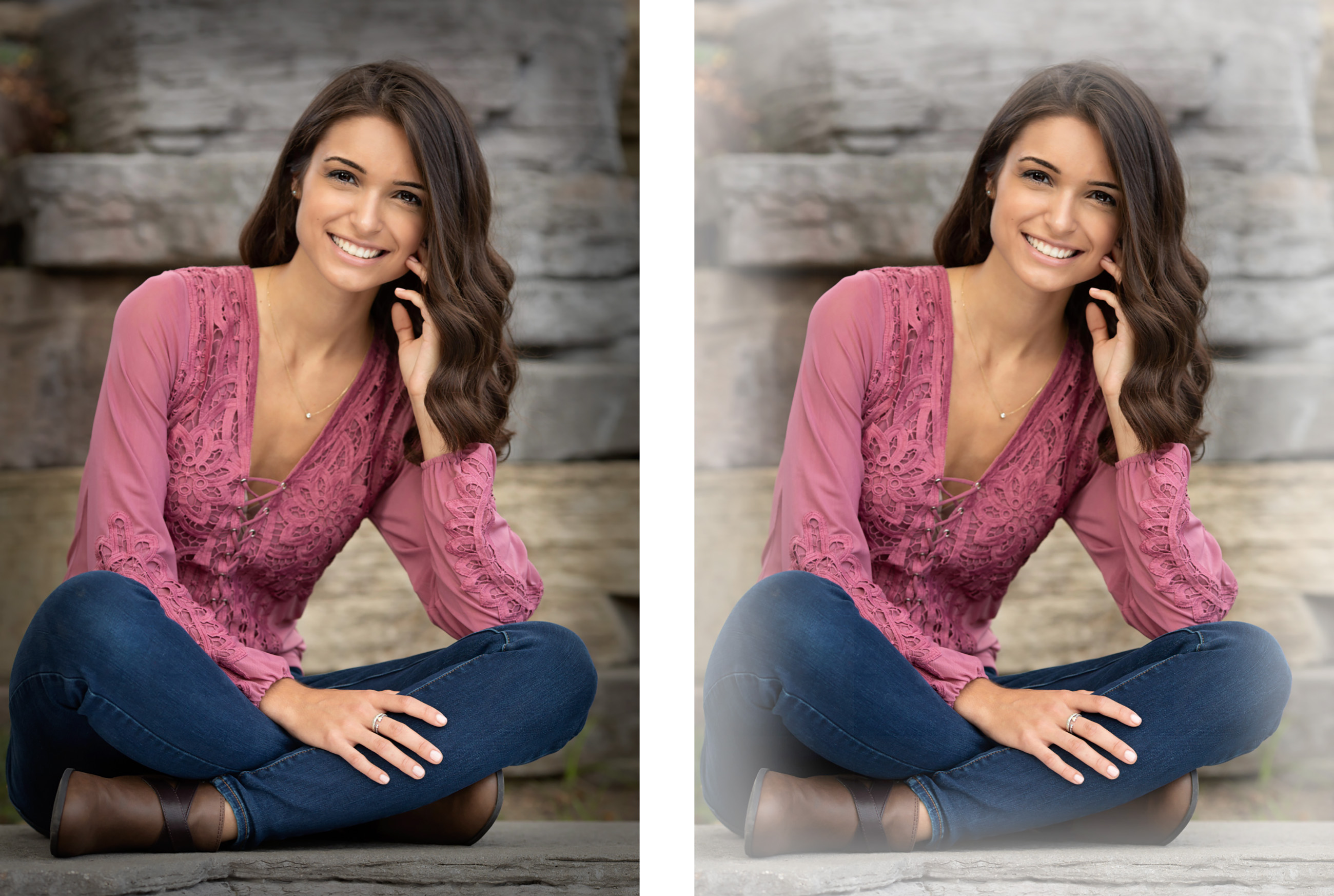
- Low & High-Key Vignette: Size and strength can be adjusted by going to the top menu, ProSelectEdit > Settings > Image Effects > Local Effects > Vignette Adjustments.
Custom Effects
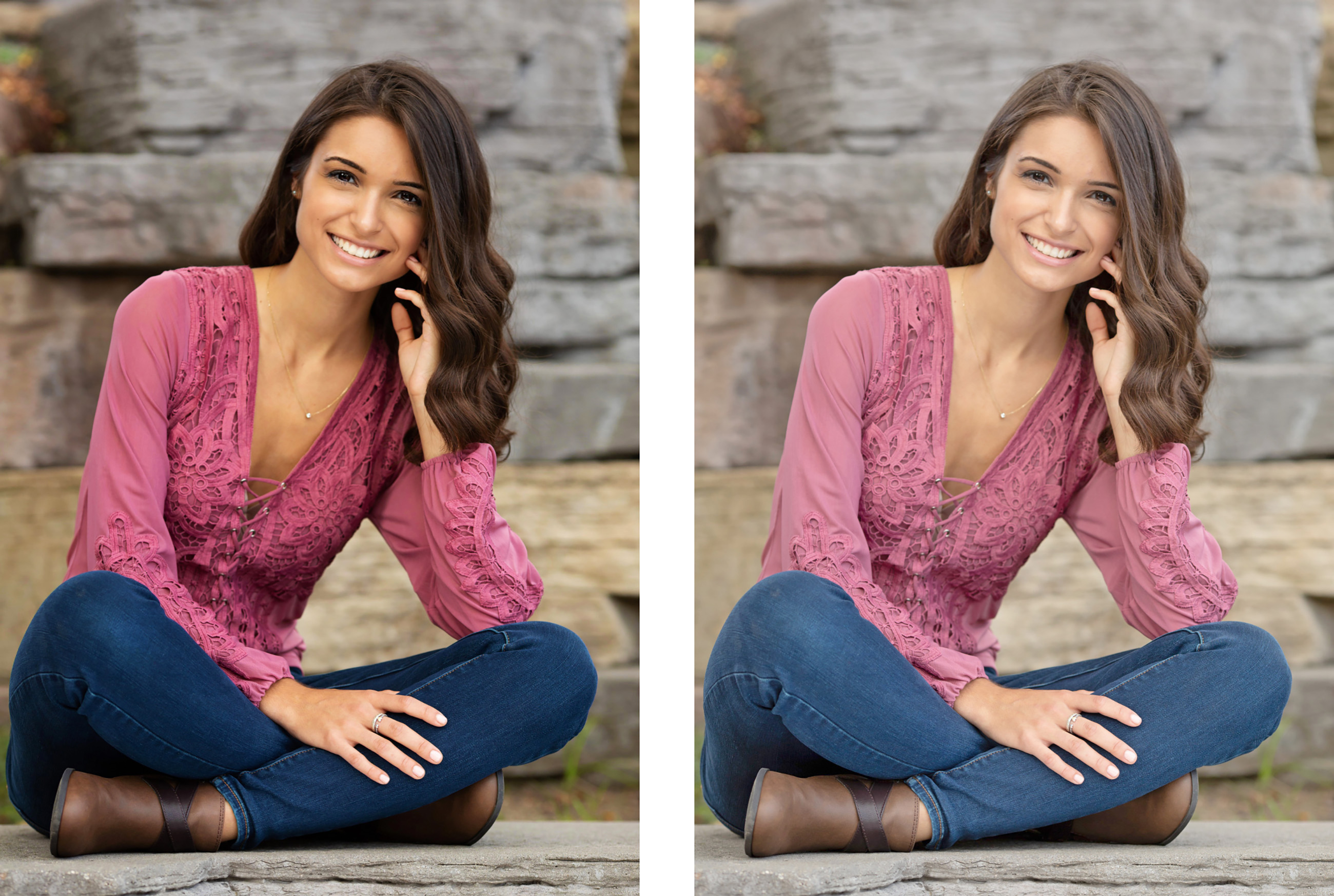
If you have created any custom Photoshop actions, they will be listed below the Image Effects. By default, ProSelect will duplicate the image once an effect has been applied. To configure Custom Effects, click on the "Manage Custom Effects" option. This will take you to Settings, Custom Effects Actions.
The Select Edge / Style Color tool allows you to customize the color of applied Gallery Wrap Edges or Virtual Styles. A Virtual Style or Gallery Wrap Edge must be applied first before using this tool. This same concept can be used on composite book pages.
Gallery Wrap
- Navigate to Cropping view.
- Use the Gallery Wrap Edge tool to apply a Custom Color Edge.
- Click on the Select Edge / Style Color tool.
- Select which layer of the style you wish to customize.
- Use the red color guide circle to navigate around your image. As you navigate, the color of your selected layer will change.
- Once you have navigated over a color you want to choose, click the mouse. The color is then applied to the selected layer.
- To exit, click anywhere outside the gallery wrap.
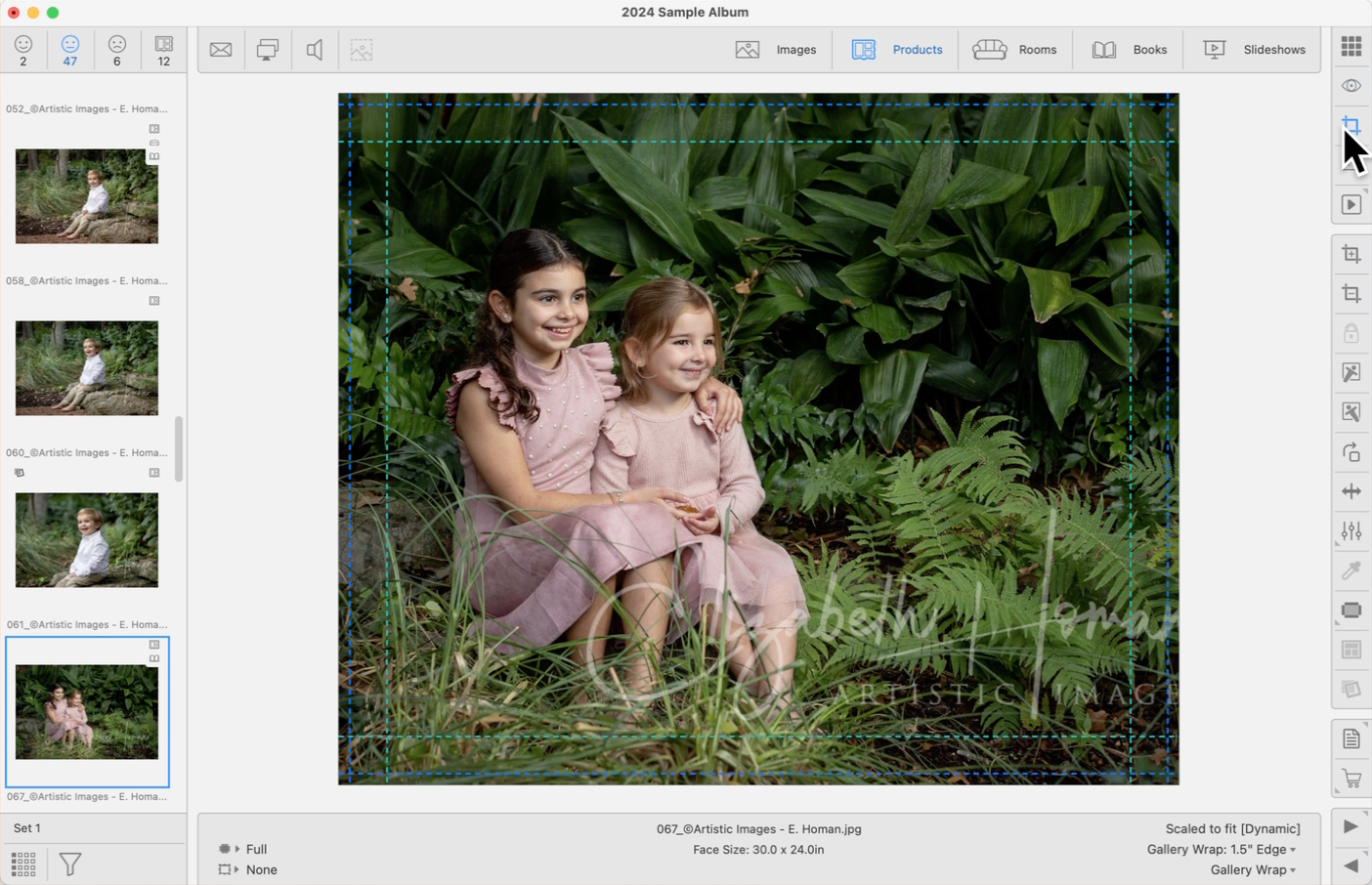
Book Pages
- Select a book page and navigate to Show Pages view.
- Use the Virtual Style tool to apply a style.
- Click on the Select Edge / Style Color tool.
- Select which layer of the style you wish to customize.
- Use the red color guide circle to navigate around your image. As you navigate, the color of your selected layer will change.
- Once you have navigated over a color you want to choose, click the mouse. The color is then applied to the selected layer.
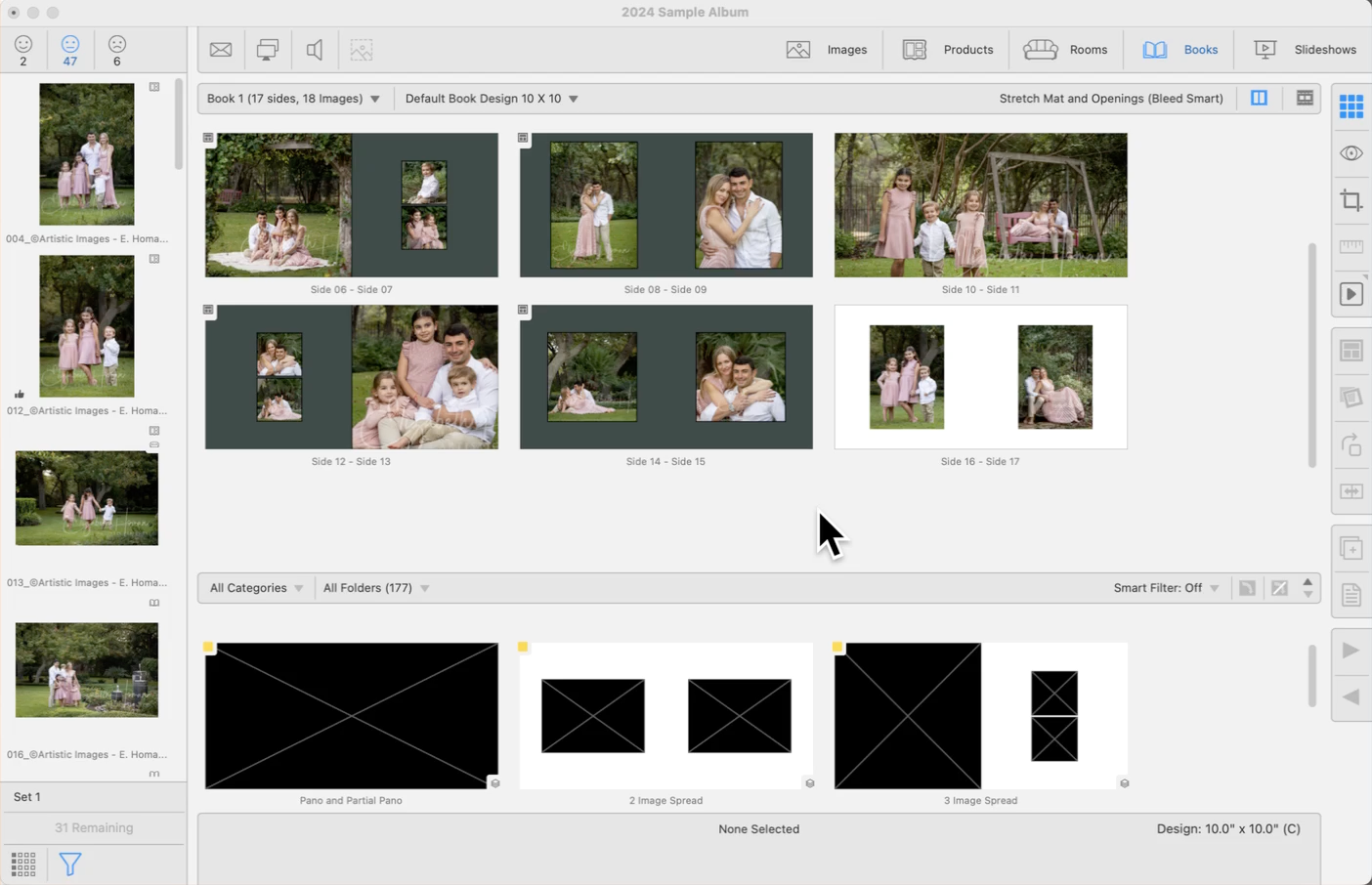
Saving a Custom Color
After creating a custom-colored Virtual Style or Edge, you can save it for future use.
- For Virtual Styles, go to the top menu, Products > Traditional Mats & Virtual Styles > Save Virtual Styles to Designer. Alternatively, right-click on the product and select "Save Virtual Styles to Designer."
- For Gallery Wrap Edge Treatments, go to the top menu, Products > Gallery Wraps > Save Edge Treatments to Designer. Alternatively, right-click on the product and select "Save Edge Treatments to Designer."
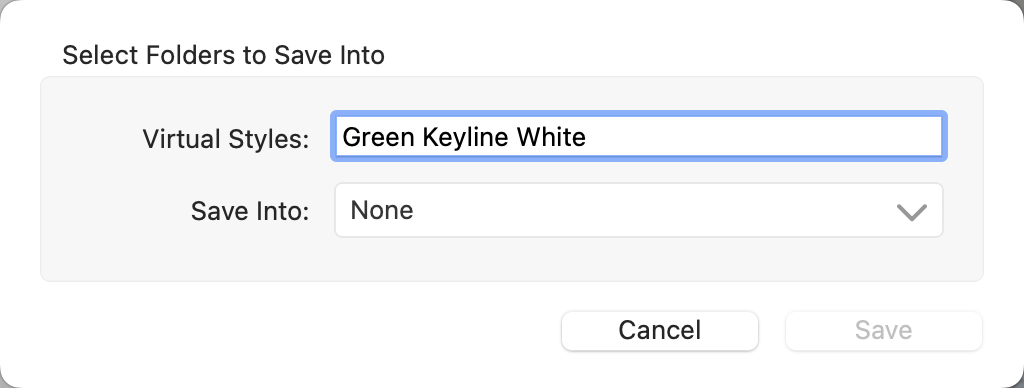
- Create a name for the custom-colored item.
- Choose which folder to save it into within the designer. We recommend creating a Custom Color folder.
- Click the Save button.
You can apply a Virtual Style to products as well as book pages from any View mode. Click on the Virtual Style tool in the toolbar to view the drop-down menu of available styles. Recently selected styles appear at the top. To remove the Virtual Style, select "none" from the list.
- Virtual Styles are set up in the Designer dialog. Go to the top menu, Products > Traditional Mats & Virtual Styles > Designer.
- The currently selected Virtual Style is shown in the left column of the Info Bar. The image is "pushed in" to allow space for the applied Virtual Style. The paper size remains the same. Click on Borders Inwards vs Borders Outwards to learn more about options for composite products with virtual styles applied.
- Virtual Styles applied to book pages work the same way.
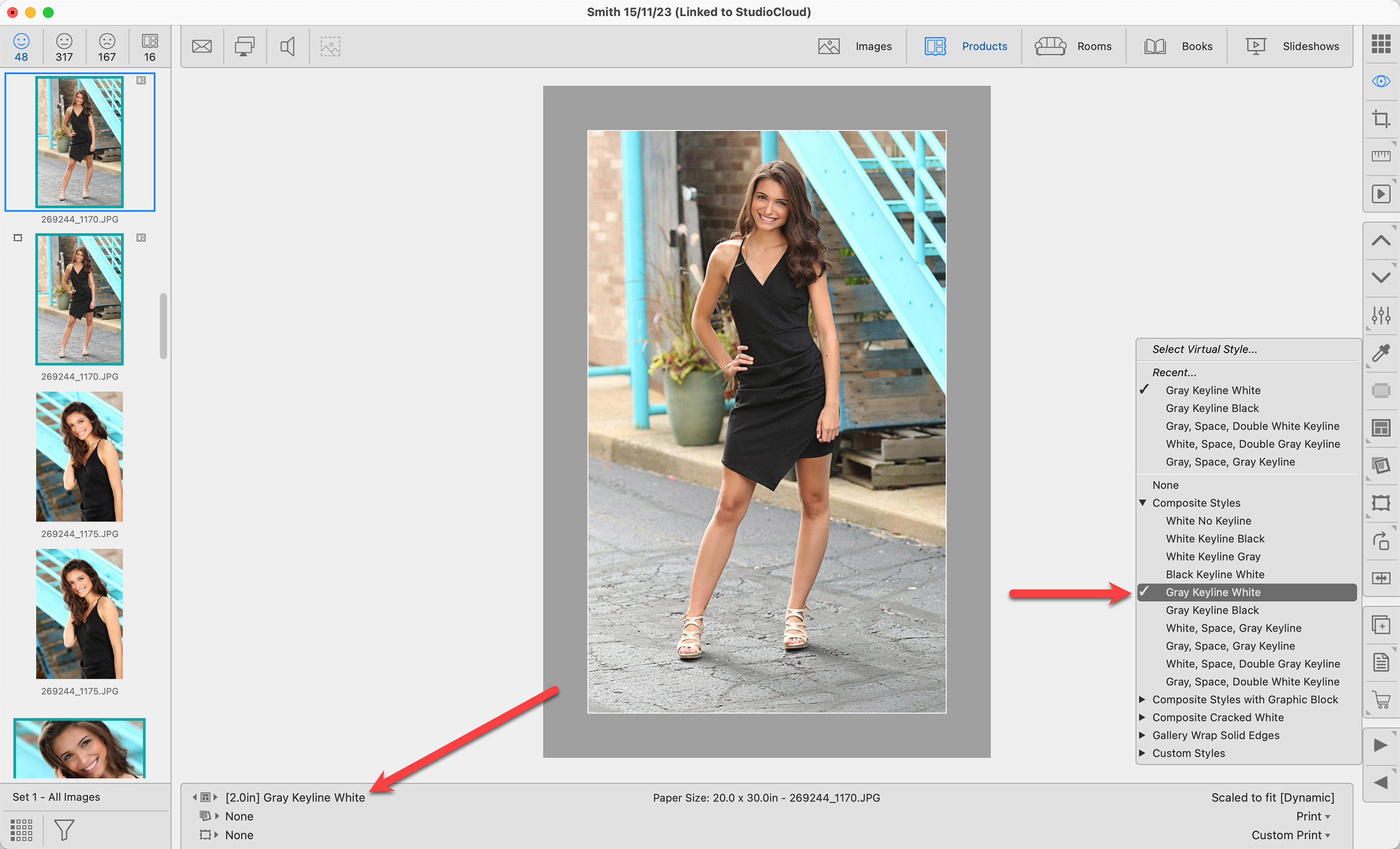

The Select Edge / Style Color tool  allows you to customize the color of an applied Virtual Style. After creating a custom-colored Virtual Style, you can save it for future use. Click here to learn more.

You can remove all applied mats, frames, & virtual styles simultaneously by holding the OptionAlt key and then pressing the DeleteBackspace key on your keyboard.
You can apply a Traditional Mat to products or traditionally matted book pages from any View mode. Click on the Traditional Mat tool in the toolbar to view the drop-down menu of available mats. Recently selected mats appear at the top. To remove a mat, select "none" from the list.
Mats are set up in the Mat Designs dialog. Go to the top menu, Products > Mats > Mat Designs. By default, ProSelect uses a standard mat overlap setting of 0.25" for sizes up to 30 inches. For larger sizes, a mat overlap of 0.375 is applied. To adjust these settings, go to the top menu, Products > Traditional Mats & Virtual Styles > Traditional Mat Overlap.
- The currently selected mat and mat overlap are shown in the left column of the Info Bar.
- The overall size, including the mat, is listed in the center column. Traditional Mats are set on top of the print, so the overall size of the product is the paper size + the mat size.
- If a mat has been applied to a product, the Traditional Mat tag
 will appear on the thumbnail.
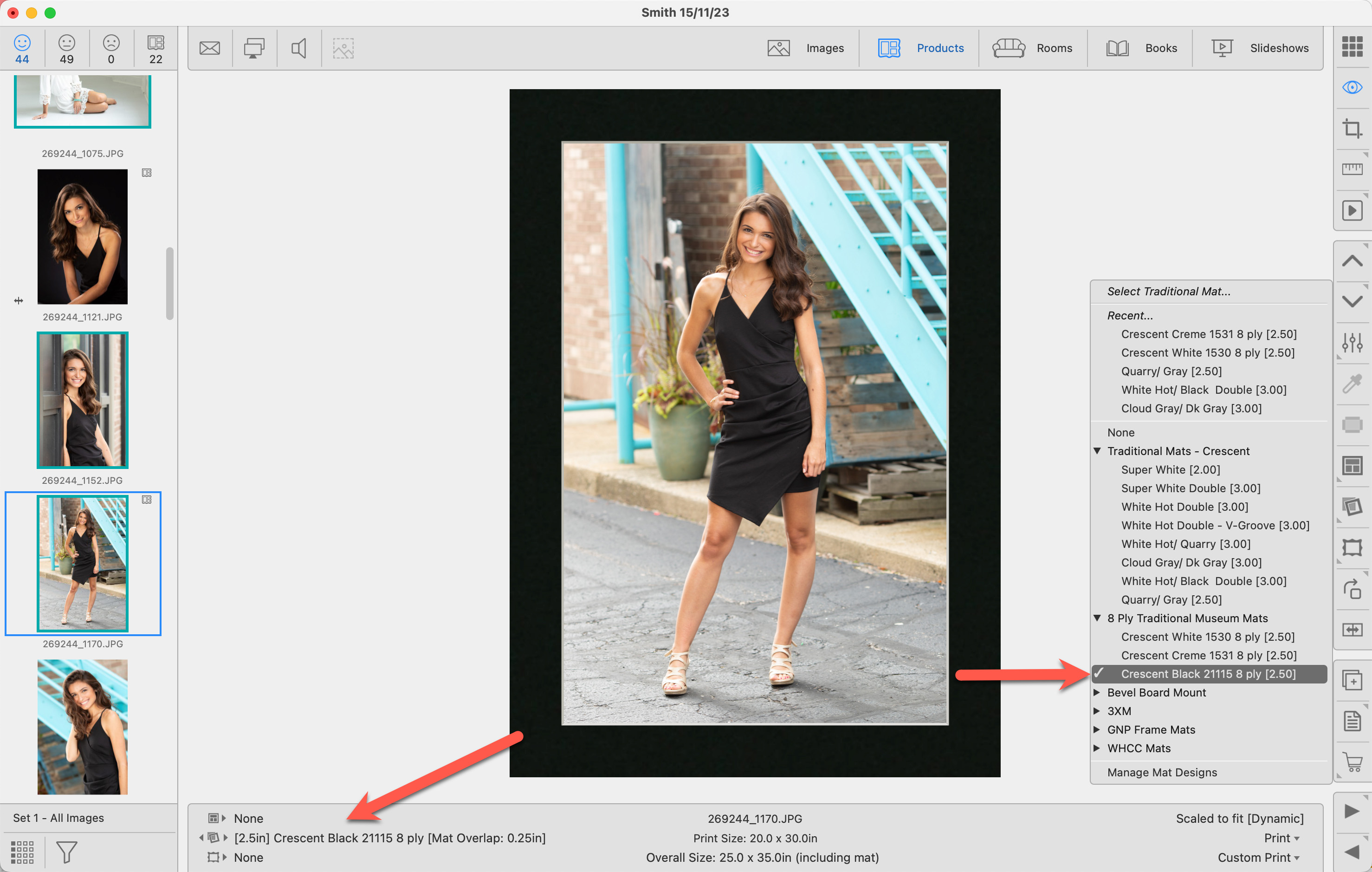
- If you notice red mat tags
 next to your mats, a detailed explanation can be found by clicking Frame Validation - Frame and Mat Selection Tags.
 - To quickly close (or open) all mat folders, hold down the Shift key while clicking on the disclosure arrow.
You can remove all applied mats, frames, & virtual styles simultaneously by holding the OptionAlt key and then pressing the DeleteBackspace key on your keyboard.
This tool will rotate the selected Image/Product/Book Page/Crop/Item 90 degrees clockwise.
- When Working with Products and Books, you can right-click on the Rotate tool, which allows you to select "Rotate Product & Images."
- Hold OptionAlt when rotating to rotate counterclockwise.
- If you are working with a Wall Grouping, see the Rotate Wall Grouping page.
Use the shortcut Cmd + RControl + R to rotate an image or product.
You can mirror a template using the Flip Product Horizontal tool.
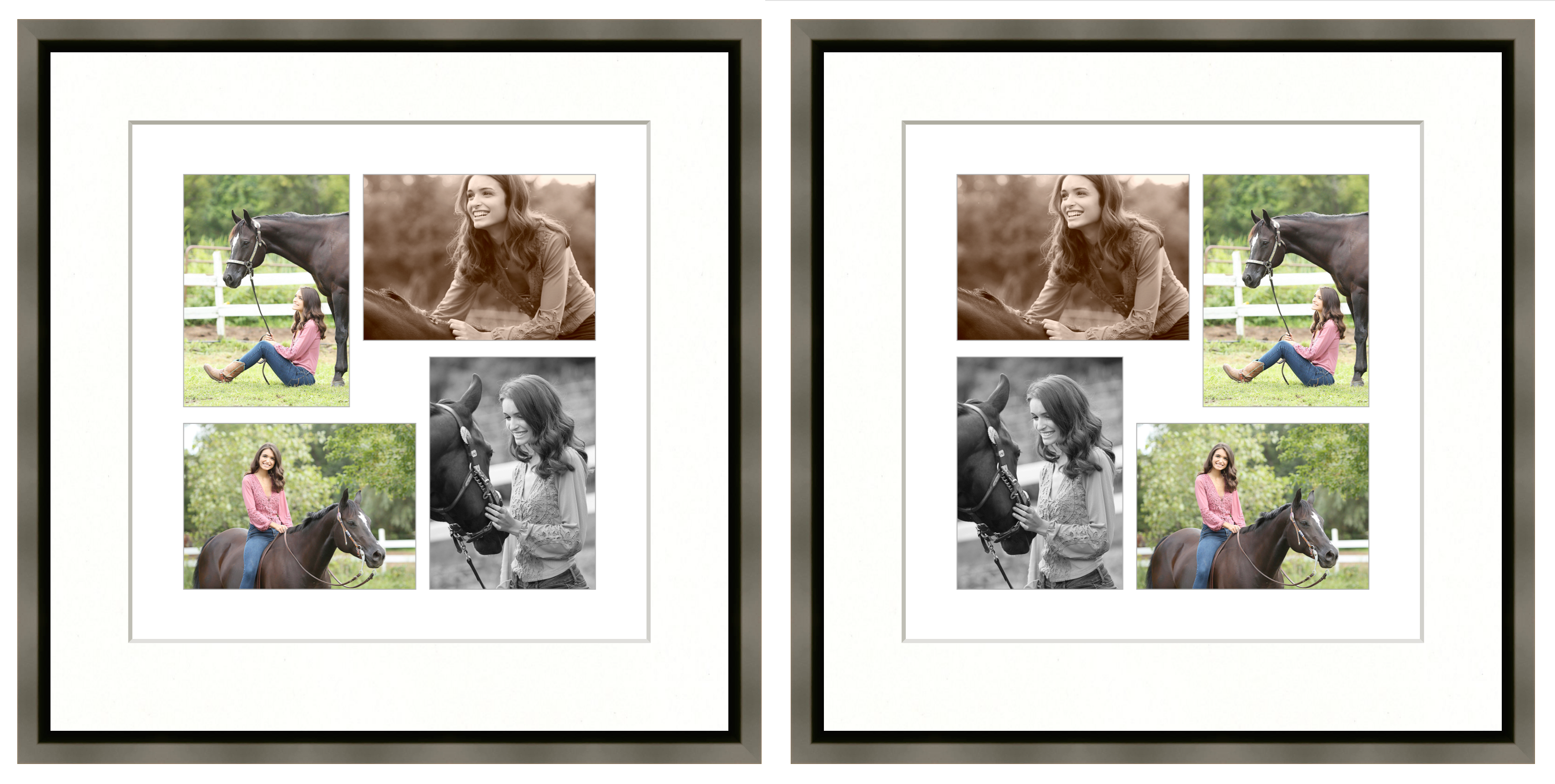
You can duplicate an image, product, book page, or room using the Duplicate tool.
- When duplicating images, each copy retains the original filename but has its own thumbnail.
- This feature is particularly useful when you want to view or order the same image/product with different effects.
- Simply duplicate the item and apply distinct effects to each copy. You can then select and display both copies, allowing for easy comparison of the different effects applied.
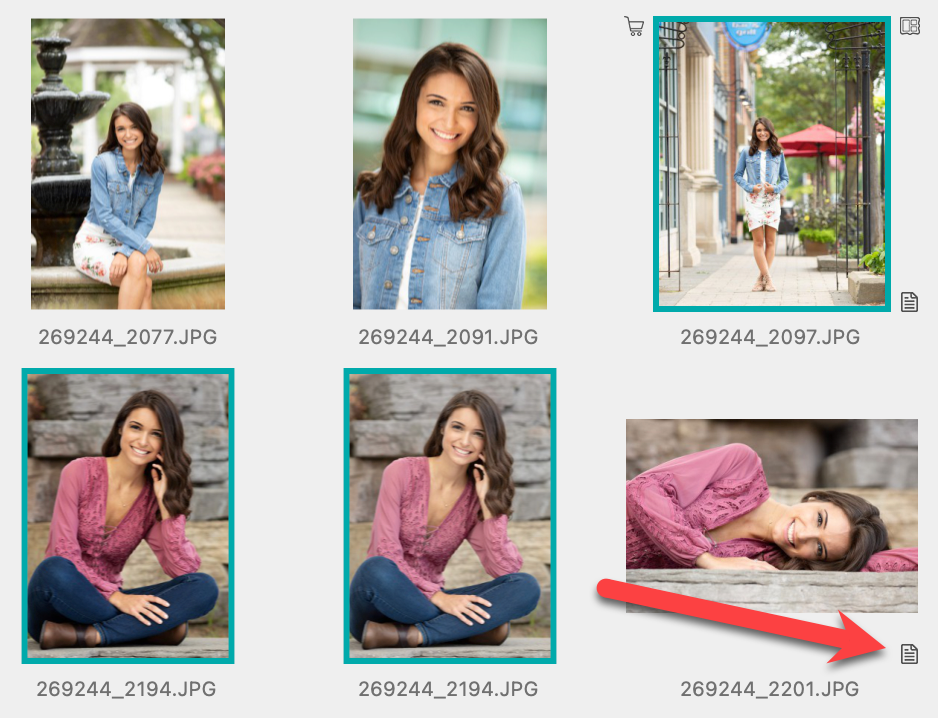
You have the option to add notes to images, products, books, or rooms. Notes are used as a reminder of any special changes that need to be applied to the images in a product, general product notes, or order requests. Click on Notes to learn more about where notes appear throughout ProSelect.
- Select an item and click on the Notes tool.
- The Notes dialog will open.
- You can manually add your own notes or add a note from your Notes Library.
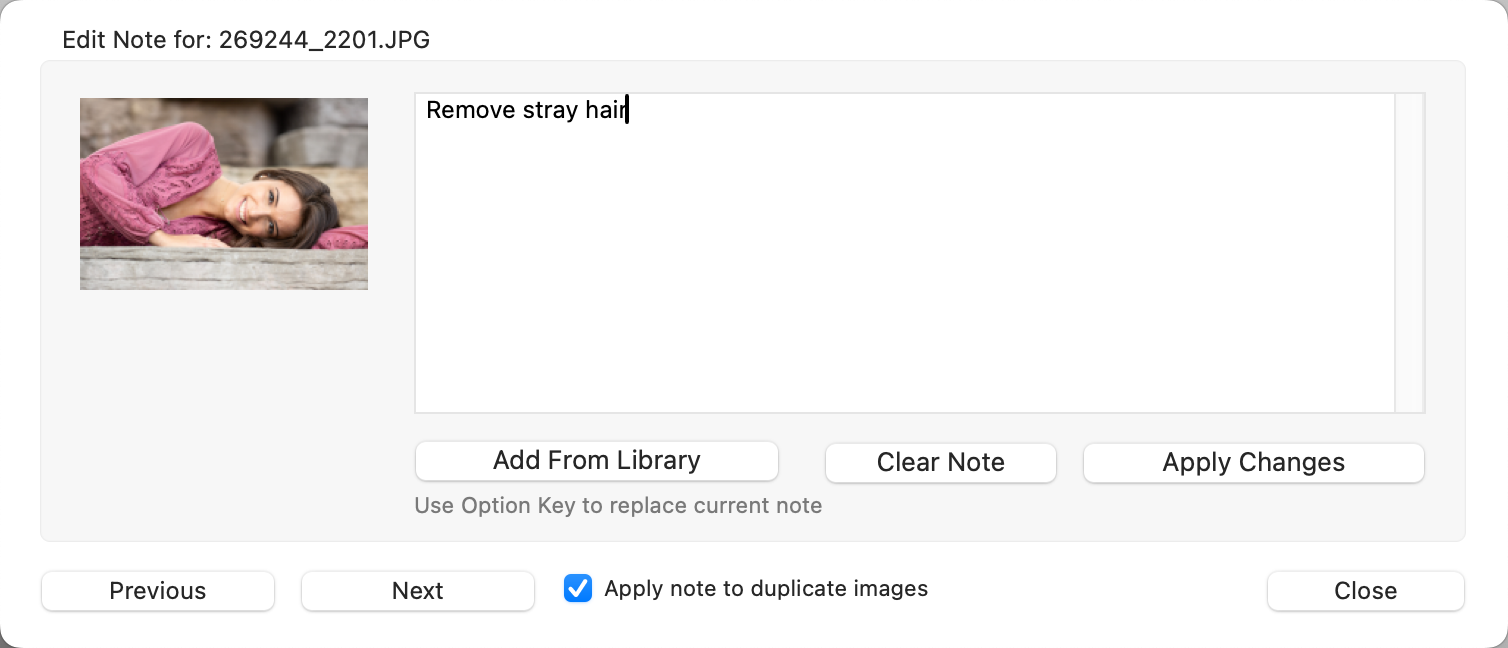
- Use the Previous and Next buttons to scroll through and add notes to other images/items within the set.
- If duplicate images appear, check this box to apply the note to duplicates as well.
- Use the Clear Note button to remove any notes.
- Click the Apply Changes button when you have finished adding or editing the note.
- You can add the same note to more than one image at a time by selecting all the relevant images before clicking on the Note tool.
- Notes added in Working with Images are applied to the individual image.
- Notes added in Working with Products or Working with Rooms are applied to the whole product or whole room. Not the individual image.
- Notes added to book pages apply to the book page, not the individual images.
Right-Click
The Notes tool also has a right-click option. When you right-click, a drop-down menu of the Library Notes appears. You can select a commonly used note and add it. In this case, the note will be added without opening the Notes dialog.
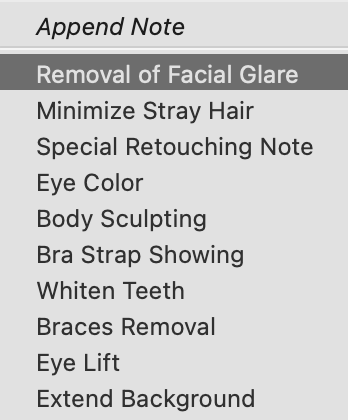
Notes Tag
All items with notes attached will have a small Notes tag  at the bottom-right corner of the thumbnail image.
Use the Next and Previous tools to navigate through your images, products, book pages, rooms, or slideshow slides.
- Use the Left and Right Arrow keys on your keyboard to navigate through your images, products, book pages, and slides.
- Use Shift + Left and Right Arrow keys to navigate through your rooms.
Jump in Groups
If you hold the OptionAlt key while clicking on the Next or Previous tool, the next group of items will be displayed. This group can be between 2 and 30 items. You can select the group size by right-clicking on the Next or Previous tools. This feature is only available in Show view and Cropping view.
Use the Next and Previous tools to navigate through your images, products, book pages, rooms, or slideshow slides.
- Use the Left and Right Arrow keys on your keyboard to navigate through your images, products, book pages, and slides.
- Use Shift + Left and Right Arrow keys to navigate through your rooms.
Jump in Groups
If you hold the OptionAlt key while clicking on the Next or Previous tool, the next group of items will be displayed. This group can be between 2 and 30 items. You can select the group size by right-clicking on the Next or Previous tools. This feature is only available in Show view and Cropping view.