Book Reports, Proof Sheets, and Sample Book Pages
ProSelect offers comprehensive tools for assembling and reviewing books through Book Reports and Proof Sheets.
- Book Reports provide detailed references for page assembly, including template names, notes, book design, and thumbnails with opening sizes and image names, with options to add custom stamps.
- Proof Sheets allow for visual review of book pages, configurable with adjustments for size, spacing, and page layout, and can include image details and custom stamps.
- Sample Book Pages can be exported as low-resolution images.
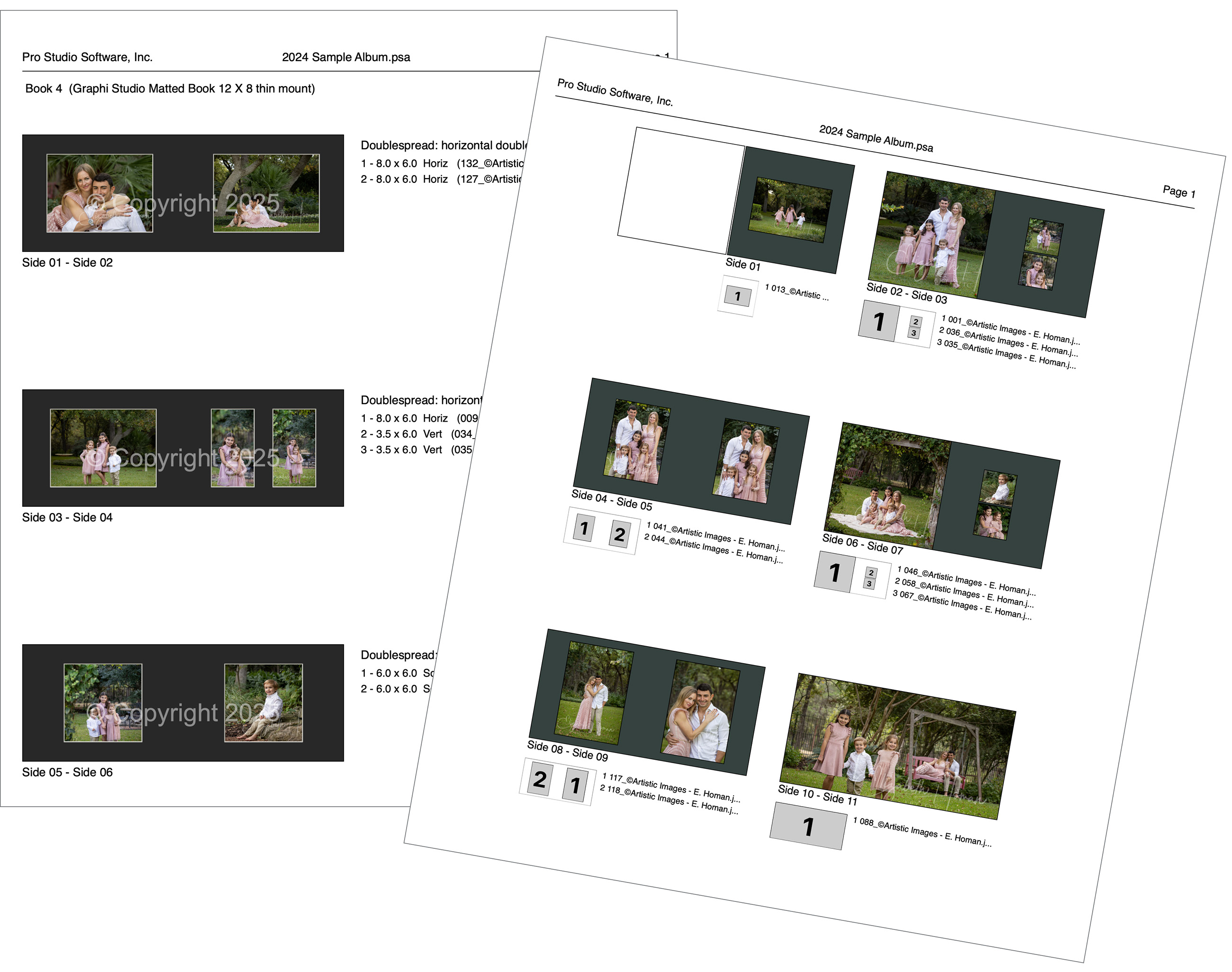
The Book Report serves as a detailed guide for assembling traditionally matted books. It can also be generated for Composite book designs.
- To generate this report, go to the top menu, File > Print > Book Report.
- Select a book from the drop-down list.
The report includes the following information for each book:
- Names of the templates used on each page.
- Notes associated with each page, if any.
- The book's name and the design, if selected.
- Thumbnails for each page, annotated with index numbers detailing the size of each image opening and the names of the images.
- You have the option to apply a custom stamp from your configured options in the "Stamps, Watermarks & Logos" section to each image in the report.
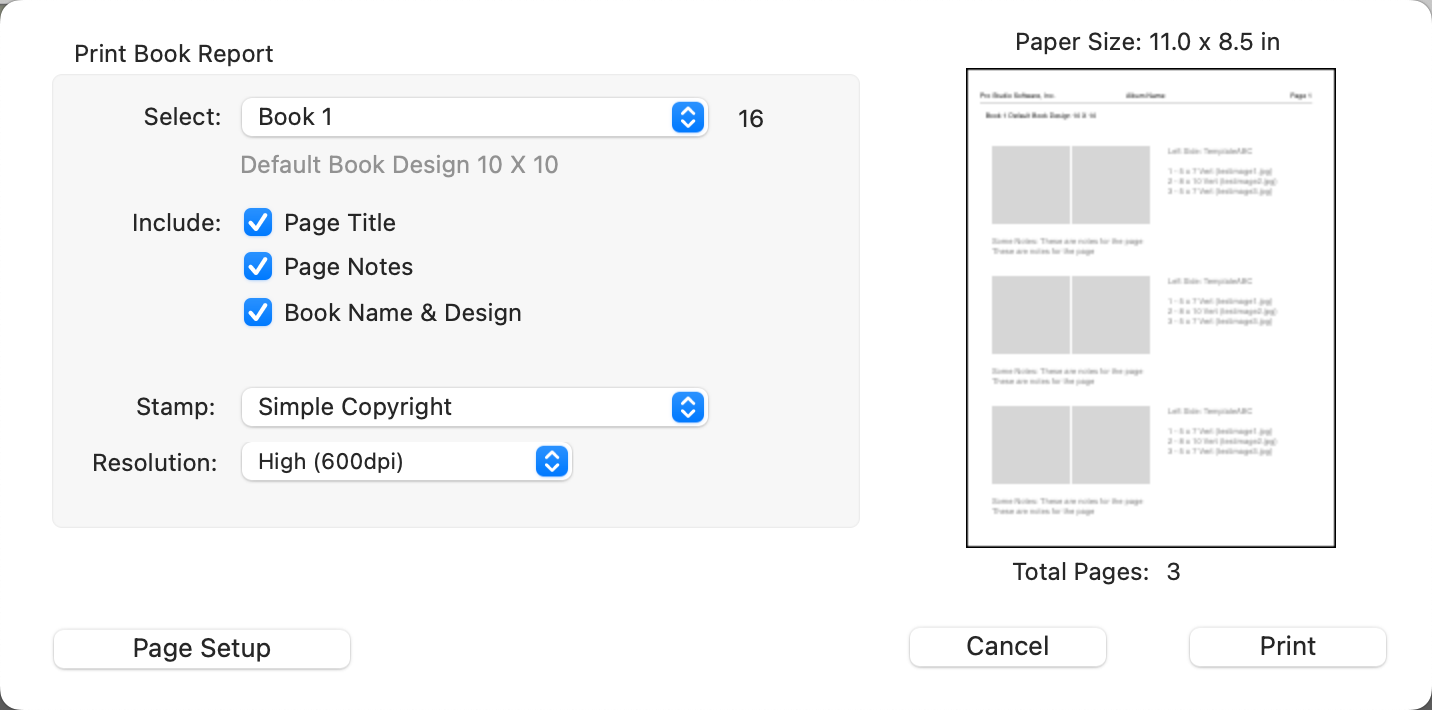
Sample Book Report Page
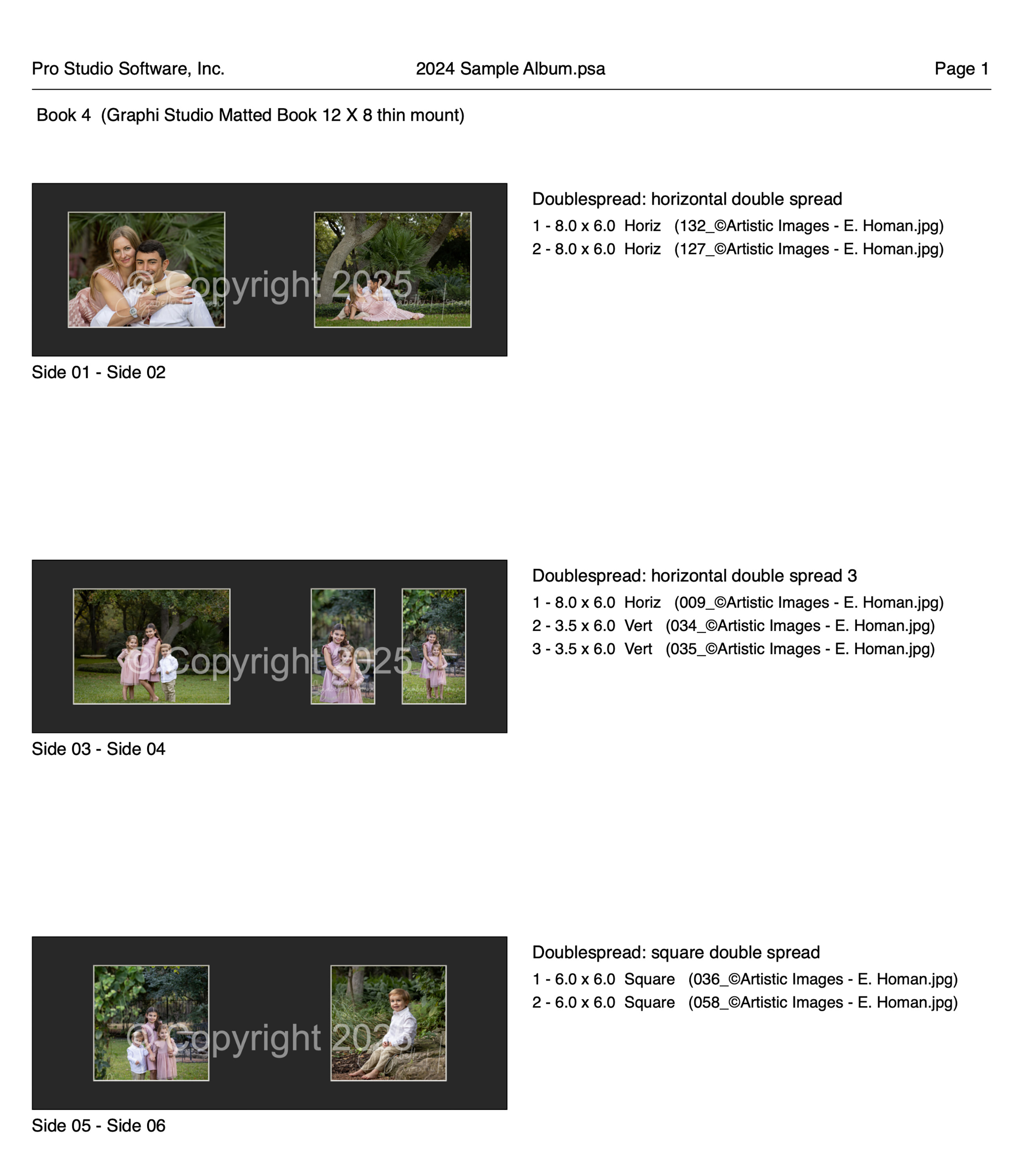
Book Page Proof Sheets offer various styles for printing detailed previews of your book pages.
- To print a proof sheet, go to the top menu, File > Print > Proof Sheets > Book Pages.
- Here, you can adjust the size and spacing of the thumbnails using the size sliders.
- Select a book from the drop-down list.
- For additional customization, such as changing the page size, orientation, or margins, click the Page Setup button.
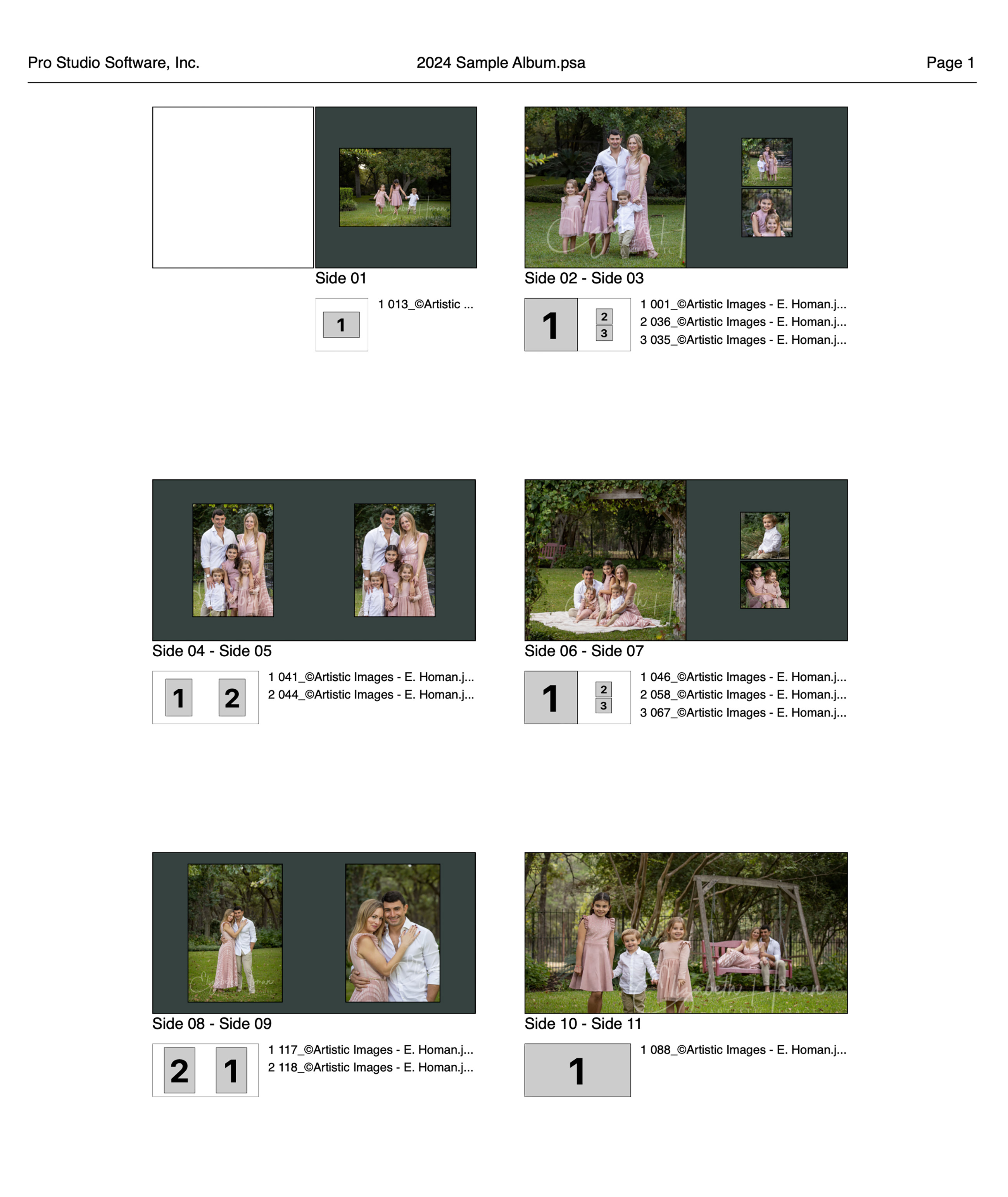
- For books designed with double-sided pages, the proof sheet will automatically pair the pages for display.
- If you select the "Include Image Details" option, each page on the proof sheet will include a legend detailing the opening numbers and filenames for each image.
- You have the option to apply a custom stamp from your configured options in the "Stamps, Watermarks & Logos" section to each image in the proof sheet.
- You may need to experiment a little to get the proof sheet layout just right for your needs. Once you’ve set your preferred options, ProSelect will remember them the next time you print a proof sheet.
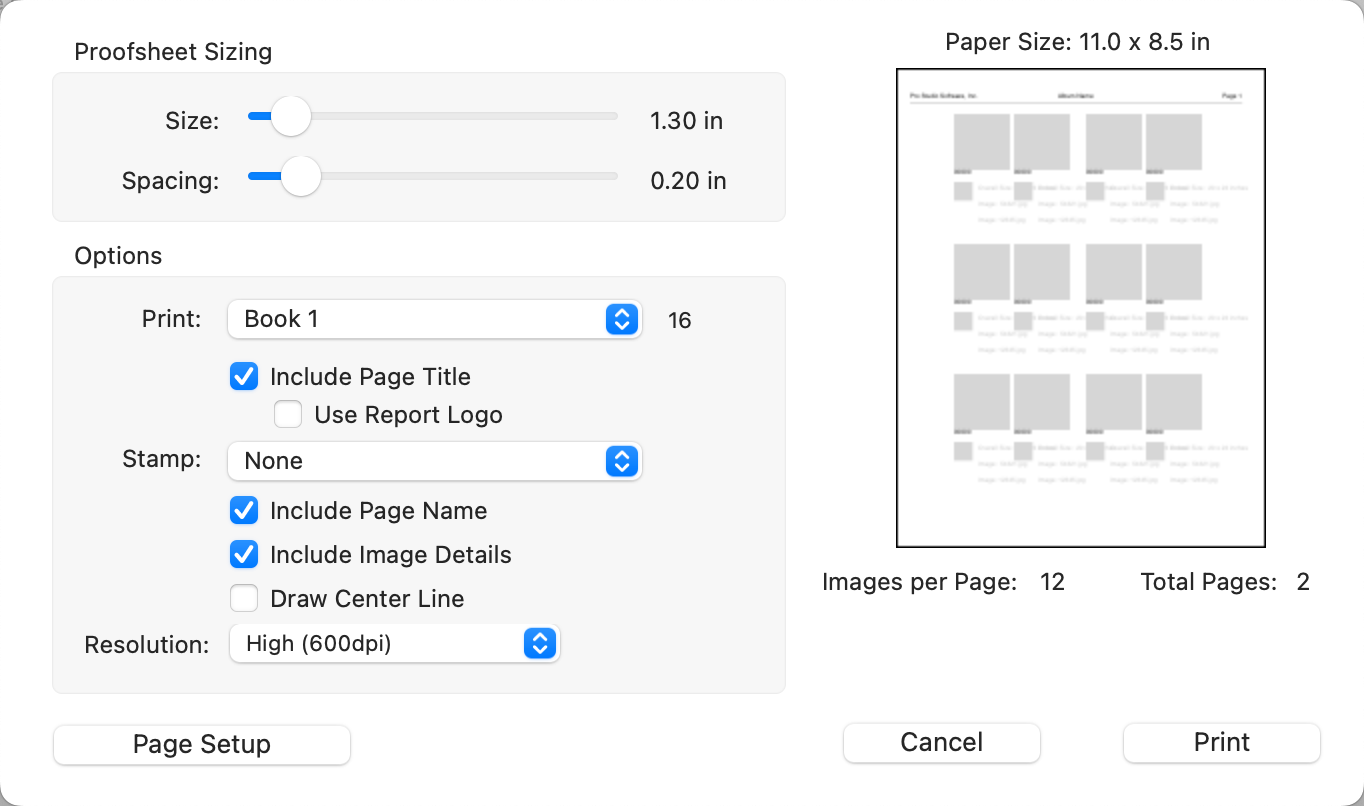
Sample Book Page Proof Sheet
You can export low-resolution versions of your book pages for use on social media, websites, blogs, or for client reference. Before exporting, a dialog will appear where you can choose export settings. The size of exported images is based on the Import Resolution in Settings. All exported images include an embedded sRGB color profile.
- Navigate to Working with Books.
- Select the book pages you want to export.
- Go to the top menu, File > Export > Selected Low Res Book Pages.
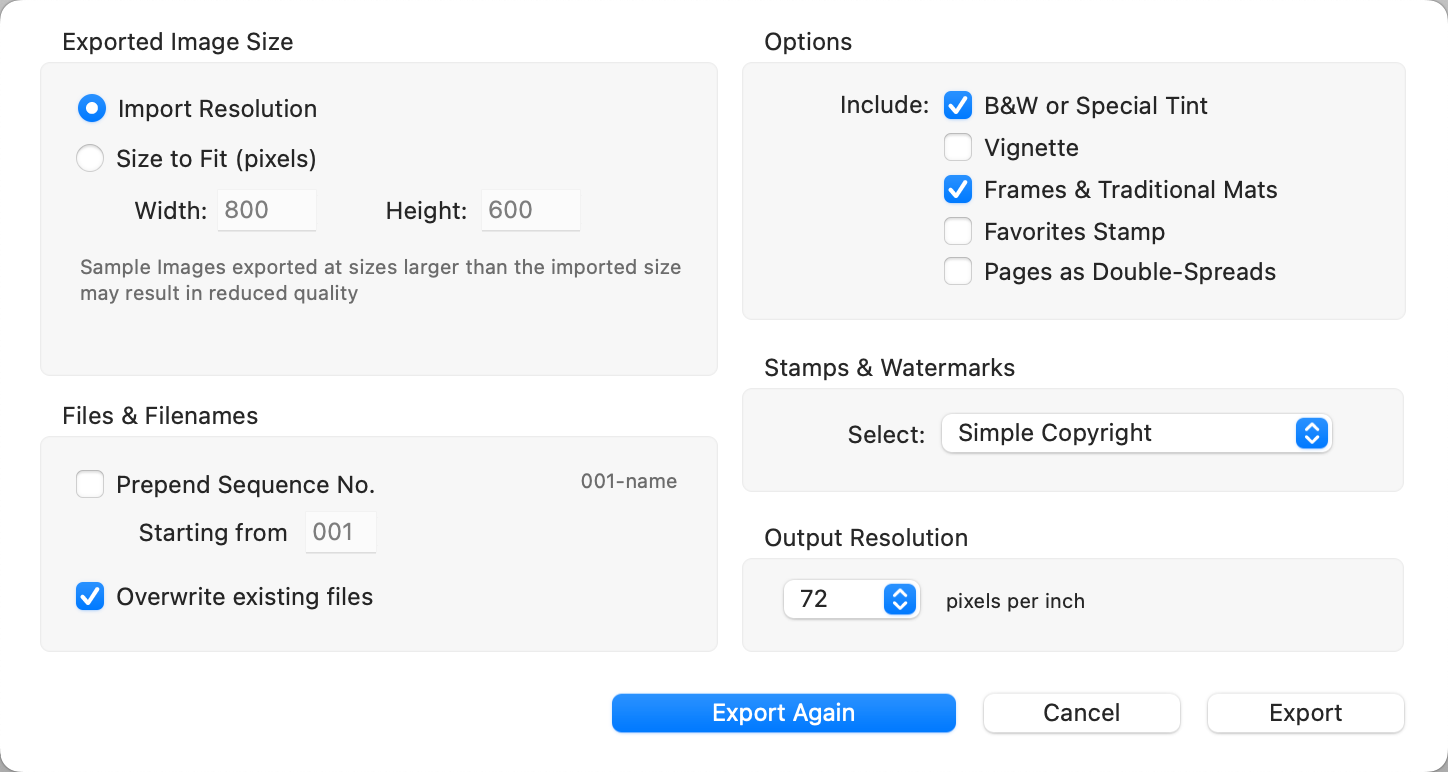
- Prepend Sequence No: Adds a three-digit sequence number to the beginning of each filename to match the image order in ProSelect. You can define the starting number.
- Overwrite Existing Files: When unchecked, any exported files with duplicate names are renamed to avoid overwriting existing versions.
- Options: Choose which ProSelect display elements (such as pages as double-spreads) to include in the exported image.
- Stamps & Watermarks: Apply a copyright or branding stamp to the image using presets configured under Stamps, Watermarks & Logos.
- Output Resolution: Sets the image resolution (dpi) embedded in the exported file. The default is 72 dpi, suitable for screen display.

Important Info
- If pretouching presets have been applied to your images, a ProSelect Pro Subscription is required to export at sizes larger than 1600 x 1600 pixels.