Creating Book Page Templates - Introduction
Before you start creating book page templates, it's a good idea to familiarize yourself with the Product Editor. This is where you'll design your book pages. There are three different types of book page templates:
- Basic Book Pages: Dynamically sized. Single or multiple openings, graphic blocks enabled, and image opacities.
- Advanced Book Pages: All of the options of the Basic Book/Album Page, with the additional ability to use overlay images, shapes, and drop rotation.
- Traditional Matted Book Pages: Fixed Size (or stacked). Single or multiple openings.
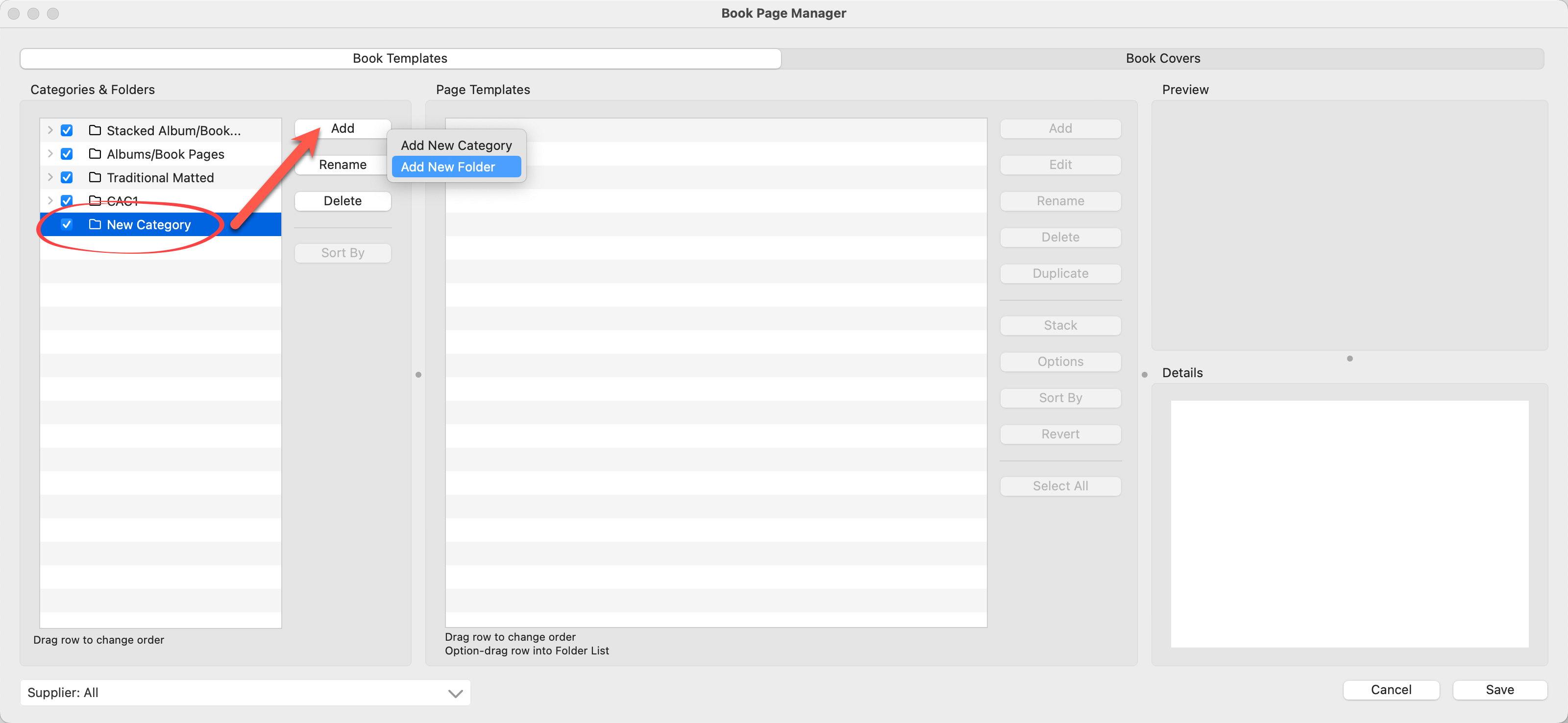
- Navigate to the Book Page Manager (on the top menu, Products > Book Page Manager).
- Select a folder OR create a new Category and Folder using the Add button.
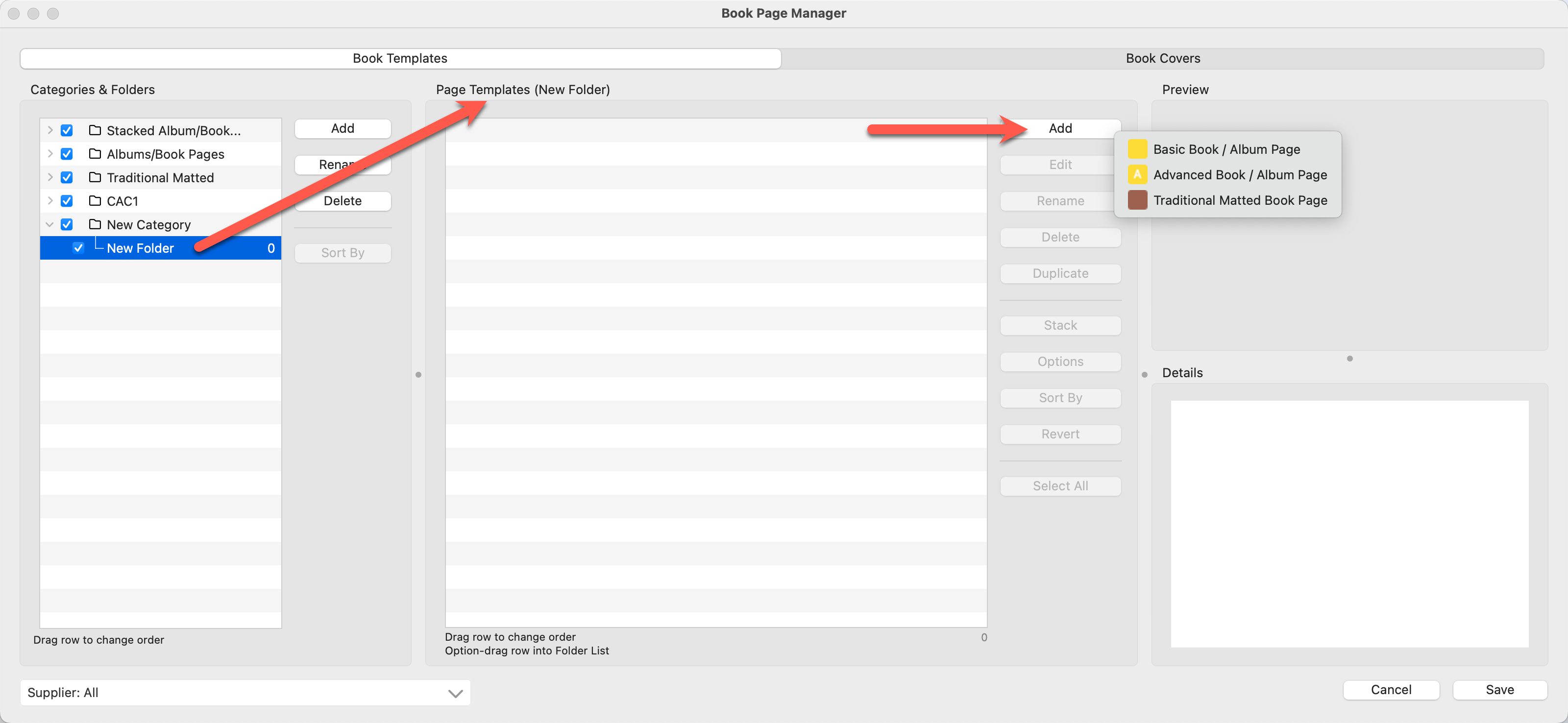
- With a folder selected, move to the next panel (The Page Templates Panel) on the right. All items within your selected folder will appear here.
- Click the Add button.
- Select the Page Type you wish to add.
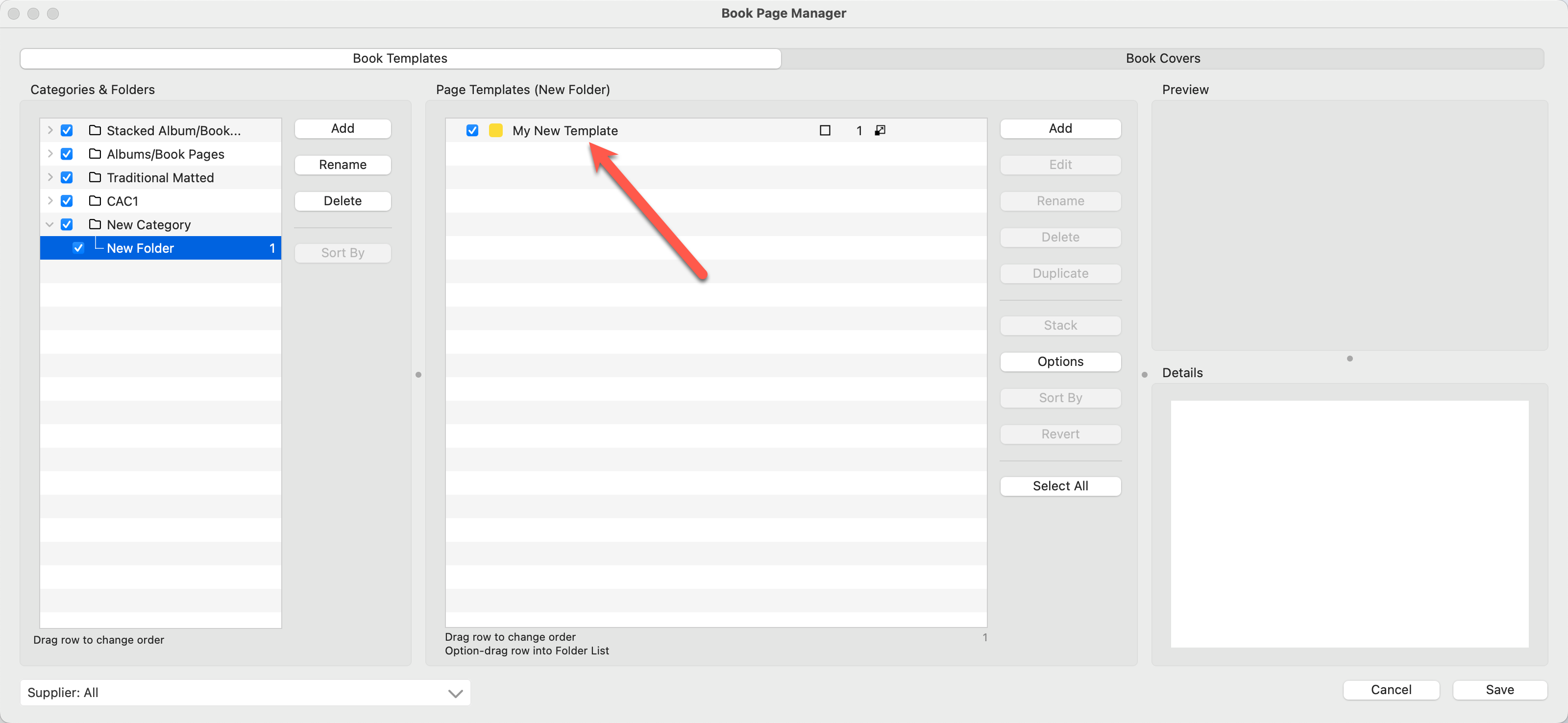
- The Product Editor will launch, and you can begin work on your new template.
- Once you save your new template, it will appear in the Page Templates panel.

Sometimes, it is helpful to duplicate an existing page template that is similar to what you want to create and then modify it. Click on Duplicate a Page Template to learn more.
Once created, Book Page Templates can be accessed and populated with images on the main interface.
- Navigate to Working with Books.
- Select a book design.
- All available Book Page Templates are located below the main working area in the Book Page Template Resource Area.
- Locate a desired template using the Resource Selection Bar and drag it into the working area.
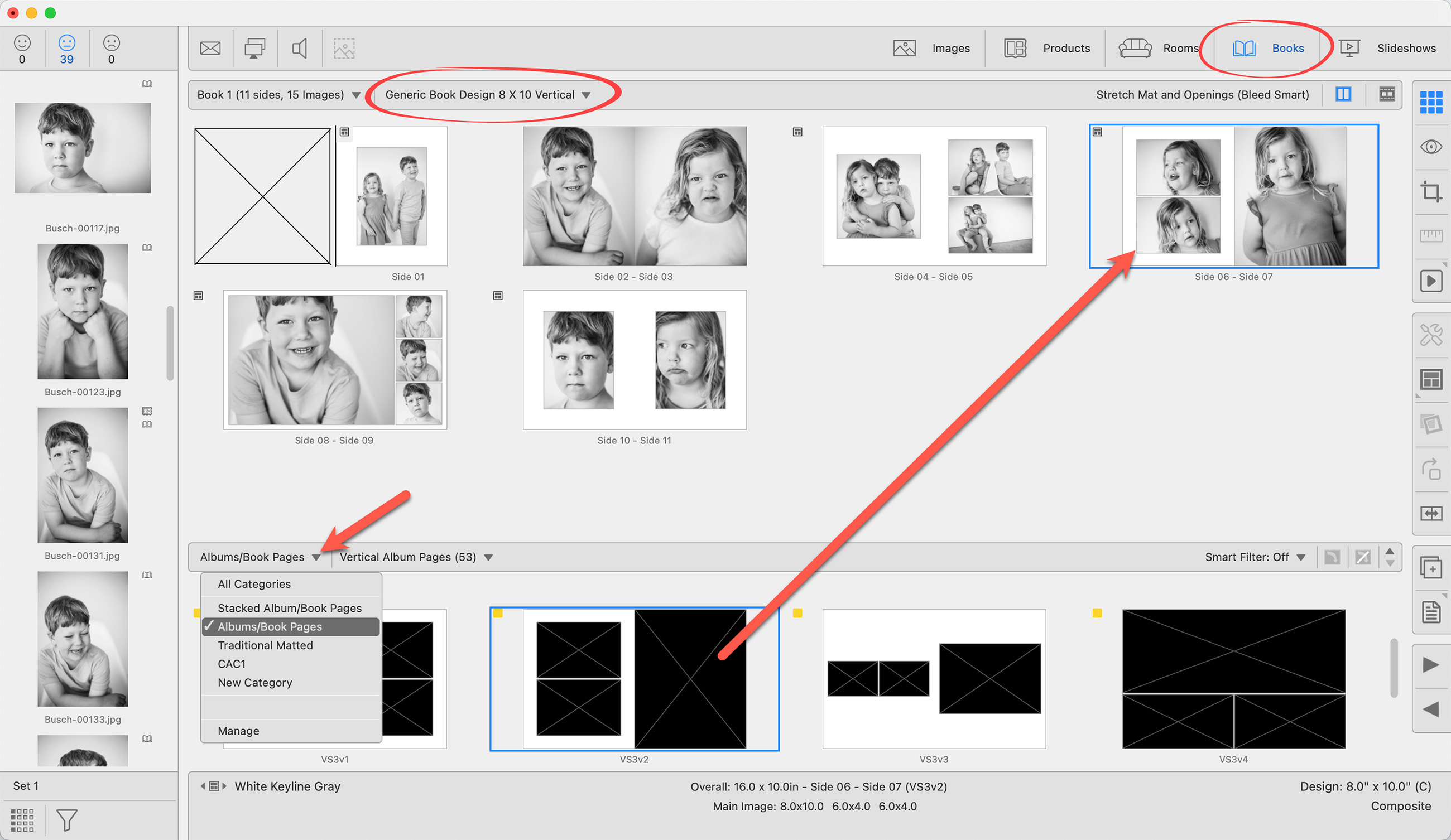
At times, it might be more convenient to create a new book page template by duplicating an existing one that is similar to what you need. After duplicating, you can then make your modifications and save it as a new Book Page Template.
Duplication can also be used to change the template type. For example, if you have a Basic Book/Album Page, you could duplicate it and change the type to Traditional Matted.
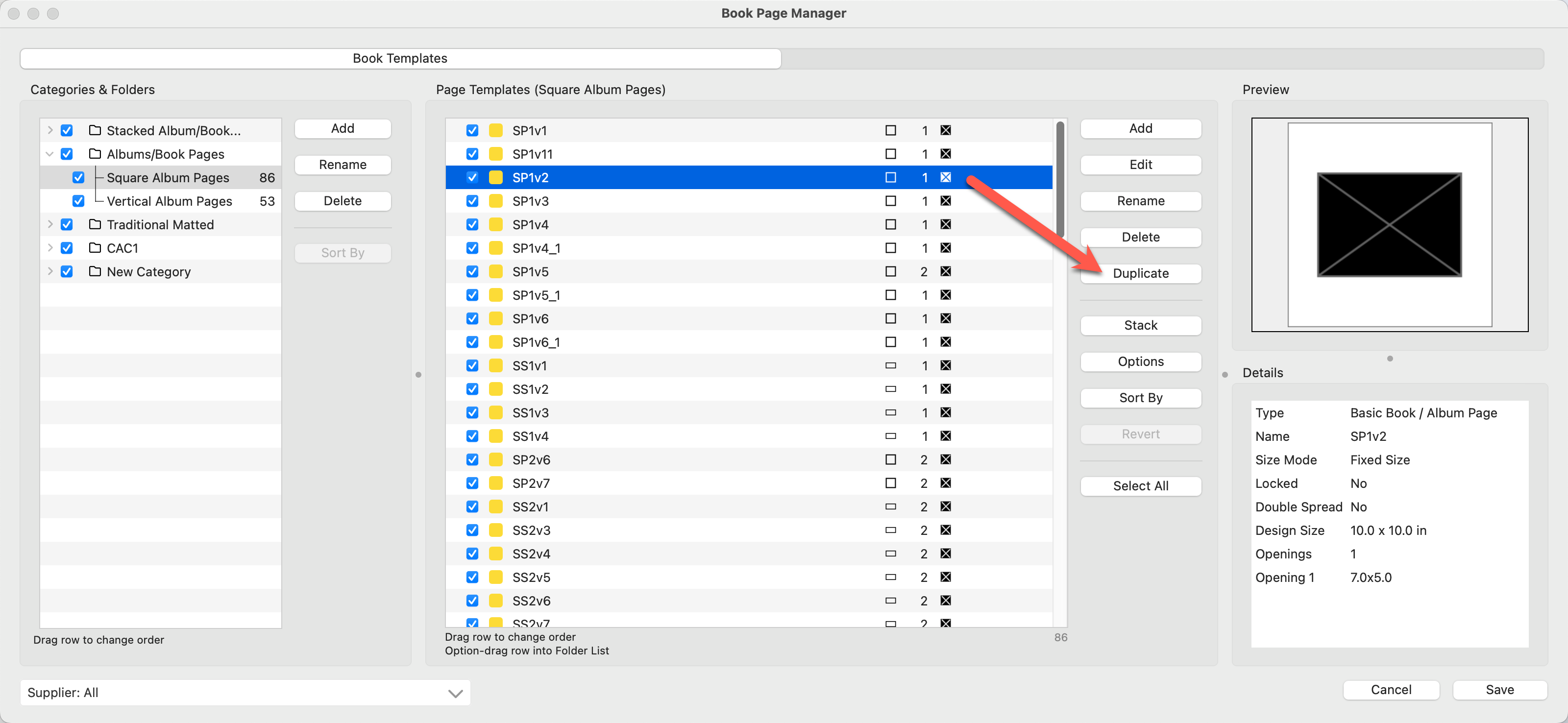
- Navigate to the Book Page Manager by going to the top menu, Products > Book Page Manager.
- Locate the template you wish to duplicate and select it.
- Click the Duplicate tool.
- Optionally attach a Supplier.
- Type in a new name for the template.
- Select a Page Type from the drop-down menu.
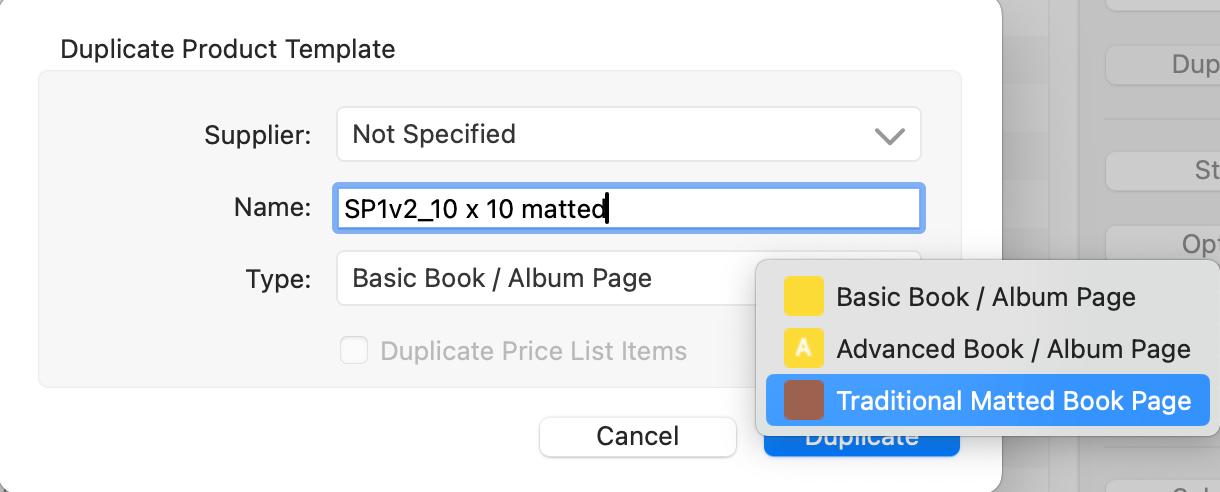
- Click Duplicate.
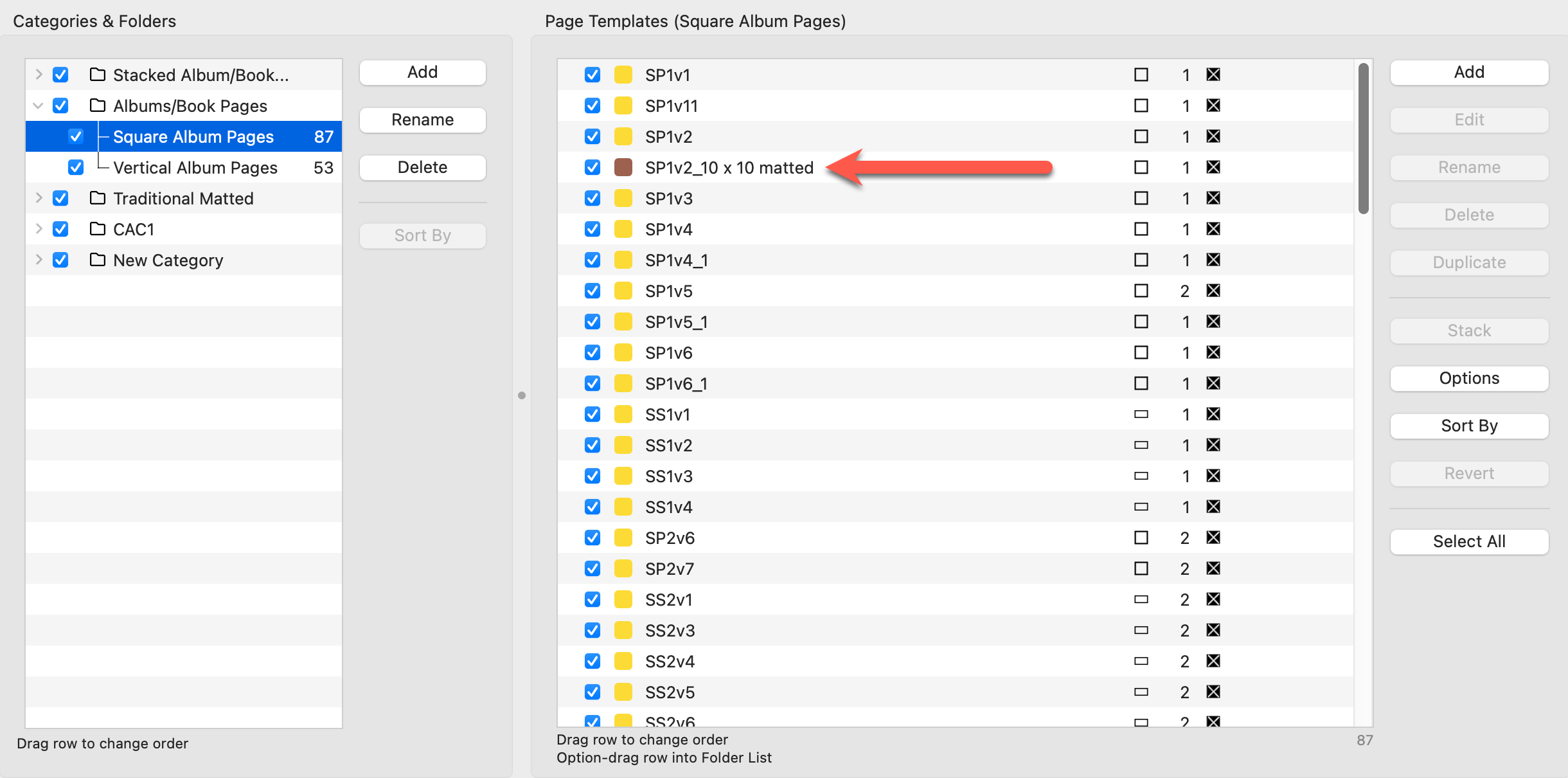
- Your new page template will appear below the original. Hold down the OptionAlt key and drag it to another folder if desired.
Stacked sizing allows users to load and populate multiple page templates simultaneously. See the page Using Stacked Page Templates for more information.