Using the ProSelect Music Library
The ProSelect Music Library offers access to over 40,000 royalty-free music tracks that can be used in your slideshows and exported slideshow movies, adhering to the Pro Studio Software license agreement terms.
Access the library in the Setup Music window. Click the Add button in the music track area, and select "Music Library."
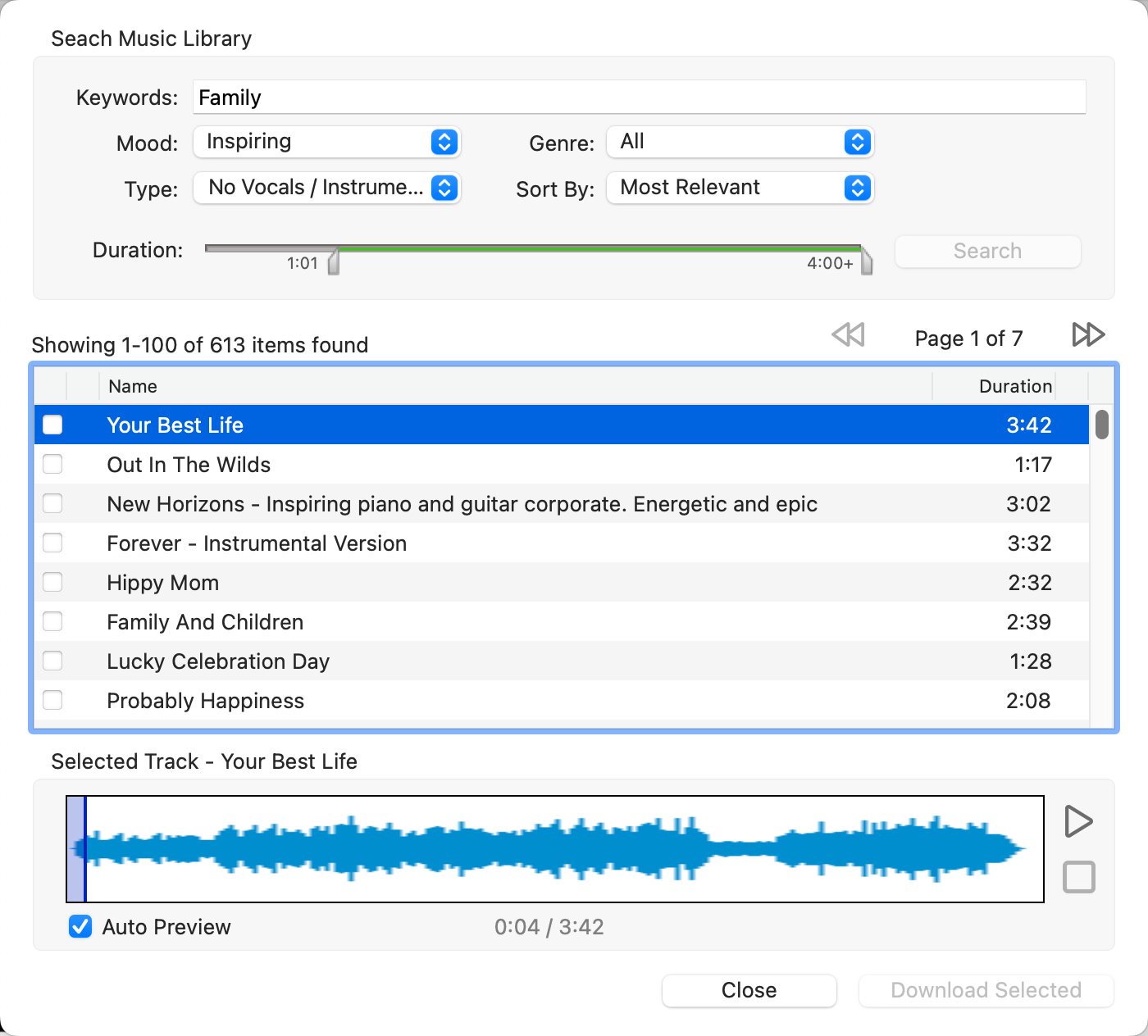
- You can filter your search by keyword, mood, genre, type (vocal or instrumental), and duration.
- Once you find a track, click on its row to download a lower-quality preview.
- If Auto Preview is enabled, the track will start playing automatically. Otherwise, start a preview by using the play button
 .
. - You can also jump to any part of the track using the waveform display.
- Search for music using your preferred criteria.
- Select the tracks you want by checking their boxes.
- Then click "Download Selected." This will download and add the tracks directly to your chosen Music Group.
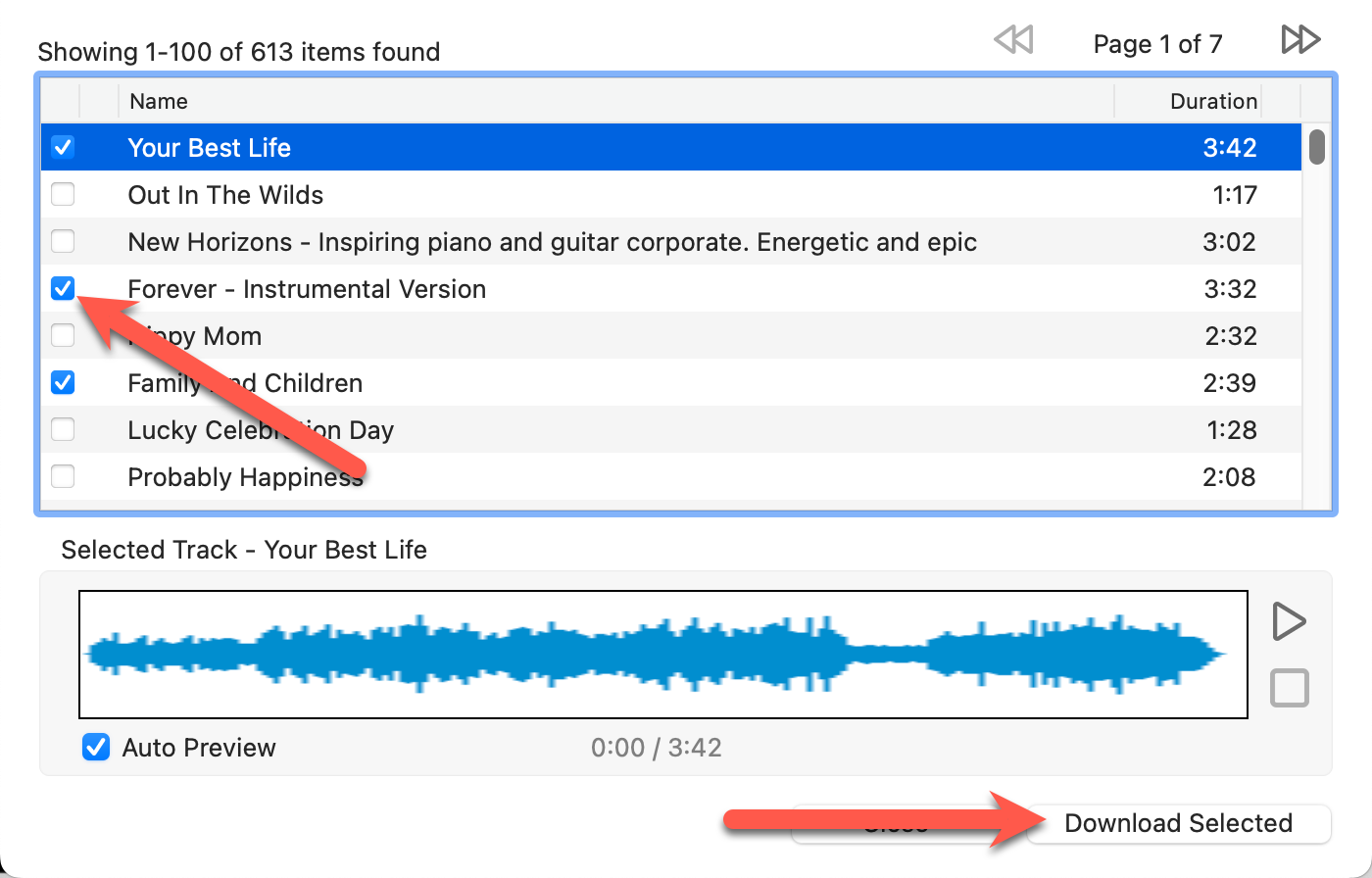
- Make sure to download your selected tracks before starting a new search to avoid losing your selections.
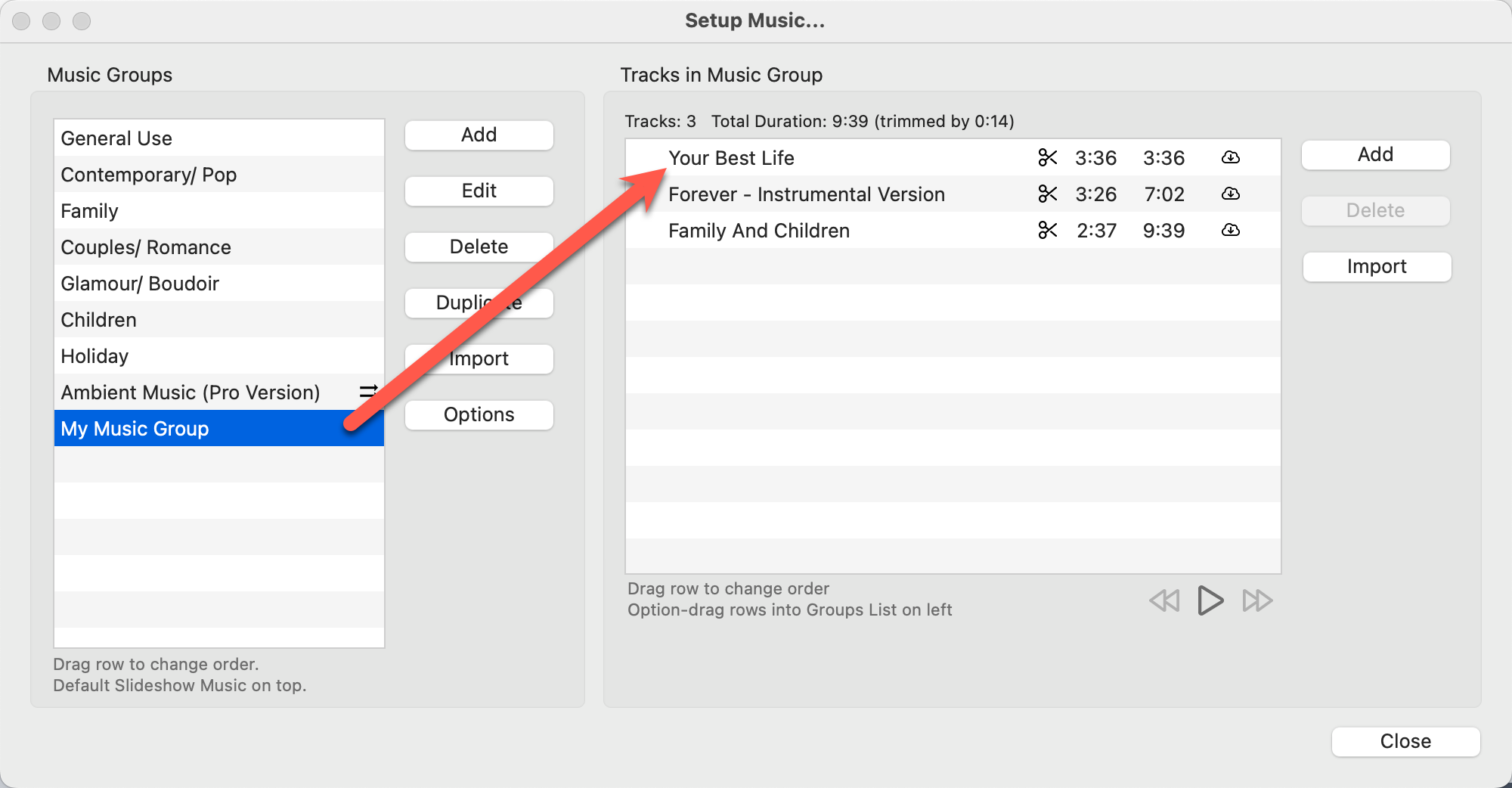
- Once the download is complete, your selected music tracks will appear in the Music Group.
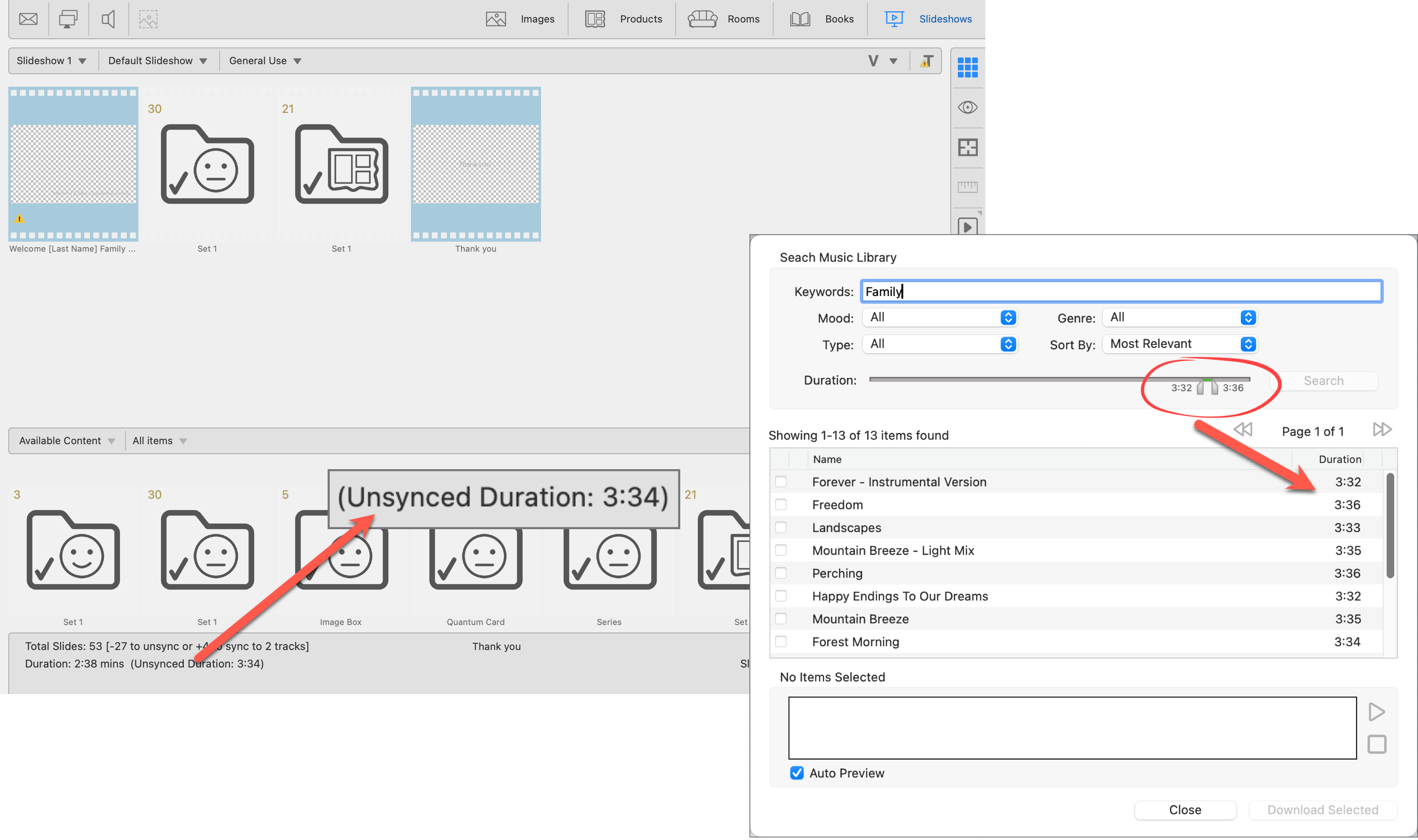
When using music syncing for your slideshow in ProSelect, the duration of both the synced and unsynced slideshow is displayed in the bottom left of the Info Bar. To find a suitable music track that aligns closely with your slideshow's timing, you can set a duration range around the unsynced time. This helps in selecting a track from the ProSelect Music Library that matches your desired slideshow length, ensuring the music complements your slideshow seamlessly.