Starting a ProSelect Trial
When you first install ProSelect, you can use it for free for 30 days as part of a trial period. To activate the trial, your computer needs to be connected to the internet. During this period, ProSelect will occasionally remind you of the number of days remaining in your trial. Once the trial expires, you must purchase a subscription from Pro Studio Software’s online store to continue using the software.
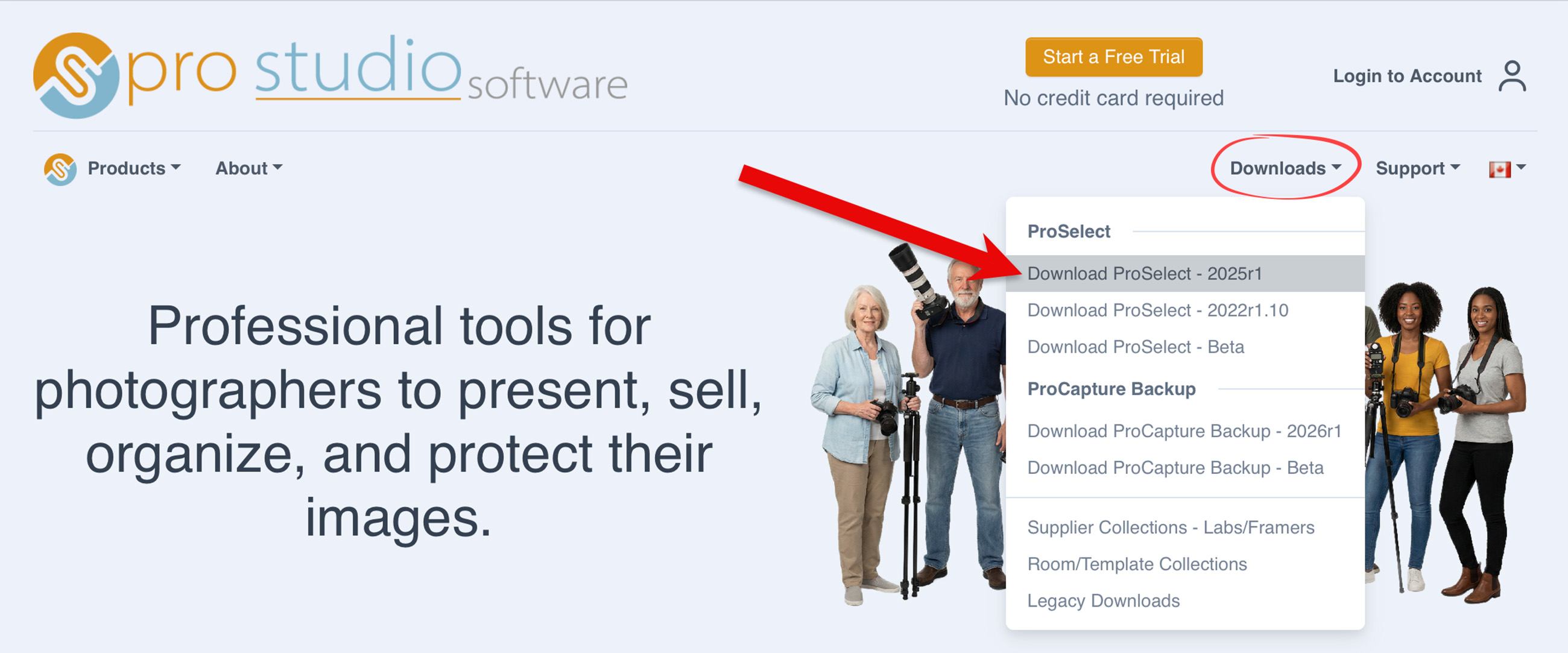
- If you haven't already, go to the Pro Studio Software website and click on "Start a Free Trial." Follow the steps to register for a Pro Studio Software account.
- Download and install ProSelect by going to the Downloads tab. Download the current version of ProSelect. If you need additional guidence, see Downloading and Installing ProSelect.
- Open ProSelect on your computer.
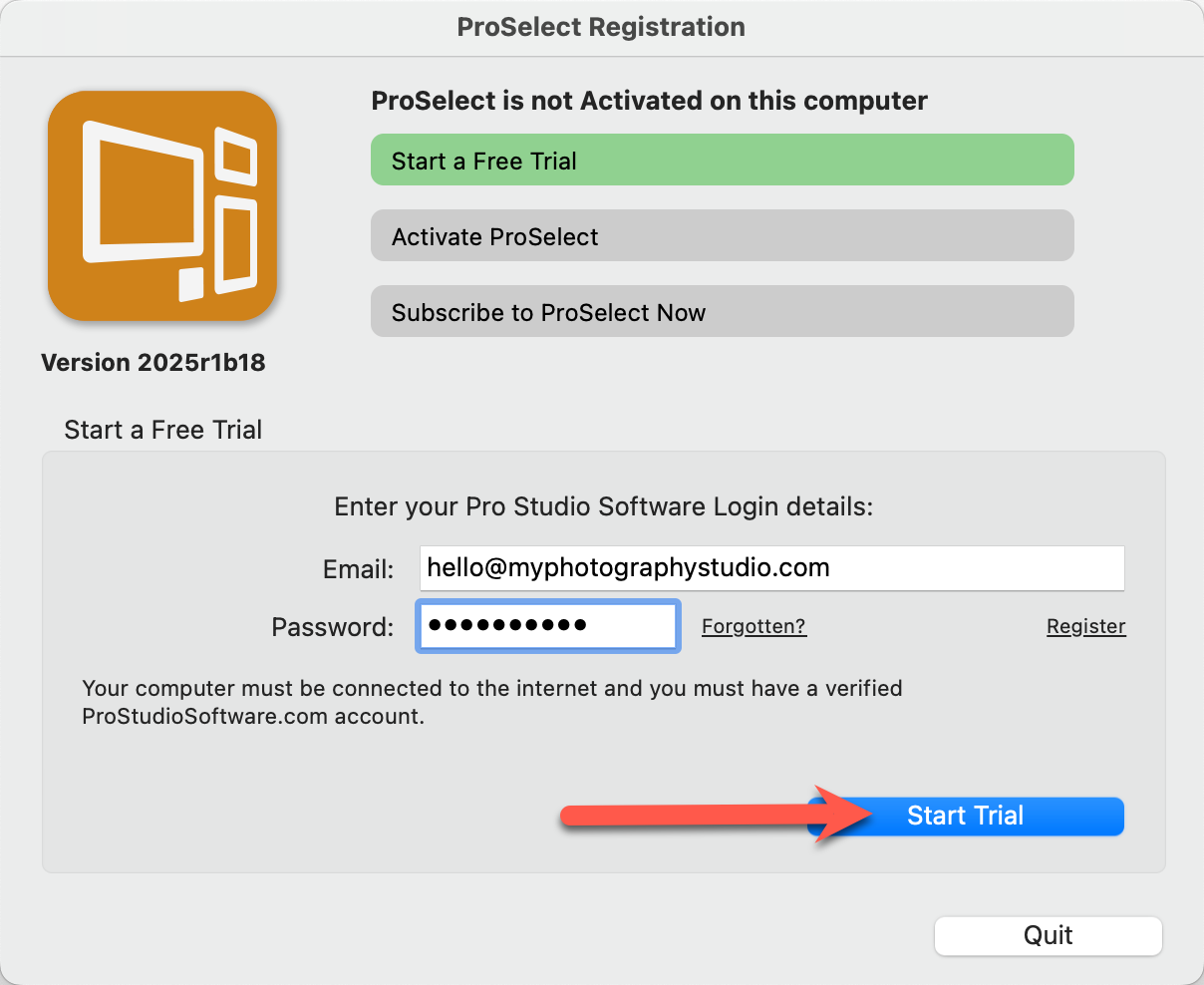
- Select "Start a Free Trial" and enter your Pro Studio Software login details.
- Click on "Start Trial."
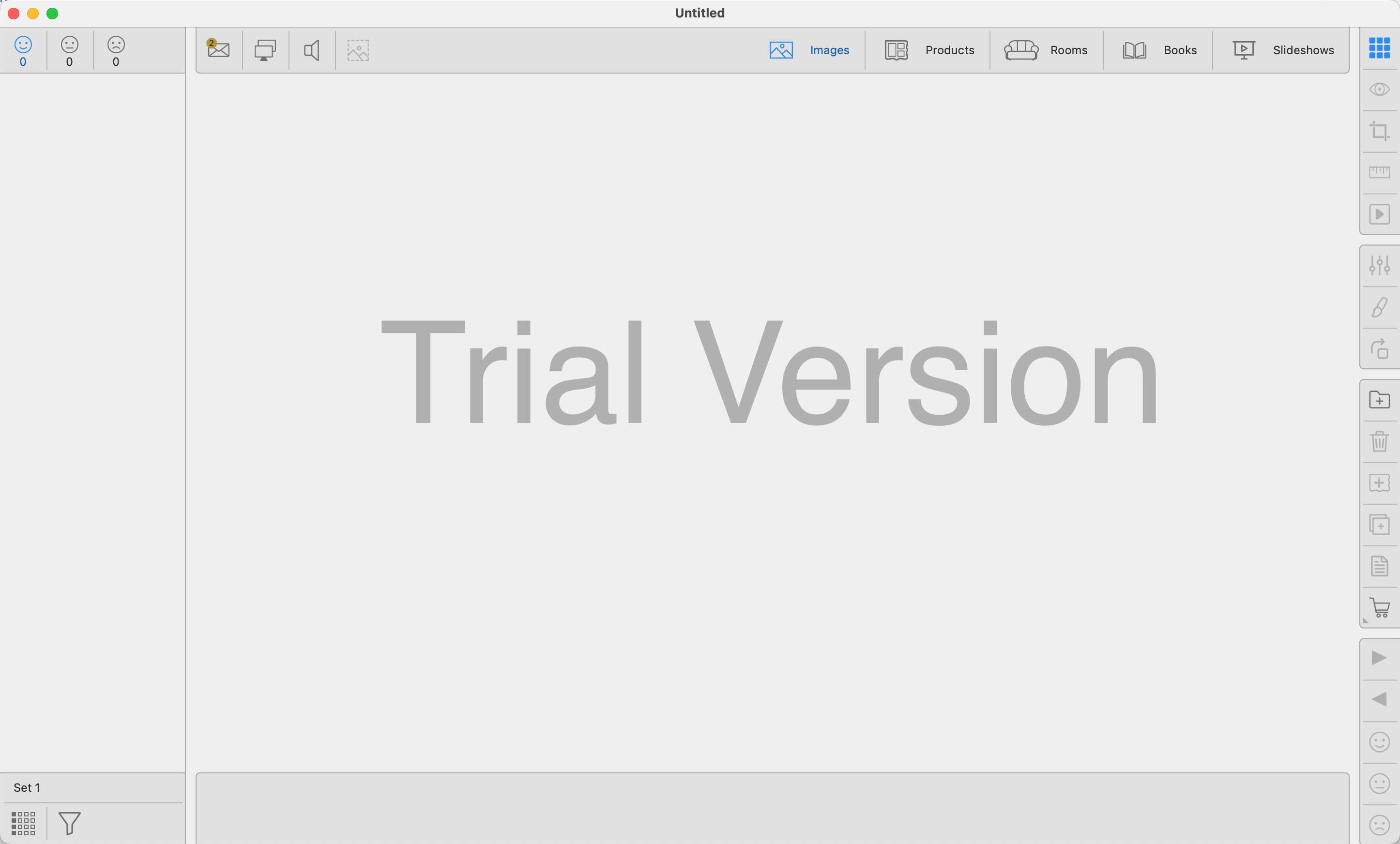
- You are now ready to start using ProSelect for 30 days.
- When you are ready to subscribe to ProSelect, go to the top menu, Help > Register ProSelect. Select "Subscribe to ProSelect Now" from the list of options.
By default, when you start a trial of ProSelect, it operates in the ProSelect Pro mode to give you access to the full feature set. If you'd prefer to explore the Basic version during your trial, you can switch modes by going to the top menu and selecting Help > Switch to Basic Trial.
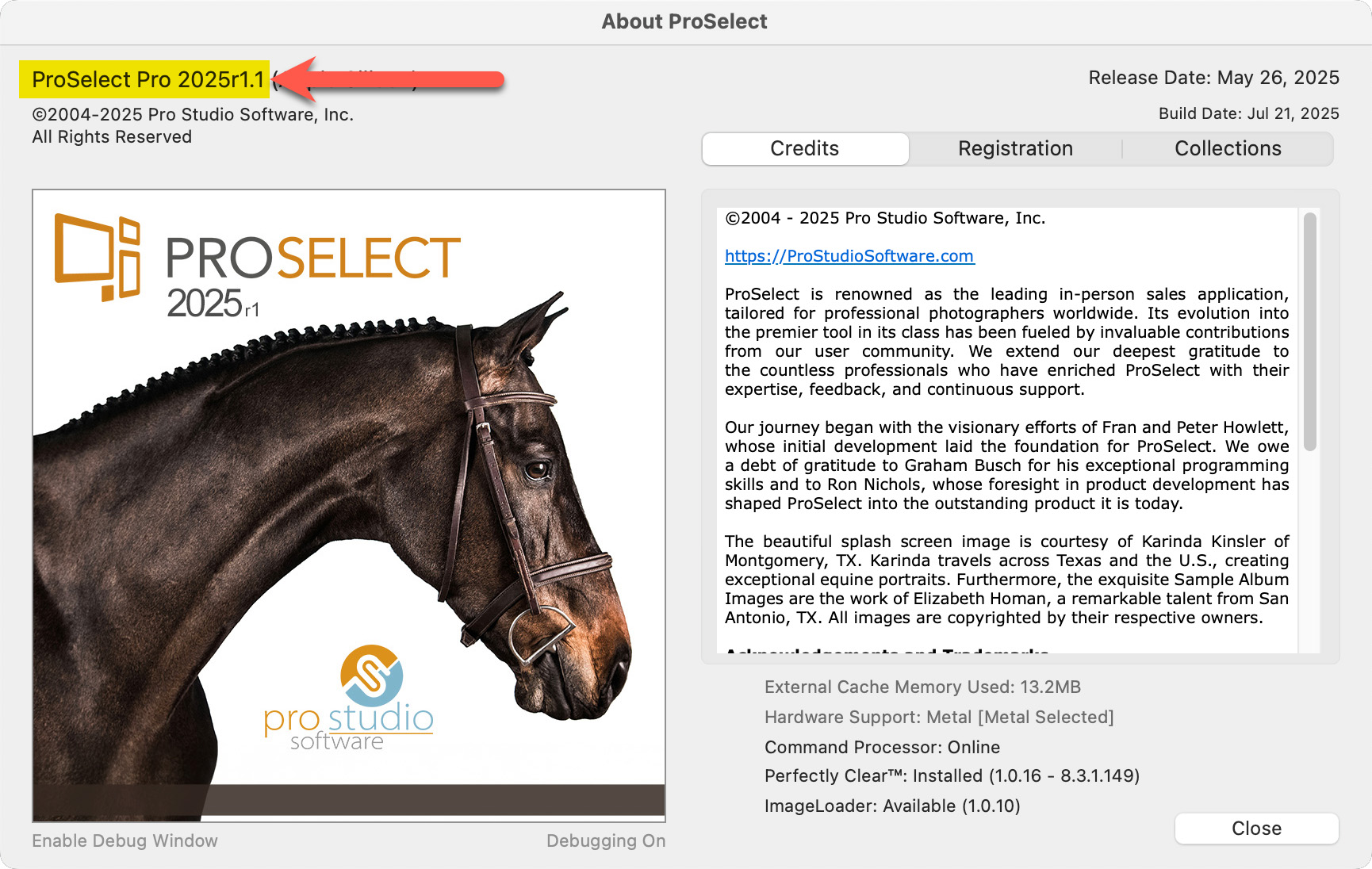
You can check to see if you are running ProSelect Basic or Pro by looking at the About Screen. This will also indicate which version, for example, 2025r1.1.
- Go to the top menu, ProSelectEdit > About ProSelect.
- The version you are currently running is listed in the top left corner of the window.