Exporting Sample Room Designs
You can export low-resolution versions of your room designs for use on social media, websites, blogs, or for client reference. Before exporting, a dialog will appear where you can choose export settings. The size of exported images is based on the original import size of the room image. All exported images include an embedded sRGB color profile. Exported room design images are automatically named using the format: Album Name – Room Name. To export just the product images (not the room view), see Exporting Samples Product Images.
- Navigate to Working with Rooms.
- Select the Room(s) you want to export.
- Go to the top menu, File > Export > Selected Low Res Rooms.
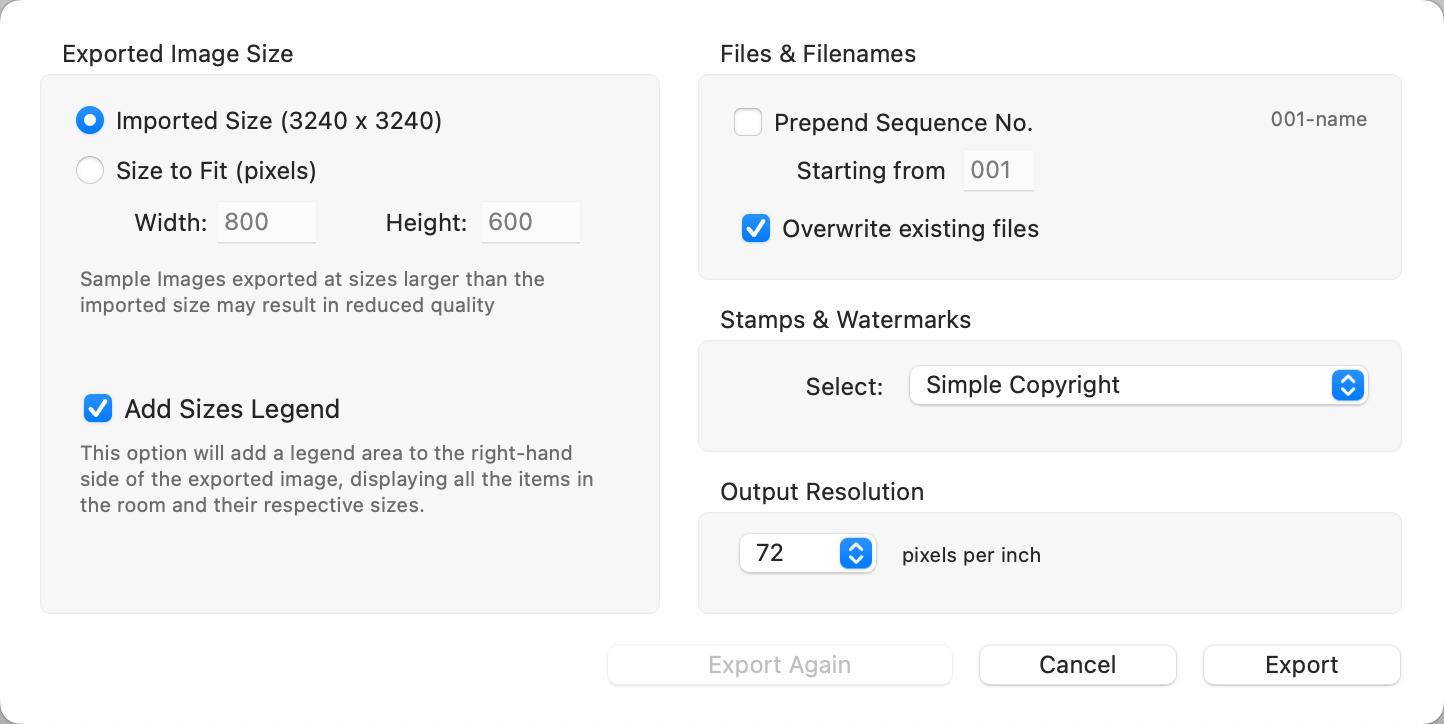
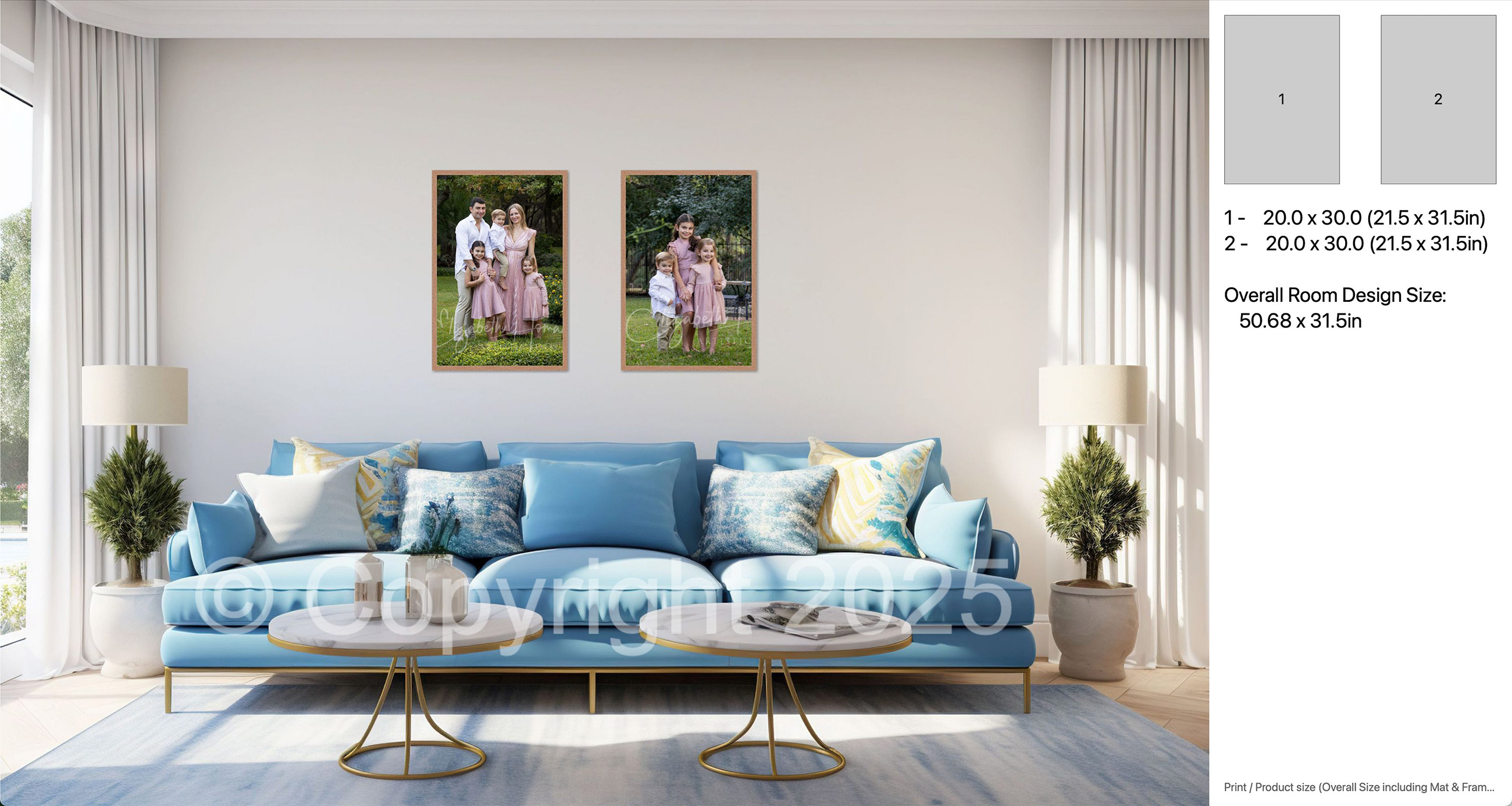
- Add Sizes Legend: When exporting a Room view image, you can choose to include a size reference alongside the exported image. This will widen the exported image to display:
- A numbered legend showing the placement of each item on the wall.
- The size and total dimensions (including mats and frames) for each item.
- If multiple items are included, the overall width and height of the full wall design.
- Prepend Sequence No: Adds a three-digit sequence number to the beginning of each filename to match the image order in ProSelect. You can define the starting number.
- Overwrite Existing Files: When unchecked, any exported files with duplicate names are renamed to avoid overwriting existing versions.
- Stamps & Watermarks: Apply a copyright or branding stamp to the image using presets configured under Stamps, Watermarks & Logos.
- Output Resolution: Sets the image resolution (dpi) embedded in the exported file. The default is 72 dpi, suitable for screen display.

Important Info
- If pretouching presets have been applied to your images, a ProSelect Pro Subscription is required to export at sizes larger than 1600 x 1600 pixels.
Optional Sizes Legend