Exporting the Order to a Studio Management Software
ProSelect includes the ability to export orders to most major studio management systems. If you are using StudioCloud, please refer to the specific section for StudioCloud integration. Known systems that currently support importing ProSelect Order data are listed in the Studio Management Area on the Third-Party Links page. You will need to choose either Standard XML, Standard XML for Web (recommended for web-based systems), or CSV when exporting from ProSelect. For details on how to import this data, refer to your studio management system’s documentation or support team.
Export Format Options
You can export ProSelect order data in one of the following formats:
- Standard XML
Generates an XML file containing order data alongside a folder of thumbnail images of the ordered items. This format is typically used for importing into desktop applications. - Standard XML for Web
Similar to Standard XML, but the thumbnail images are embedded directly into the XML file using Base64 encoding. This format is better suited for web-based applications. - CSV Text
A comma-separated values file containing order data in plain text format.
How to Export Orders
- Go to the top menu, Orders > Export Orders. Or, click the "Export" button at the bottom of the Review Order window.
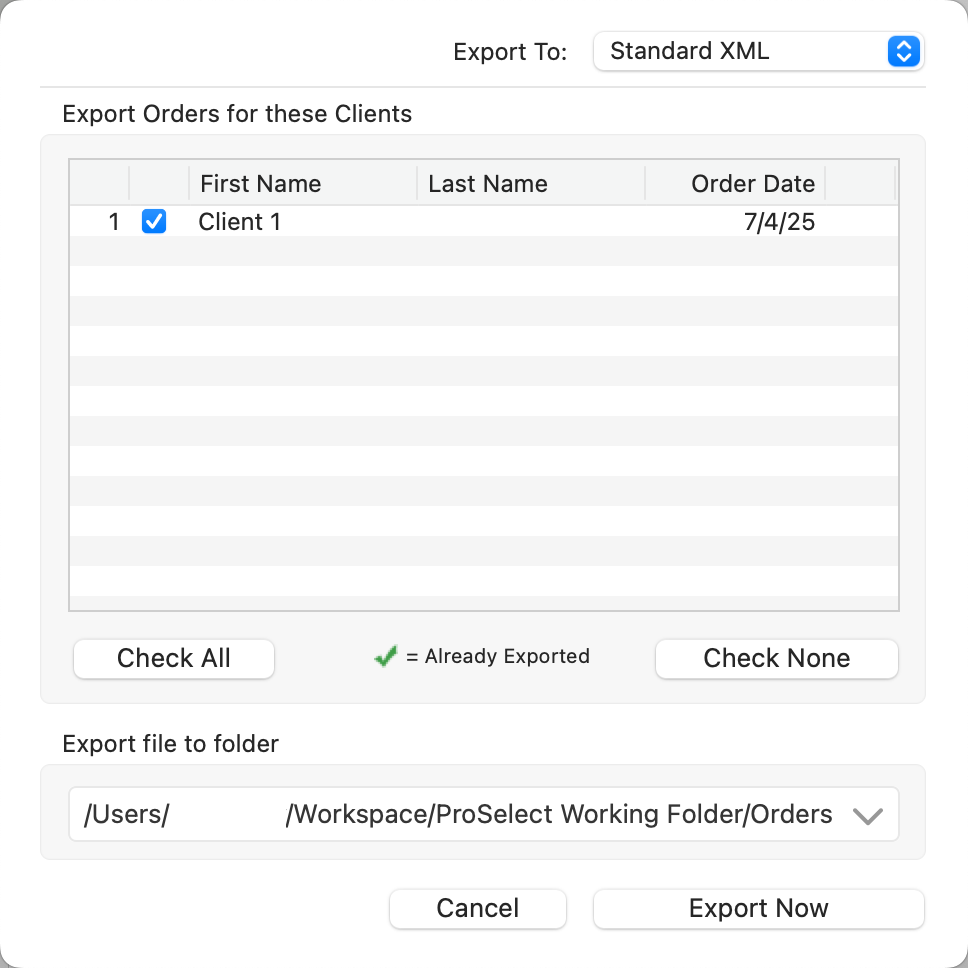
- Export To: Select your preferred format from the dropdown menu.
- Check the box next to each client whose order you wish to export.
- Choose the folder where you want to save the exported files.
- Click "Export Now."
 Quick Tips
- Clients who have already been exported from the current album will be marked with a green check mark. Re-exporting them may result in duplicate entries in your studio management software.
- Even if your studio management system is Windows-only, you can still export order data from the Mac version of ProSelect. If your Mac and Windows computers are networked, export the files directly to a shared folder accessible by both systems.
Payment Type Codes
You can define your own payment type codes for use during export. These are configured in the Setup Payments window. Most studio management systems are compatible with the default payment codes used in ProSelect. If you modify these codes, ensure they match the expected format in your studio management software.
Export Options
When exporting using the Standard XML for Web format:
- Sample images are embedded directly into the XML file.
- To keep file sizes manageable, these embedded images are automatically resized to fit within 400×400 pixels.
- Individual sample images for ordered products other than prints are not included by default.
- You can override these settings by going to Settings > Pricing & Ordering > Settings > Export Orders Options.

You can download a sample data set and full format specification here.