Exporting the Order to a Spreadsheet
ProSelect allows you to export order details into a standard .CSV (comma-separated values) file that can be opened in most spreadsheet programs such as Numbers, Microsoft Excel, or Google Sheets.
How to Export to CSV
- Go to the top menu, Orders > Export Orders.
- Or, click the "Export" button at the bottom of the Review Order window.
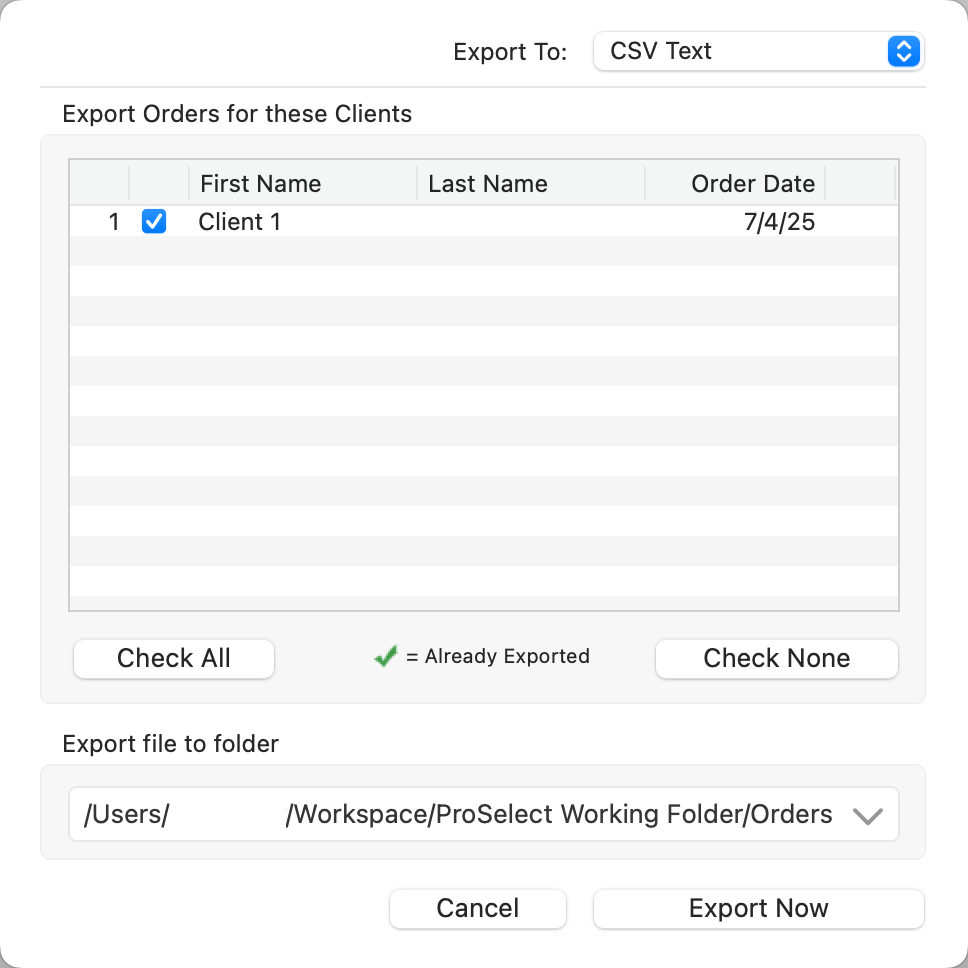
- Or, click the "Export" button at the bottom of the Review Order window.
- In the Export Orders window, select CSV Text from the format dropdown.
- Check the box next to each client whose order you want to export.
- Choose the folder where you want to save the exported file.
- Click "Export Now."
Clients who have already been exported from the current album will be marked with a green check mark.
Product Codes and Notes
- If you have product codes enabled, these will be included in the exported spreadsheet.
- To include image and order notes in the final column of the CSV file, go to Settings > Pricing & Ordering > Settings > Export Orders Options and enable the relevant checkbox.
Exported Image & Order Notes
Because CSV format restricts the use of line breaks and commas:
- Any newline characters in the image or order notes will be replaced with spaces.
- Any commas will be replaced with hyphens (-).
- Order notes appear after image notes in the same column.