Fast Book Building Techniques
ProSelect offers several tools designed to streamline the process of assembling books. These tools help maximize efficiency by automating repetitive tasks and simplifying the process of layout creation.
- Smart Filter: Streamlines template selection by matching templates to the number and orientation of selected images, including options for automatic rotation to fit images perfectly.
- Smart Drop: Ensures precise placement of images into templates by aligning them with the appropriate orientation, automating image insertion for efficiency.
- Auto-Populate: Allows for quick filling of templates or creation of entire books by automatically distributing selected images across available openings or creating new pages until all images are utilized.
- Save Templates from Selected Pages: You can save templates from selected pages of a completed book into a new group. This feature is especially handy if you frequently use specific templates as defaults for new books. When you choose to save these templates, they are duplicated into a new folder, allowing you to maintain any virtual styles that were applied. This makes it easy to replicate your favorite layouts quickly in future projects.
This feature simplifies book page template selection by showing only those that match the number of images you have selected in the image list. The smart filter tool is on the right-hand side of the Book Page Template Resource Bar.
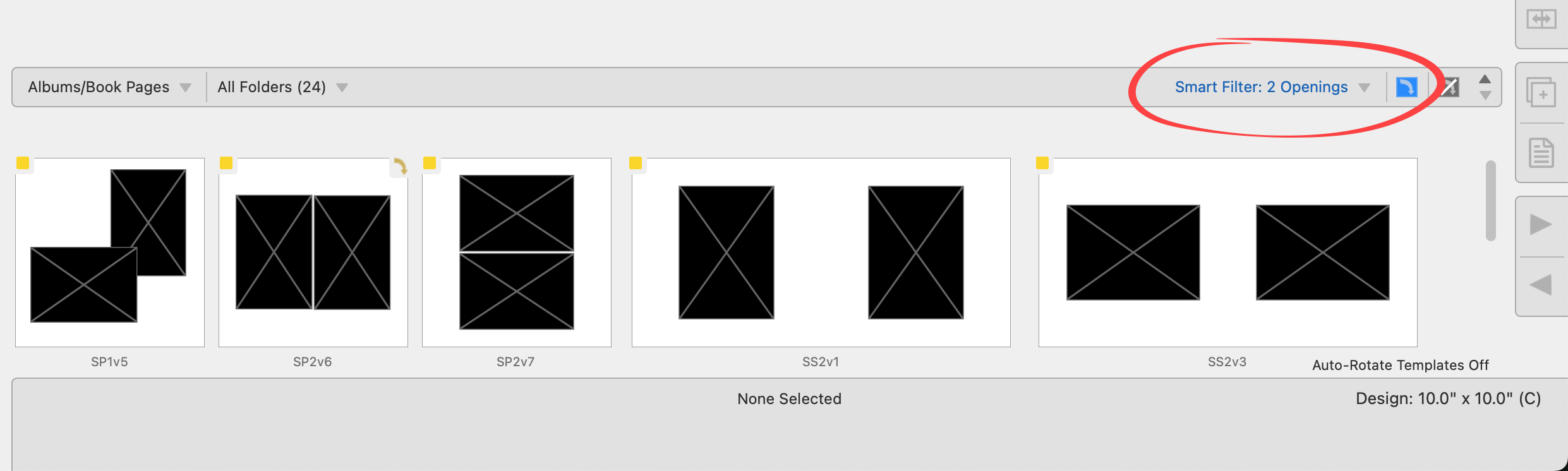
It offers three settings:
- No. of Openings: Displays templates with the same number of openings as the selected images.
- No. of Openings & Orientation: Adds a requirement for matching the orientation of the images.
- One Opening (Auto-create): Ideal for albums designed with one image per page, showing only single-opening templates.
Setting 1: No. Of Openings
- Using the image list, select the images you want to add to the book.
- Choose "No. of Openings" from the Smart Filter drop-down list.
- Select a Category and Folder in the Resource Bar.
- Only templates with the same number of openings as images selected will display.
- Drag the images from the image list and drop them onto a template.
- The template now appears in the display area with the images.
- Navigate to Show Pages view to swap and adjust the images.
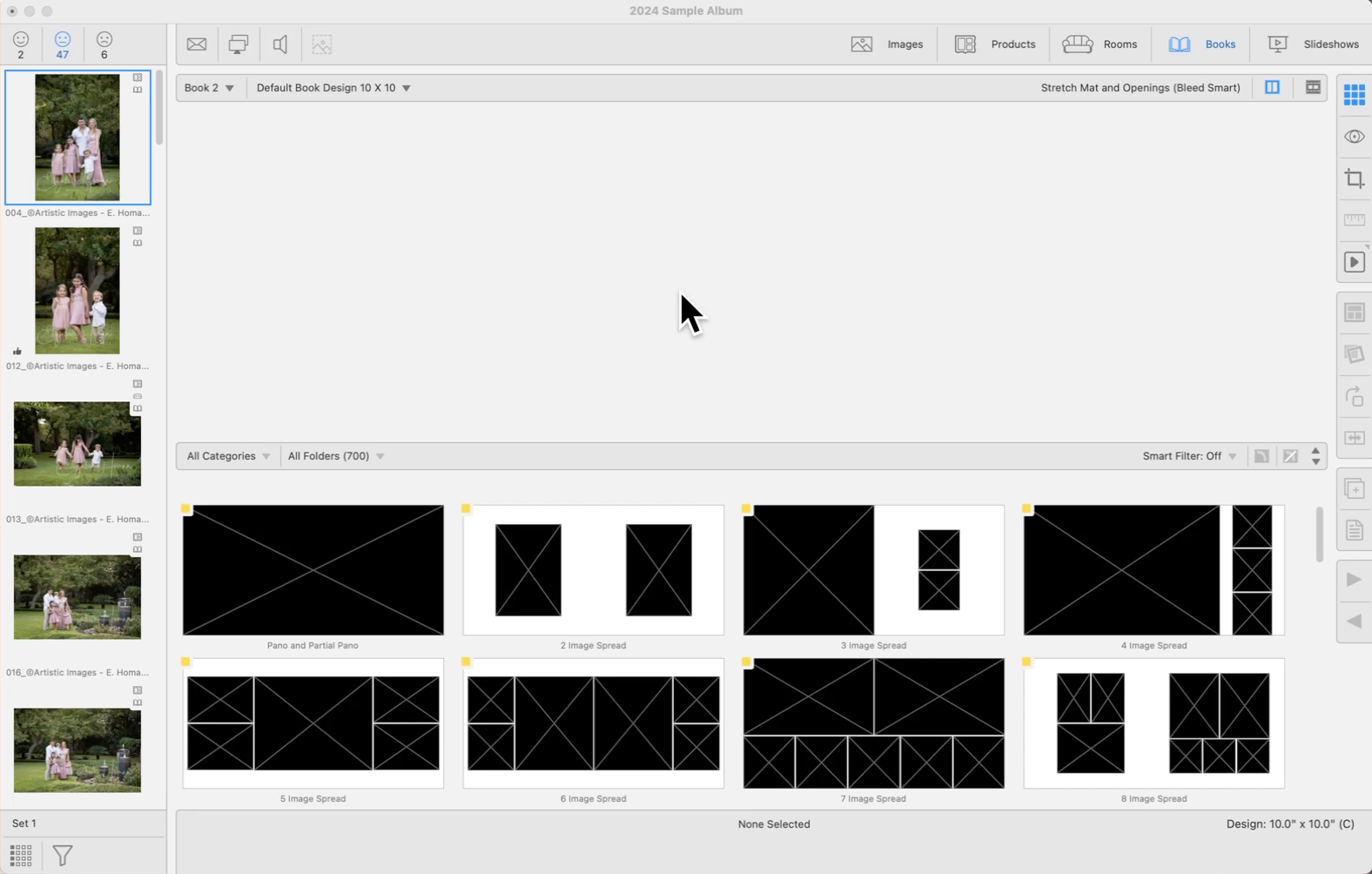
Setting 2: No. Of Openings & Orientation
Follow the same steps as above, but select "No. of Openings & Orientation" from the Smart Filter drop-down list.
- Only those page templates that match the orientation of the selected images will be displayed.
- Note that square openings will match both portrait and landscape images, meaning they will be included regardless of the orientation setting.
- If your book design is square and you have the Auto-Rotate Templates tool
 enabled, templates that can be rotated to fit the images will also be displayed and adjusted accordingly.
Setting 3: One Opening (Auto-Create)
- Choose "One Opening (Auto Create)" from the Smart Filter drop-down list.
- Optionally, turn on the Auto Rotate Templates tool .
- Select a Category and Folder in the Resource Bar.
- Only single opening page templates will display.
- Select images in the image list.
- Drag the images from the image list and drop them onto a template.
- The book has now been populated with all of the selected images using the same page template.
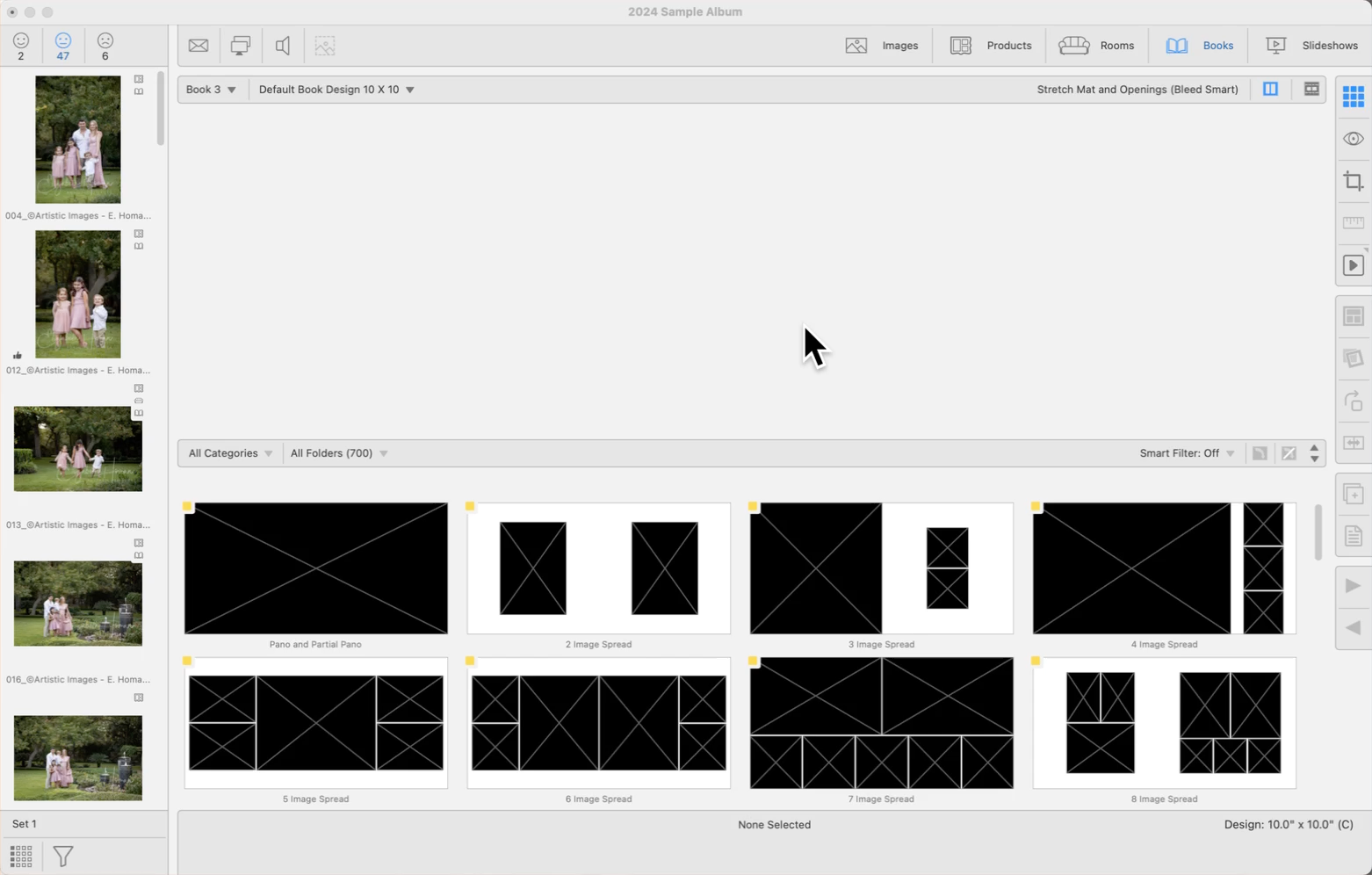

After selecting a smart filter, tap the spacebar to turn it on/off.
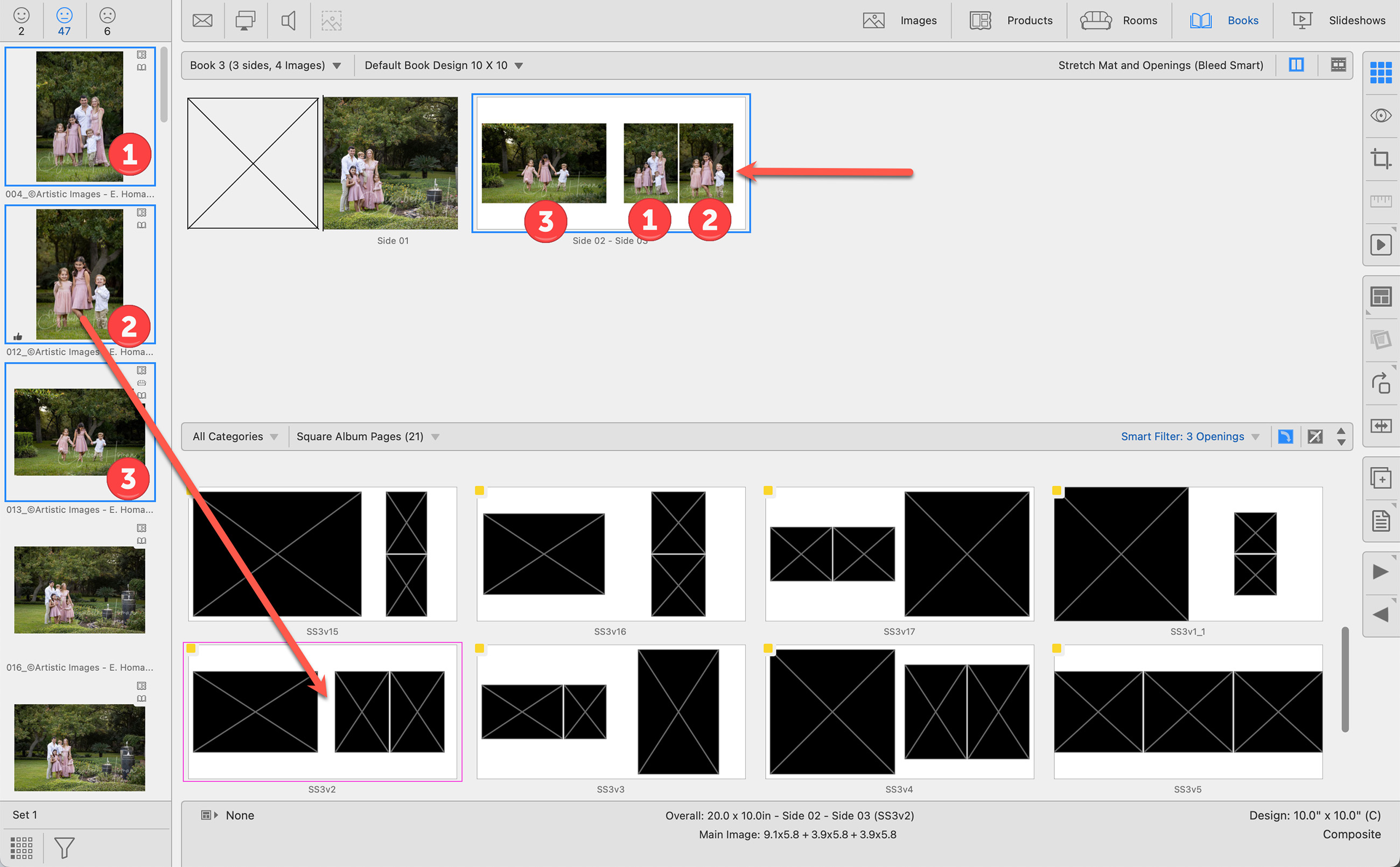
This feature automatically places images into template openings that match their orientation when dropped onto a template in the resource area. When dropping images into templates already placed in the display area, the images fill in the sequence of the template’s openings.
In the example below, three images were dropped onto a page template in the resource area. ProSelect automatically placed the landscape image in the horizontal opening.
Populating Templates With the Same Image
Hold the Shift key while dropping a single image onto a template to replicate that image in every opening. Dropping multiple selected images while holding the Shift key results in a new template for each image, duplicating the first dropped image across all openings.
Filling a Book with Empty Templates
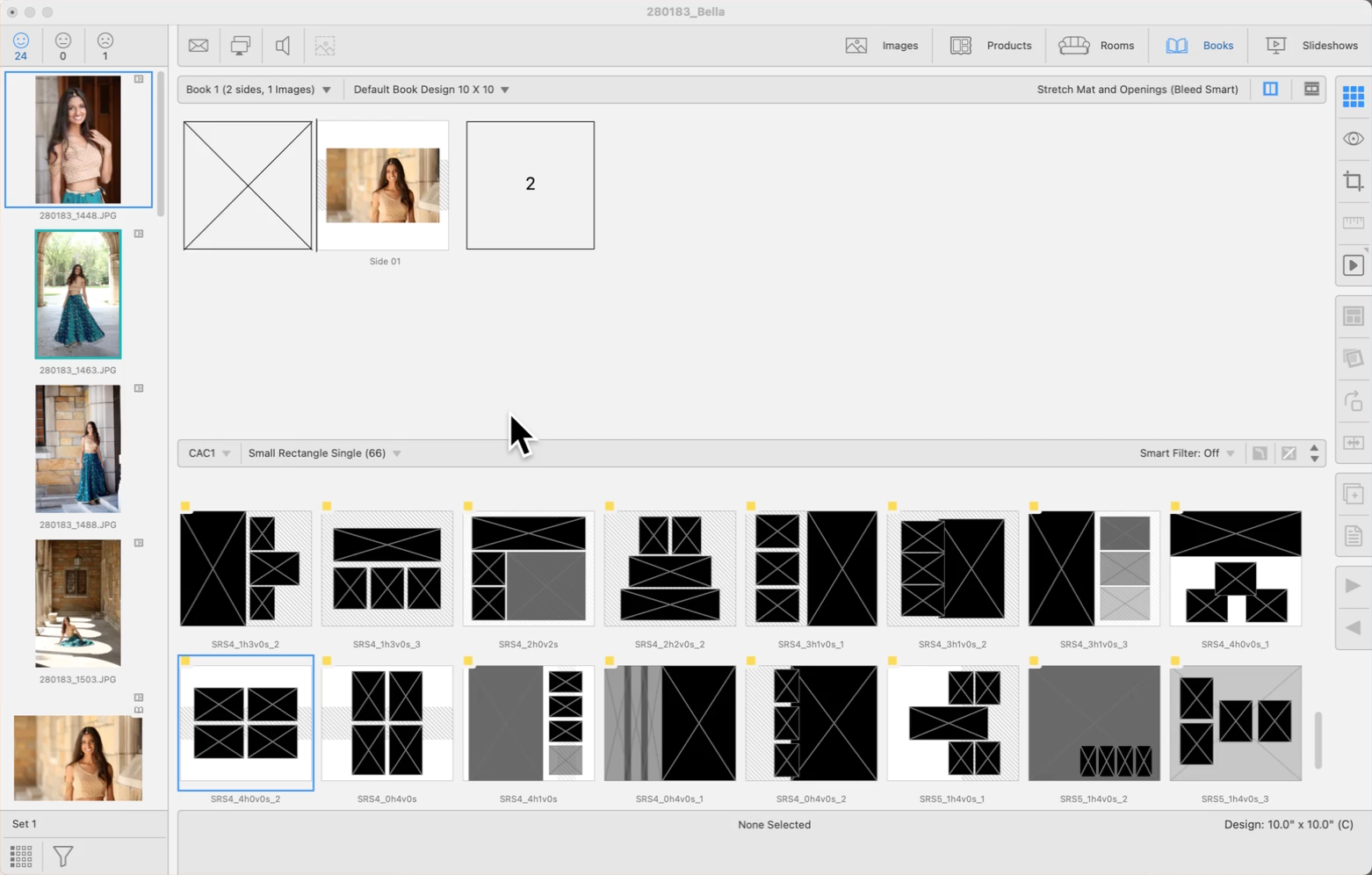
Drag and drop multiple images from the Image List into an empty template. The first image fills the selected opening, and subsequent images fill the next openings in sequence, continuing onto the next templates until all images are placed or templates are filled.
Auto-Creating a Book
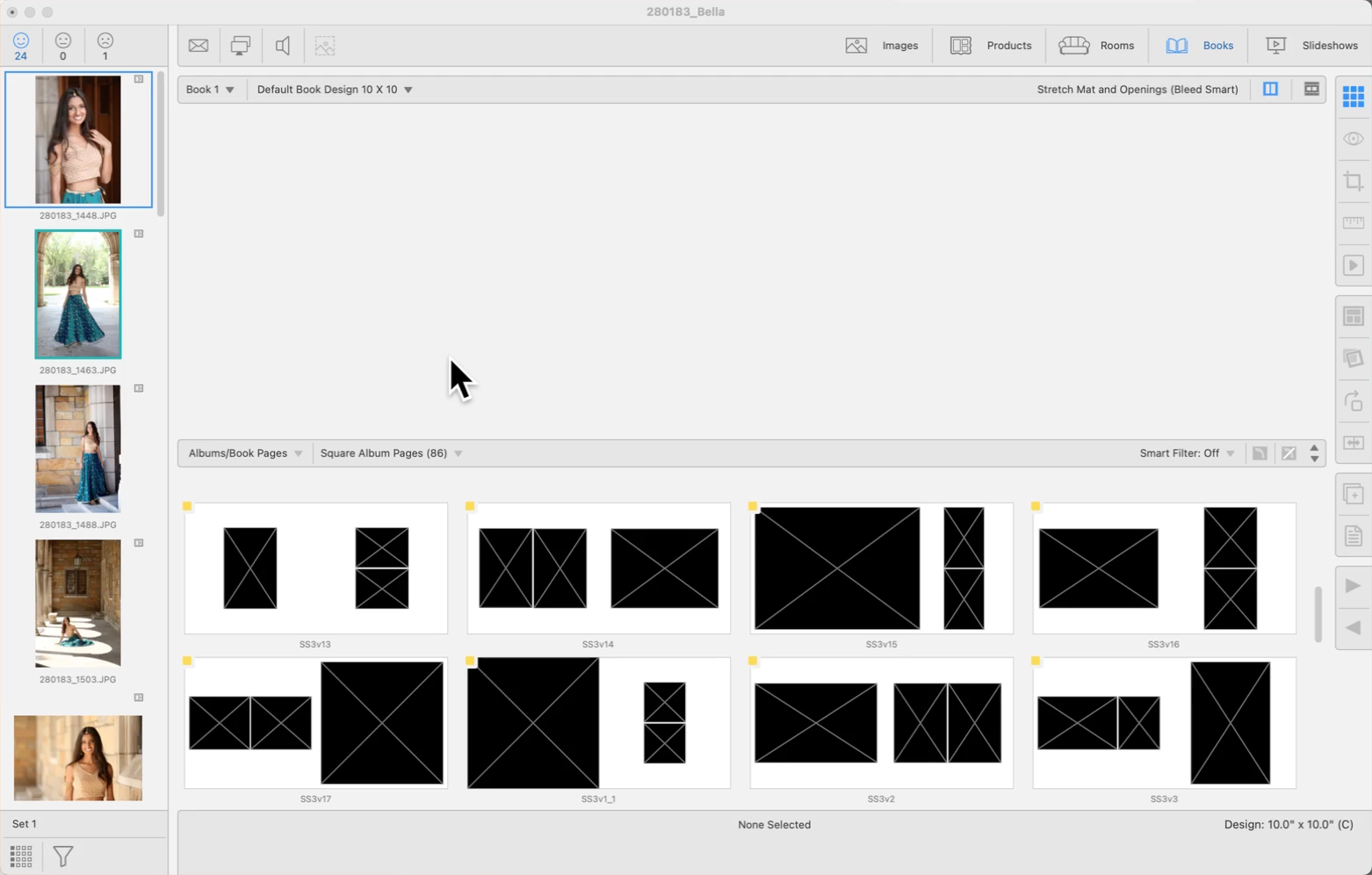
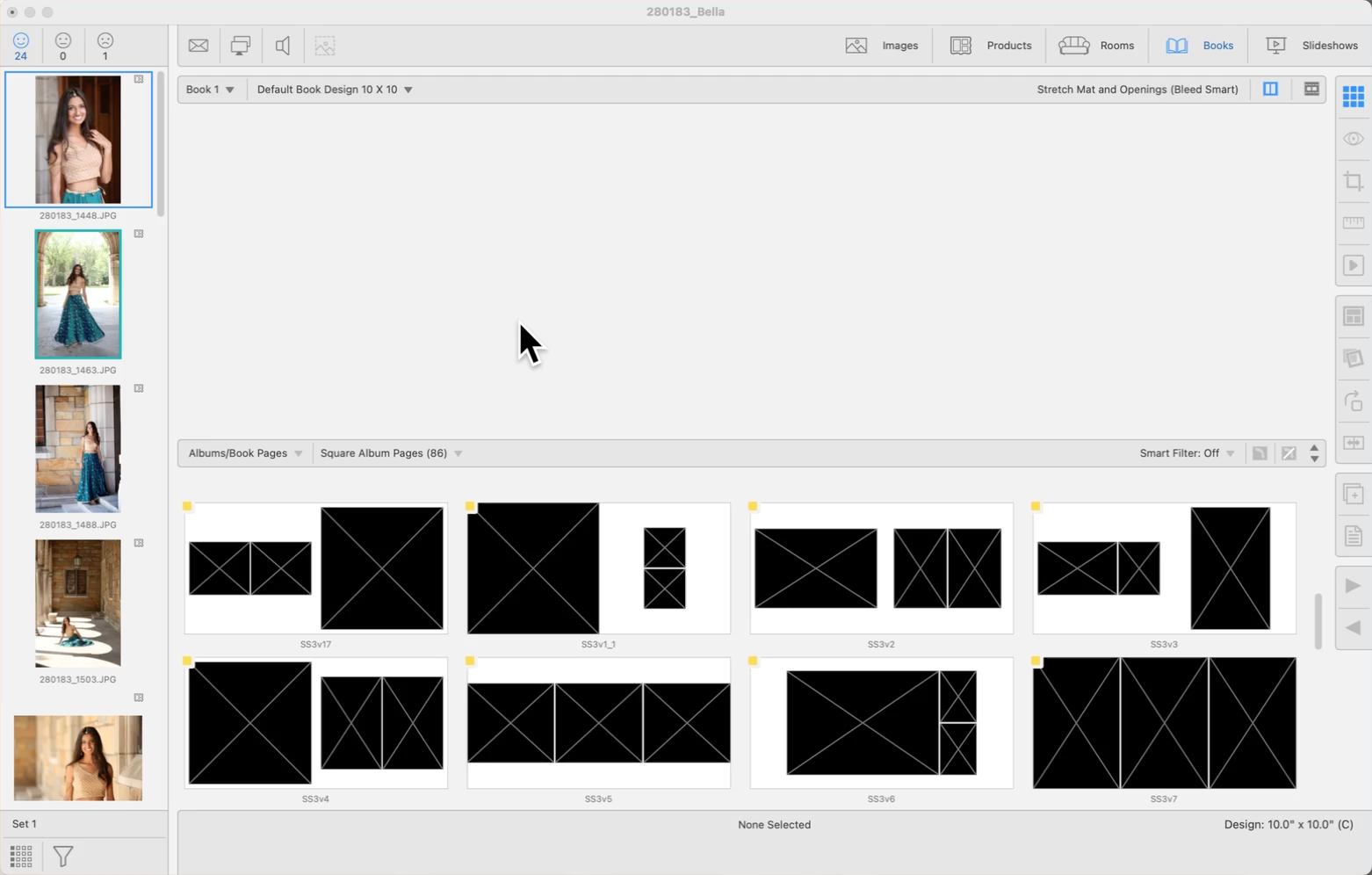
Allows for the rapid creation of a book by dropping images onto a desired template below the bar, automatically generating new pages with the dropped images until all are utilized. The same template must be used for each page. For instance, dropping 10 images onto a template with one opening results in 10 individual page layouts, each containing one of the images. In the example below, 24 images are selected and dropped into a 3 image opening spread.
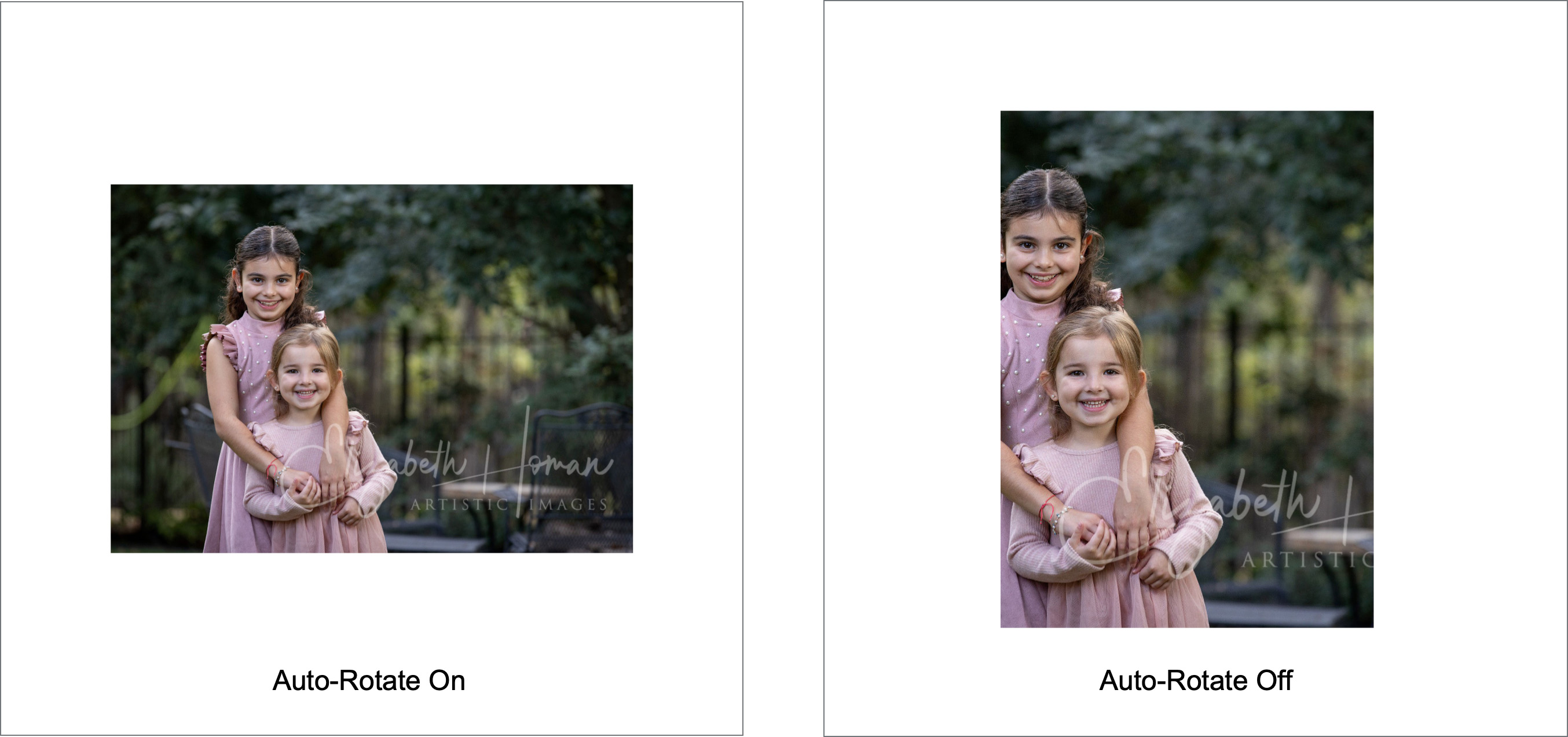
The Auto-Rotate Templates tool automatically adjusts book page templates to match the orientation of the images being used.
- When enabled, this tool can rotate openings to accommodate either portrait or landscape images.
- This tool is used exclusively when the Smart Filter is on.
- Alternatively, use the Rotate tool
 on the toolbar to rotate a book page.
Practical Example
Below, we have selected a landscape-oriented image to be placed in a portrait-oriented book page template.
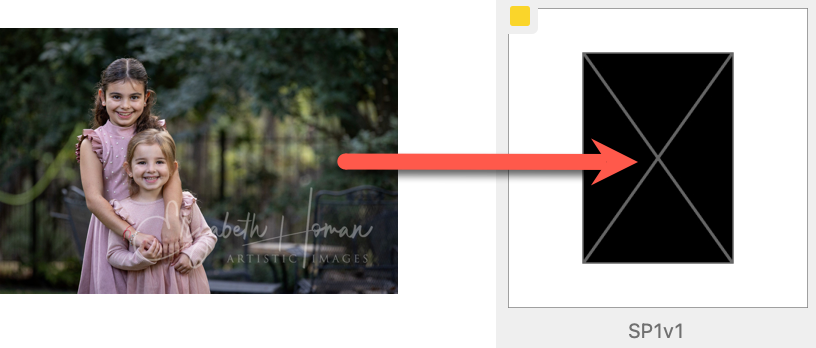
Results Based on Auto-Rotate Being Turned On/Off
Once you have created a layout for a book, you have the option of saving the templates within that book. You can then access all the templates you saved in a specific folder for future use. Any applied virtual styles will also be saved.
- Navigate to Working with Books, Thumbnail view.
- Select the book page templates you wish to save.
- On the top menu, go to Products > Save Templates from Selected Pages.
- Choose a location for the saved templates (Category and Group) as well as a name.
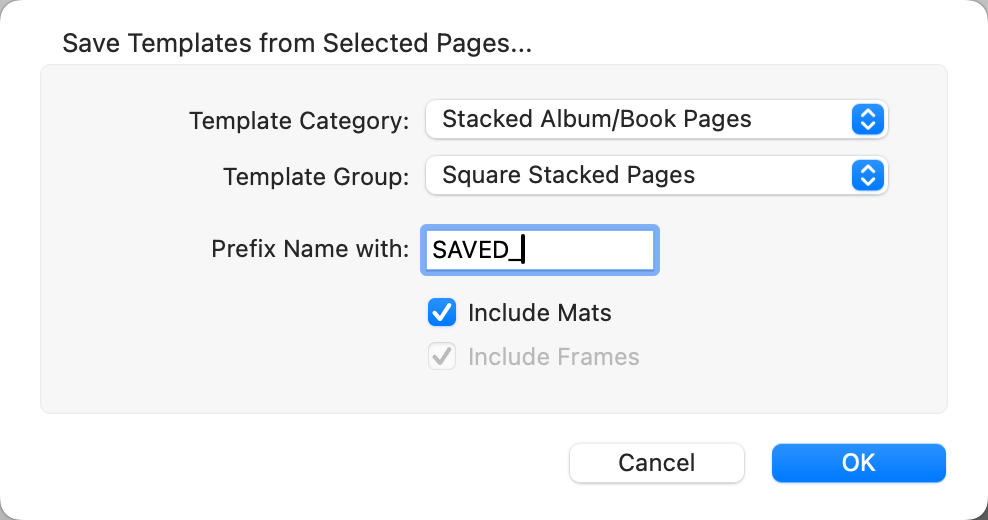
- Click OK.
- Your saved templates can now be accessed in the Book Page Manager as well as the Book Page Template Resource Area.