Importing an Invoice
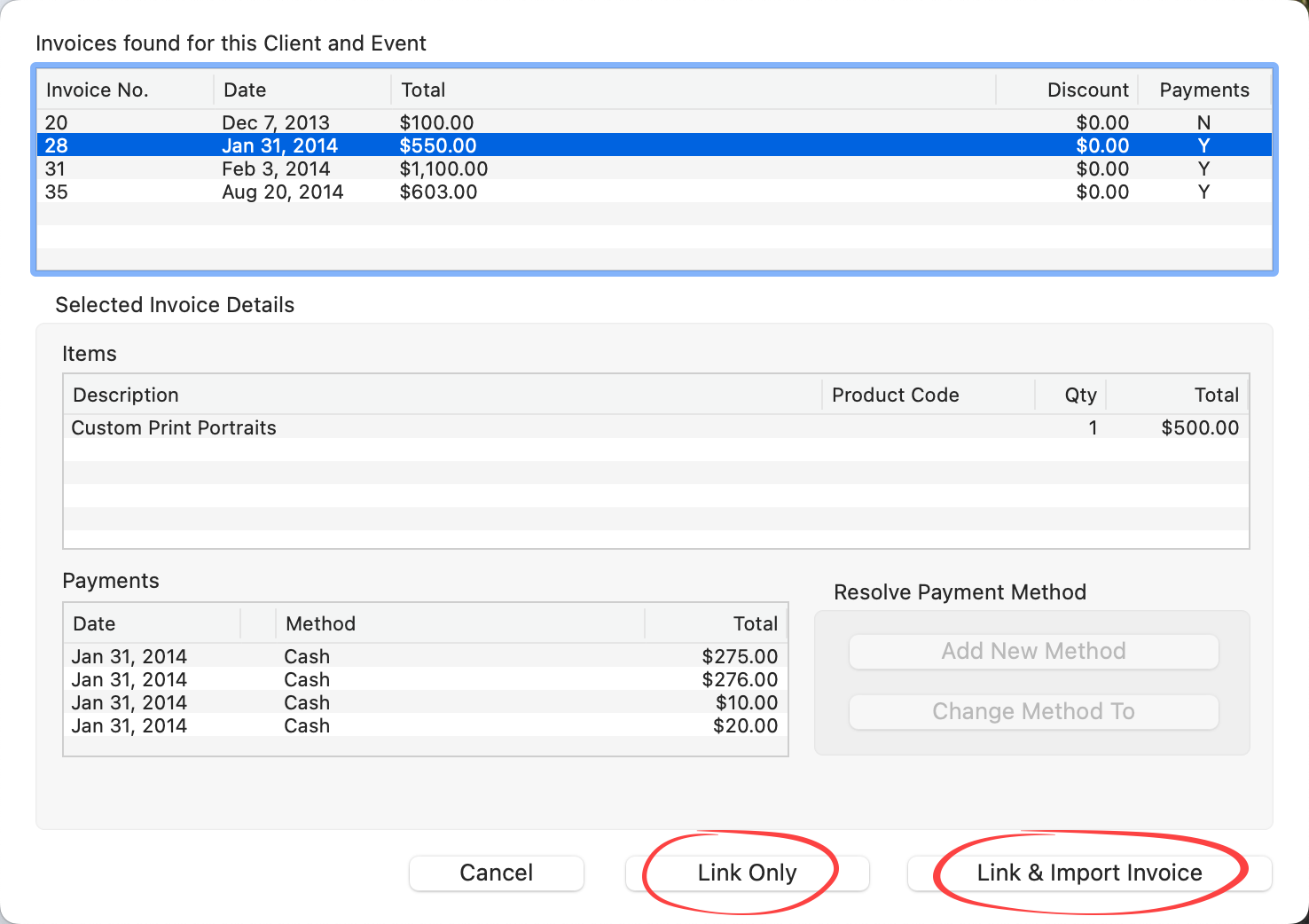
When you link an album to StudioCloud in ProSelect, the software automatically checks for any existing invoices associated with both the selected client and the selected event. If multiple invoices are found, you’ll be able to view them one by one to see the items and payments each includes.
At that point, you have two options:
- Link Only: This will connect the album to the selected client and event in StudioCloud, but will not import any invoice data into ProSelect.
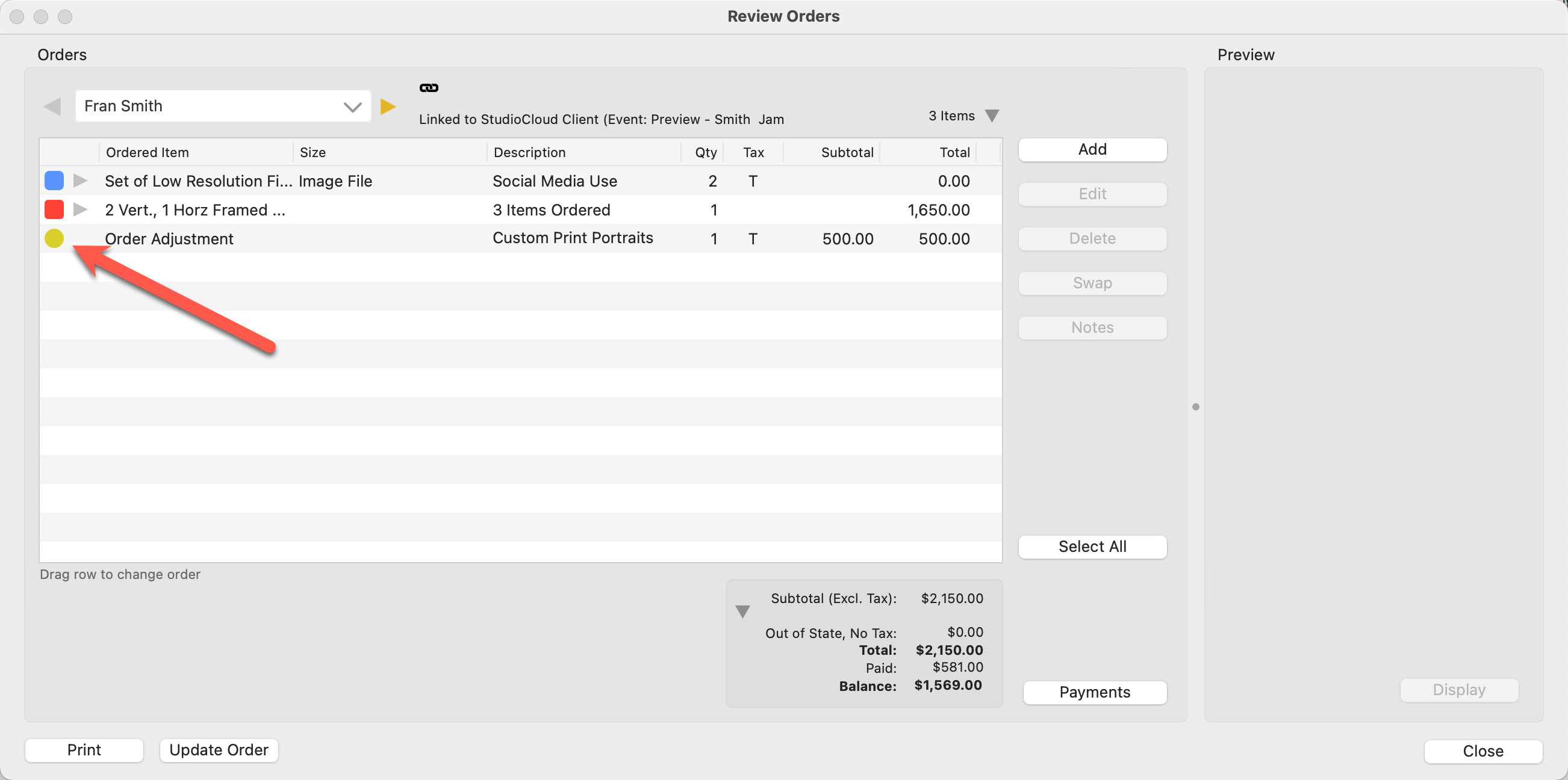
- Link & Import Invoice: This option imports all line items from the selected StudioCloud invoice into ProSelect. These items are added as Order Adjustments to the first client’s order. Any payments recorded in StudioCloud for that invoice will also be imported.
Imported line items are identified with a yellow dot and are placed in the Review Orders window.
When importing an invoice from StudioCloud into ProSelect, the software checks that all payment methods used in the StudioCloud invoice exist in your current ProSelect setup. If any payment method doesn’t match, it will be flagged with a warning symbol  . You won’t be able to complete the import until all missing payment methods are resolved.
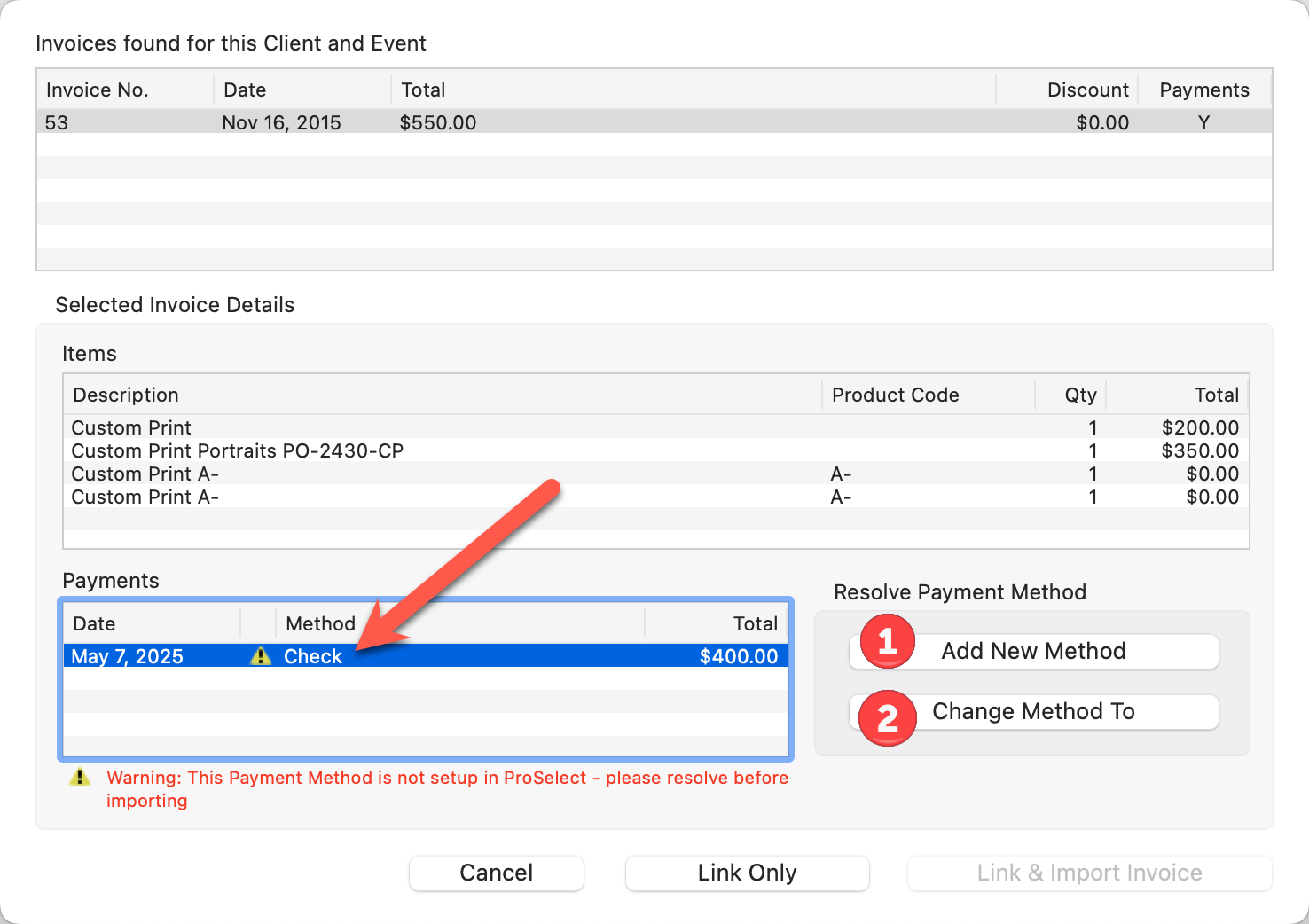
To fix this, click on the payment line with the issue and choose one of the following options:
- Click "Add New Method" to create and add the missing payment method to ProSelect.
- Click "Change Method To" and select an existing method from the pop-up list to replace the unmatched one.
Imported Payments Are Locked 
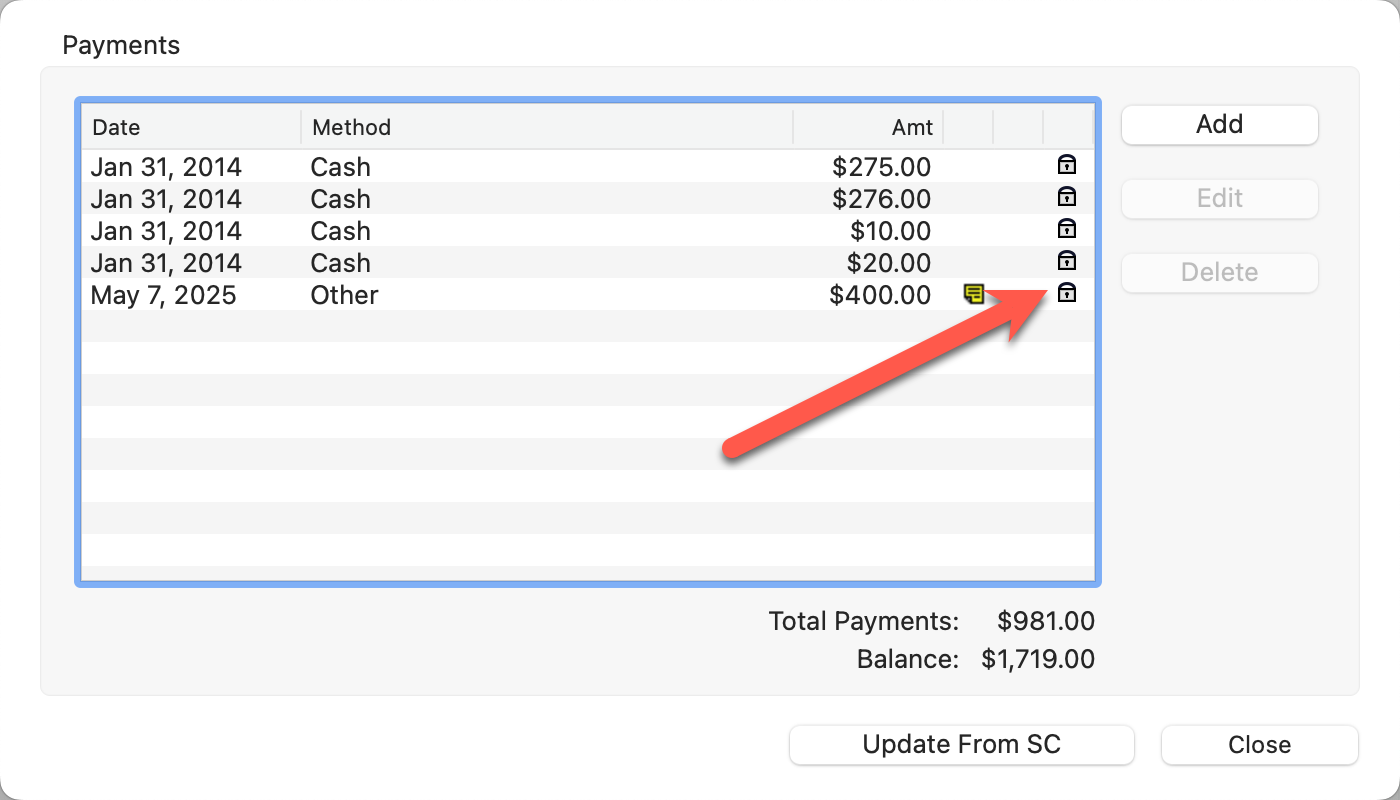
Any payments imported from StudioCloud are treated as already finalized. In ProSelect, these payments will be marked as already exported and locked. This means they cannot be edited, deleted, or re-exported. This helps prevent duplication and keeps your records in both systems consistent.