Exporting Orders
Orders that you've recorded in ProSelect can be exported to create an invoice in StudioCloud, but two conditions must be met first:
- The ProSelect album must be linked to a StudioCloud event.
- The client associated with the order must be linked to a StudioCloud client.
Once both links are established, you can export orders for one or more clients by going to the top menu, Orders > StudioCloud > Export Orders to StudioCloud.
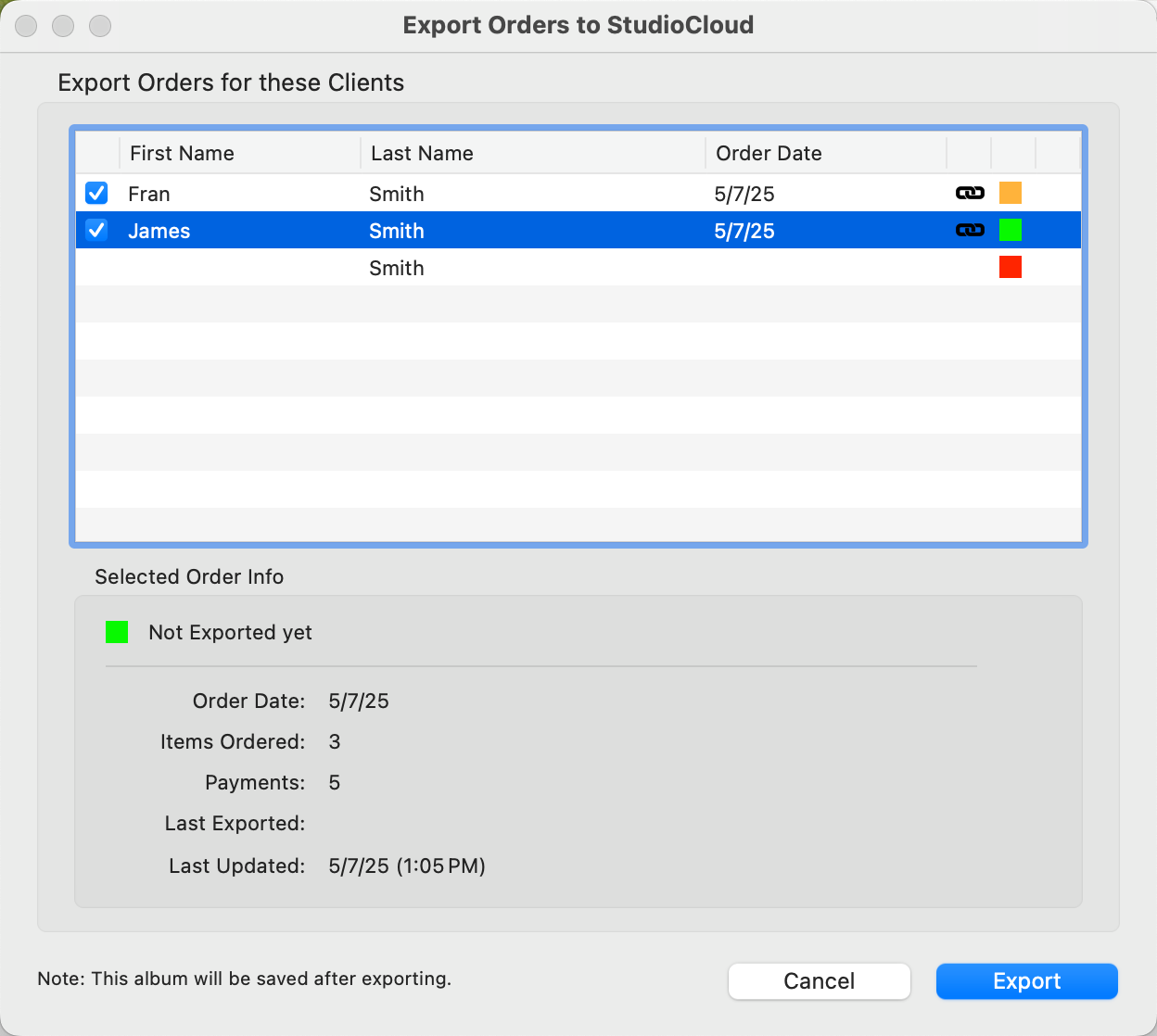
- When you open the export window, ProSelect connects to StudioCloud to:
- Confirm that previously exported orders from the current album still exist.
- Check for any changes to orders or payments since the last export.
- Orders ready to export or update will show a checkbox on the left—check the ones you want, then click Export.
- If there are any new payments in StudioCloud not yet imported, ProSelect will prompt you to import them before exporting the order.
 Not exported yet, and ready to be exported.
 Already Exported – changes made, needs updating.
 Already Exported – missing in StudioCloud.
 Cannot be exported – either no orders or not linked.
 Exported and up-to-date in StudioCloud.
If a previously exported order has been deleted from StudioCloud, ProSelect will display a warning icon  next to the client’s name. It will need to be re-exported.
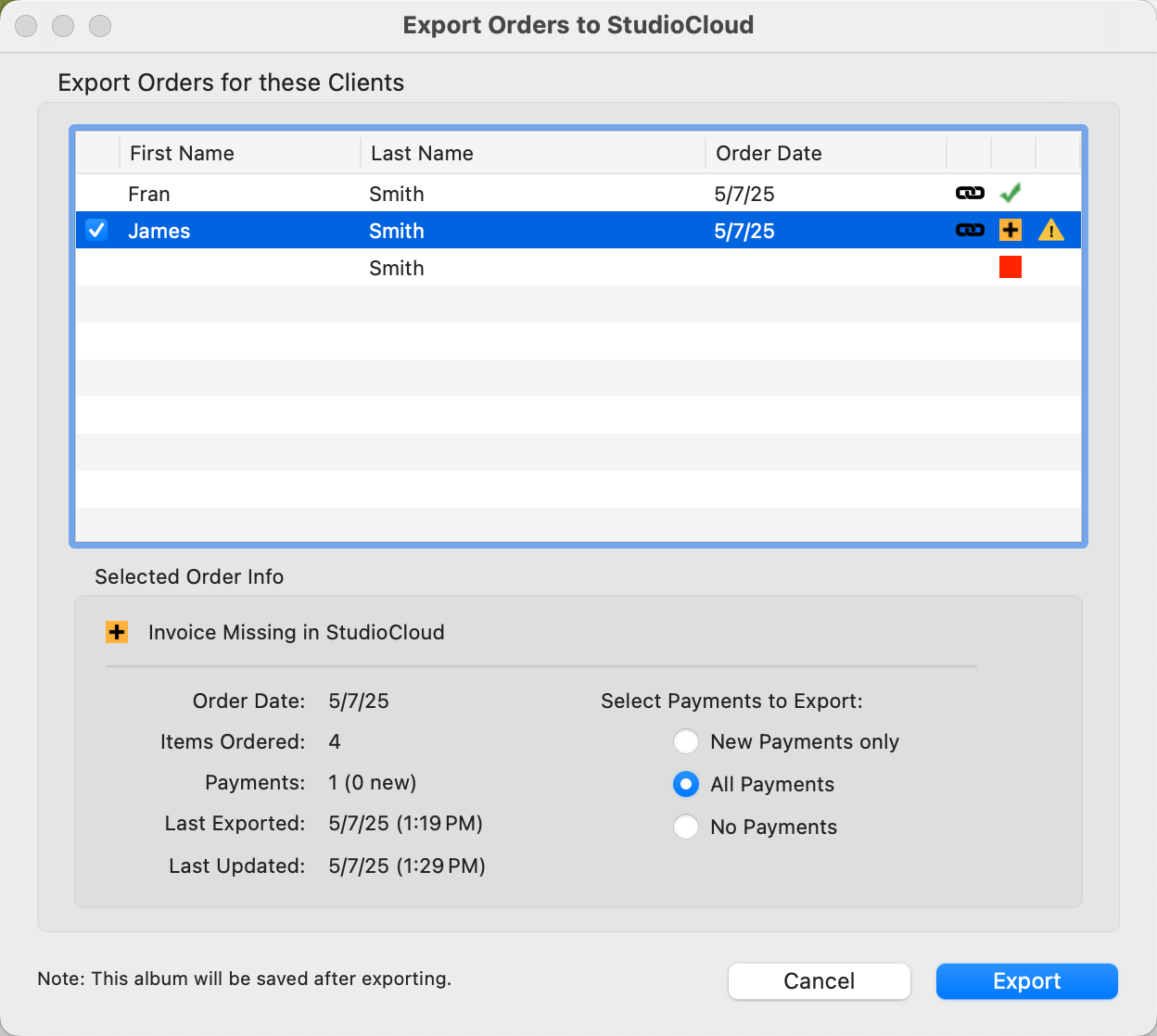
If the deleted invoice had payments associated with it, you’ll need to choose how to handle those payments during re-export. Select from the following options:
- New Payments Only - Only payments added since the last export.
- All Payments - All payments for this client.
- No payments.
If you record all payments in ProSelect, after first importing any related StudioCloud invoices, those payment details will automatically be exported to StudioCloud when you export or update the order. However, if you manually add payments directly in StudioCloud after importing or exporting the invoice, the records between the two systems may no longer match.
To fix this, use the Update from SC button in the Add/Change Payments window.
- Open the Review Orders window.
- Click on the Payments button.

- Click on Update From SC.
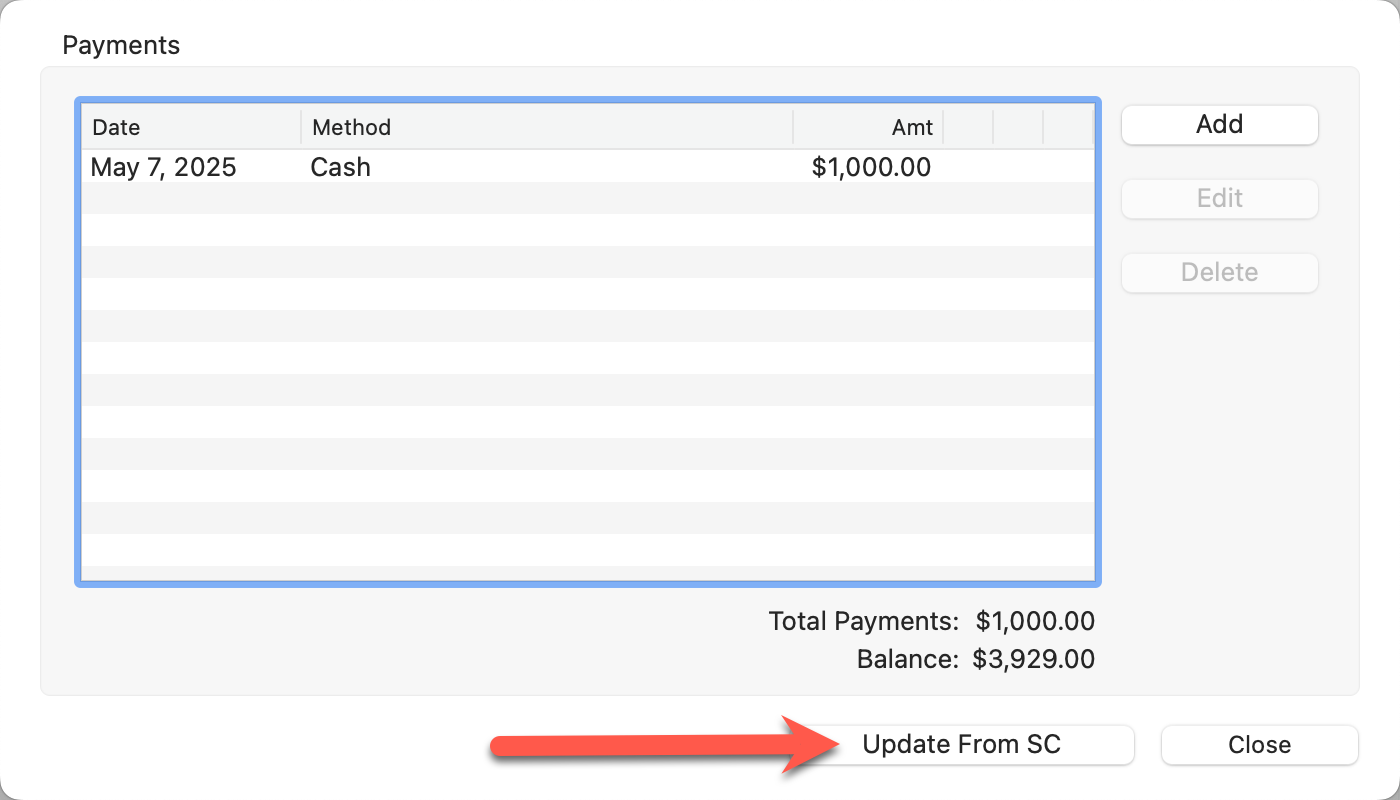
- This action will:
- Download all payments linked to the current invoice from StudioCloud.
- Compare them to the payments in ProSelect.
- Update matching payments to reflect StudioCloud’s data.
- Add any new payments from StudioCloud.
- Remove any payments from ProSelect that no longer exist in StudioCloud.
When StudioCloud integration is enabled, ProSelect locks any payments that have already been exported to StudioCloud. This prevents changes that could cause the two systems to fall out of sync. Locked payments display a lock icon  and cannot be edited.
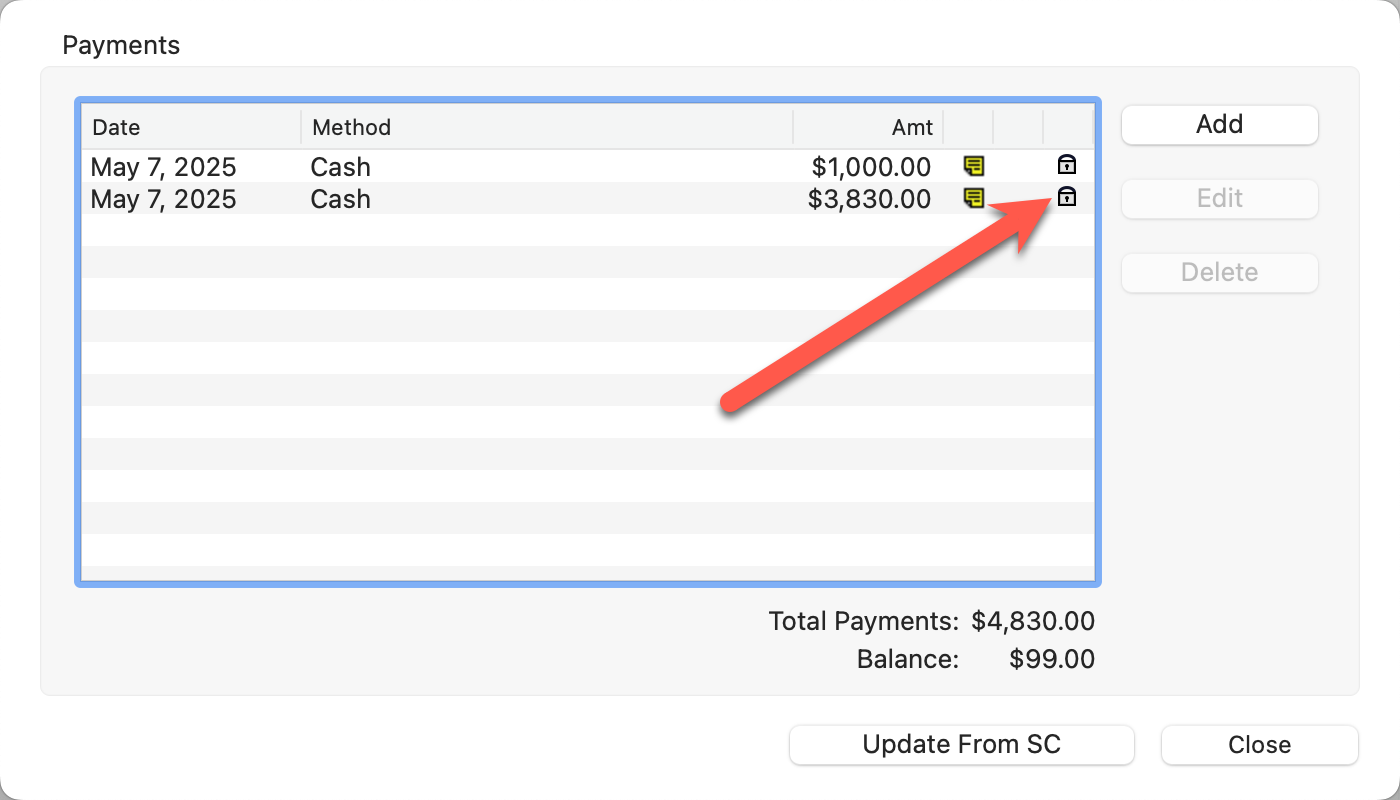
Adjust a Payment
If you need to adjust a payment that has already been exported, the recommended method is to add a new payment entry with a correcting amount. For example, to record a $150 refund, click on the Add button, and enter -$150 as the payment.
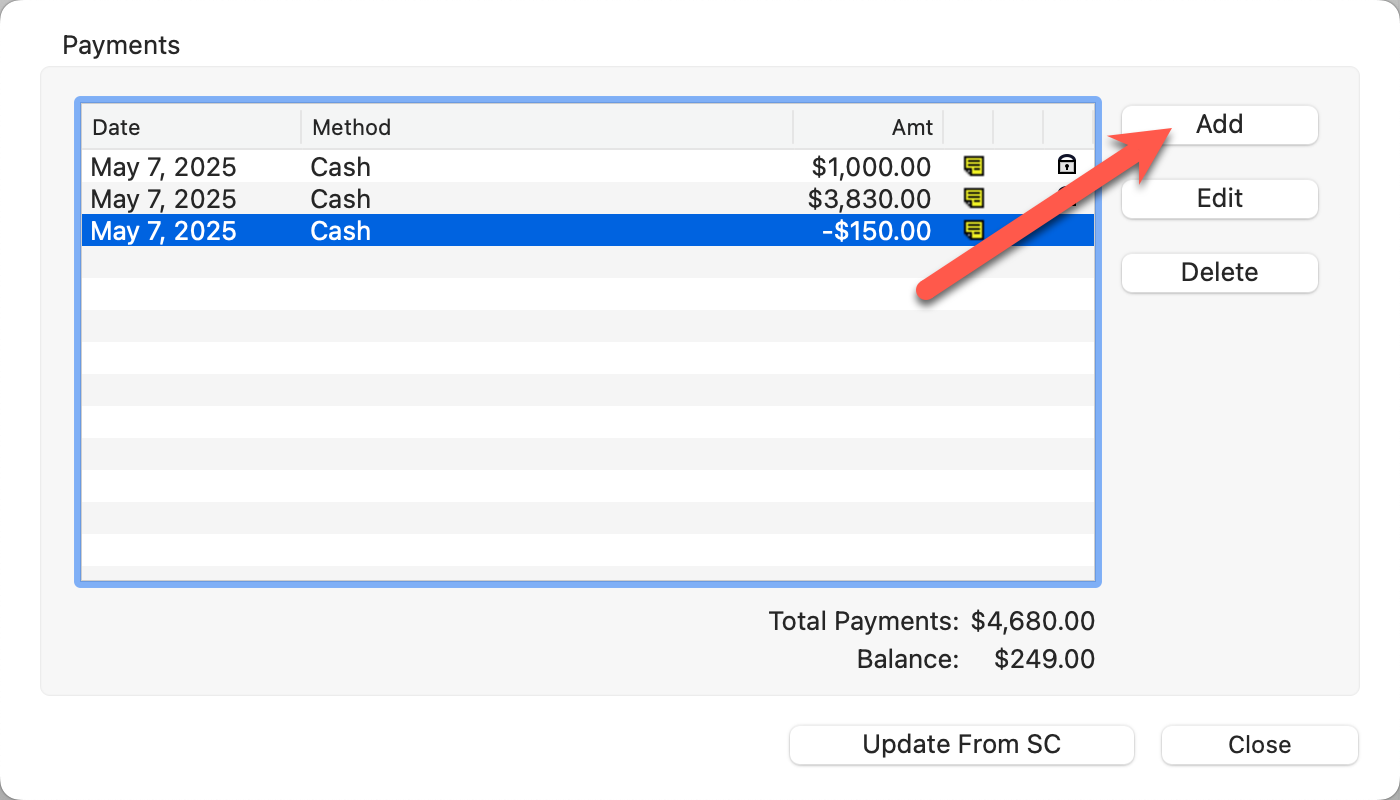

If absolutely necessary, you can override the lock by holding down the OptionAlt key while clicking on the locked payment. This will allow you to delete it, though this should be done with care to maintain consistency between systems.