Add On Collections
ProSelect Add-Ons enhance your workflow and presentation capabilities by providing professionally designed templates and realistic room views. Add-ons are available for purchase on the Pro Studio Software website, under the Store tab, Purchase Add-ons.
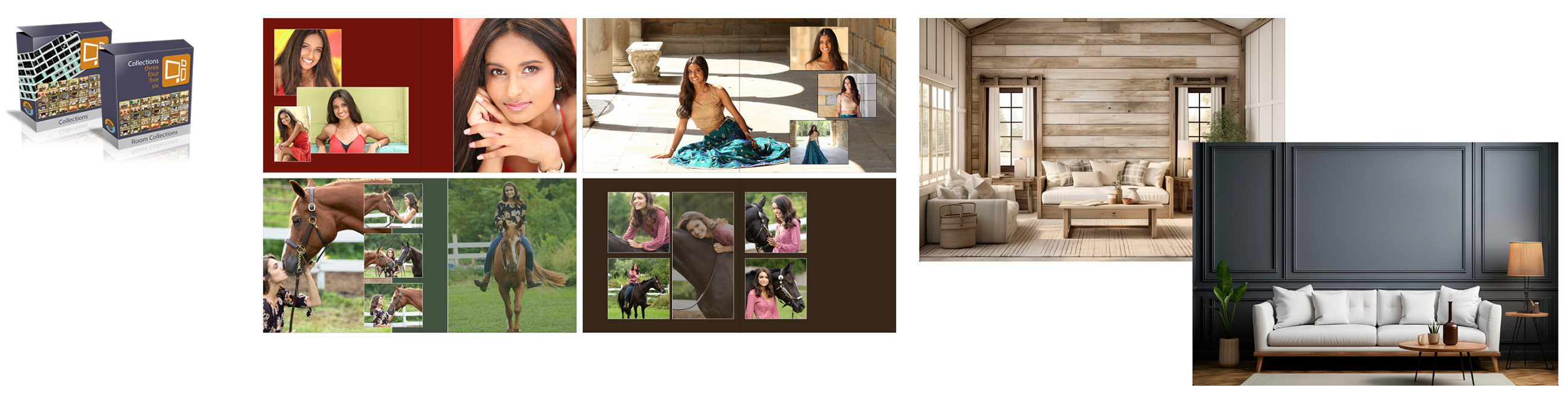
Once you purchase a Composite Album Collection from Pro Studio Software, you will be emailed a download link.
- Click on the link to download the purchased collection. The collection will download to your designated downloads folder.
- Once downloaded, you need to import the collection into ProSelect.
- In the downloads folder, double-click the file to unzip (if it did not automatically unzip).
- Navigate to ProSelect. On the top menu, go to Products > Import Collection.
- Use the navigation window to locate and select the .ppc file (ProSelect Product Collection).
- When you locate the file, click "open."
- The Import Collection window will open.
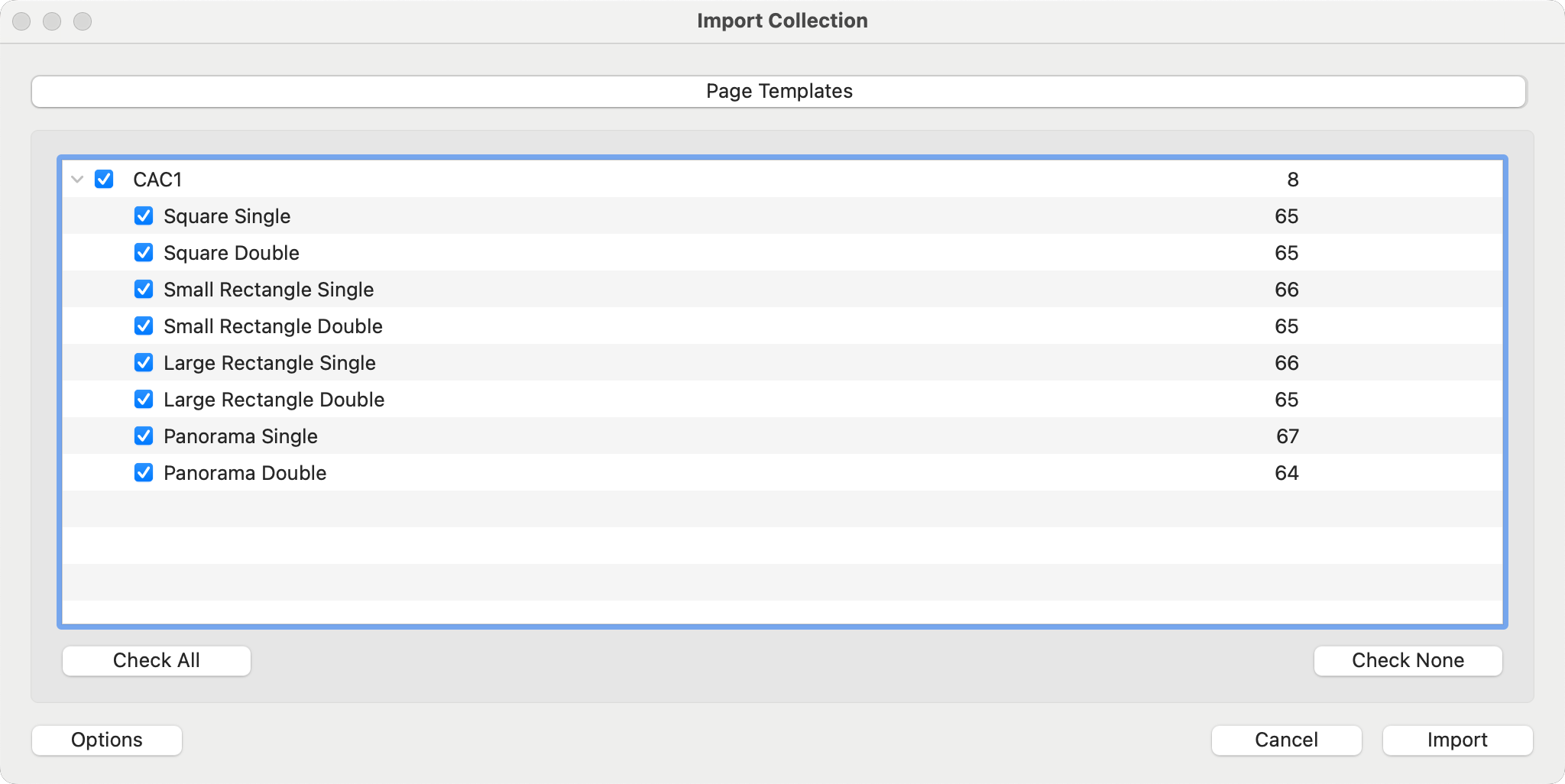
- By default, all of the page templates offered are checked to import.
- Click on the Import button.
- The Composite Album Collection is now available in ProSelect.
- Manage the templates in the Book Page Manager.
- Access the templates in the Resource Area when Working with Books.
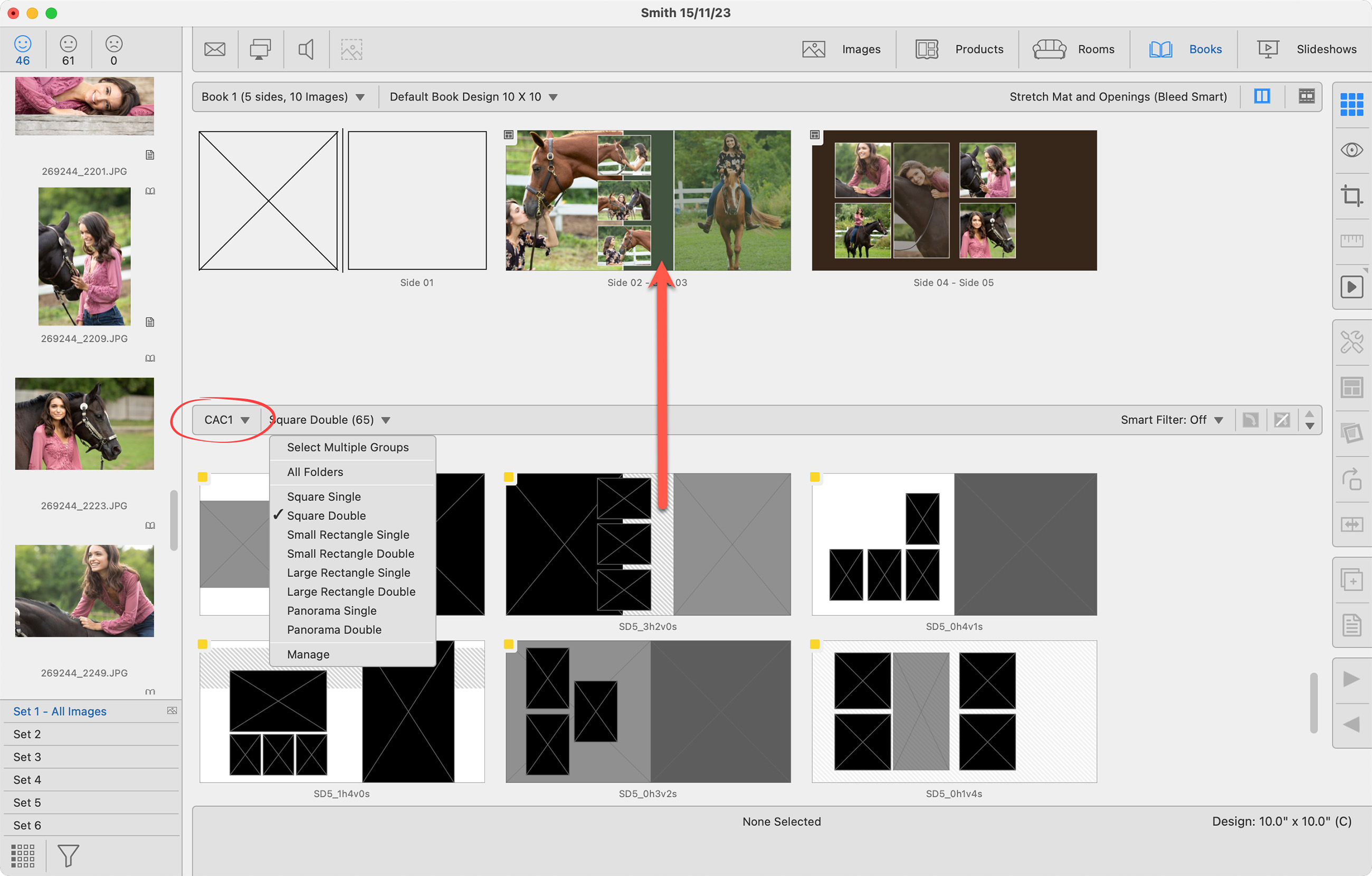
Once imported, the Composite Album Collection will be available in the Book Page Resource Area in Working with Books.
- Navigate to Working with Books.
- Using the Resource Selection Bar, choose CAC as the category.
- All of the templates are available here. Select a folder from the second drop-down list to filter the templates.
- Drag a template up into the working area, and populate it with images.
- Optionally apply virtual styles to the templates.
Once you purchase a Room View Collection from Pro Studio Software, you will be emailed a download link.
- Click on the link to download the purchased collection. The collection will download to your designated downloads folder.
- Once downloaded, you need to import the collection into ProSelect.
- In the downloads folder, double-click the file to unzip (if it did not automatically unzip).
- Navigate to ProSelect. On the top menu, go to Products > Import Collection.
- Use the navigation window to locate and select the .ppc file (ProSelect Product Collection).
- When you locate the file, click "open."
- The Import Collection window will open.
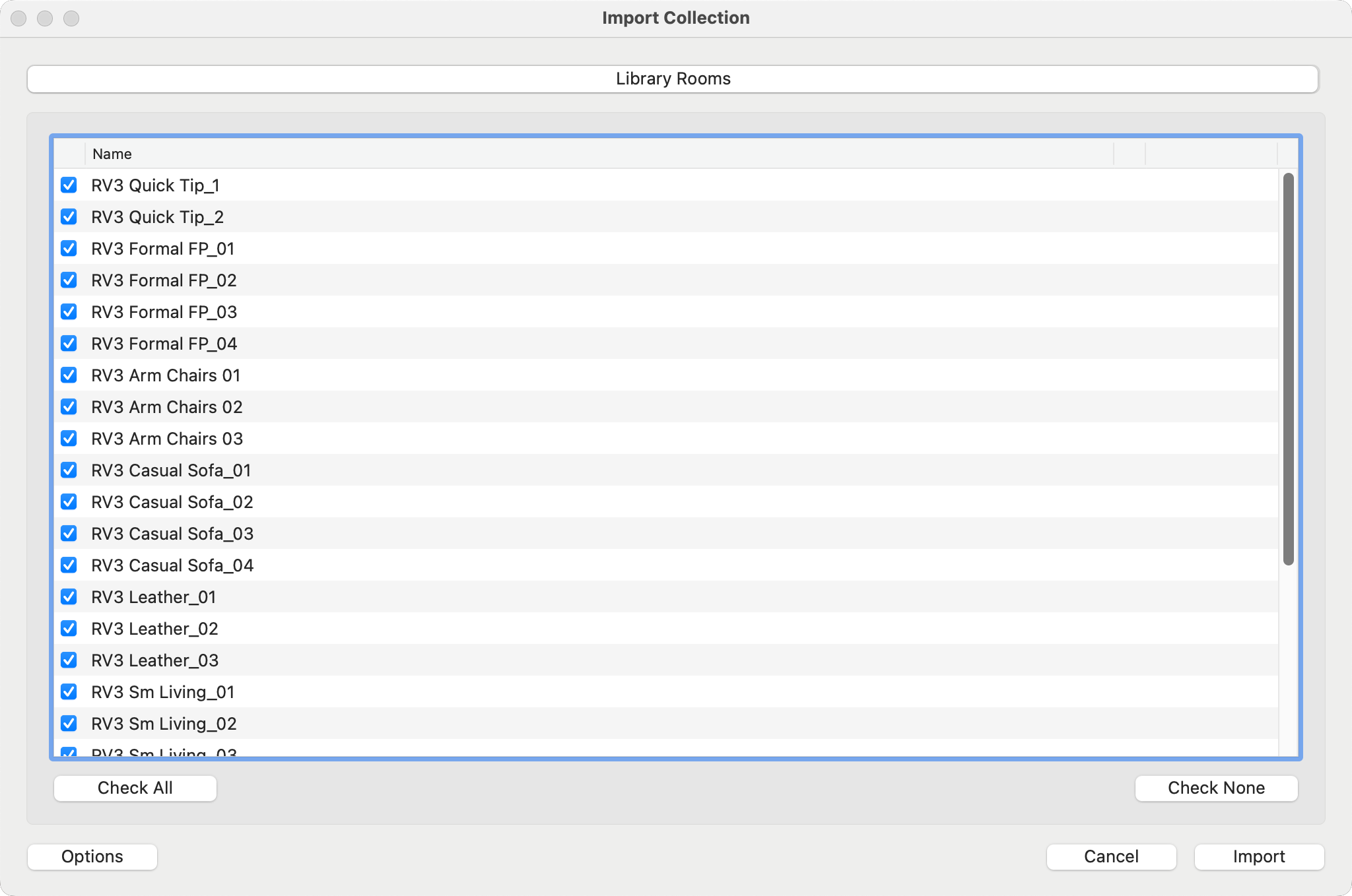
- By default, all of the rooms offered are checked to import.
- Click on the Import button.
- The Room View Collection is now available in ProSelect. The new rooms will be added to the other library rooms you currently have in ProSelect.
- Manage the templates by going to Resources > Setup Rooms.
- Access the room views in the Library Rooms folder when Working with Rooms.