 Actual Size View
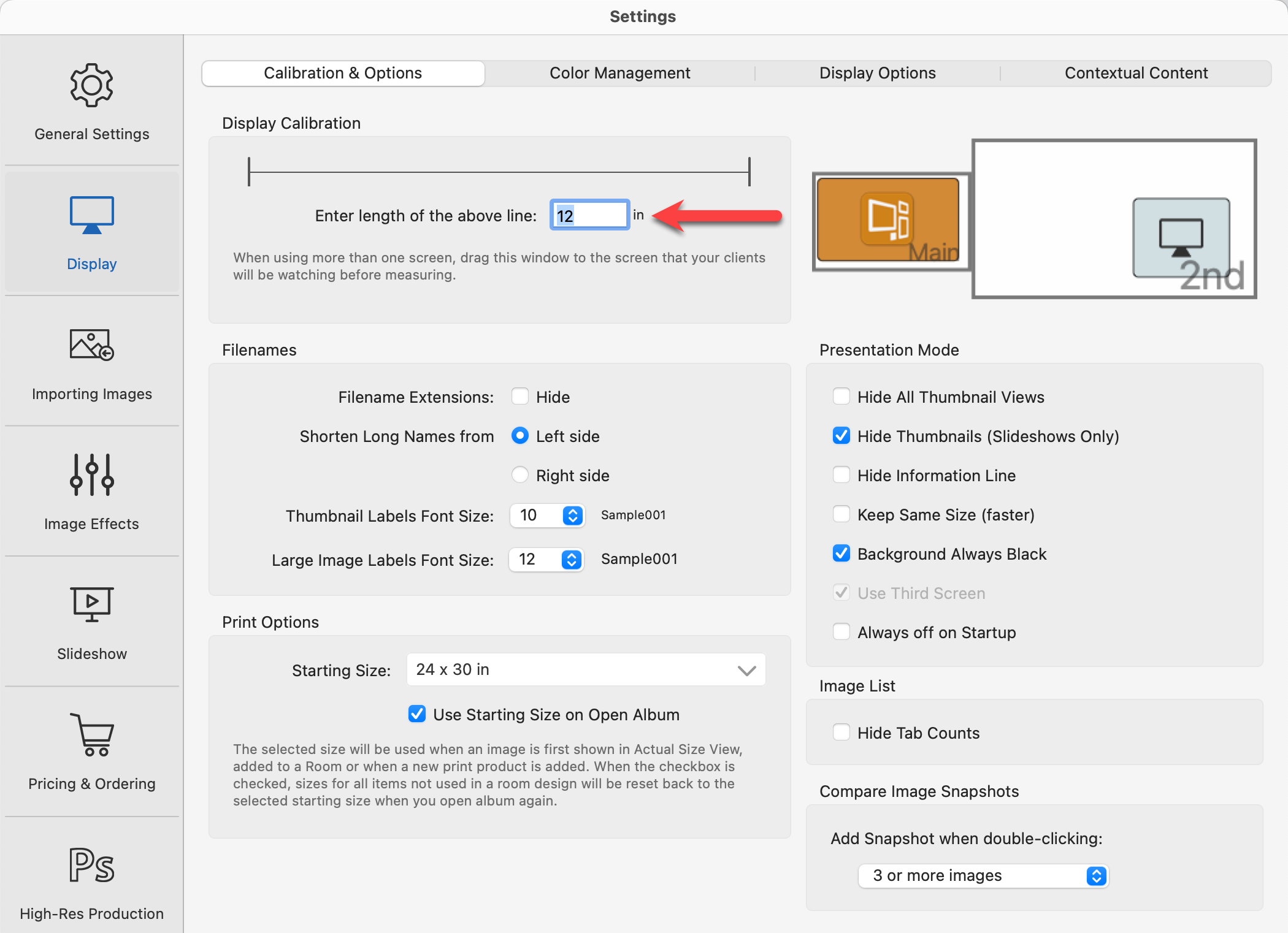
When Working with Rooms, Actual Size view will show the room design scaled to actual size in the Display Area, provided you have a large enough screen display. To display images and product sizes correctly, you must first set your Display Calibration. This is done in your Settings. Go to the top menu, ProSelectEdit > Settings > Display > Calibration & Options.
How to Access Actual Size View
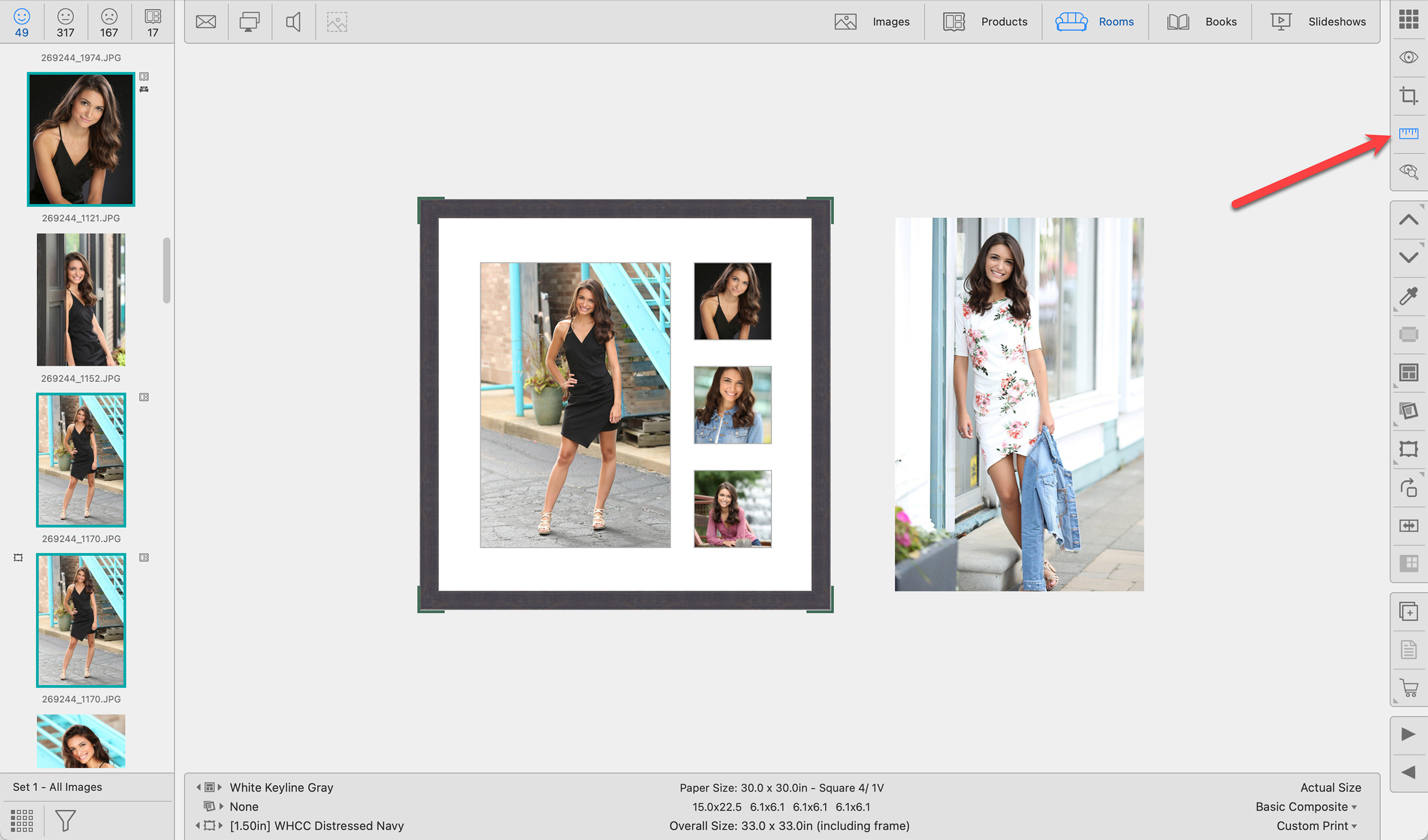
- Select a room in Thumbnail view and click on the Actual Size view button . It is located on the right-hand side under the Cropping view button.
- Select a room in Thumbnail view and press the "V" key on your keyboard. Pressing "V" will toggle between Show Rooms view and Actual Size view.
- With a room selected, go to the top menu, View > Actual Size.
- When in Show Room view, click on the Actual Size view button , or press "V" on your keyboard.
Using Actual Size View
- Provided you have a large enough screen display, you can show your entire Wall Gallery design at actual size without the room background.
- You can select one product in Show Room view and show just that one product at actual size (provided your screen is large enough).
- You can adjust product sizes, mats, and frames while in Actual Size view.
- To zoom in on your product so it fits within the Display Area, without the room background, click the Actual Size view button while holding down the OptionAlt key.
- If you have more than one product displayed, you can select any of the displayed products and click on the Actual Size View button again. This will display only the selected product.
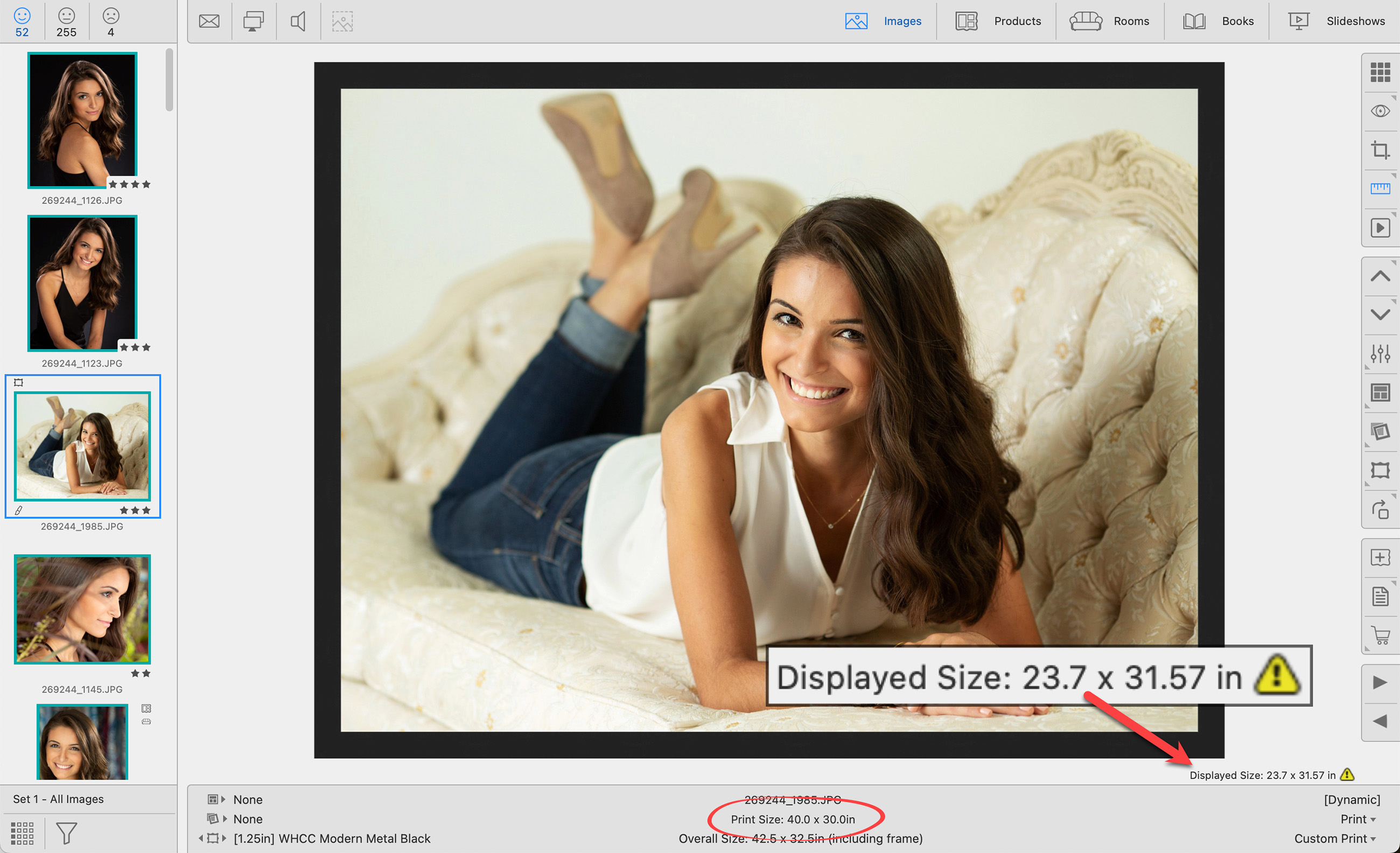
If the presentation screen you are using is not large enough to display the products at actual size, a warning icon  appears in the bottom right corner of the Display Area. The currently selected image or product will be "scaled to fit." The "scaled to fit" display size will be indicated.
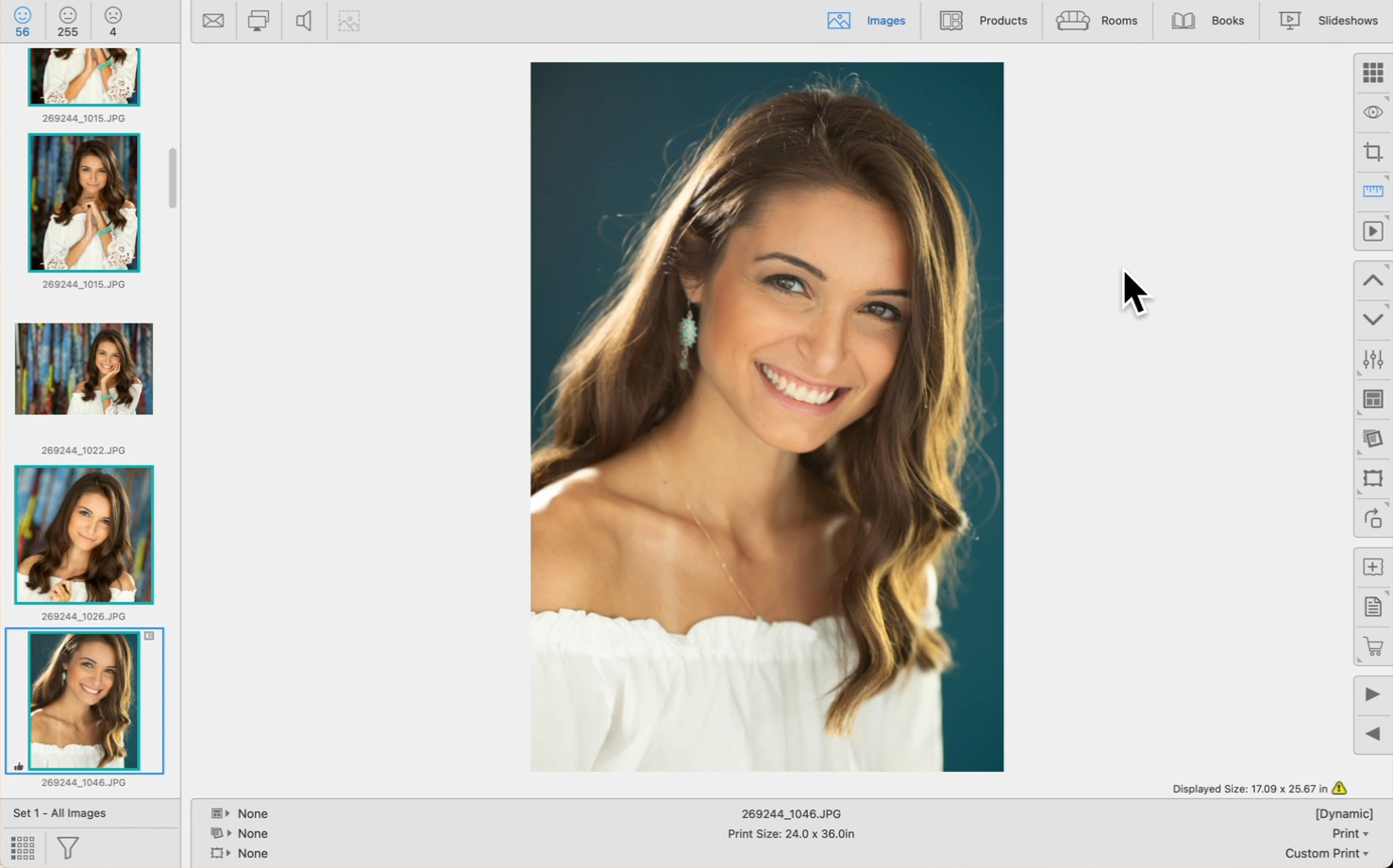
When displaying images with an Unlocked crop across different print sizes, ProSelect may show a temporarily centered crop in Actual Size view to accommodate varying aspect ratios. You can manually adjust this cropping by clicking and dragging the image while holding down the OptionAlt key, similar to adjustments made in the Show Images view. Additionally, fine-tuning the crop size can be achieved using the OptionAlt + Up/Down arrow keys for precise cropping in or out.
ProSelect intelligently applies these cropping adjustments to other print sizes by matching the closest aspect ratio and saves these adjustments for each size within the session.
The following is an example of how Actual Size view works using two different presentation screen sizes.
Example 1: We are using a Samsung 65" (3840 x 2160) Frame TV as our presentation screen.
- Set up the Samsung TV as an Extended Monitor (do not use mirror).
- Set the Display Calibration (ProSelectEdit > Settings > Display > Calibration & Options).
- Drag the Settings window over to the Samsung TV.
- Manually measure "the length of the above line" (in our case, it is 12")
- The Samsung TV is now calibrated and ready to be our presentation screen.
- Make sure the Main ProSelect window is open on your Main screen. Click on the Presentation Mode button
 to activate Presentation Mode.
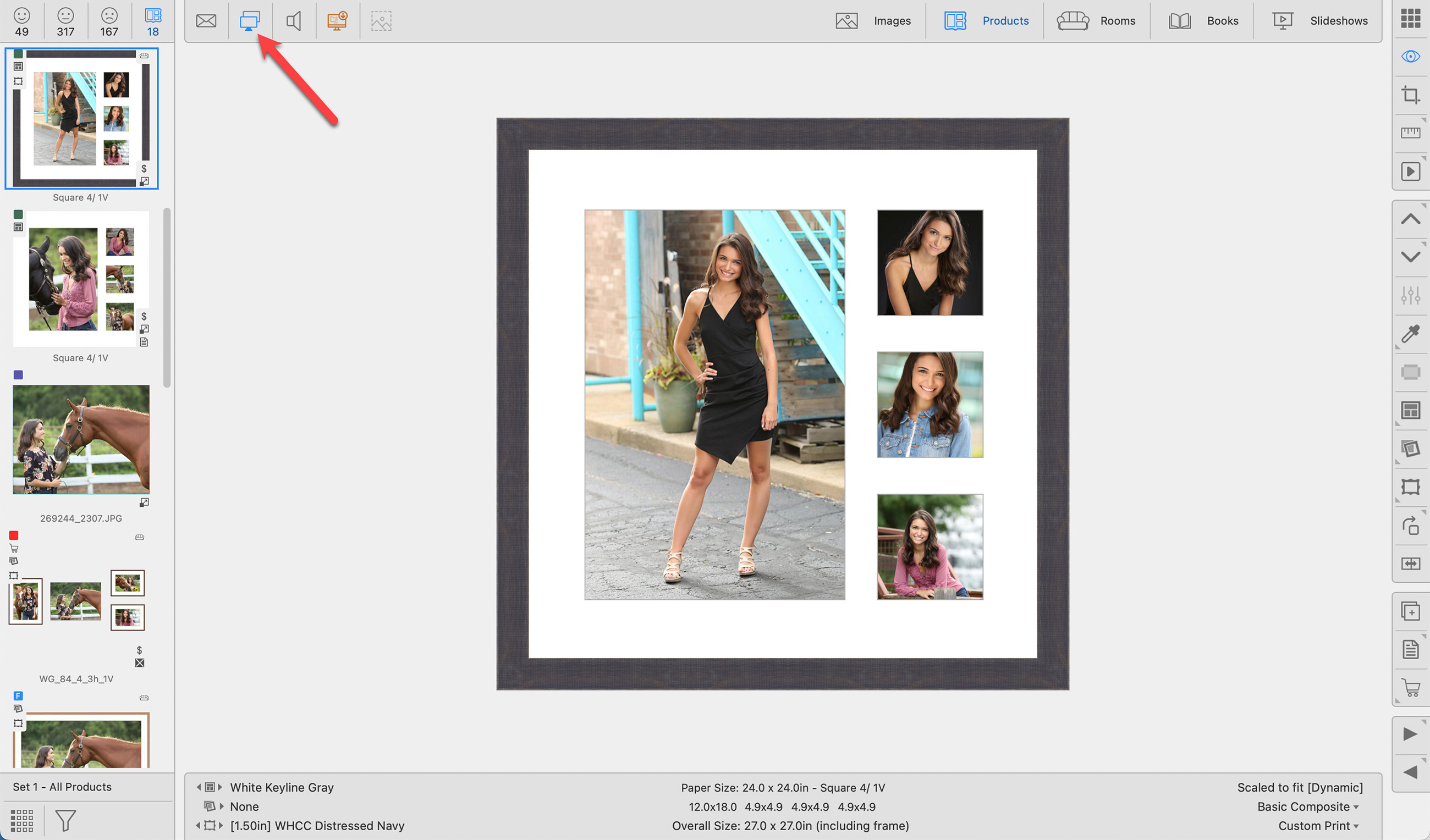
 - The Client can now see the product being displayed at Actual Size. The Samsung TV is large enough to display a 24" x 24" product at Actual Size.
- Here's what you see on the Main Screen:
- Here's what the Client sees on the Presentation Screen:

Example 2: We are using a DELL 27" (3840 x 2160) monitor as our presentation screen.
- Set up the DELL monitor as an Extended Monitor (do not use mirror).
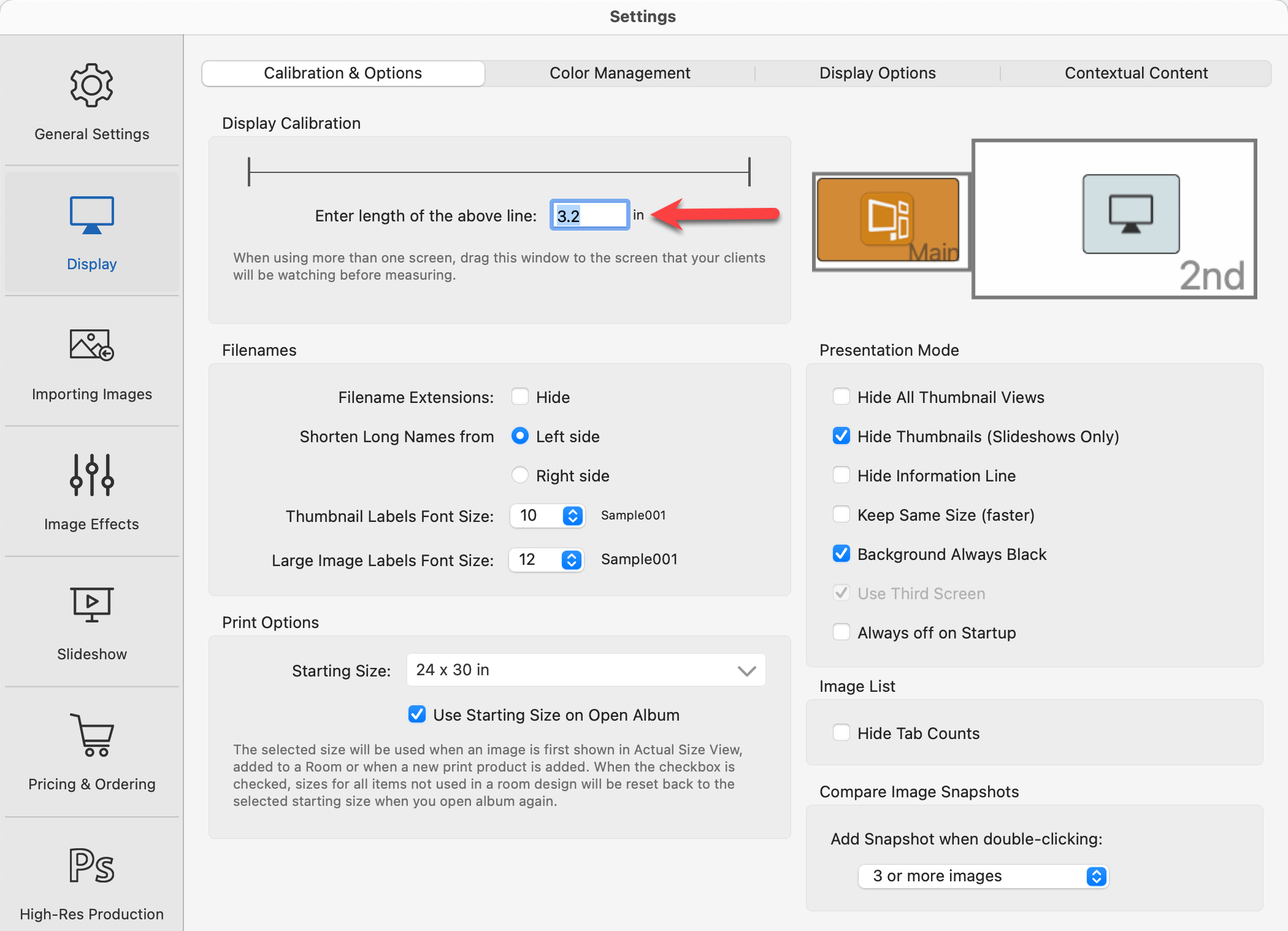
- Set the Display Calibration (ProSelectEdit > Settings > Display > Calibration & Options).
- Drag the Settings window over to the DELL monitor.
- Manually measure "the length of the above line" (in our case, it is 3.2")
- The DELL monitor is now calibrated and ready to be our presentation screen.
- Make sure the Main ProSelect window is open on your Main screen. Click on the Presentation Mode button to activate Presentation Mode.
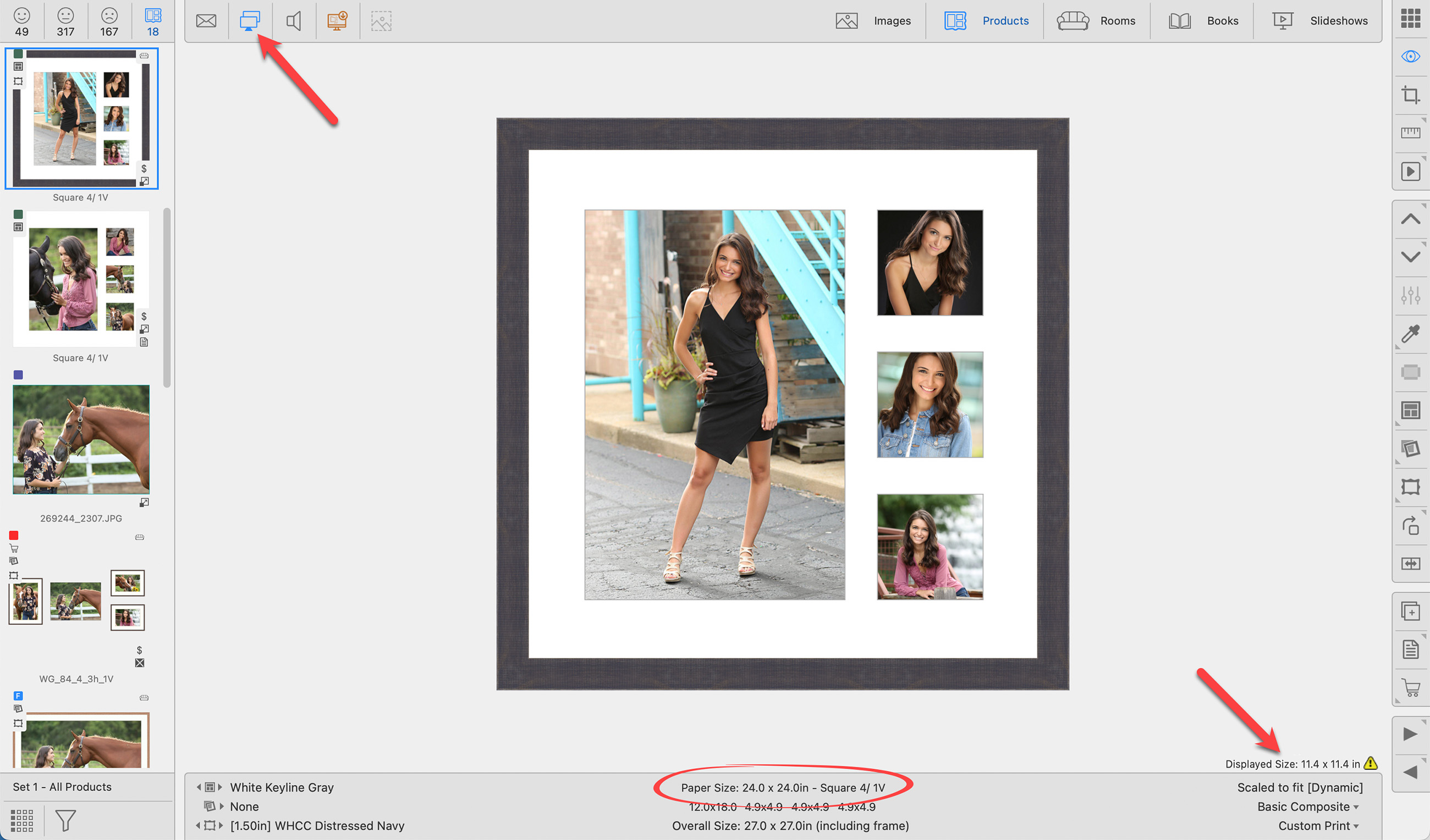
- The Client can now see the product being displayed at Actual Size. Because the DELL Monitor is not large enough to display a 24" x 24" paper size, ProSelect will display it at the largest size possible given the constraints of the DELL monitor's size. In this case, 11.4" x 11.4". The "Displayed Size" only appears on the Main ProSelect screen.
- Here's what you see on the Main Screen:
- Here's what the Client sees on the Presentation Screen:
- Here's what you see on the Main Screen:
Tools Available in Actual Size View
Use the Previous/Next Size tools to change the size of a product.
- The sizes available as well as the order in which they appear are based on the setup of your Paper Sizes.
- When first shown in Room view or Actual Size view, prints are sized at the "Starting Product Size" as specified in your Settings.
- Products using a product template will initially be shown at the template’s Design Size. Use the tools to size up or down.
- If you are using a fixed-sized template, the Previous/Next Size tools are inapplicable.
Right-Click Feature - For Prints and Gallery Wraps
There is a gray triangle in the corner of the Previous/Next Size tools. This indicates you have the option to right-click. When you right-click on either tool, a popup menu appears with a list of all the product sizes available. You can directly choose a size here.
- The sizes shown are based on the available product sizes within the assigned presentation option. This is also known as Product Filtering.
- Alternate sizes (based on Paper Sizes) can be displayed by holding the OptionAlt key and right-clicking on the tool. Sizes shown without a $ would require ordering as a Custom Product.
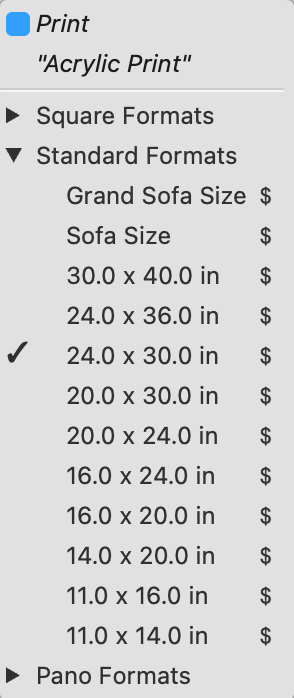
- The Product Type is listed at the top, followed by the Presentation Option.
- Use the drop-down arrow to view sizes within Paper Size folders.
- A checkmark appears next to the currently selected paper size.
Right-Click Feature - For Product Templates
- For Fixed Size Templates, no other sizing options are available.
- For Dynamically Sized Templates, the sizes available will match the aspect ratio of the product. For example, if you are selecting a size for a square product template, only other square sizes will be available.
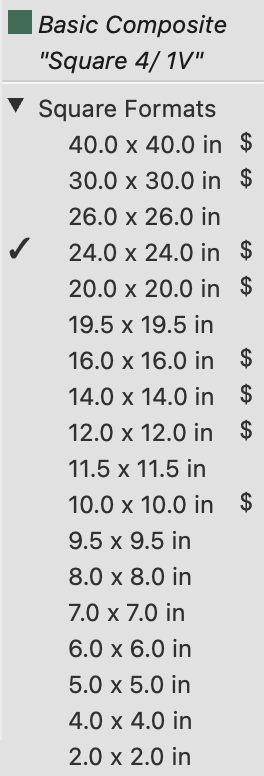
- The Product Type is listed at the top, followed by the Product Template Name.
- All paper sizes with the same aspect ratio will be listed. Those without a $ will need to be ordered as a Custom Product.
- A checkmark appears next to the currently selected paper size.

Want to reverse the order of your paper sizes? Click on Sorting Paper Sizes/Display Order to learn more.
Use the Previous/Next Size tools to change the size of a product.
- The sizes available as well as the order in which they appear are based on the setup of your Paper Sizes.
- When first shown in Room view or Actual Size view, prints are sized at the "Starting Product Size" as specified in your Settings.
- Products using a product template will initially be shown at the template’s Design Size. Use the tools to size up or down.
- If you are using a fixed-sized template, the Previous/Next Size tools are inapplicable.
Right-Click Feature - For Prints and Gallery Wraps
There is a gray triangle in the corner of the Previous/Next Size tools. This indicates you have the option to right-click. When you right-click on either tool, a popup menu appears with a list of all the product sizes available. You can directly choose a size here.
- The sizes shown are based on the available product sizes within the assigned presentation option. This is also known as Product Filtering.
- Alternate sizes (based on Paper Sizes) can be displayed by holding the OptionAlt key and right-clicking on the tool. Sizes shown without a $ would require ordering as a Custom Product.
- The Product Type is listed at the top, followed by the Presentation Option.
- Use the drop-down arrow to view sizes within Paper Size folders.
- A checkmark appears next to the currently selected paper size.
Right-Click Feature - For Product Templates
- For Fixed Size Templates, no other sizing options are available.
- For Dynamically Sized Templates, the sizes available will match the aspect ratio of the product. For example, if you are selecting a size for a square product template, only other square sizes will be available.
- The Product Type is listed at the top, followed by the Product Template Name.
- All paper sizes with the same aspect ratio will be listed. Those without a $ will need to be ordered as a Custom Product.
- A checkmark appears next to the currently selected paper size.
Want to reverse the order of your paper sizes? Click on Sorting Paper Sizes/Display Order to learn more.
Use the Previous/Next Stack tools to cycle through your stacked sizes. Wall Groupings, for example, are always a fixed size. To show different sizing options, you can create Stacked Sizes in the Product Editor. Book Pages also utilize stacked sizing. Click on Using Stacked Templates to learn more.
- Click on the Previous
 or Next
  Stack tools to go up or down a size.
 - Right-Click on the Previous or Next Stack tool and choose a size from the list.
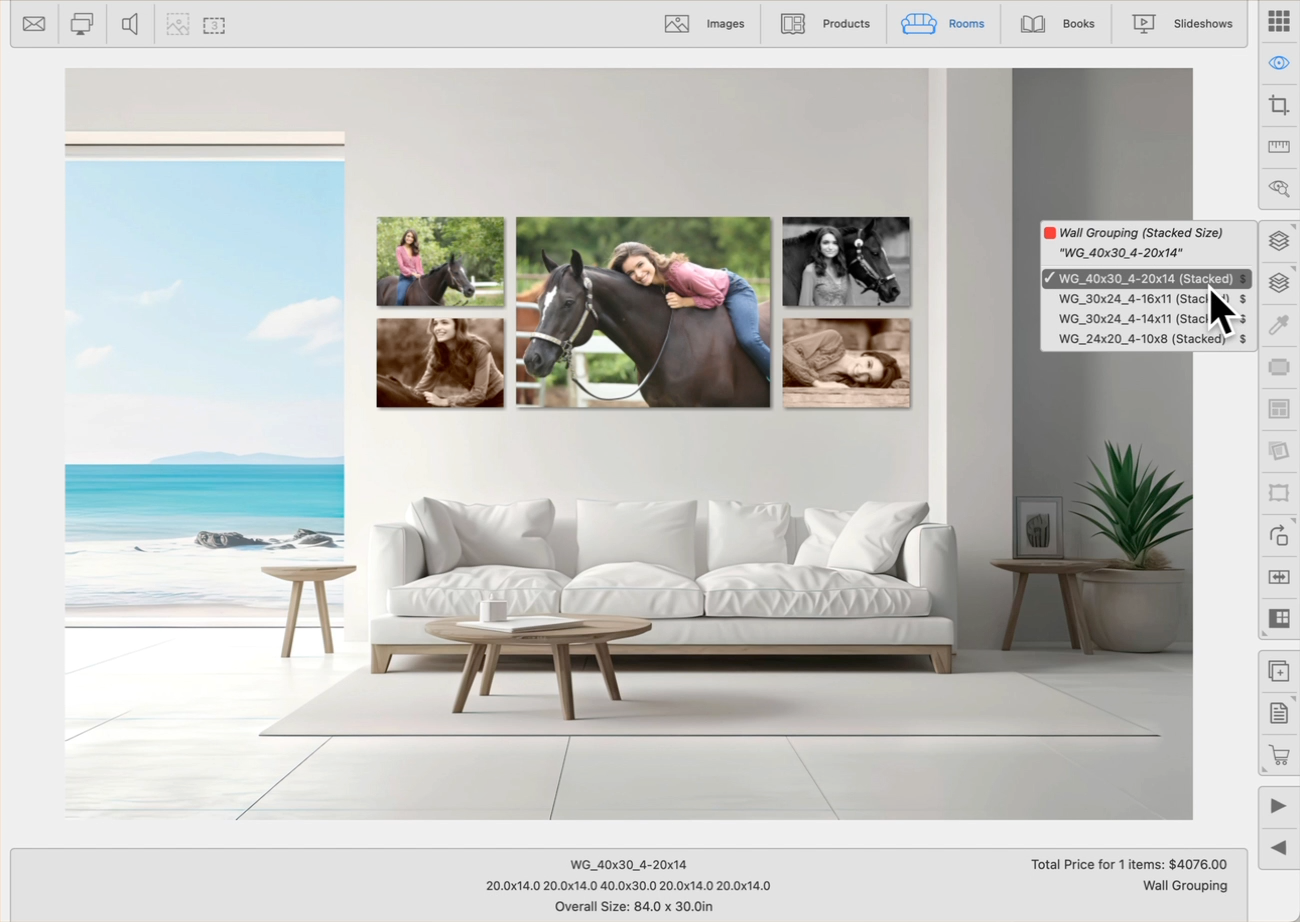
Right-Clicking on the Previous/Next Stack tool:
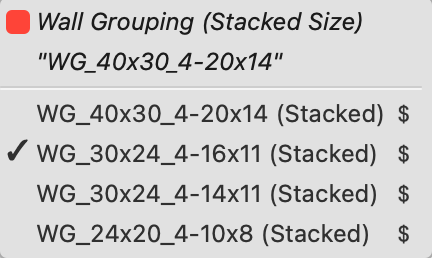
- The Product Type (Wall Grouping) is listed at the top, followed by the template name.
- All available stacked sizes will be listed.
- A checkmark appears next to the currently selected Stack.
This same concept also works for Books:
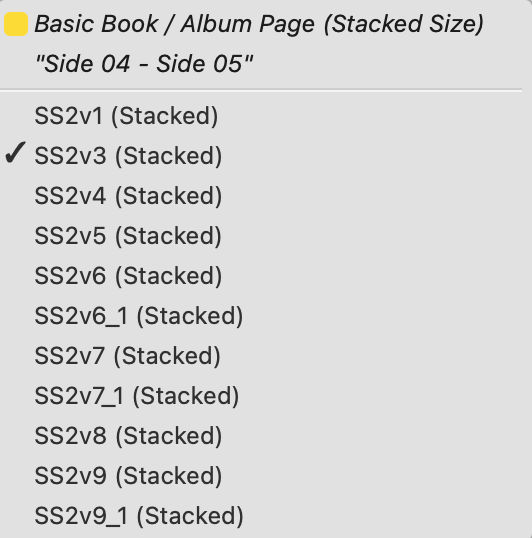
Use the Previous/Next Stack tools to cycle through your stacked sizes. Wall Groupings, for example, are always a fixed size. To show different sizing options, you can create Stacked Sizes in the Product Editor. Book Pages also utilize stacked sizing. Click on Using Stacked Templates to learn more.
- Click on the Previous or Next Stack tools to go up or down a size.
- Right-Click on the Previous or Next Stack tool and choose a size from the list.
Right-Clicking on the Previous/Next Stack tool:
- The Product Type (Wall Grouping) is listed at the top, followed by the template name.
- All available stacked sizes will be listed.
- A checkmark appears next to the currently selected Stack.
This same concept also works for Books:
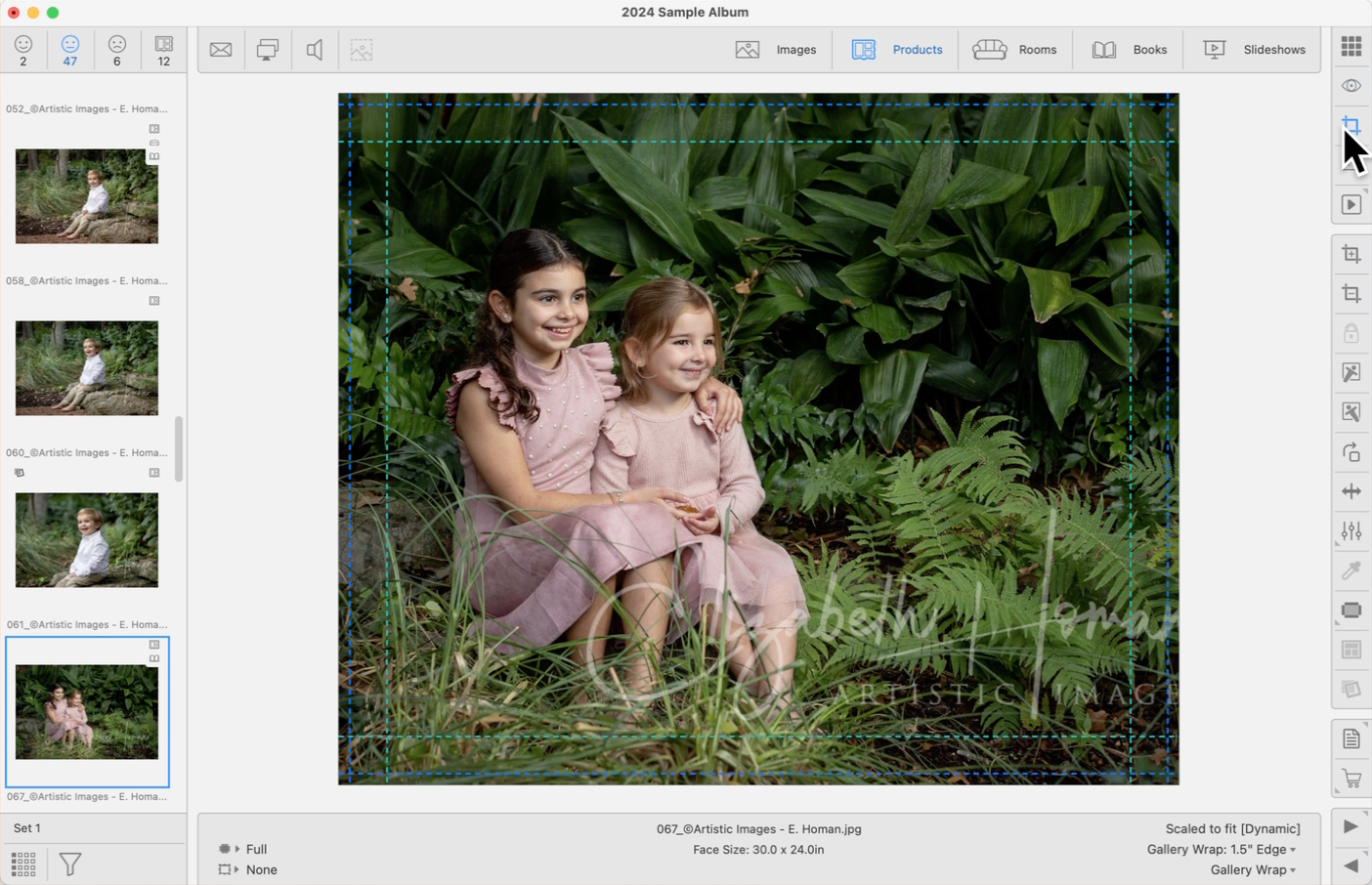
The Select Edge / Style Color tool allows you to customize the color of applied Gallery Wrap Edges or Virtual Styles. A Virtual Style or Gallery Wrap Edge must be applied first before using this tool. This same concept can be used on composite book pages.
Gallery Wrap
- Navigate to Cropping view.
- Use the Gallery Wrap Edge tool to apply a Custom Color Edge.
- Click on the Select Edge / Style Color tool.
- Select which layer of the style you wish to customize.
- Use the red color guide circle to navigate around your image. As you navigate, the color of your selected layer will change.
- Once you have navigated over a color you want to choose, click the mouse. The color is then applied to the selected layer.
- To exit, click anywhere outside the gallery wrap.
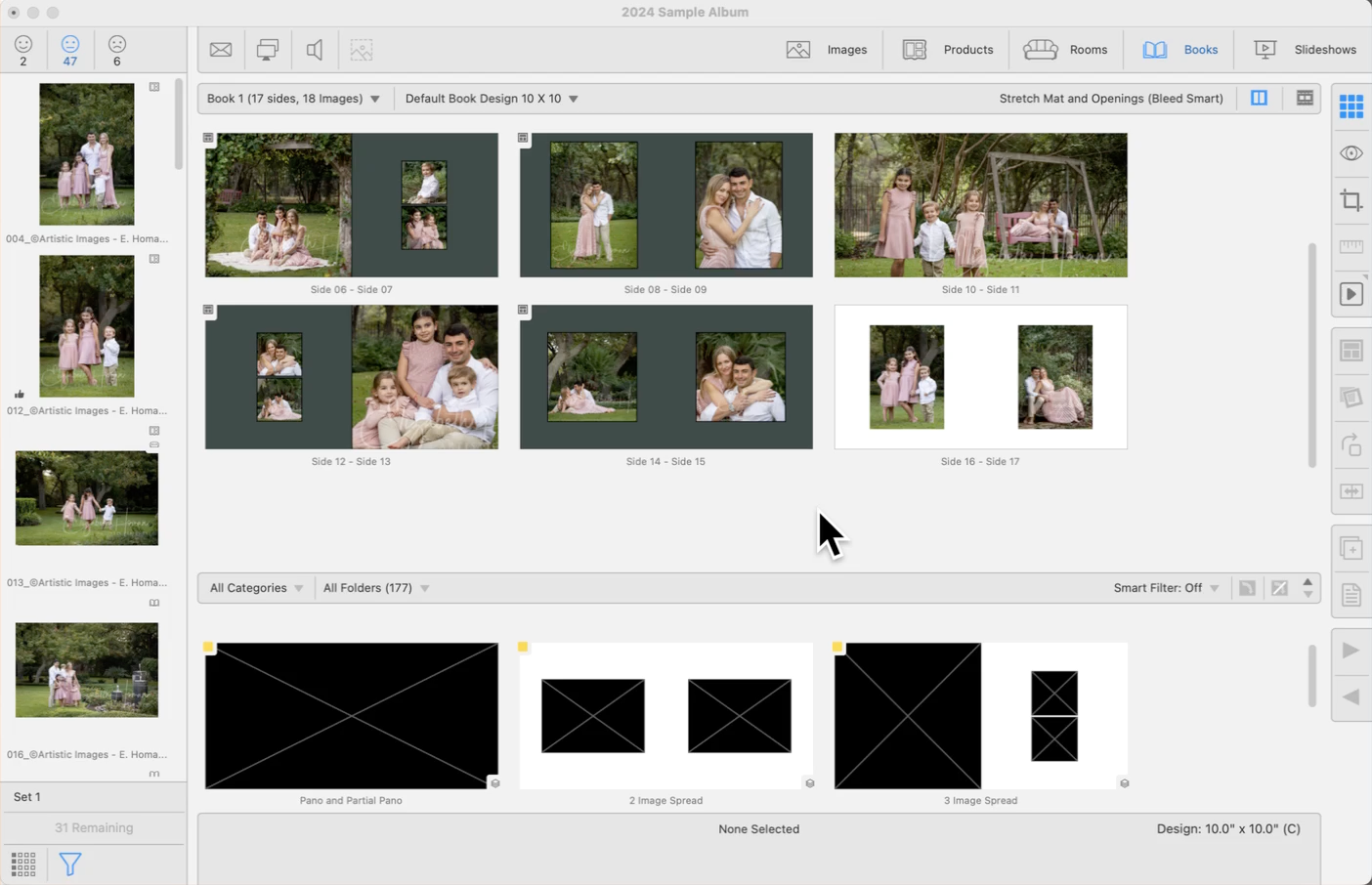
Book Pages
- Select a book page and navigate to Show Pages view.
- Use the Virtual Style tool to apply a style.
- Click on the Select Edge / Style Color tool.
- Select which layer of the style you wish to customize.
- Use the red color guide circle to navigate around your image. As you navigate, the color of your selected layer will change.
- Once you have navigated over a color you want to choose, click the mouse. The color is then applied to the selected layer.
Saving a Custom Color
After creating a custom-colored Virtual Style or Edge, you can save it for future use.
- For Virtual Styles, go to the top menu, Products > Traditional Mats & Virtual Styles > Save Virtual Styles to Designer. Alternatively, right-click on the product and select "Save Virtual Styles to Designer."
- For Gallery Wrap Edge Treatments, go to the top menu, Products > Gallery Wraps > Save Edge Treatments to Designer. Alternatively, right-click on the product and select "Save Edge Treatments to Designer."
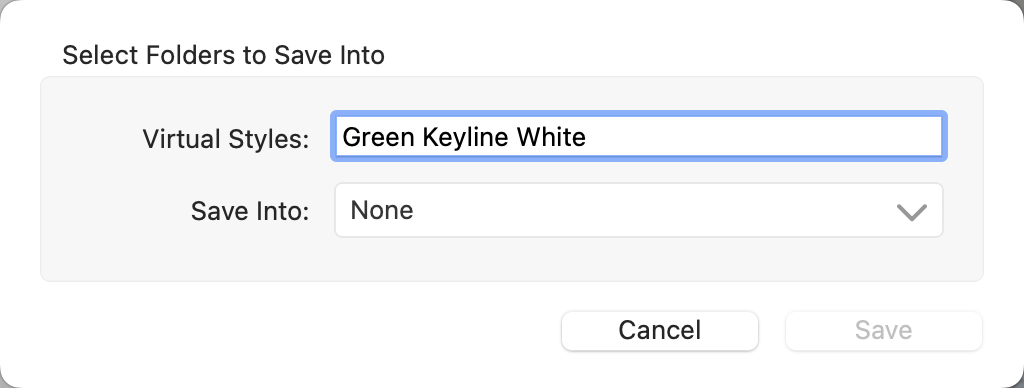
- Create a name for the custom-colored item.
- Choose which folder to save it into within the designer. We recommend creating a Custom Color folder.
- Click the Save button.
You can apply a gallery wrap edge to your product when in any View mode, but we recommend using Cropping view. In other View modes, only the face of the gallery wrap is visible. When working in Cropping view, the edges are visible as well.
Click on the Select Gallery Wrap Edge tool in the toolbar to see the drop-down menu of available edges. Gallery Wraps must have an edge applied. By default, Gallery Wrap Edges are set to "full." Open the Gallery Wrap Edges dialog by going to the top menu, Products > Gallery Wraps > Edge Treatments to add or edit your edges.
The currently applied Gallery Wrap Edge is shown in the left column of the Info Bar.
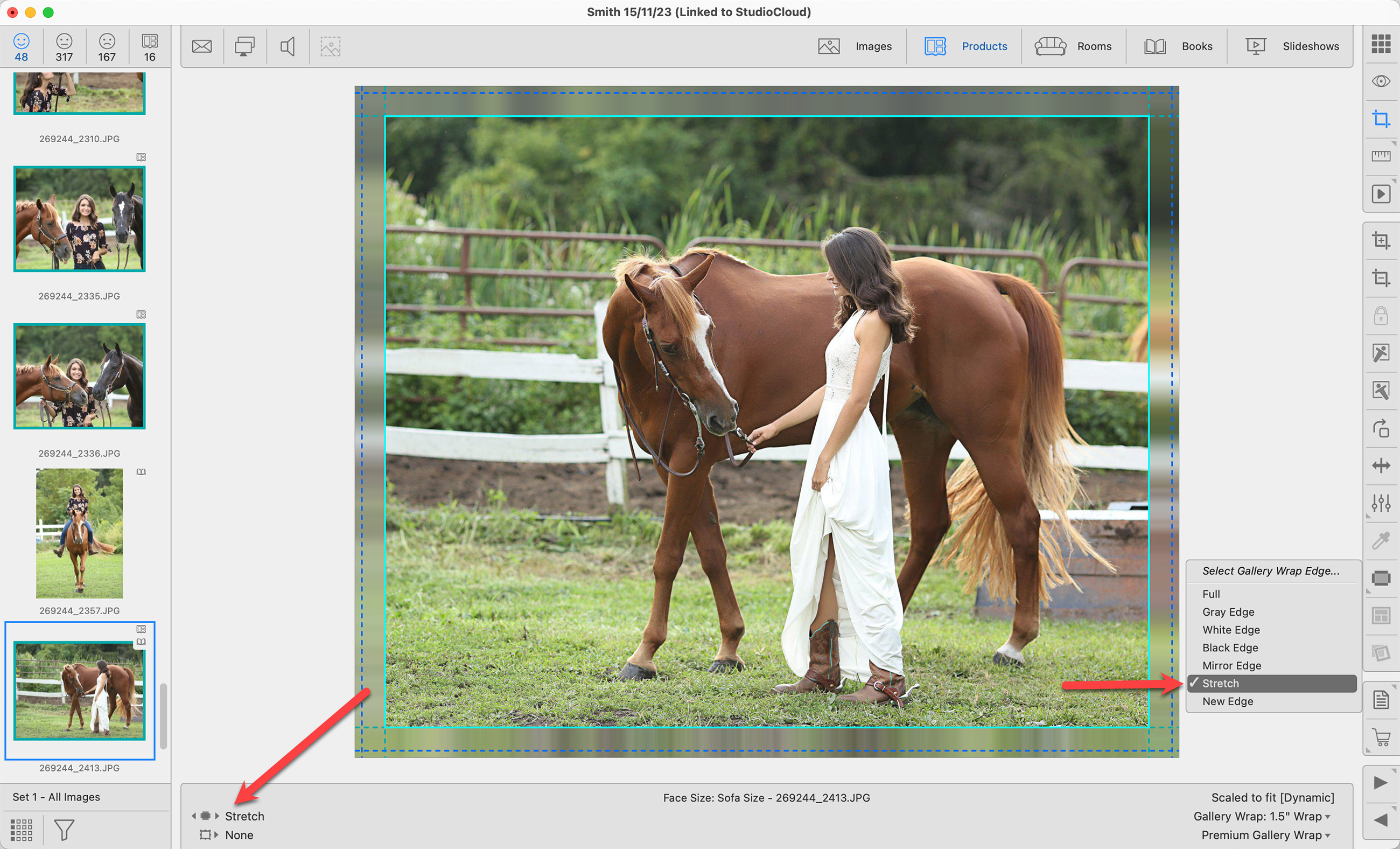
The Select Edge / Style Color tool  allows you to customize the color of an applied solid color edge. After creating a custom-colored edge, you can save it for future use. Click here to learn more.
You can apply a Virtual Style to products as well as book pages from any View mode. Click on the Virtual Style tool in the toolbar to view the drop-down menu of available styles. Recently selected styles appear at the top. To remove the Virtual Style, select "none" from the list.
- Virtual Styles are set up in the Designer dialog. Go to the top menu, Products > Traditional Mats & Virtual Styles > Designer.
- The currently selected Virtual Style is shown in the left column of the Info Bar. The image is "pushed in" to allow space for the applied Virtual Style. The paper size remains the same. Click on Borders Inwards vs Borders Outwards to learn more about options for composite products with virtual styles applied.
- Virtual Styles applied to book pages work the same way.
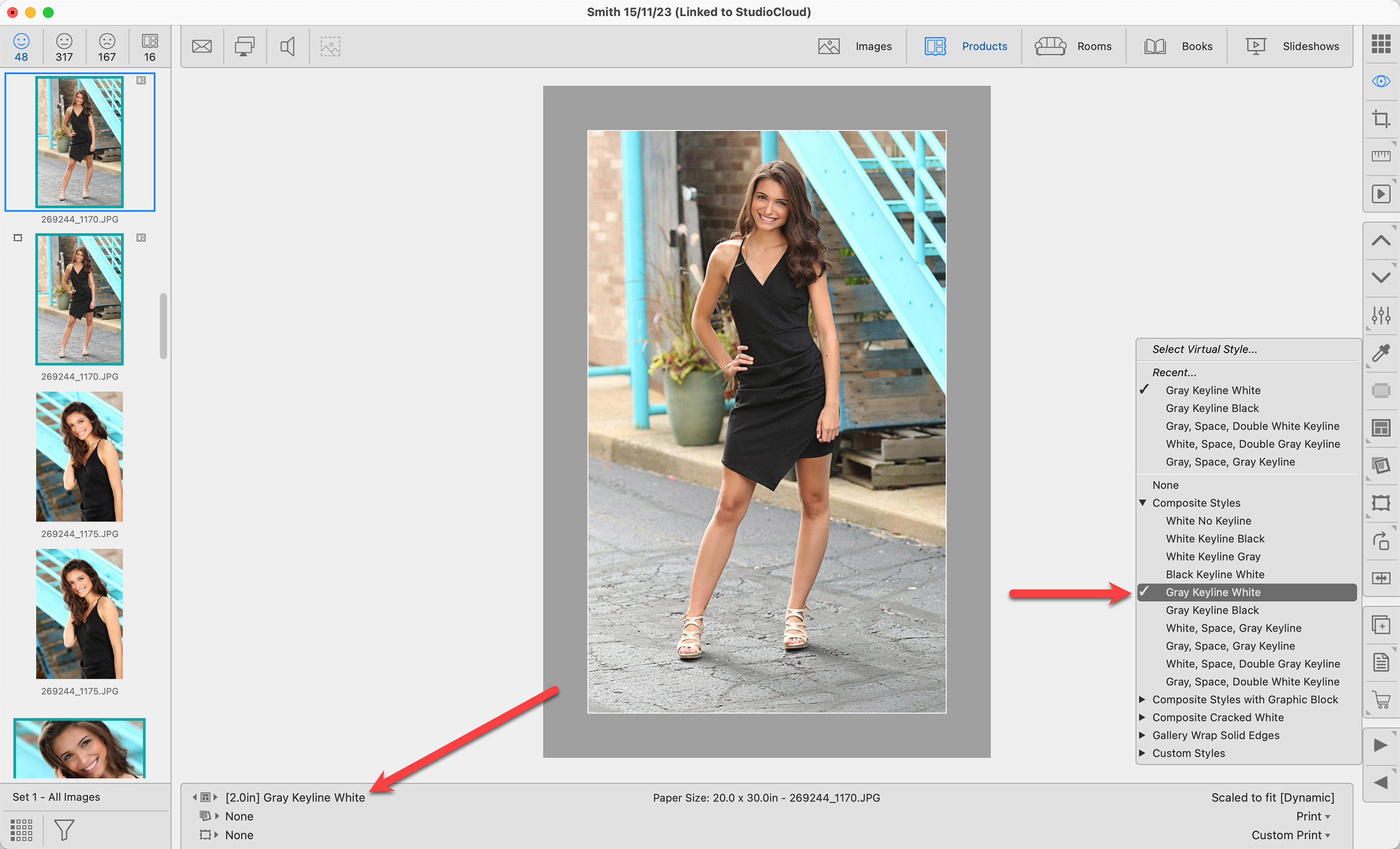
The Select Edge / Style Color tool allows you to customize the color of an applied Virtual Style. After creating a custom-colored Virtual Style, you can save it for future use. Click here to learn more.

You can remove all applied mats, frames, & virtual styles simultaneously by holding the OptionAlt key and then pressing the DeleteBackspace key on your keyboard.
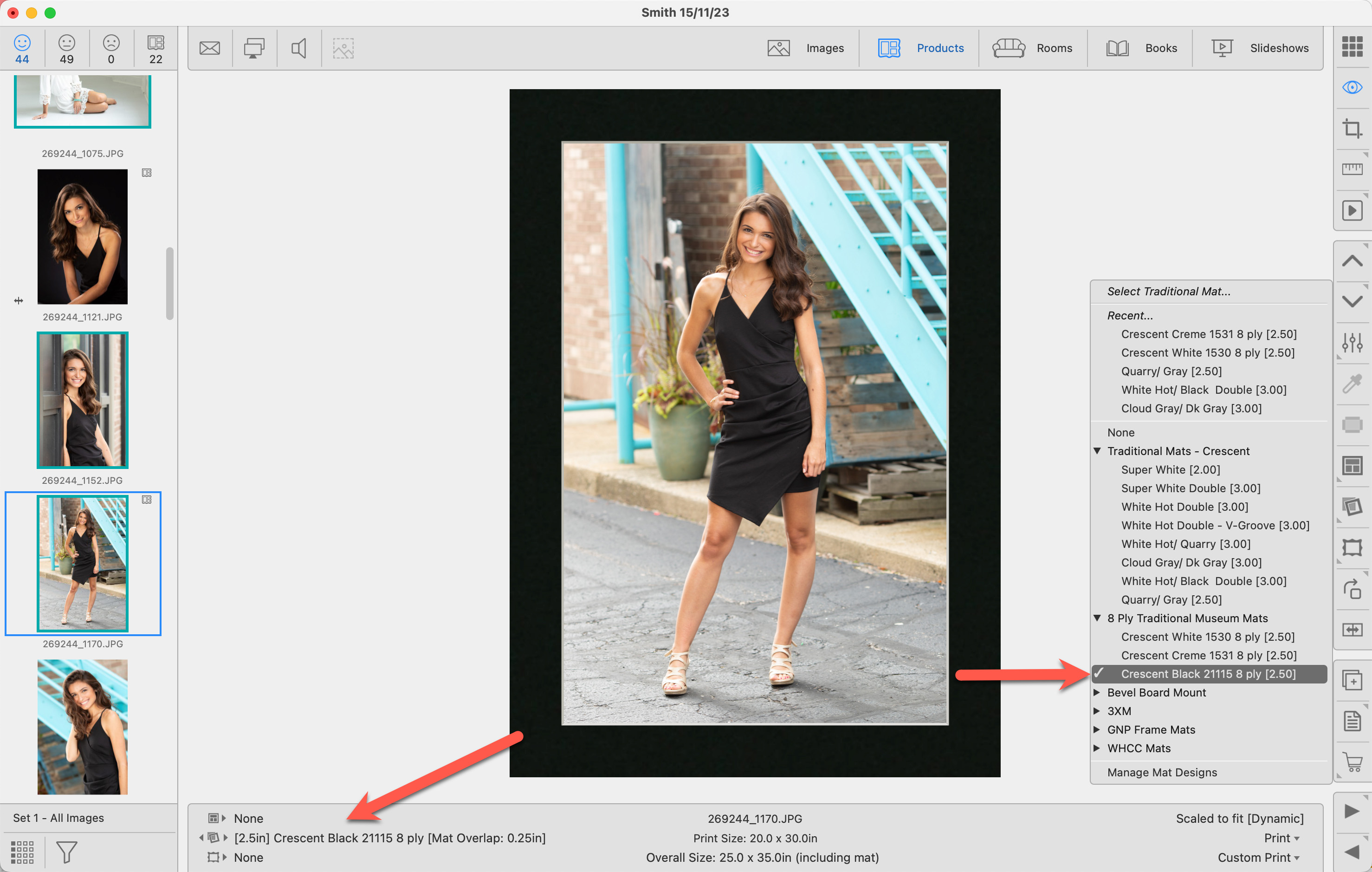
You can apply a Traditional Mat to products or traditionally matted book pages from any View mode. Click on the Traditional Mat tool in the toolbar to view the drop-down menu of available mats. Recently selected mats appear at the top. To remove a mat, select "none" from the list.
Mats are set up in the Mat Designs dialog. Go to the top menu, Products > Mats > Mat Designs. By default, ProSelect uses a standard mat overlap setting of 0.25" for sizes up to 30 inches. For larger sizes, a mat overlap of 0.375 is applied. To adjust these settings, go to the top menu, Products > Traditional Mats & Virtual Styles > Traditional Mat Overlap.
- The currently selected mat and mat overlap are shown in the left column of the Info Bar.
- The overall size, including the mat, is listed in the center column. Traditional Mats are set on top of the print, so the overall size of the product is the paper size + the mat size.
- If a mat has been applied to a product, the Traditional Mat tag
 will appear on the thumbnail.
- If you notice red mat tags
 next to your mats, a detailed explanation can be found by clicking Frame Validation - Frame and Mat Selection Tags.
 - To quickly close (or open) all mat folders, hold down the Shift key while clicking on the disclosure arrow.
You can remove all applied mats, frames, & virtual styles simultaneously by holding the OptionAlt key and then pressing the DeleteBackspace key on your keyboard.
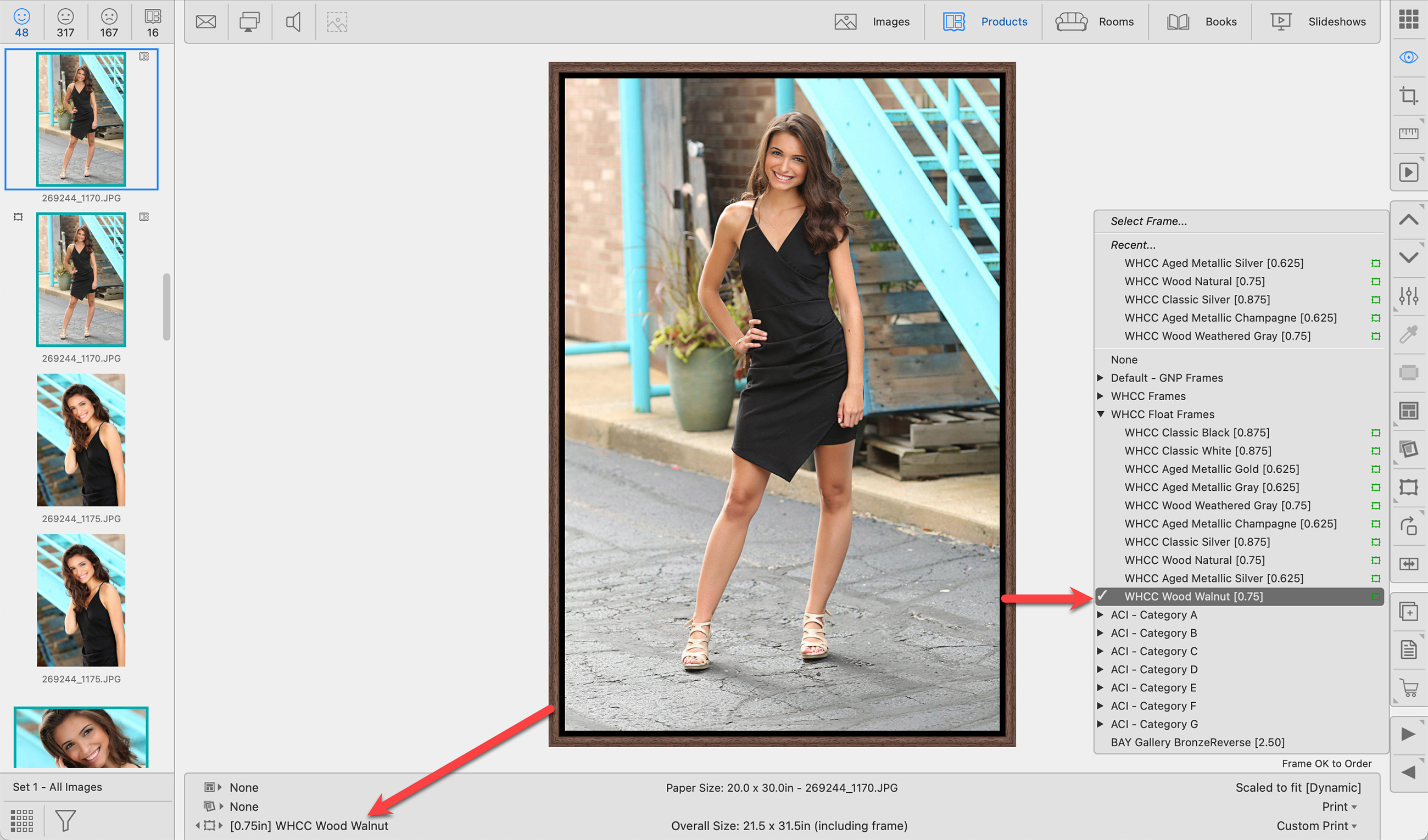
You can apply a Standard Frame to your image or product when in Thumbnail, Show, or Actual Size view. Click on the Frame tool in the toolbar to view the drop-down menu of available frames. Recently selected frames appear at the top. To remove a frame, select "none" from the list.
- Frames are set up in the Manage Frames dialog. Go to the top menu, Products > Frames > Manage Frames.
- The currently selected frame name and molding width are shown in the left column of the Info Bar.
- The overall size, indicating the outside dimension, including the frame is listed in the center column.
- If a frame has been applied to a product, the frame tag
 will appear on the thumbnail.
- If you notice red frame tags
 next to your frames, a detailed explanation can be found by clicking Frame Validation - Frame and Mat Selection Tags.
 - Displaying the frame molding width in square brackets next to the name is a preference. You can turn this feature off by going to the top menu, ProSelectEdit > Display > Display Options.
- Fixed Corner Frames are not available using the Select Frame tool. They are a product template and must be accessed using the template resource area.
- To quickly close (or open) all frame folders, hold down the Shift key while clicking on the disclosure arrow.
You can remove all applied mats, frames, & virtual styles simultaneously by holding the OptionAlt key and then pressing the DeleteBackspace key on your keyboard.
This tool will rotate the selected Image/Product/Book Page/Crop/Item 90 degrees clockwise.
- When Working with Products and Books, you can right-click on the Rotate tool, which allows you to select "Rotate Product & Images."
- Hold OptionAlt when rotating to rotate counterclockwise.
- If you are working with a Wall Grouping, see the Rotate Wall Grouping page.
Use the shortcut Cmd + RControl + R to rotate an image or product.
You can mirror a template using the Flip Product Horizontal tool.
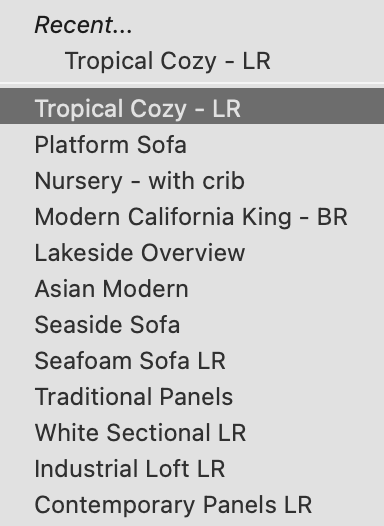
With this tool, you can easily switch the Room background while keeping the products the same. When you click on the Select Room Background tool, a menu of room images will appear. Select one from the list. Recent rooms will be listed at the top.
You can duplicate an image, product, book page, or room using the Duplicate tool.
- When duplicating images, each copy retains the original filename but has its own thumbnail.
- This feature is particularly useful when you want to view or order the same image/product with different effects.
- Simply duplicate the item and apply distinct effects to each copy. You can then select and display both copies, allowing for easy comparison of the different effects applied.
You have the option to add notes to images, products, books, or rooms. Notes are used as a reminder of any special changes that need to be applied to the images in a product, general product notes, or order requests. Click on Notes to learn more about where notes appear throughout ProSelect.
- Select an item and click on the Notes tool.
- The Notes dialog will open.
- You can manually add your own notes or add a note from your Notes Library.
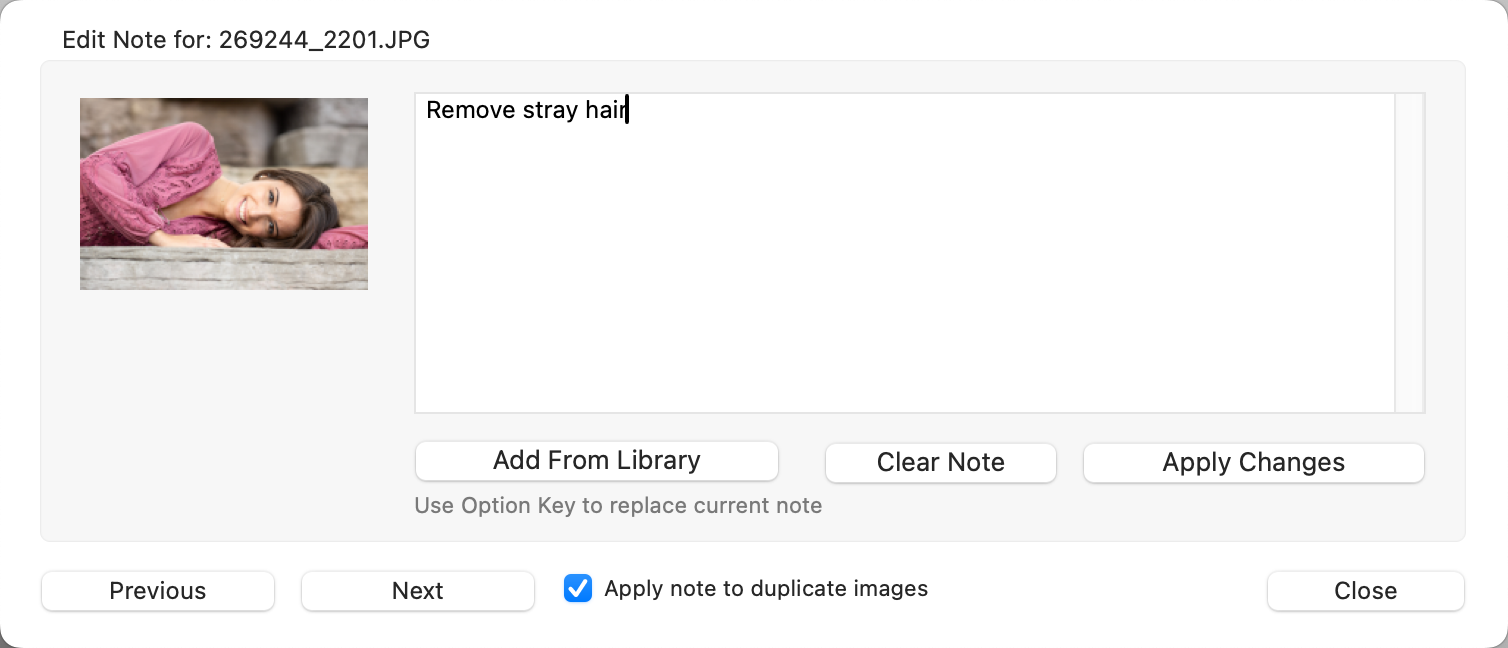
- Use the Previous and Next buttons to scroll through and add notes to other images/items within the set.
- If duplicate images appear, check this box to apply the note to duplicates as well.
- Use the Clear Note button to remove any notes.
- Click the Apply Changes button when you have finished adding or editing the note.
- You can add the same note to more than one image at a time by selecting all the relevant images before clicking on the Note tool.
- Notes added in Working with Images are applied to the individual image.
- Notes added in Working with Products or Working with Rooms are applied to the whole product or whole room. Not the individual image.
- Notes added to book pages apply to the book page, not the individual images.
Right-Click
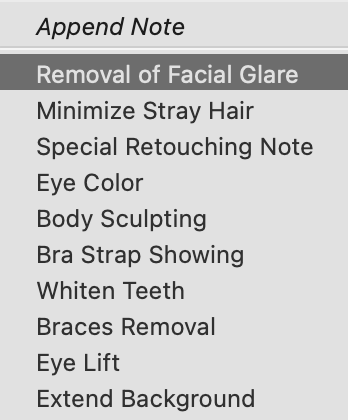
The Notes tool also has a right-click option. When you right-click, a drop-down menu of the Library Notes appears. You can select a commonly used note and add it. In this case, the note will be added without opening the Notes dialog.
Notes Tag
All items with notes attached will have a small Notes tag  at the bottom-right corner of the thumbnail image.
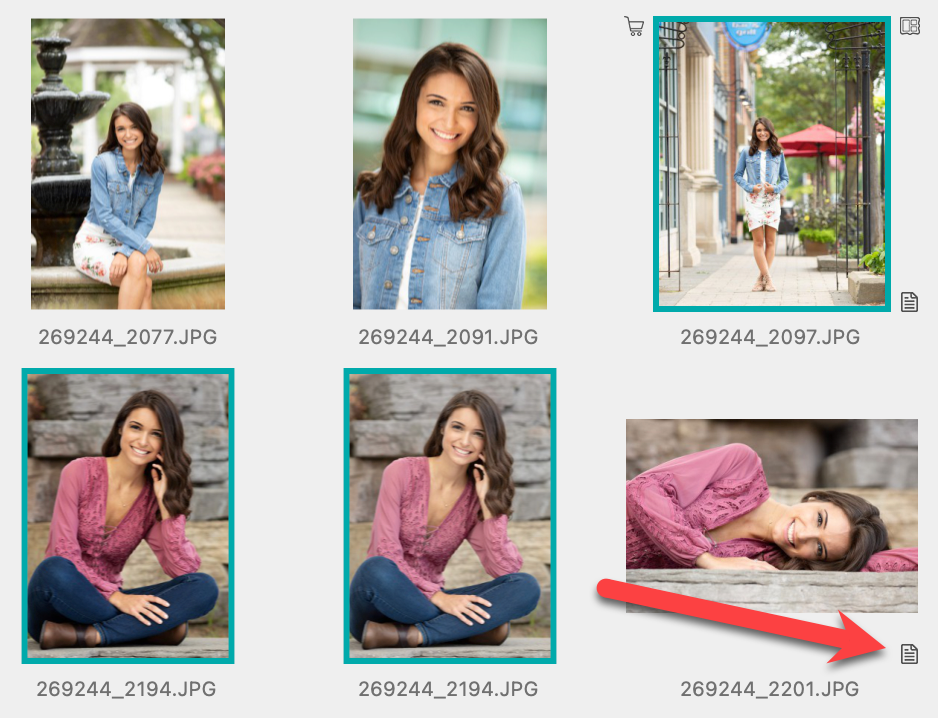
The Order Product tool (shopping cart) allows you to add the selected product(s) to an order. Ordering can be done from any View mode. You can order products one at a time, or multiple products at a time. Once you click on the Order Product tool, a menu will appear that includes the product(s) you wish to order and other options associated with that product.
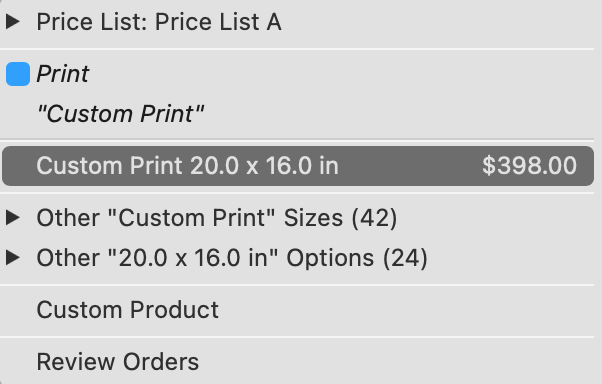
Click on the product you wish to order from the list. The product will be added to the Client's order.
Click on Ordering for more information.
Use the Next and Previous tools to navigate through your images, products, book pages, rooms, or slideshow slides.
- Use the Left and Right Arrow keys on your keyboard to navigate through your images, products, book pages, and slides.
- Use Shift + Left and Right Arrow keys to navigate through your rooms.
Jump in Groups
If you hold the OptionAlt key while clicking on the Next or Previous tool, the next group of items will be displayed. This group can be between 2 and 30 items. You can select the group size by right-clicking on the Next or Previous tools. This feature is only available in Show view and Cropping view.
Use the Next and Previous tools to navigate through your images, products, book pages, rooms, or slideshow slides.
- Use the Left and Right Arrow keys on your keyboard to navigate through your images, products, book pages, and slides.
- Use Shift + Left and Right Arrow keys to navigate through your rooms.
Jump in Groups
If you hold the OptionAlt key while clicking on the Next or Previous tool, the next group of items will be displayed. This group can be between 2 and 30 items. You can select the group size by right-clicking on the Next or Previous tools. This feature is only available in Show view and Cropping view.