Linking Clients to StudioCloud
When using StudioCloud integration in ProSelect, your first album client is typically the StudioCloud client you selected during the album linking process. If you plan to record orders for additional clients in the same album and want those orders exported to StudioCloud, each of those clients must also be individually linked to a StudioCloud client. This can be done in the Setup Client window.
- Go to the top menu, Orders > Client Setup.
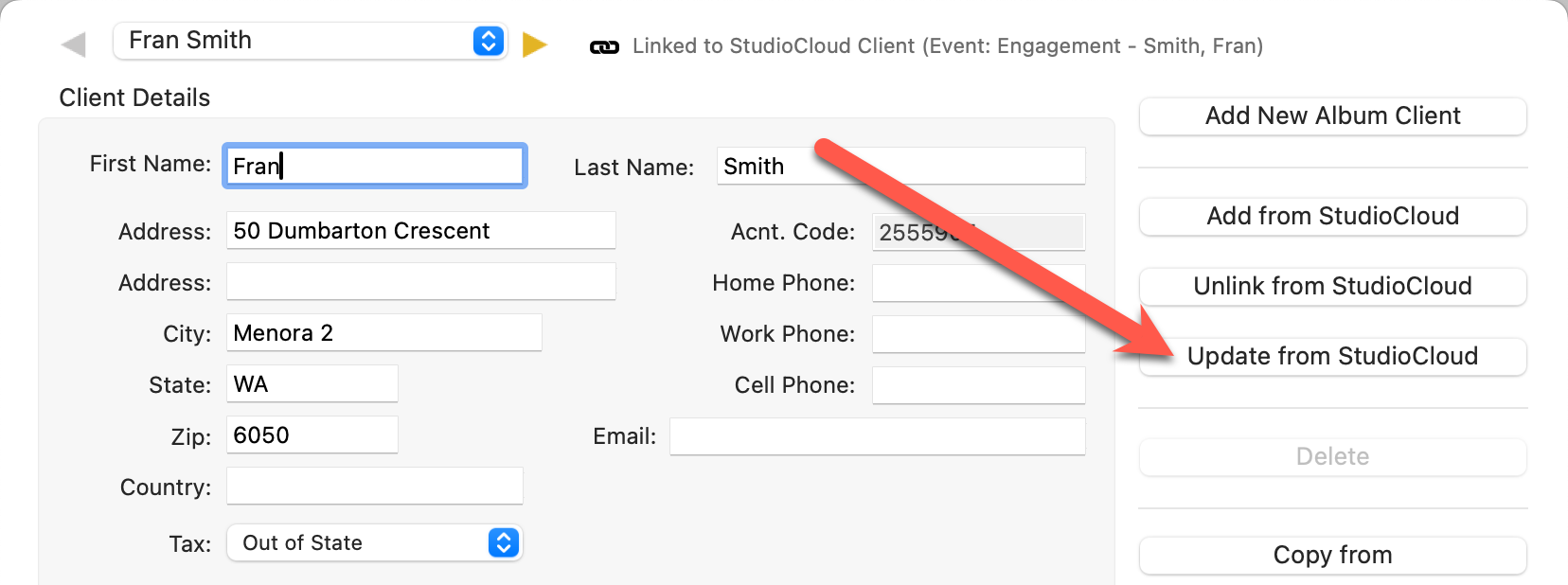
- If a Client is linked to Studio Cloud, a link symbol
 appears at the top of the window.
 - The Acnt. Code is the StudioCloud Client ID.
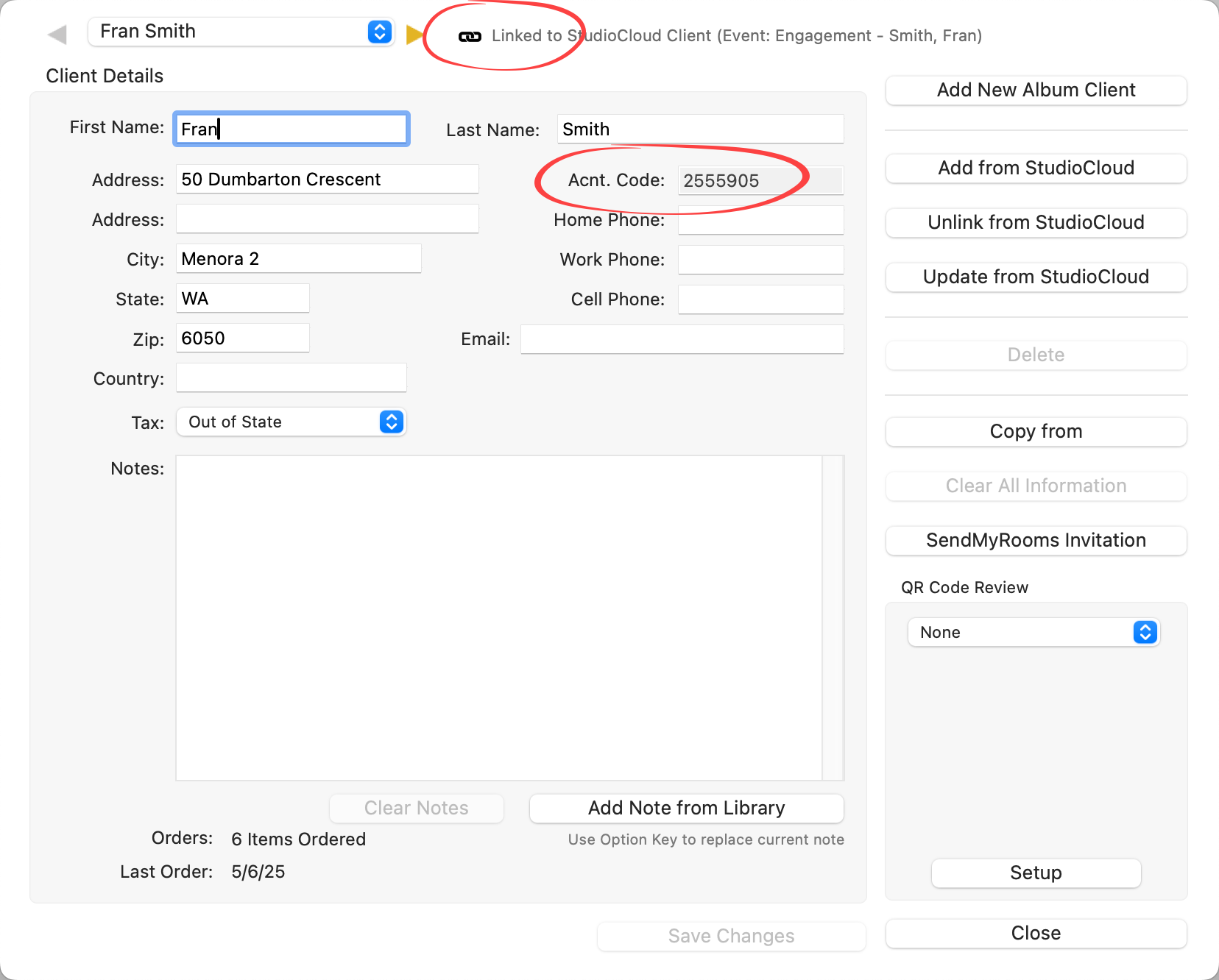

These options will only appear if StudioCloud integration is enabled in the settings and the current album is already linked to StudioCloud. Without integration turned on or an active link, the linking tools in the Client Setup window will remain hidden.
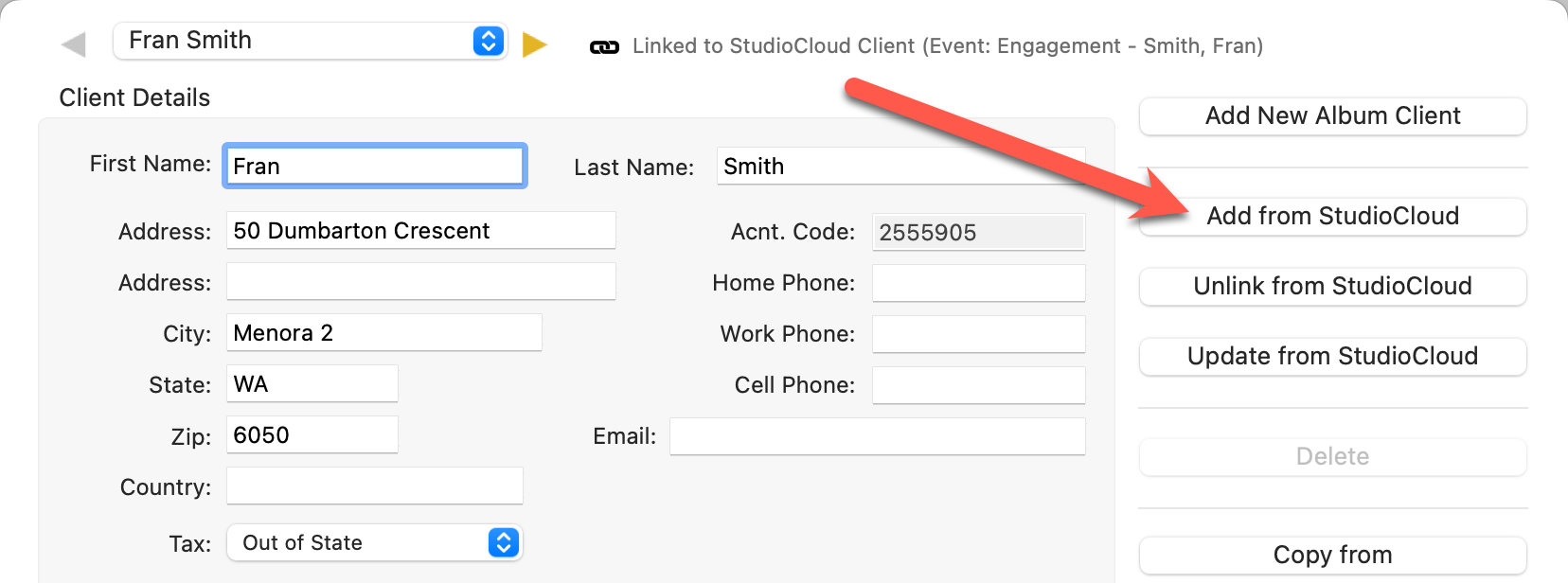
- Click on the Add from StudioCloud button located on the right side of the Client Setup window.
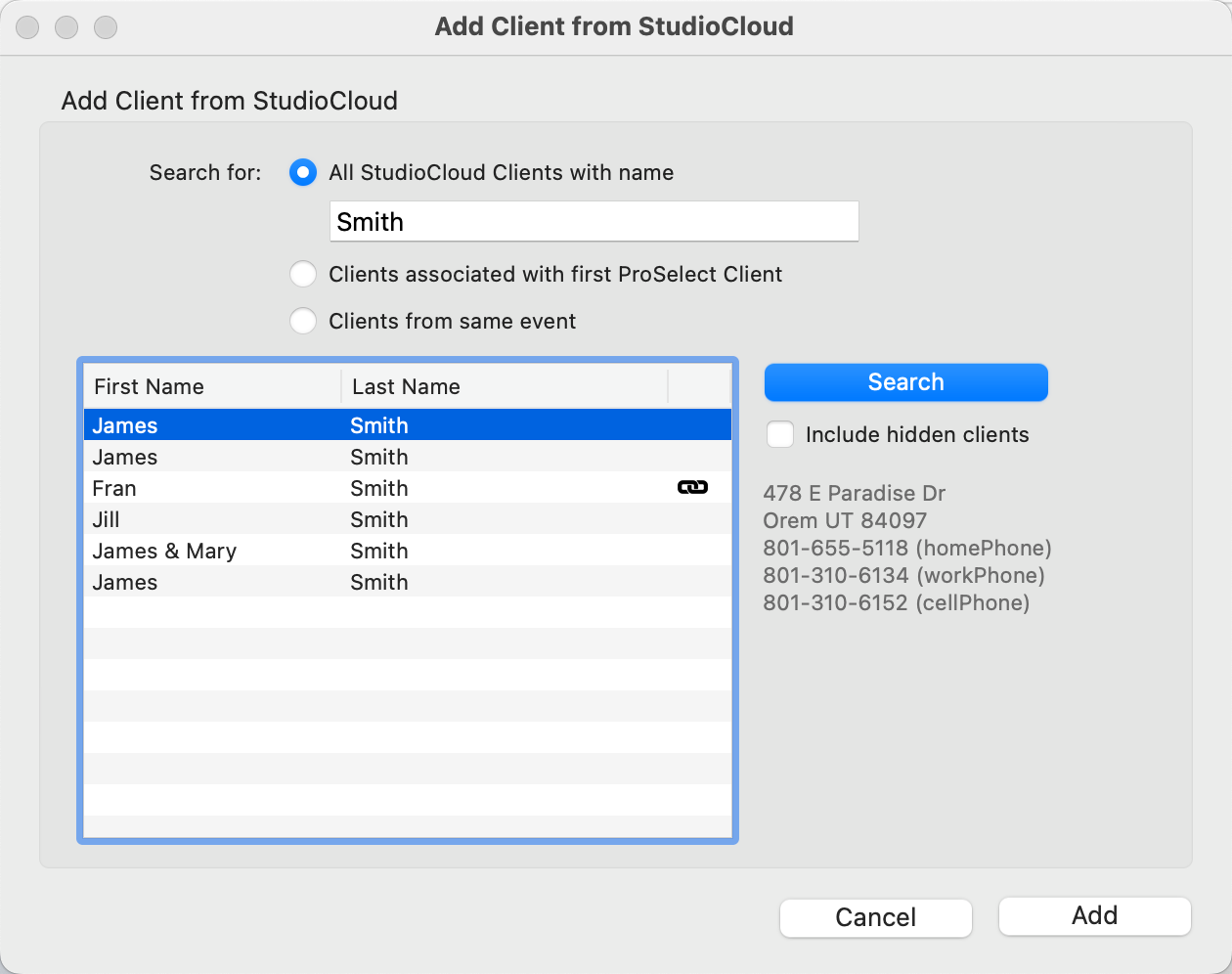
- Type a name into the search bar, or search by clients associated with the first ProSelect client, or event.
- In StudioCloud, some non-primary clients (such as relatives) can be marked as hidden. If you want to include these in your client search, check the "Include Hidden Clients" box before performing the search.
- Click Search.
- Select a client from the list.
- Click Add.
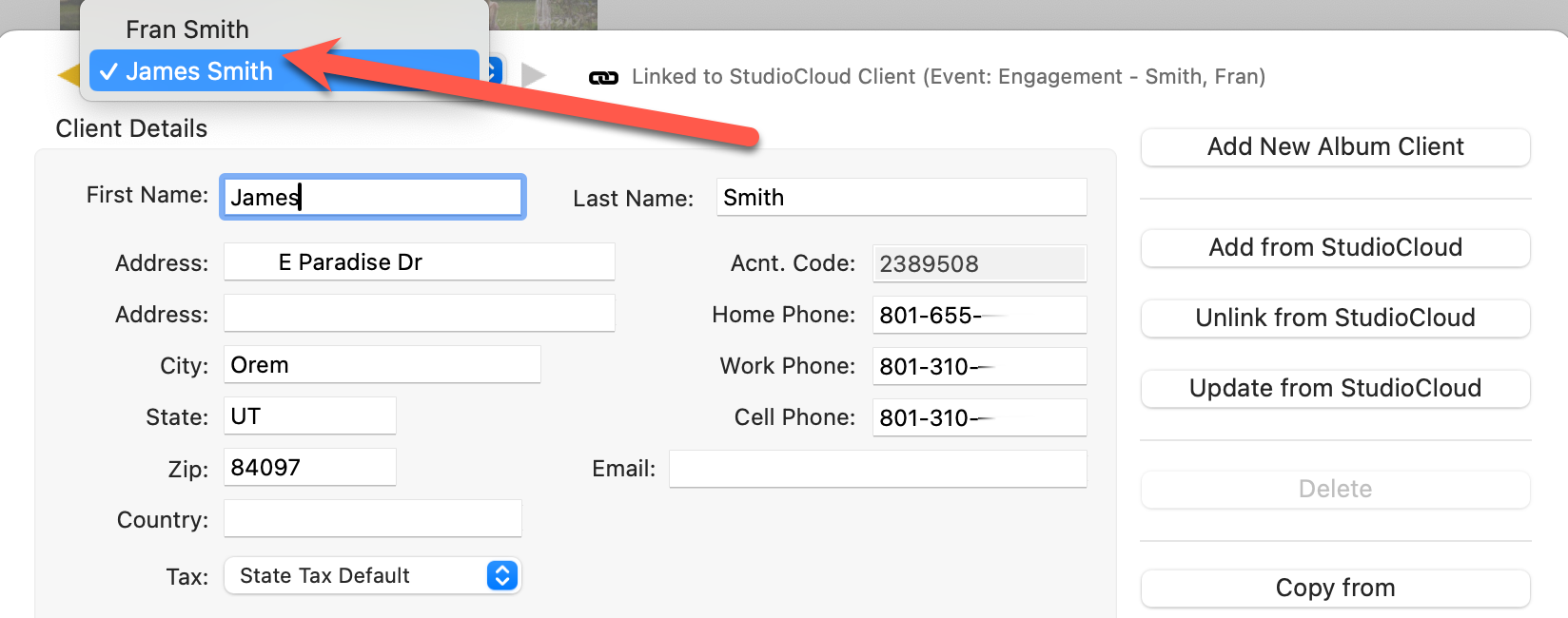
- Your new client has been added.
- Note that you can toggle between clients using the drop-down arrow at the top of the window.
- Open the Client Setup window.
- Select the Client you wish to unlink from the drop-down list at the top.
- Click on Unlink from StudioCloud.
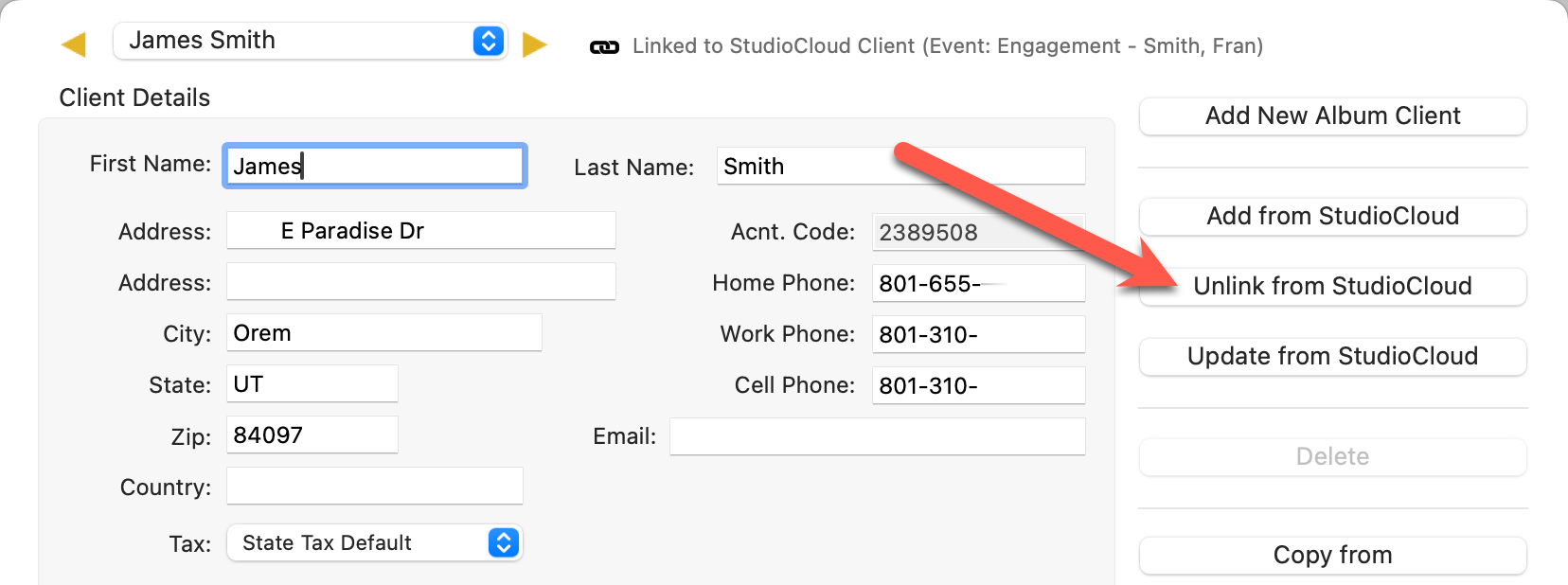
- A confirmation will pop up when the client has been unlinked.
If you've manually added a client in ProSelect and want to link them to a StudioCloud client later, follow these steps:
- Open the Client Setup window.
- Click the Link to StudioCloud button. This will open a dialog window for managing the link.
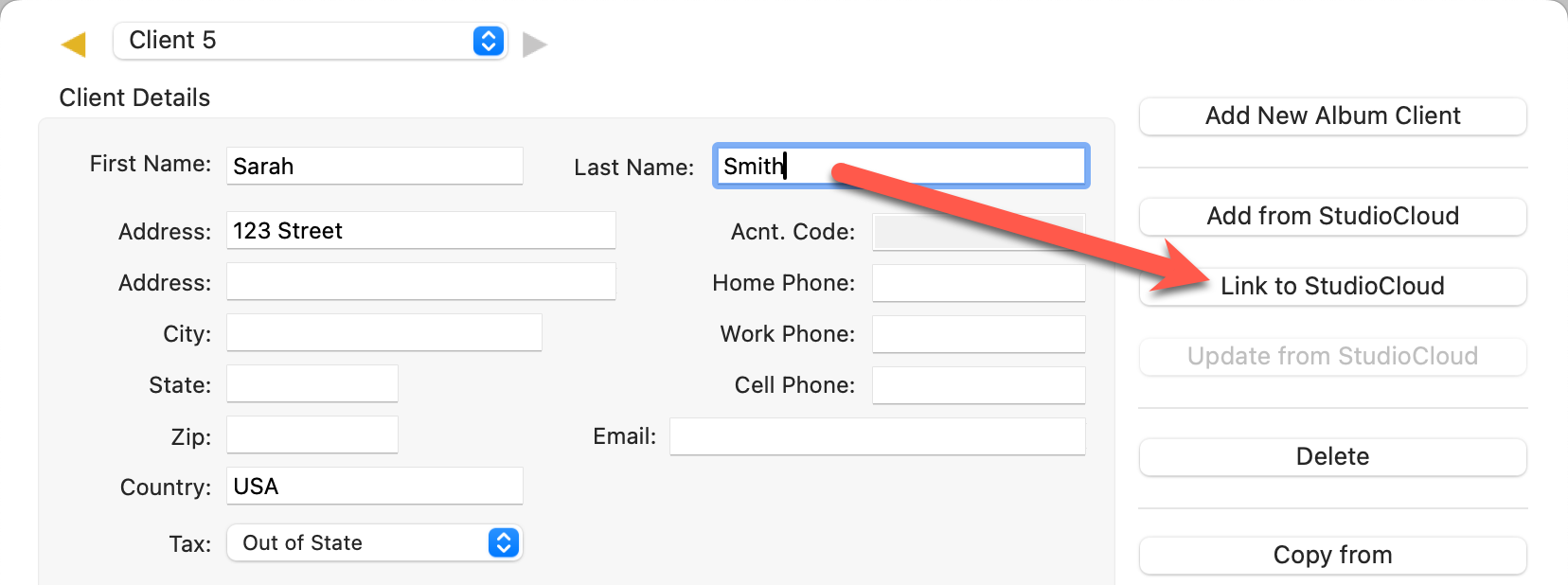
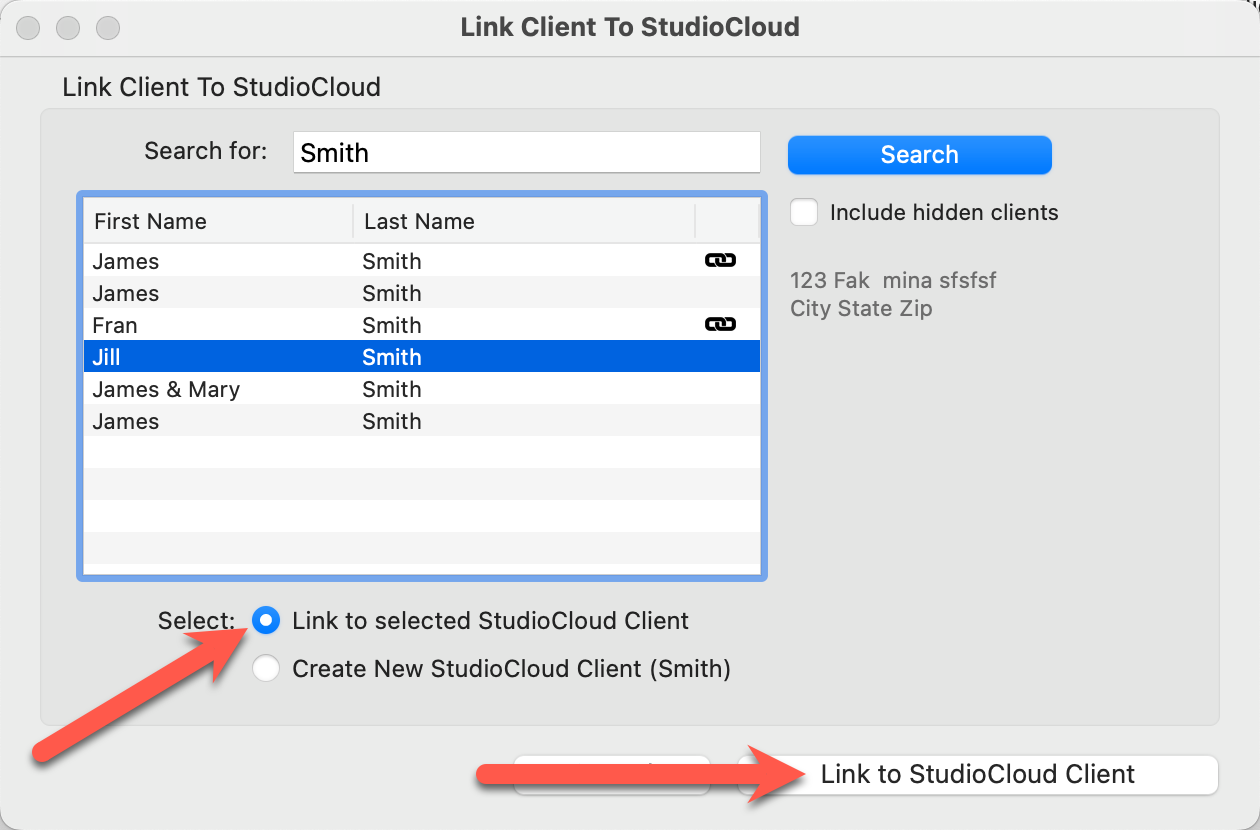
- ProSelect will automatically fill in the client’s first and last names in the search box so you can check if they already exist in StudioCloud.
- If the client appears in the list, select them and choose "Link to selected StudioCloud Client."
- Click the "Link to StudioCloud Client" button to complete the process.
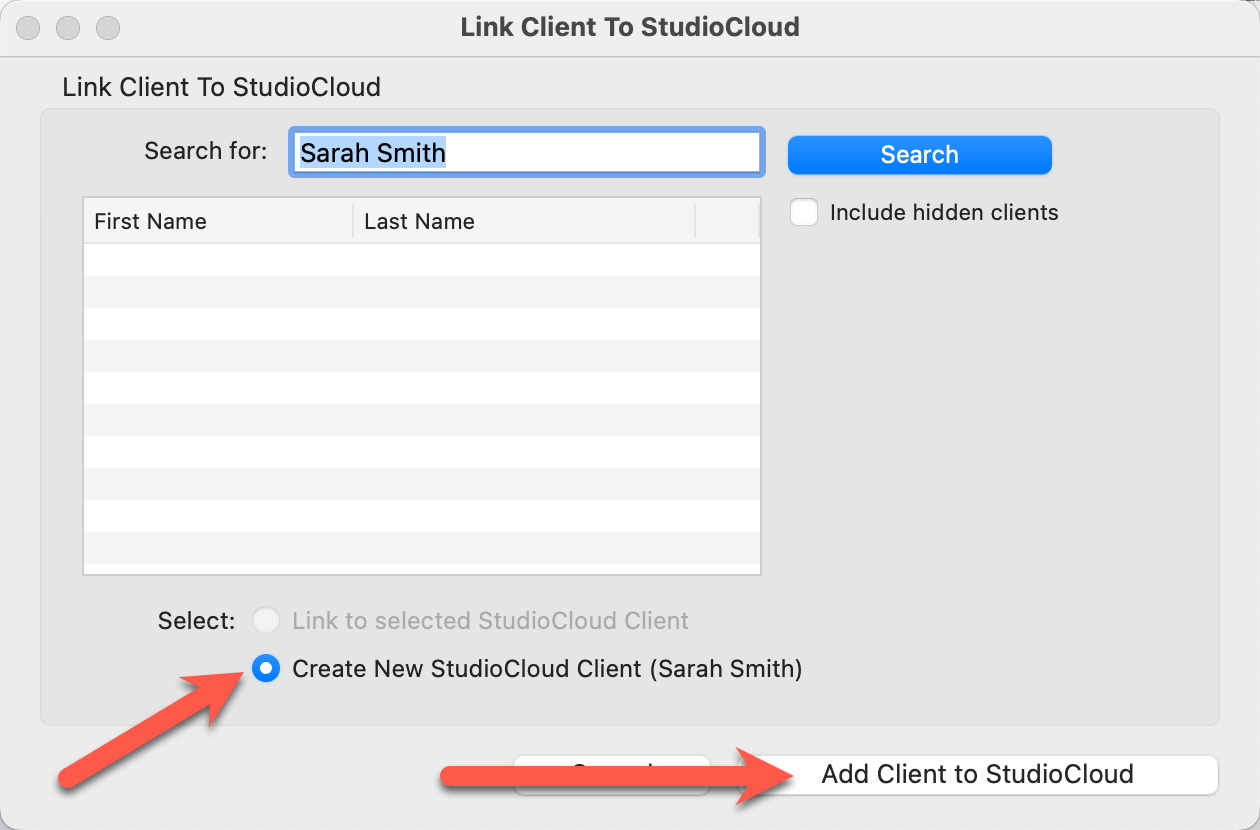
- If the client is not found in StudioCloud, choose "Create New StudioCloud Client."
- Click the "Add Client to StudioCloud button." This will send the client information you've entered in ProSelect to StudioCloud and create a new client record there.
ProSelect offers three ways to sync client data with a linked StudioCloud client to ensure both systems stay up to date:
- If you have selected "When Saving Changes to a Client: Send Updated Client Details to StudioCloud" in Settings > General Settings > Integration, ProSelect will automatically send any changes made in the Client Setup window to StudioCloud whenever you save.
- You can manually push updates by clicking the Update with StudioCloud button in the Client Setup window. This sends the current client information in ProSelect to StudioCloud.
-
You can also go to the top menu, Orders > StudioCloud > Sync Clients with StudioCloud. This option allows you to sync multiple clients at once, ensuring all linked records are current.
Resolving Conflicts
If there’s a mismatch between the client details in ProSelect and StudioCloud, a conflict resolution window will appear. This window lets you review both sets of information and decide which version to keep.
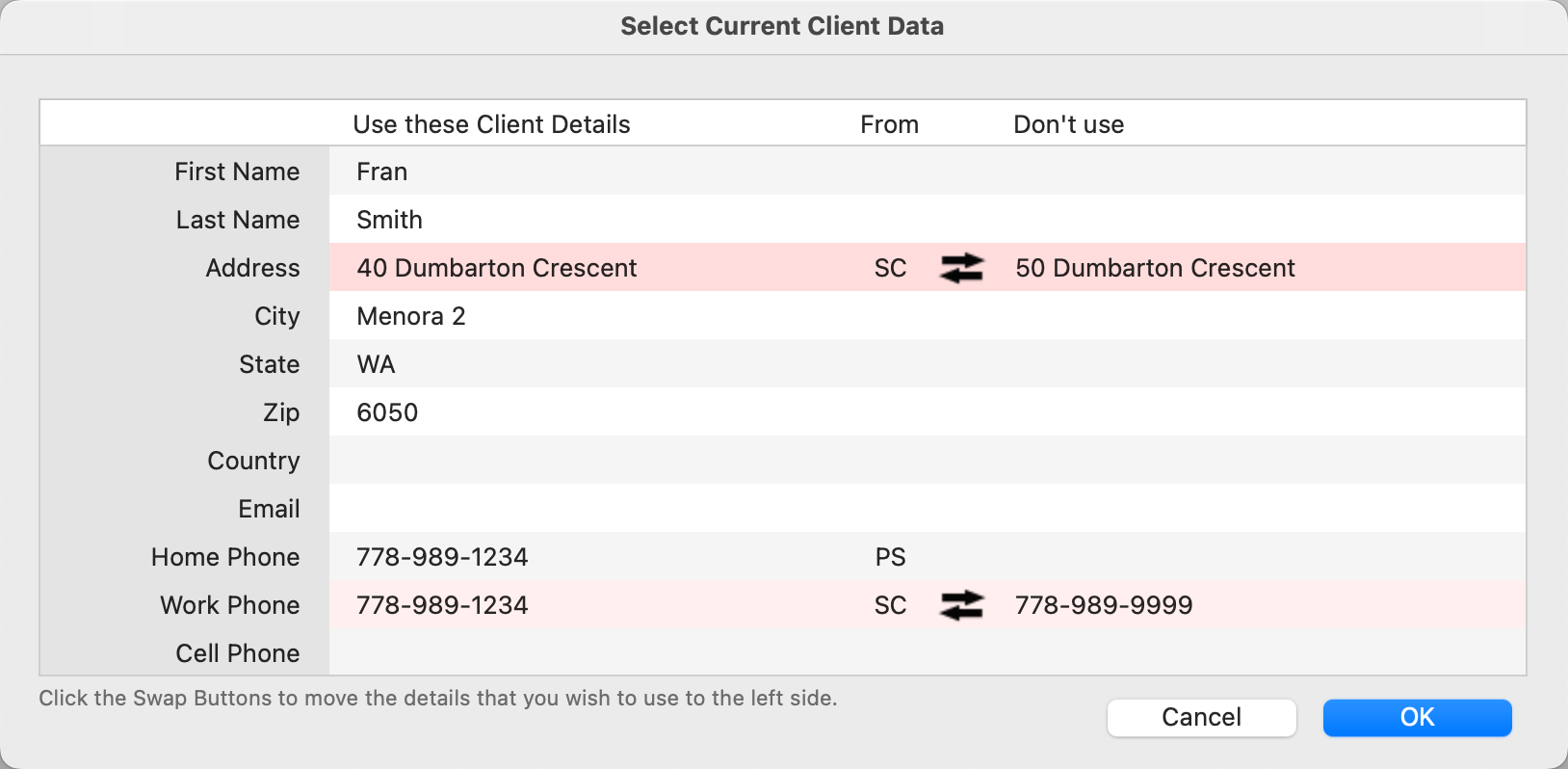
- Click on the Swap Details button
 to move the correct data to the left-hand side, which represents what will be saved.
 - PS - Use details from ProSelect.
- SC - Use details from StudioCloud.
- Once the information is correct, click OK to finalize the update.