 Right-Click Options
As with other working with modes, Working with Books has a number of useful right-click options. Right-clicking provides quick access to various functions and actions related to the selected item. Not all functions and actions are available to all book pages.
- If you see a drop-down arrow beside the right-click function, this means there are additional options available. The additional options become visible when you click on the arrow or the function name.
- Right-click functions are available in all working with modes. This page focuses on Working with Books.
- The options available when right-clicking change depending on whether a book page is selected or the images within that book page are selected.
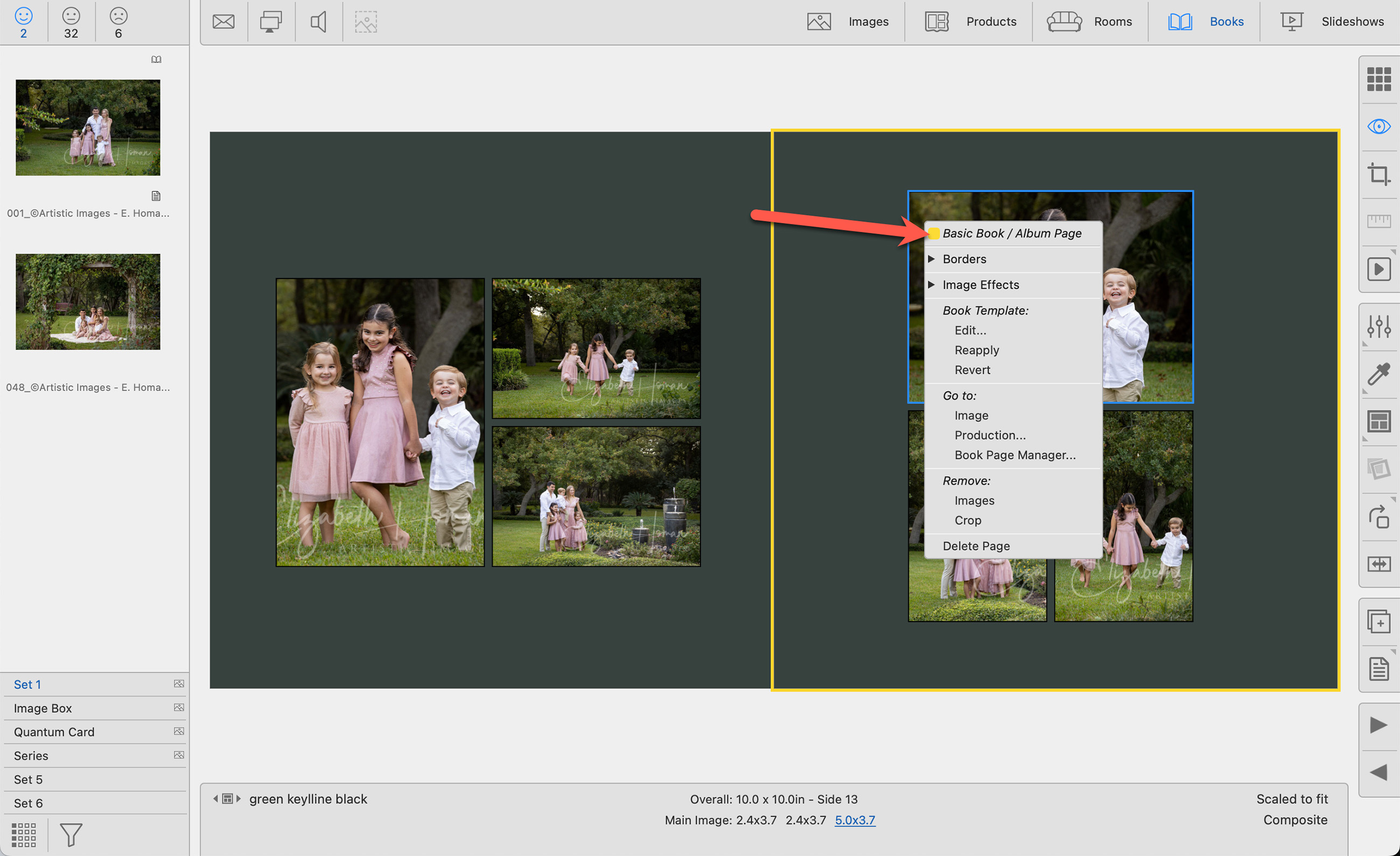
When applicable, the "Borders" option allows you to select the edge treatment of a particular opening in a book page. Click on the arrow or "Borders" to see the list of available options. These options are Borders Outwards, Borders Inwards, or No Edge Treatment. For more information, click on Borders Inward/Outward.
You can access the following image effects and apply them to your original images, images in products, or images in book pages.
- Original
- B&W
- Special Tint
- Low-Key Vignette
- High-Key Vignette
- Remove
Click on Image Effects to learn more.
If you are using an image effect on a Print, Gallery Wrap, or any other product that has a single opening, you do not need to select the opening first. For products with multiple openings, you will need to first select an opening, and then right-click on it to access image effects.
When you select "Edit Book Template," the Product Editor will open with the currently selected template. You can make modifications and save it. Once the book page template has been saved, you will be returned to Working with Books. From the right-click menu, select "reapply template" to apply the changes. This feature works in a similar way when Working with Products and Rooms.
This option will locate the currently used book page template in the Template Resource Area and highlight it for you. This function is only available when in Thumbnail view.
Reapply is used to update a book page if you have modified its template. Applied mats or virtual styles remain. If changes have been made to the template, you need to reapply it, otherwise, the changes you made will not appear.
Revert Book Template will apply the original book page template. It will remove any mats, virtual styles, or rotation applied to the book page. If a mat or virtual style was applied at the template level, they will remain. To remove them requires the Product Editor.
When you select this option, you will be taken to Working with Images, with the image selected. If you are using this on a Print, Gallery Wrap, or any other product that has a single opening, you do not need to select the opening first. For products with multiple openings, you will need to first select an opening, then right-click on it to go to the image.
Note: Any modifications you make will not affect the selected product. Once an image is placed in a product or book page, it is independent of the original image. This means that the original image can be used multiple times, each with different cropping and custom effects.
This option will open the Production window and highlight the current book page. Click on Pro Production to learn more.
This option will open the selected book page in the Book Page Manager.
This option will remove the image from the selected book page. In Thumbnail view, this option will remove ALL images from the spread. When using Show Pages view, you can select single images to remove.
Any crop that has been applied to the selected image will be removed.
This option will delete the book page. If you make a mistake in deleting, you can undo using CmdCtrl + Z.