 Getting Started
There are a few simple steps to set up your StudioCloud account and connect it with ProSelect. First, you'll need to create a free StudioCloud account and install the software. Then, enable the integration in ProSelect by entering your StudioCloud credentials. After that, you can set your preferences to match your studio’s needs. Once everything is set up, you’ll be ready to use StudioCloud as part of your regular workflow.
- Visit the StudioCloud website.
- Create a free account if you don’t already have one.
- Download and install the StudioCloud software on your computer.
- Open ProSelect.
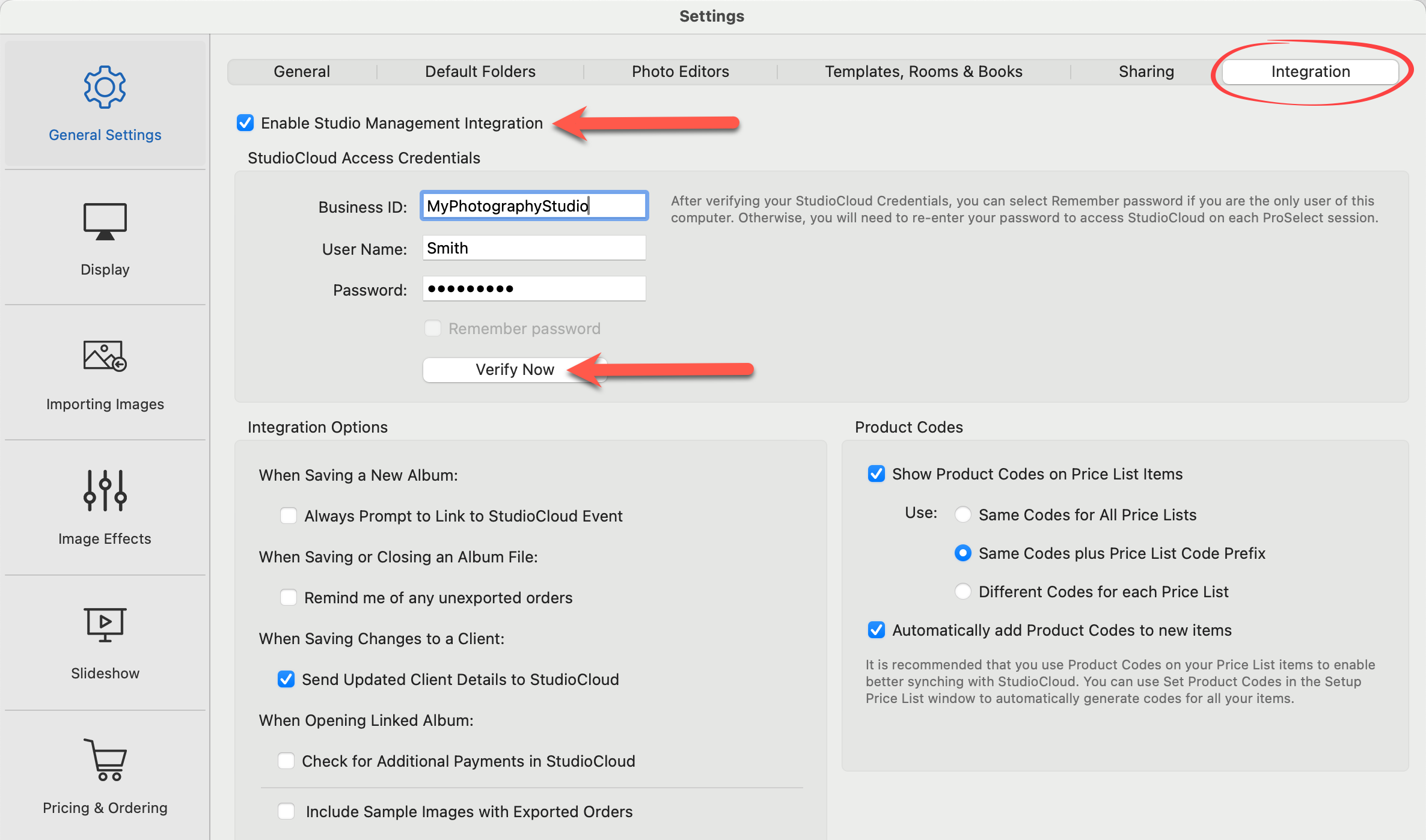
- On the top menu, go to ProSelectEdit > Settings > General Settings > Integration.
- Check the box labeled "Enable Studio Management Integration."
- Enter your StudioCloud Access Credentials (from the account you just created).
- Click the "Verify Now" button to confirm the connection.
- Once verification occurs, a green checkmark
 will appear next to the "Verify Now" box.
 - Optionally, check the "Remember Password" checkbox.

If you're the only one using your computer, it's safe and convenient to check the "Remember Password" box—this saves your StudioCloud password in ProSelect so you don't have to enter it every time.
If you share your computer, it's best not to check the box. Otherwise, anyone using the computer will access StudioCloud as you, and you won’t be able to track who made changes.
Once your account is verified, you can fine-tune how the integration with StudioCloud works to match your studio's workflow. These settings give you control over how albums, clients, and orders interact with StudioCloud during various stages of your process.
- You can choose to have ProSelect prompt you to link new albums to StudioCloud Events when you first save them. This is helpful if most of your albums need to be connected to events in StudioCloud.
- When saving or closing an album, you can set ProSelect to remind you about any unexported or updated orders or payments. This helps ensure all sales data stays in sync.
- If you update client details in the Clients Setup window, you can enable an option to have those changes automatically pushed to StudioCloud, keeping client records consistent across both systems.
- When you open a linked album, ProSelect can be set to check for any additional payments recorded in StudioCloud since the album was created. This ensures your order reflects the most current payment status.
- Lastly, you can choose to include sample image thumbnails when exporting orders to StudioCloud, which can be useful for keeping a visual record of what was ordered.
For accurate syncing between ProSelect and StudioCloud, it’s recommended to enable product codes and set them to “Same Codes plus Price List Code Prefix.” This ensures that products are correctly matched across both systems, reducing errors and keeping your pricing and order data consistent. For more information, see Product Codes.
ProSelect gives you flexibility in how you integrate with StudioCloud, and while the order of steps isn’t critical, certain conditions must be met. Specifically, both the Album and the Client must be linked to StudioCloud before you can export any orders. The easiest way to manage this is to set up the links when creating a new album. You can enable a reminder for this in Settings > General Settings > Integration.
Typical Workflow
- Start a new album in ProSelect.
- Import your session images.
- Save the album.
- Link to StudioCloud using the Link to StudioCloud window:
- Select a StudioCloud client and related event.
- This can auto-fill the first client in ProSelect with the selected client's details.
- Add additional clients from StudioCloud if needed.
- Run your sales session and record all orders and payments.
- Export the order(s) to StudioCloud.
Handling Updates
If you make changes later, such as editing orders, updating client details, or adding payments or refunds, you can sync the updates back to StudioCloud by:
- Re-exporting the order(s): This will replace the existing order in StudioCloud.
- Syncing clients: Updates client data in StudioCloud.
- Syncing payments: Ensures all transactions, including refunds, are up to date.