Setup Music
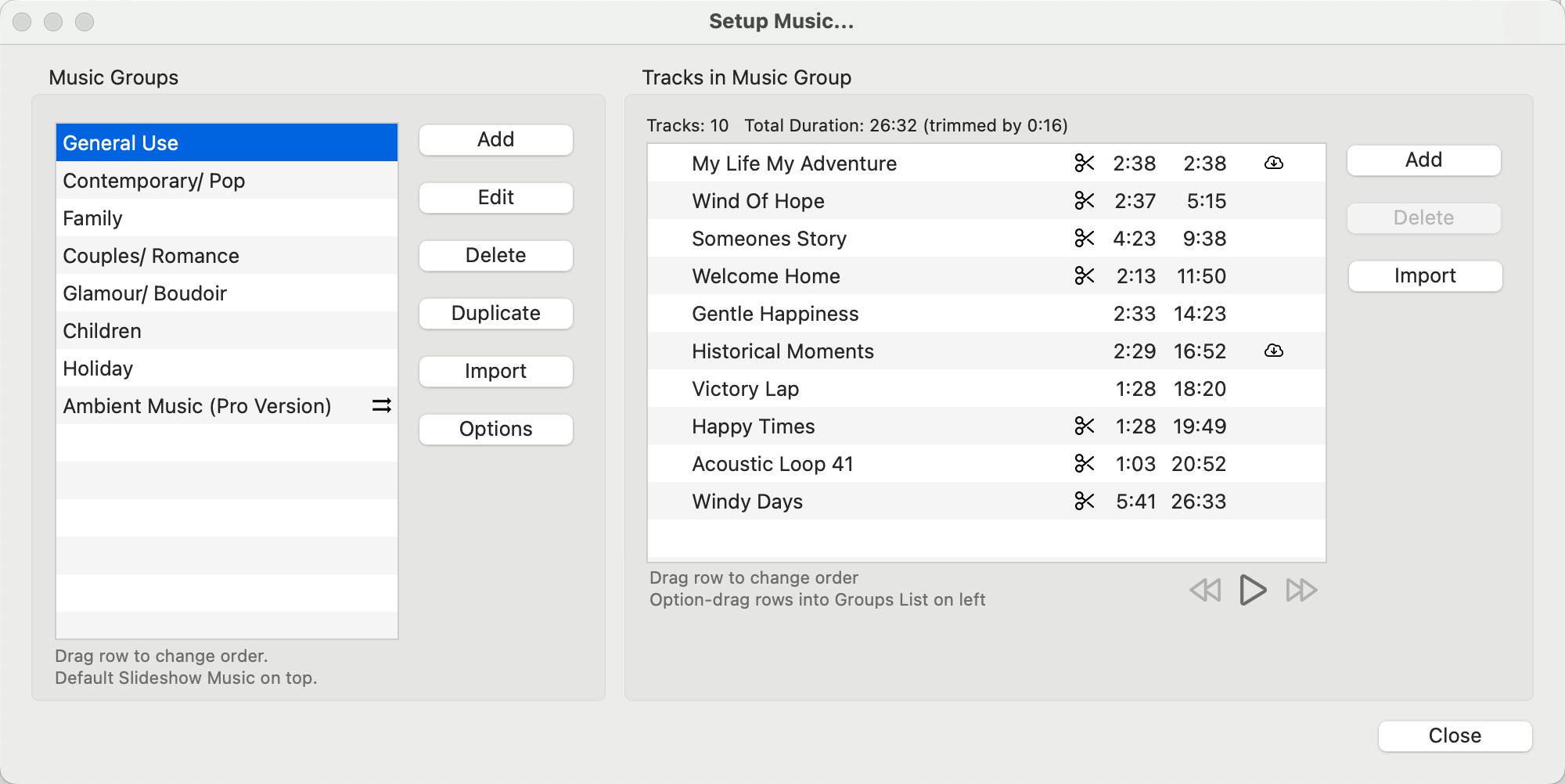
Music is set up in the Setup Music window. Go to the top menu, Slideshow > Setup Music.
- Music is organized into groups. Groups are often organized by theme - such as Family, Children, Glamour, etc.
- Each group can contain numerous tracks, relating to the group theme.
Add a Music Group
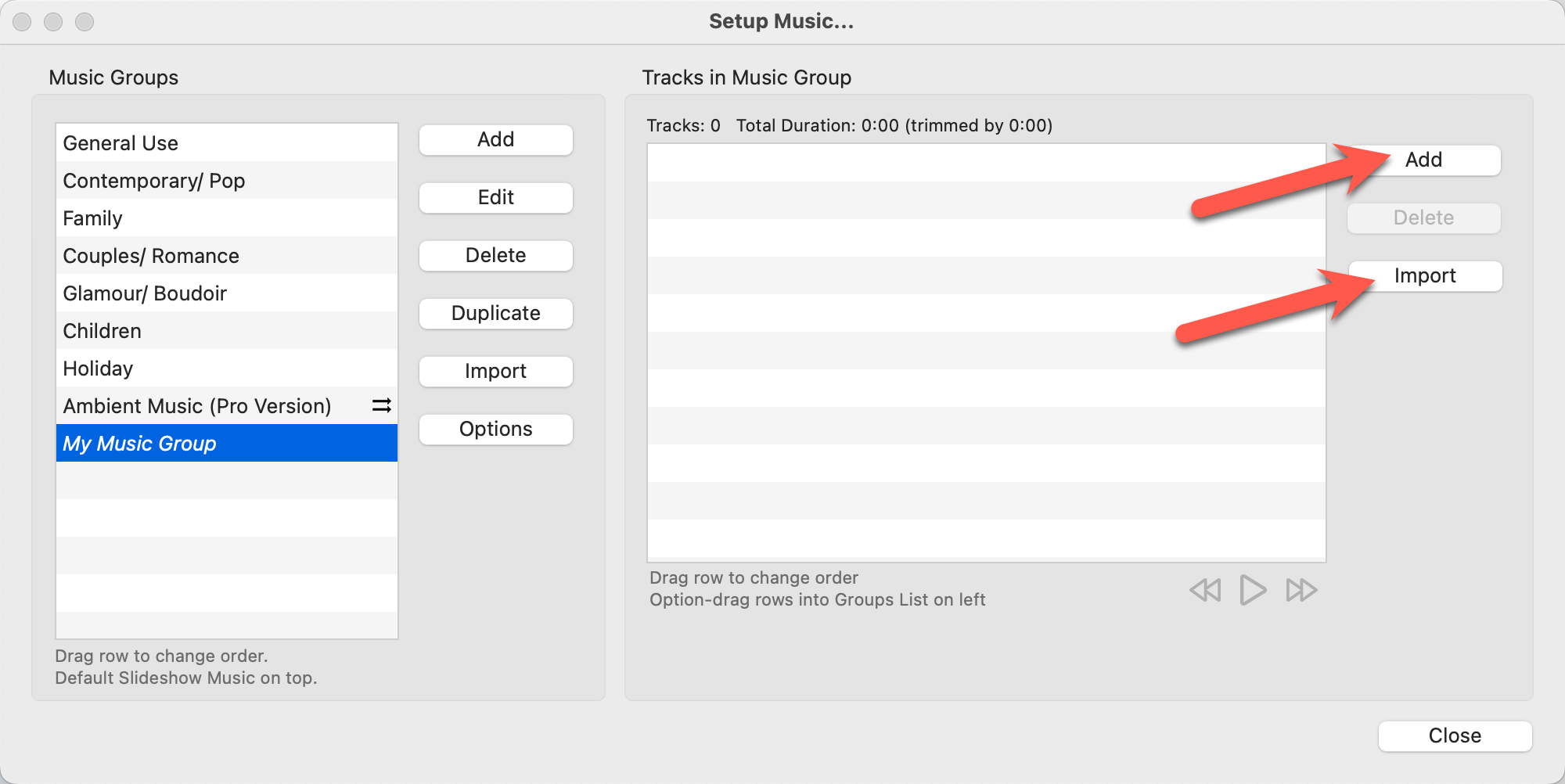
- Click on the Add button in the Music Group panel.
- Type in a name for the group.
- Click OK.
Rename a Music Group
- Click on the Edit button in the Music Group panel.
- Type in a name for the group.
- Click OK.
Delete a Music Group
- Click on the Delete button in the Music Group panel.
- You will be prompted to confirm.
Duplicate a Music Group
Duplicating a music group also copies all the music tracks within the group.
- Click on the Duplicate button in the Music Group panel.
- Enter a new music group name.
- Click OK.
- The new music group will appear at the bottom of the list.
Adding Music Tracks
To add music tracks to a group in ProSelect, start by selecting the music group you want to modify. Once selected, you can add tracks using any of the following methods:
- You can search and download music from the ProSelect Music Library by clicking on the Add button in the Music Tracks panel and selecting "Music Library." Music downloaded from the ProSelect Music Library will have a cloud tag
 next to it.
 - You can add music tracks already in your Music Resource Folder by clicking on the Add button in the Music Tracks panel and selecting "Resources."
- Locate and import a music track on your computer by using the Import button. Navigate to your music track, select it, and click "Open."
- Drag and drop a music track onto the music tracks list.
Add a Folder of Music
If you have a folder of music tracks on your computer, you have the option of importing the entire folder all at once. Use the Import button in the Music Group section. Locate the folder and select it. This action imports all the tracks within that folder, creating a new music group with the folder name.

Total Duration
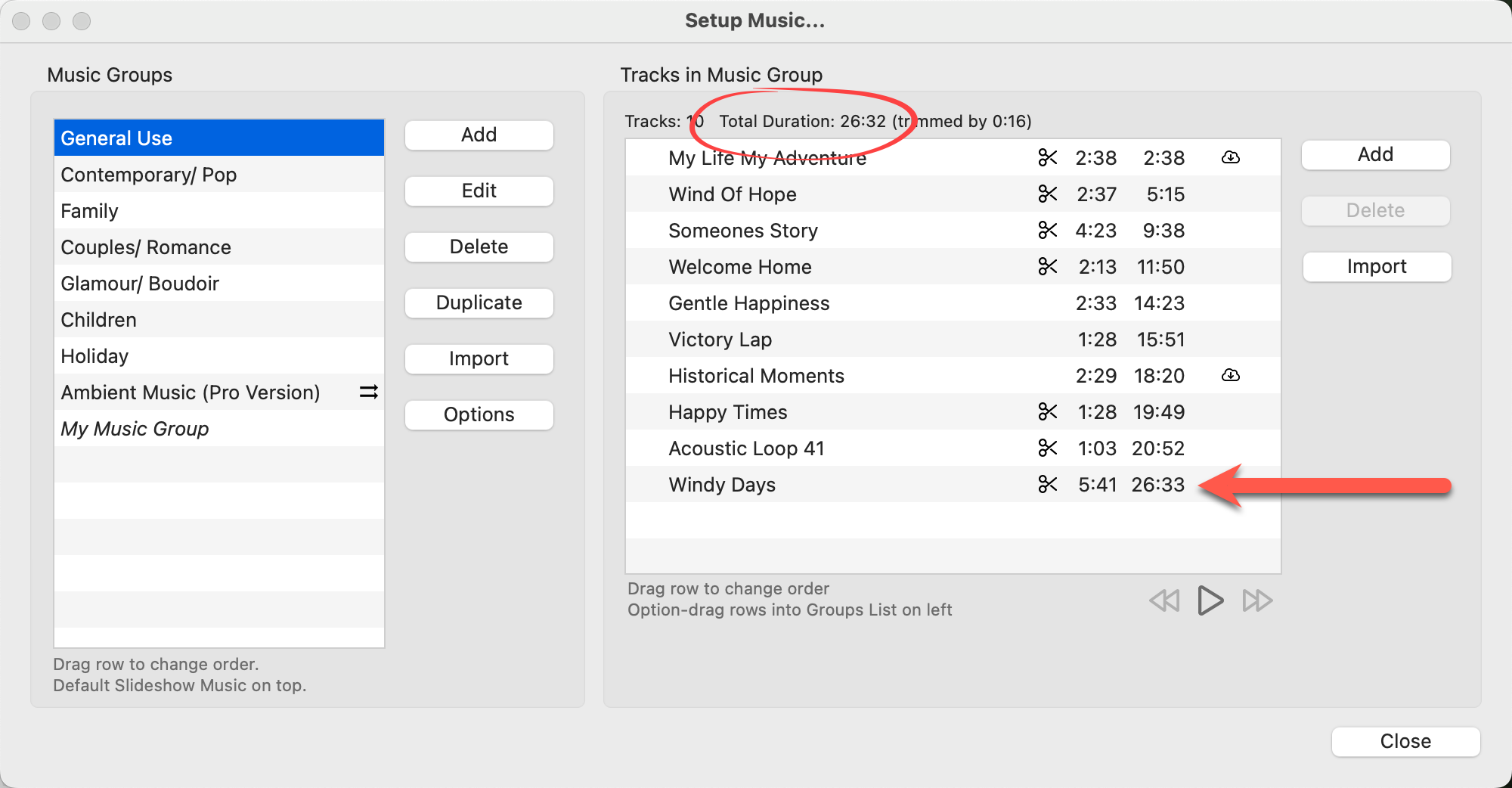
In ProSelect, the total duration of music tracks within a group is displayed at the top of the music tracks list. This duration is calculated by summing up the lengths of all individual tracks. In the music track list, the first column shows the length of each track, while the second column provides the cumulative duration up to that track, allowing for easy management of music timing for presentations or slideshows.
Deleting Music Tracks
In ProSelect, you can remove a music track from a music group by selecting it and using the Delete button.
However, this does not delete the file from your system; it only removes it from the group list. The actual music file remains in the ProSelect Resources folder under Music. If you decide to add the track back to a group, you can easily do so by accessing it through the Add button and selecting "Resources". If you want to permanently delete the music file from your ProSelect Resources folder, you must go to the Resources window, select the tracks you want to remove, and then use the Delete button. This will delete them completely.
- To reorder your music tracks, simply click and drag them to a different position in the list.
- If you want to move a track to a different Music Group, hold down the OptionAlt key on your keyboard, then click and drag the track from the list and drop it on the desired Music Group on the left-hand side.
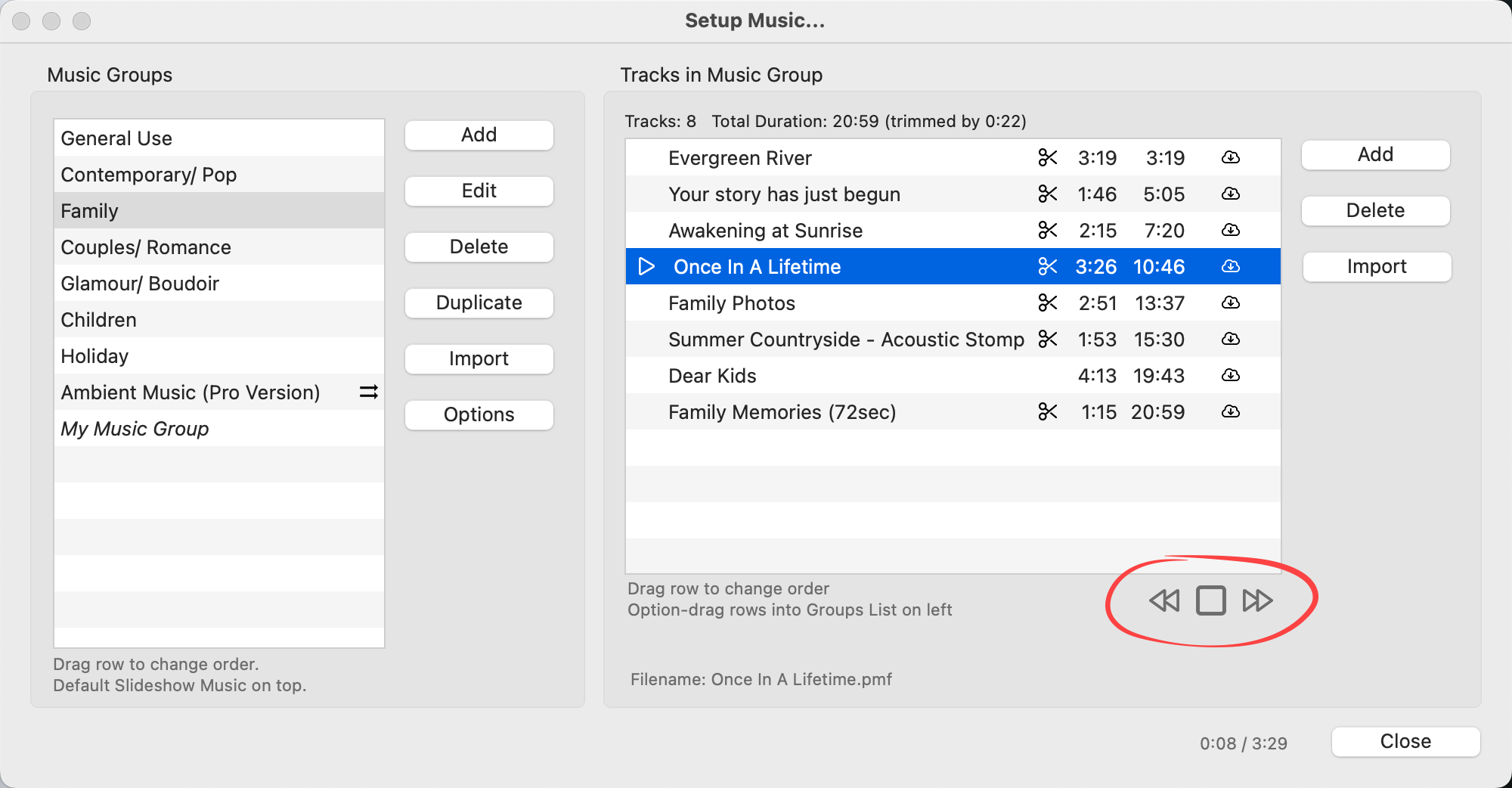
You can preview your music tracks before including them in your slideshow presentation:
- Select the track you want to preview and click the Play button
 . Alternatively, you can double-click on the track's name to start playing it immediately.
 - Stop playing the track using the Stop button
 .
. - If you want to listen to the next or previous track, use the Play Next Track
 or Play Previous Track
  buttons.
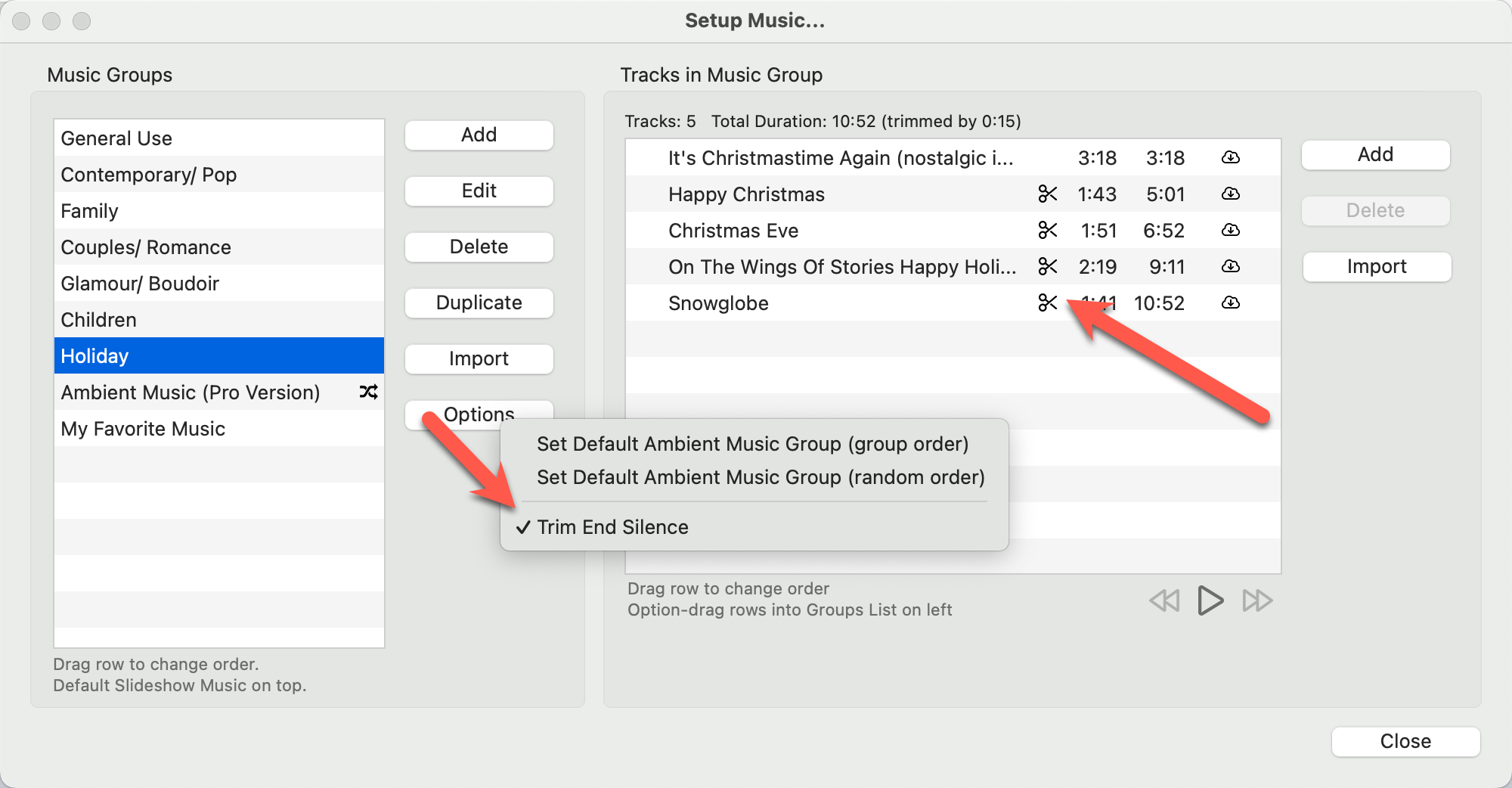
In ProSelect, music tracks are automatically adjusted to eliminate any silence at the end, ensuring seamless transitions between songs in presentations or exported slideshows. This feature, known as "Music Trimming," can be turned off if you prefer to keep the silent pauses. Click on the Options button, and deselect "Trim End Silence."
Trimmed tracks are marked with a scissors icon  , and their adjusted duration is displayed. However, this trimming only affects playback within ProSelect and does not alter the original music files. The cumulative time removed from all tracks is also displayed at the top of the window.
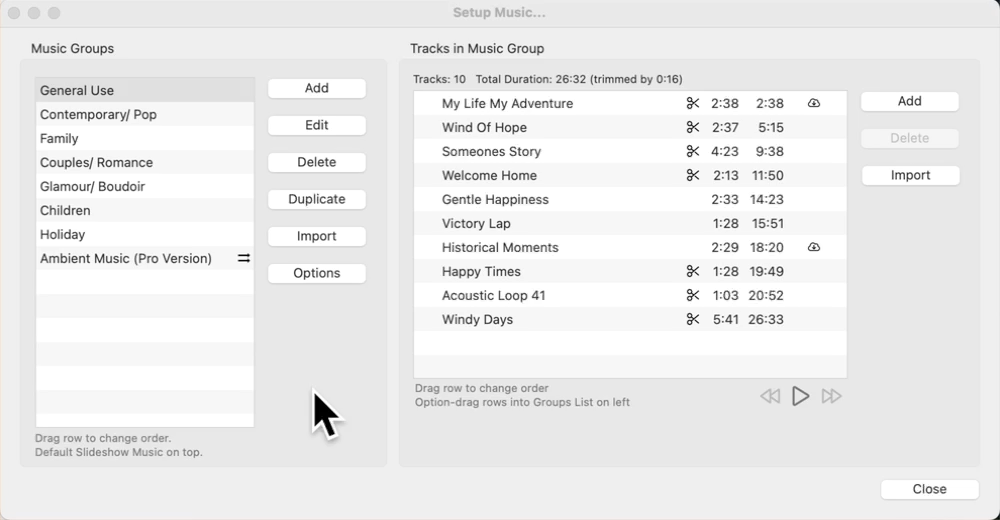
When using the auto-repeat function during a slideshow, music plays sequentially through all tracks in the selected group. If the slideshow extends beyond the last track, the music will automatically restart from the first track. For music groups with only a single track, that track will loop continuously, ensuring uninterrupted background music throughout the slideshow.
For those who prefer a straightforward setup in ProSelect, simplifying your slideshow and music settings can make the process more manageable. You can achieve this by maintaining a single Music Group in the Setup Music section, containing all your favorite tracks, and one Slideshow Style in Setup Slideshow Styles, linked to your chosen Music Group. This configuration ensures the same style and music are consistently used, whether you're running a Quick Slideshow or adjusting settings in Working with Slideshows.
- Create a music group using the Add button. Call it "My Favorite Music" or something similar.
- Select your favorite music tracks from the pre-installed music already organized into groups. Hold down the OptionAlt key, drag and drop the music tracks into the "My Favorite Music" group.
- Alternatively, import your own music.
- You can reorder the music tracks here. Drag the music track you want to play first to the top of the list.
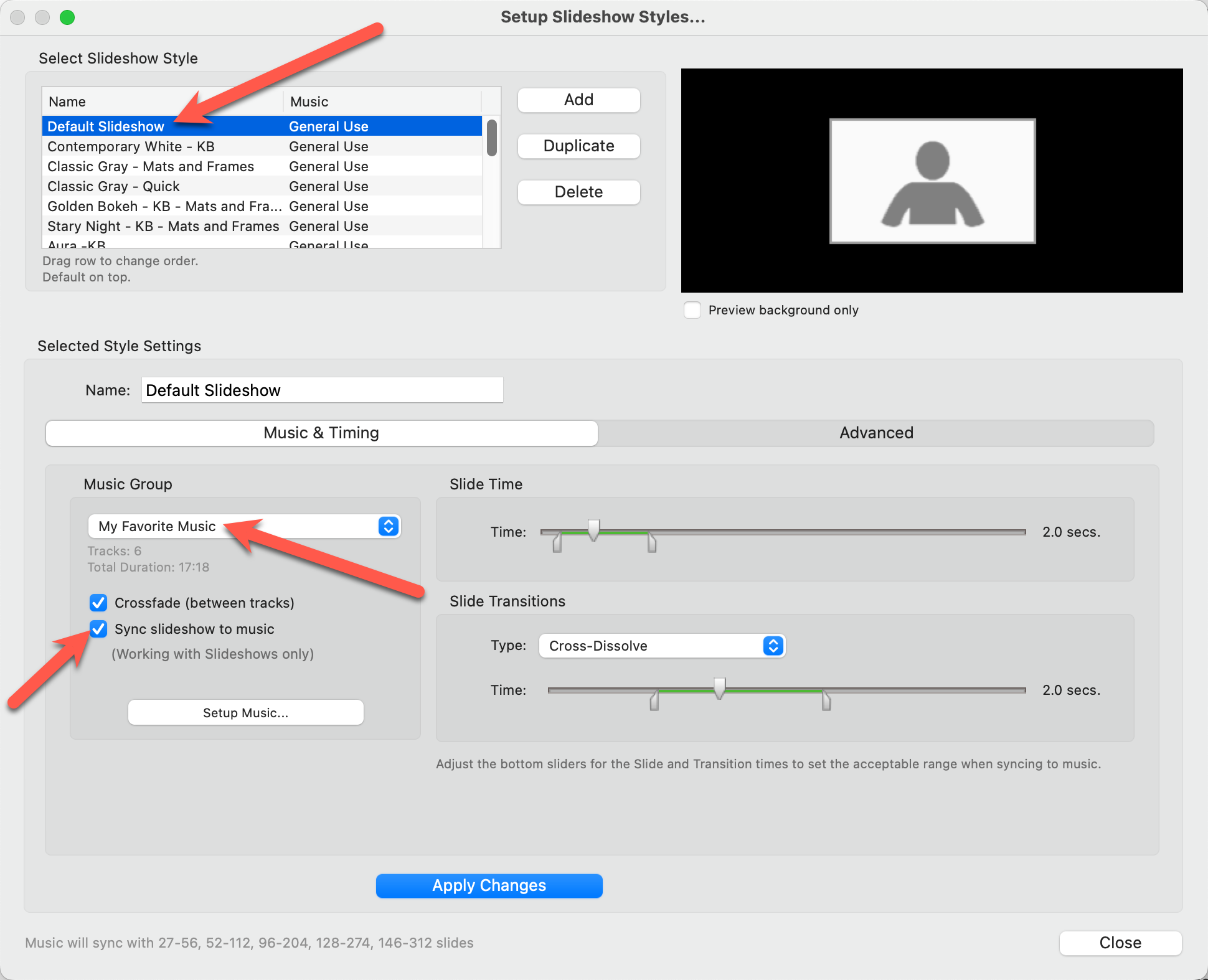
- Go to the top menu, Slideshow > Setup Slideshow Styles.
- Select the "Default Slideshow."
- In the "Music & Timing" tab, select "My Favorite Music."
- Check the "Sync Slideshow to Music" checkbox.
- Apply Changes.
- When creating a slideshow, always choose "Default Slideshow." This will ensure you use your favorite music every time.
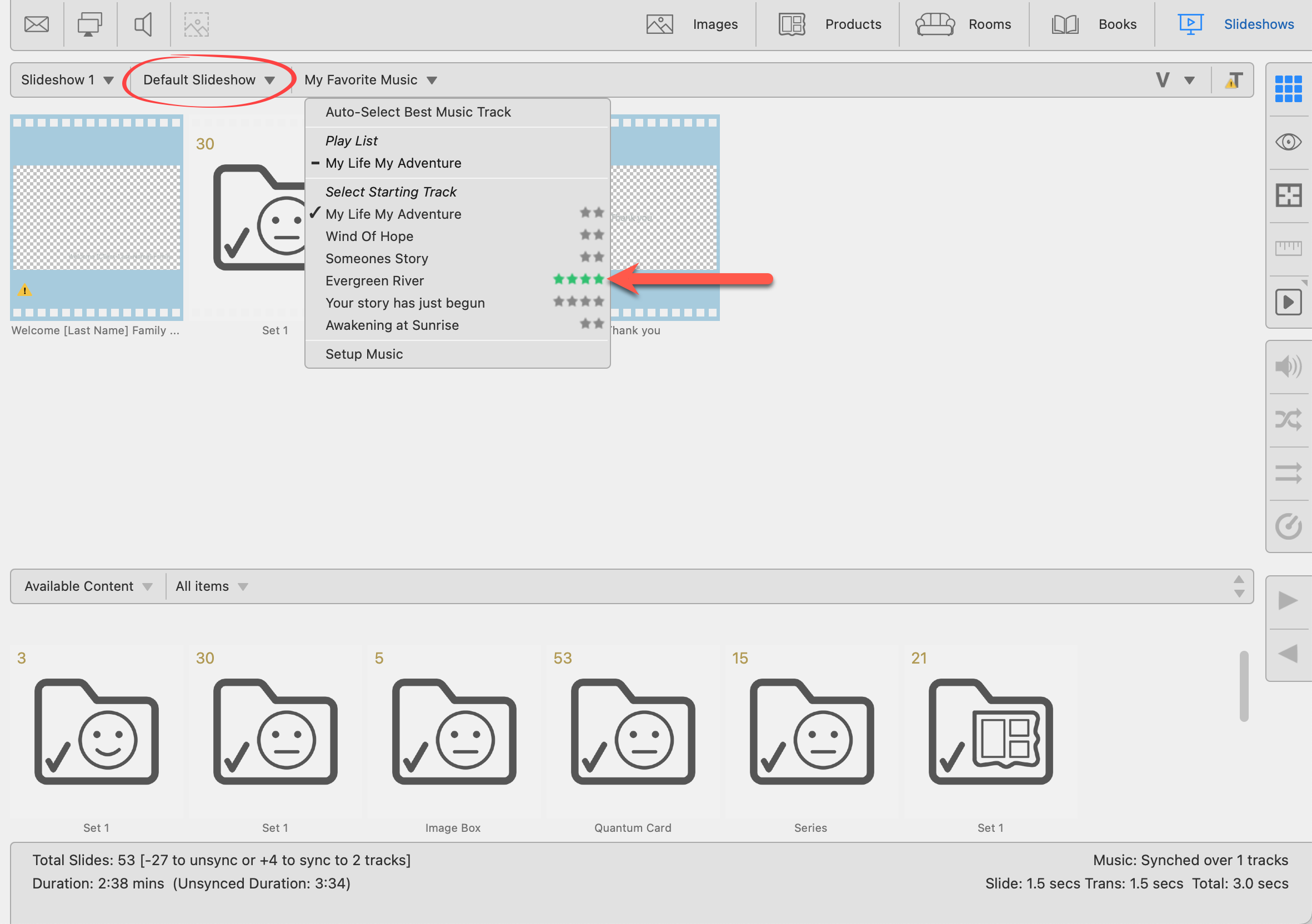
- Once you have created a slideshow, click on "My Favorite Music" to reveal all the music tracks. Select your starting track here. It's advisable to pick a track with the highest rating—up to four stars—to optimize music synchronization during your slideshow. By default, the system automatically selects the first track at the top of the list as the starting track.