Photoshop and Lightroom
The workflow within ProSelect will differ slightly depending on which editing software you choose and your skill set.
Select your preferred Photo Editor by going to the top menu, ProSelectEdit > Settings > General Settings > Photo Editor. In most cases, Photoshop should be set as the default Photo Editor, and either Photoshop or Lightroom as the Default Raw File Editor. If you use another Photo Editors, you can add them here.
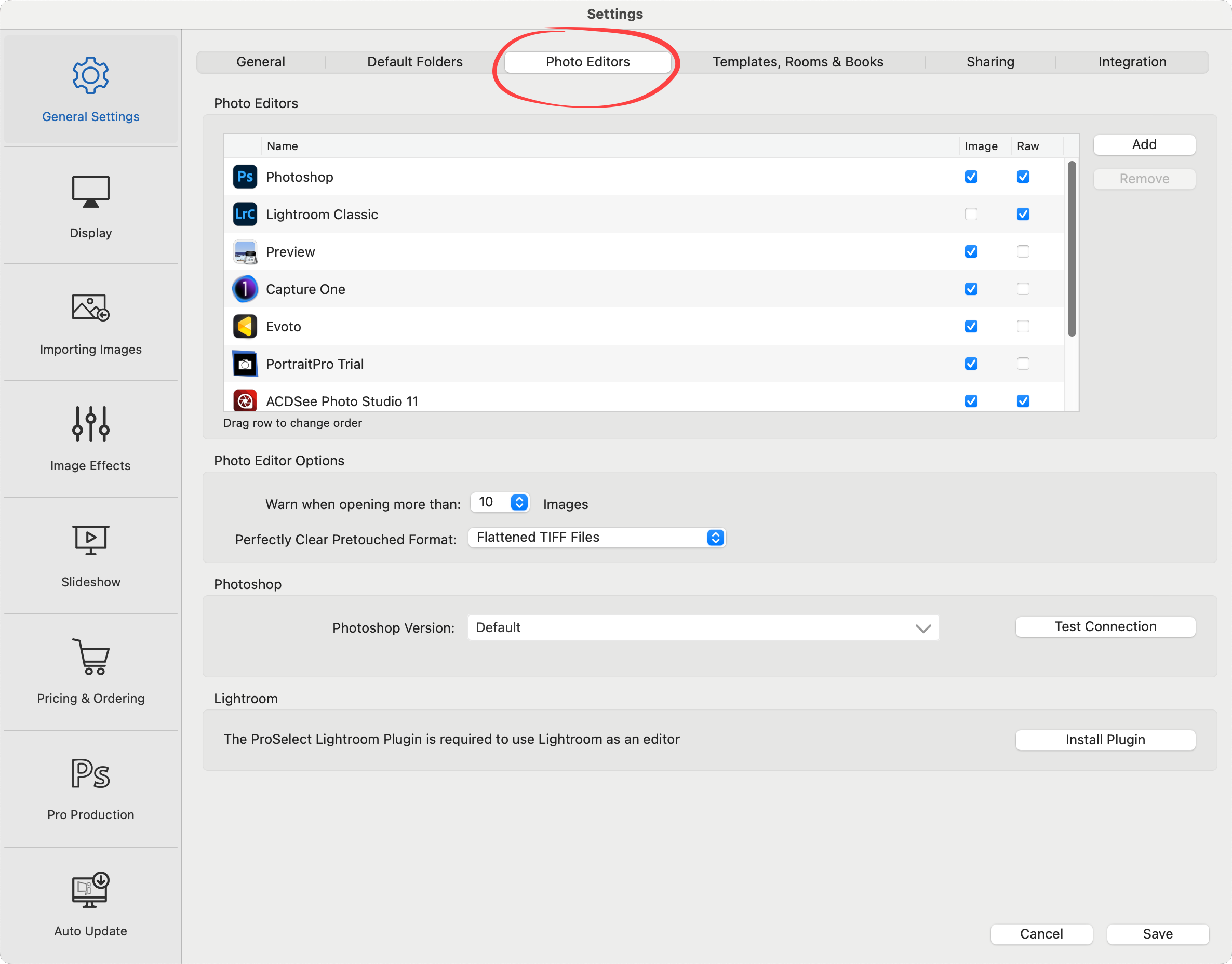
- Choose an image in ProSelect and open the original full-res image in Photoshop for editing/retouching.
- Choose an image in ProSelect and open the associated RAW image in Photoshop for editing/retouching.
- Run Photoshop actions on the low-res images in your ProSelect album to show different effects during your presentation.
- Run the same or different Photoshop actions on copies of the original images using ProSelect’s Pro Production module.
- Automate the production of final high-res images for ordered prints, products, and books you designed in ProSelect using ProSelect’s Pro Production module.
- Export your RAW images as jpgs, tif, or PSD files and import them into ProSelect.
- Choose an image in ProSelect and open the original full-res image or associated RAW in Lightroom for editing/retouching.
- Update images in ProSelect with edited RAW images from Lightroom.
- See ProSelect Lightroom Plugin for more about connecting ProSelect to Lightroom and workflow with Lightroom.
ProSelect does not support reading Raw image files. If you shoot images in this format, you must utilize alternative software like Photoshop or Lightroom to convert the Raw files into .jpg, .tif, or .psd formats before loading them into ProSelect. See Adding Images from Lightroom for more details.
Alternatively, you can set your camera to shoot both Raw and .jpg format. You would then load only the .jpg files into ProSelect.
In either case, ProSelect will "Link/Bypass Raw files." Go to the top menu, ProSelectEdit > Settings > Importing Images.
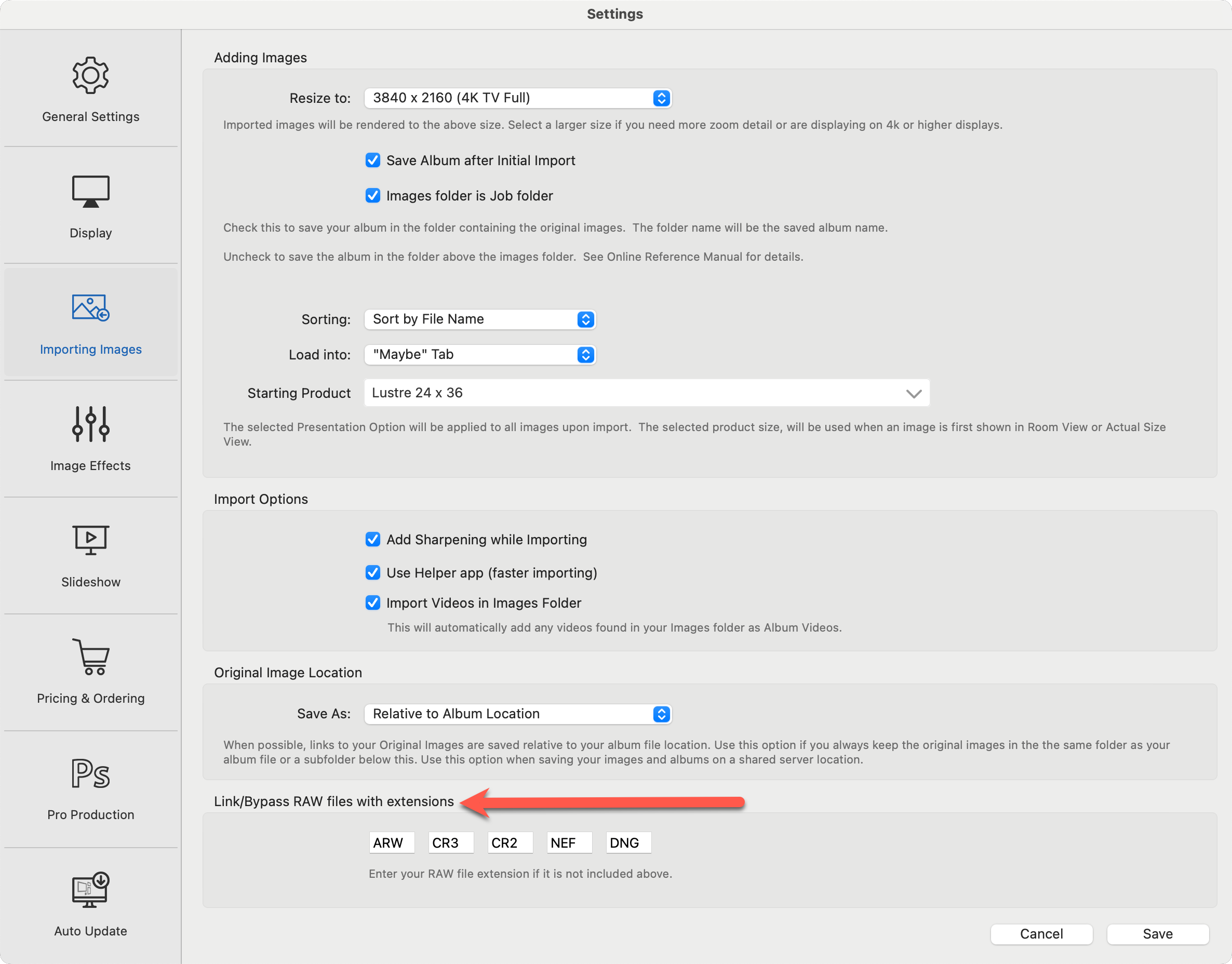
- Enter the file extension(s) of your Raw image files (e.g. CR2). This informs ProSelect that there could be a set of Raw files sharing the same name as the imported file, but with one of your designated file extension(s).
With these steps taken, when you add a folder containing both .jpg and Raw files to your Job Folder, it temporarily disregards the Raw files, loading only the .jpg files. Following that, you can open your Raw files in Photoshop or Lightroom either from within ProSelect's main window or when processing an order in Pro Production.
When working with RAW images in ProSelect and preparing them through Lightroom, it’s important to ensure your workflow settings are properly configured to maintain metadata and filename consistency. Follow these steps to set up your workflow with Lightroom.
Recommended Lightroom Workflow Practices
- Do not crop images in Lightroom. Keeping the full image allows ProSelect to control cropping non-destructively.
- Avoid virtual copies and presets for exporting. Instead, duplicate images and apply effects from within ProSelect using Custom Effects Actions.
- Do not rename exported files in Lightroom. Renaming causes ProSelect to lose the link to the original RAW files.
- When upgrading Lightroom Classic on the same computer, the ProSelect Lightroom Plugin should automatically migrate. After upgrading, verify the plugin is working using the instructions on the Installing & Testing the Lightroom Plugin page.
Step 1: Link RAW Files in ProSelect
To ensure ProSelect can reference your RAW files:
- In ProSelect, go to the top menu, ProSelectEdit > Settings > Importing Images > Adding Images.
- Locate the Link/Bypass RAW files with extensions area.
- Make sure the file extension(s) for your camera’s RAW files (e.g., .CR2, .NEF, .ARW, etc.) are listed in the input box.
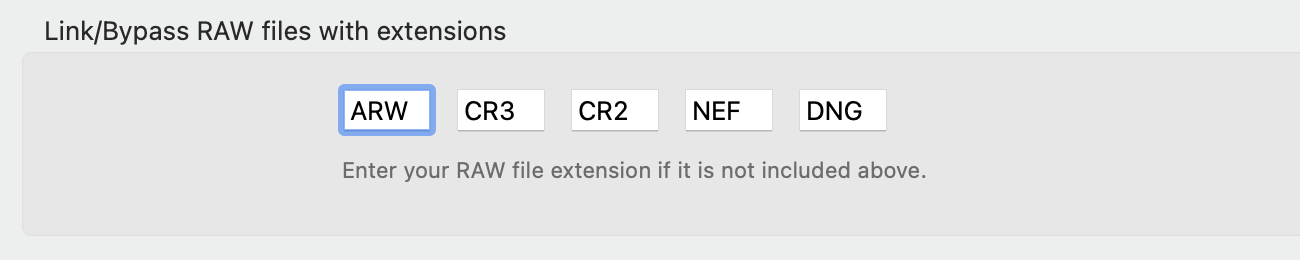
- ProSelect will then reference the original RAW files without attempting to convert or edit them directly.
Step 2: Set Lightroom as Your RAW Photo Editor
- Go to the top menu, ProSelectEdit > Settings > General Settings > Photo Editors.
- Use the checkbox to select Lightroom Classic as the default RAW Photo Editor.
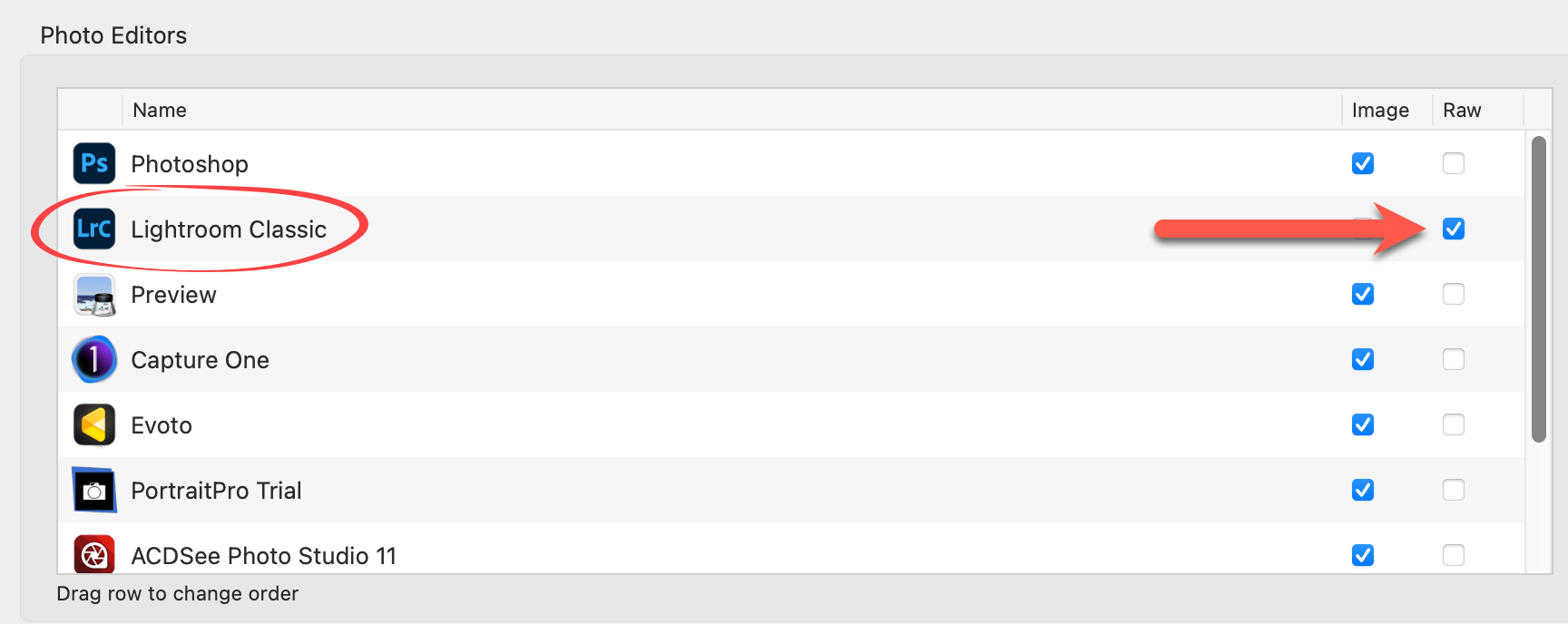
- This allows ProSelect to open the original RAW file in Lightroom when editing is requested.
Step 3: Enable Metadata Sharing Between Lightroom and Photoshop
If your workflow involves preparing images in Lightroom and retouching them in Photoshop:
- Open Lightroom Classic.
- Go to Catalog Settings > Metadata tab.
- Enable: Automatically write changes into XMP.
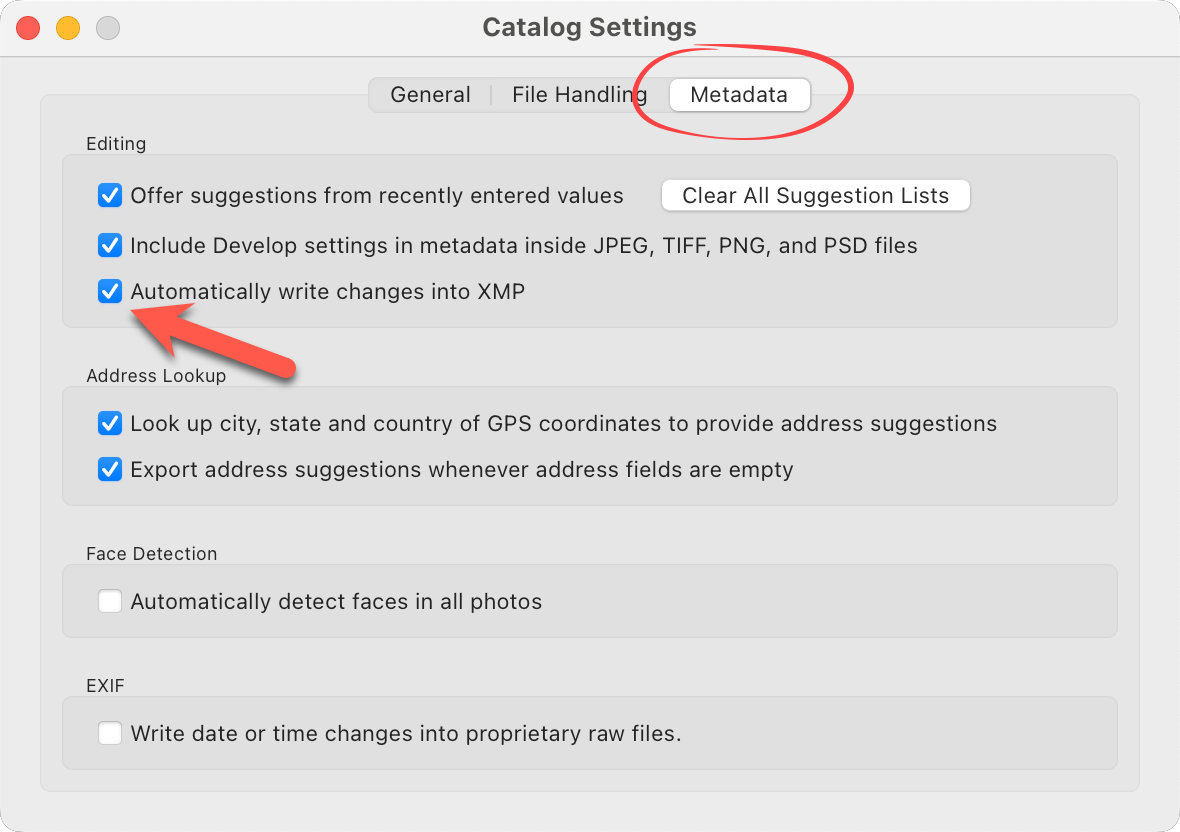
- This setting ensures that Lightroom writes metadata changes (edits, adjustments, etc.) to sidecar .xmp files. Adobe Camera Raw in Photoshop will automatically detect these changes when opening the same image, keeping edits consistent across both applications.
- Note: This is a per-catalog setting in Lightroom. Be sure to enable it in every new catalog you create.
Step 4. Lightroom Metadata and Filename Linking Tips
If you’re using metadata presets in Lightroom (e.g., for copyright info):
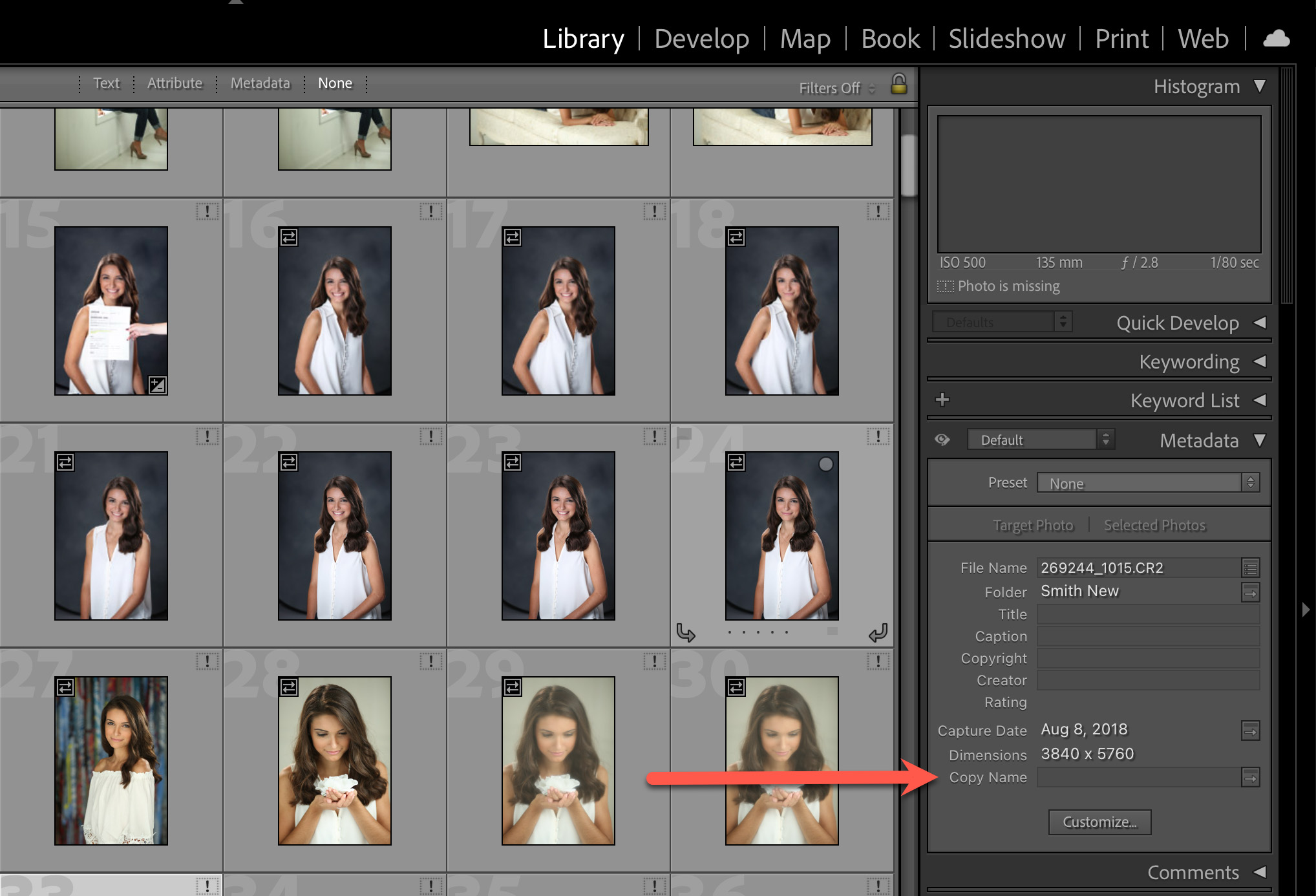
- Make sure the "Copy Name" field is left blank in the metadata preset. Including a value in this field can cause Lightroom to append text to exported file names, which breaks ProSelect’s ability to link exported files back to their original RAW files.
Recommended Lightroom External Editor Settings
To ensure consistent file handling when editing in Photoshop or another external editor, see Default Lightroom Settings.
We recommend using the following default Lightroom settings to best integrate with ProSelect.
- Open Lightroom.
- Go to Lightroom Classic > Preferences.
- Select the "External Editing" tab at the top.
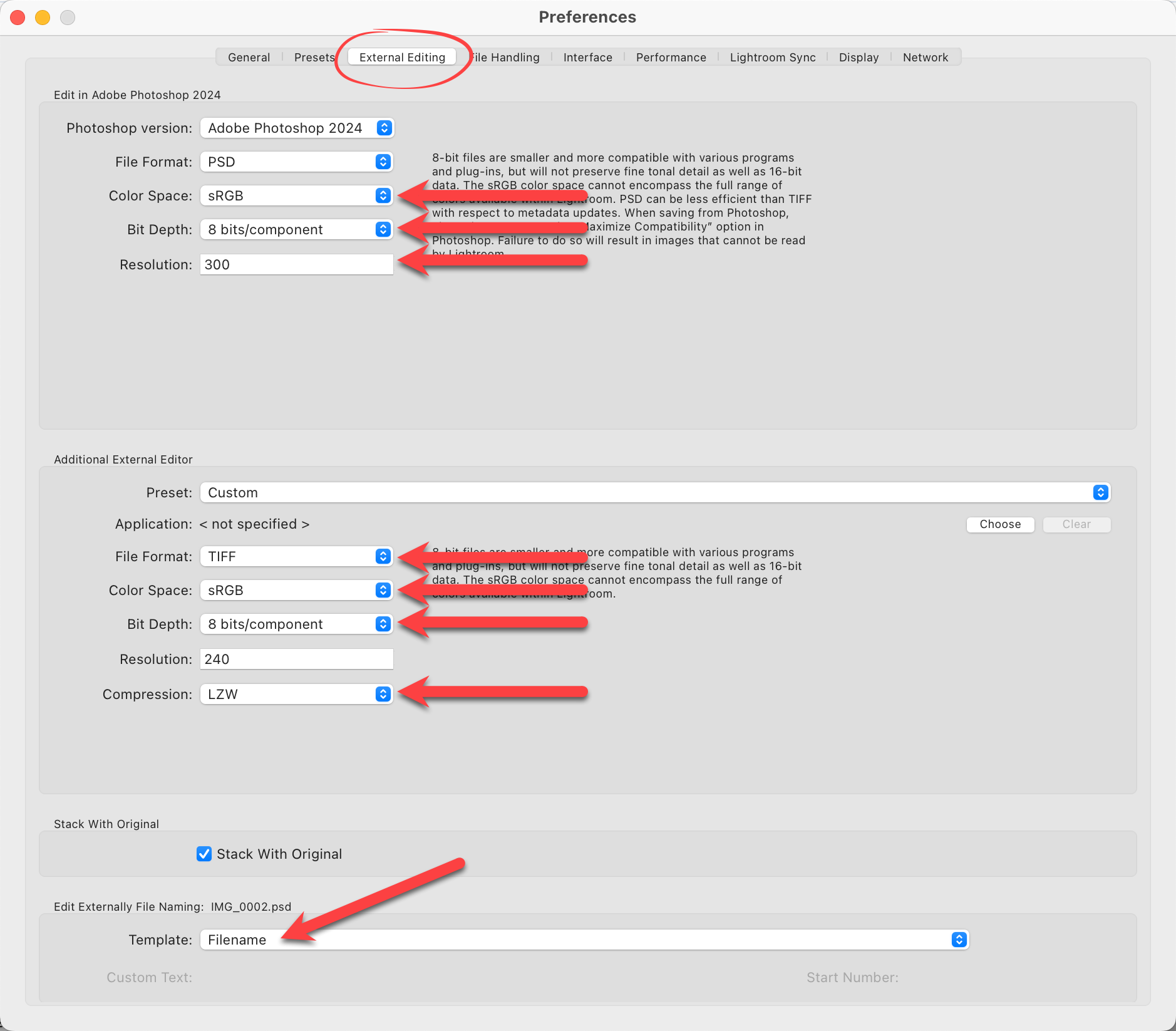
- Change the Color Space to "sRGB".
- Change the Bit Depth to "8 bits/component".
- Change the resolution to "300".
- File Format: this can be either TIFF or PSD.
- Change the compression to "LZW".
- At the bottom of the window, choose "filename" from the drop-down menu to alter how Lightroom exports files. This prevents Lightroom from appending "-edit" to the end of filenames, ensuring ProSelect can correctly link the original and retouched versions. It's crucial to maintain the same filename as the original.
Using Different Versions of Photoshop
ProSelect will detect different versions of Photoshop and will change how it communicates with Photoshop accordingly.
If you have more than one version of Photoshop installed on your computer, ProSelect will look for a currently open version of Photoshop and use that version for all future interactions with Photoshop. If a copy of Photoshop is not running, the first time you try to connect to Photoshop after opening ProSelect, ProSelect will ask MacOS to open the newest version of Photoshop and use that version each time until you close and re-open ProSelect again.
To use an earlier version of Photoshop, first restart ProSelect. Then make sure that you have the version of Photoshop already running before doing any Photoshop related commands from ProSelect. Alternatively, you can close the current version of Photoshop and open another version. Then click the Test Photoshop Connection button while holding down the Option key to shift to using the open version.
Debugging Photoshop scripting errors
When running Production (e.g., using Custom Effects Actions and loading the Photoshop action list), ProSelect creates and sends JavaScript commands to Photoshop. Photoshop includes a tool to assist in debugging any issues in these scripts. It is a free download and is called Adobe ExtendScript Toolkit.
When initiating any action that sends commands to Photoshop, you can have ProSelect send to the ToolKit application instead by holding down the SHIFT key. You can also test the connection to the Toolkit application by holding down the SHIFT key when clicking on the Test Photoshop Connection button.
The one exception is Opening Images in Photoshop because the shift key is used to open images with Retouching applied. In this case, you need to hold SHIFT+OptionAlt to launch the ExtendScript Toolkit. See Debugging Pro Production for more information.
Recent macOS changes: macOS 10.14 (Mojave) and newer
- On macOS 10.14 and newer, you need to specifically tell macOS’s GateKeeper to allow certain automation permissions before ProSelect can interact directly with Photoshop. The first time you try to connect to Photoshop from ProSelect, the system will ask if you want to allow ProSelect to access “System Events”.
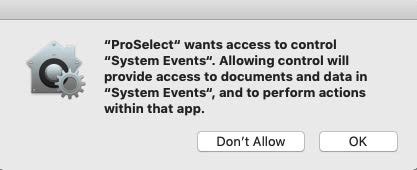
Click OK. You may still see an error message that ProSelect was unable to connect to Photoshop. When you try the second time, the OS will ask you whether to allow ProSelect to access data from “Adobe Photoshop”.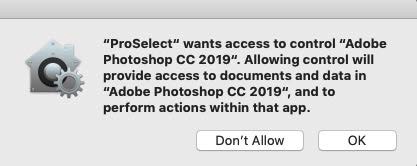
Click OK. After that, ProSelect will be allowed to connect to Photoshop. You can check ProSelect’s GateKeeper permissions in the System Settings > Privacy & Security > Automation > ProSelect. All options must be enabled.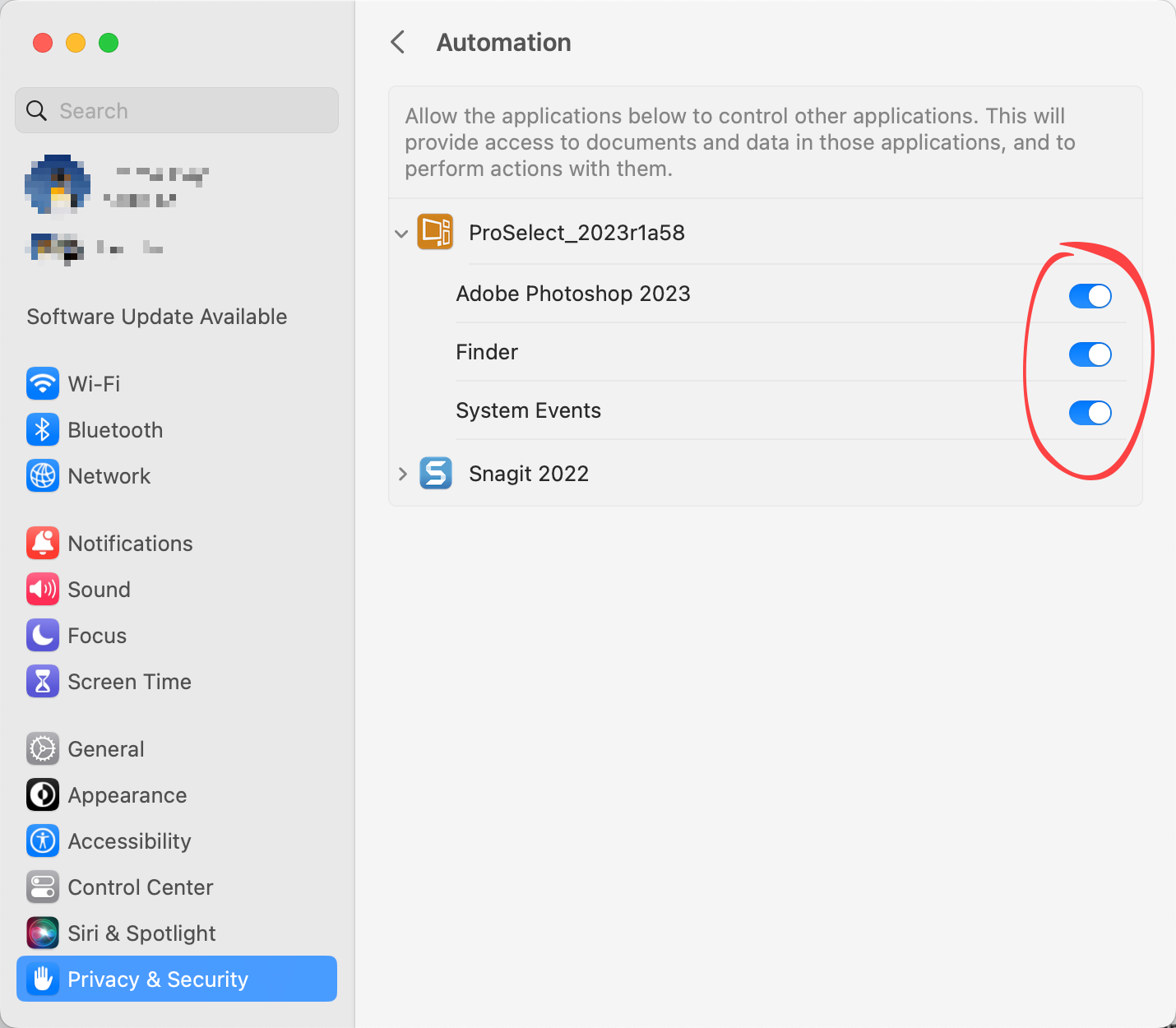
macOS 10.15 (Catalina) and newer
- In addition to the above, file access permissions are also required when using macOS 10.15. See Operating System Requirements for Mac.
If You Have Multiple Versions of Photoshop installed on Windows
You can select which version of Photoshop you wish to run. By default, this is the latest version as determined by Windows current Registry entry setting for “Photoshop.Application”.
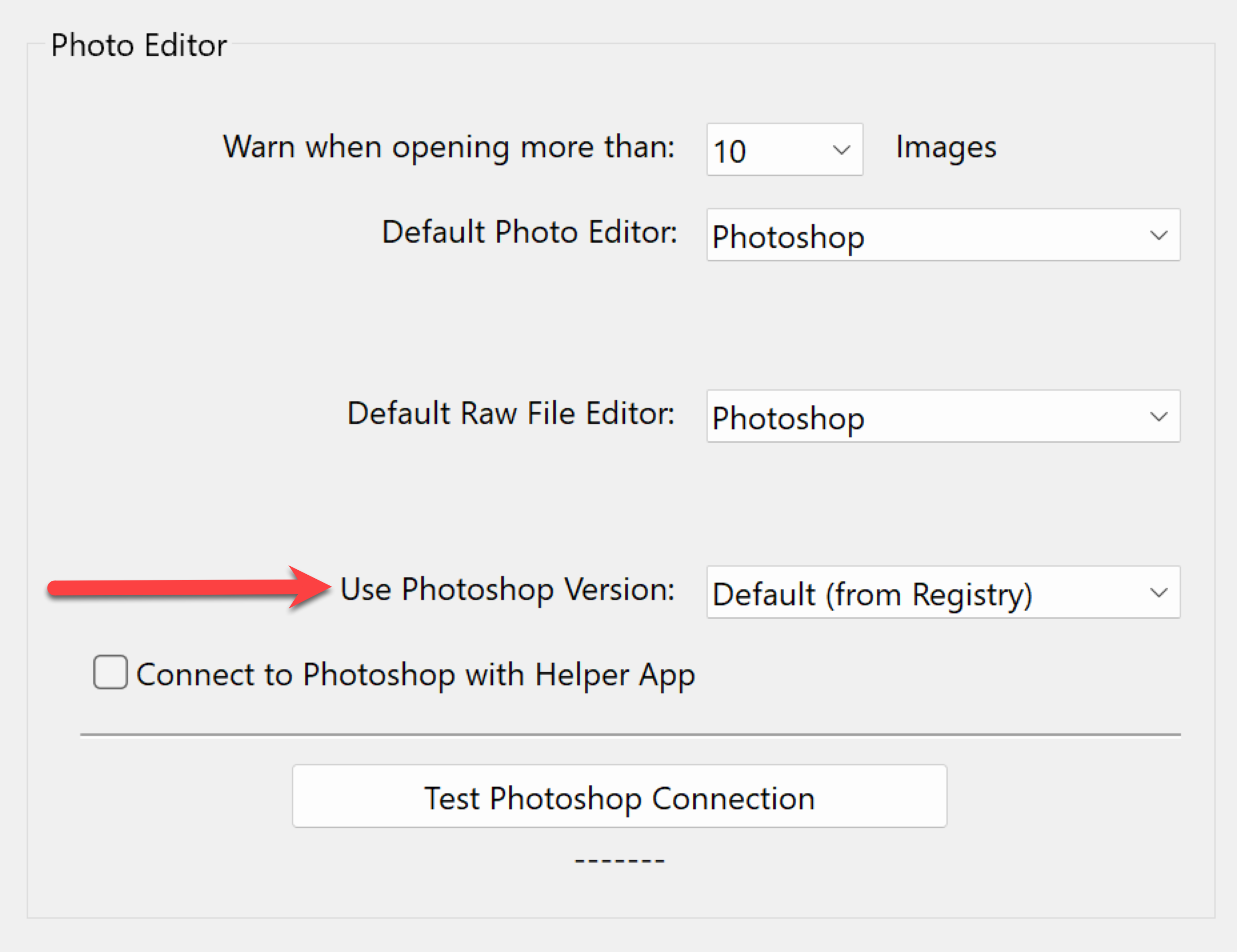
ProSelect will also check the registry to see if other versions of Photoshop are installed on your computer and allow you to select the one to use.
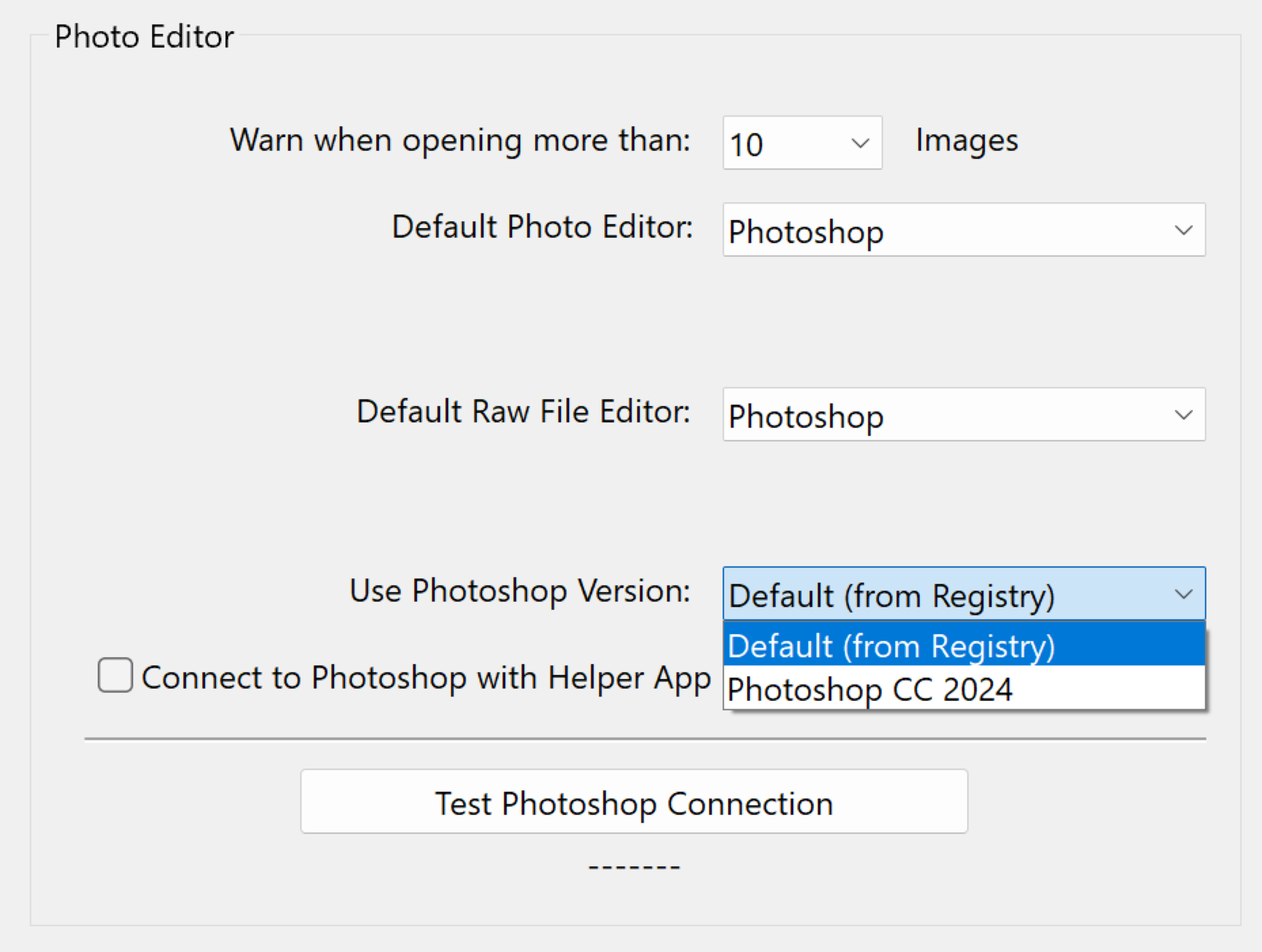
Note: The Photoshop version dropdown will only include versions of Photoshop available at the time of this ProSelect release. If you have a newer version of Photoshop installed, and it does not appear in the
dropdown, then you should either upgrade to the latest version of ProSelect or use the Default from Registry setting and adjust your registry accordingly.
Some users have found that earlier versions of Photoshop (namely CS6) will hang up part way through Pro Production. If you are finding that this happens to you, try turning on Connect to Photoshop
with Helper app. See our Knowledgebase for more about this issue.
If you are receiving a "Cannot Connect to Photoshop" message on your Mac, this page outlines the most common causes and how to resolve them. It includes steps for checking macOS permissions, handling multiple Photoshop versions, and verifying that Photoshop is ready to receive commands. You'll also find specific compatibility notes for Photoshop CC 2022 and newer, as well as guidance for working with older Photoshop versions where supported.
Restart Your Mac First
If you encounter connection issues between ProSelect and Photoshop, always begin by restarting your Mac. This clears potential system-level automation problems.
Common Reasons for Photoshop Connection Errors
- Recent Photoshop Installation or Upgrade: After installing or updating Photoshop (e.g., CC 2022, CC 2023, CC 2024), macOS may block automation until a system restart. ProSelect uses AppleScript and/or JavaScript to communicate with Photoshop.
- Action: Restart your Mac after any new Photoshop installation or upgrade, then test the connection in ProSelect.
- Photoshop Is Waiting for User Action: If Photoshop is displaying a dialog box (e.g., registration, update, tool in progress), it won’t respond to ProSelect.
- Check for the following in Photoshop: Activation, sign-in, or license windows, tools awaiting confirmation (e.g., Crop, Transform), dialog boxes not yet dismissed.
- Action: Switch to Photoshop, resolve any open dialogs or modes, then try the connection again.
File Path Naming Issue (Forward Slashes)
If image paths or output folders contain slashes (/), Pro Production may fail to run. Examples:
- Jobs/10-19/Mary Smith/FM_Image01.jpg
- Portrait/Weddings/Output Images
Action: Remove slashes from file or folder names.
macOS Permissions (Automation Access)
macOS (10.15 and newer) will prompt you to allow ProSelect to control “System Events” and access Photoshop the first time a connection is attempted. You can check ProSelect’s GateKeeper permissions in the System Settings > Privacy & Security > Automation > ProSelect. All options must be enabled.
- If automation prompts were dismissed earlier, you may need to reset permissions and try again.
Testing the Connection from ProSelect
To test if ProSelect can connect to Photoshop:
- Open ProSelect.
- Go to the top menu, ProSelect > Settings > General Settings > Photo Editors.
- Click the Test Connection button.
- If Photoshop is not already open, ProSelect will attempt to launch it.
- If successful, Photoshop’s version number will display.
Multiple Photoshop Versions Installed
If multiple versions of Photoshop are installed:
- ProSelect will launch and use the most recently installed version unless Photoshop is already running.
- If you want ProSelect to use a different version, open that version of Photoshop first, then launch ProSelect.
Pro Production Timeout (Large Projects)
If a Pro Production job runs longer than 3 minutes (due to large files, complex products, or system slowness), ProSelect may time out even if Photoshop is still processing.
Solutions:
- Run complex productions separately or in smaller batches.
- Monitor Photoshop manually during the job.
- Consider upgrading RAM or using a faster Mac for large jobs.
Supported Older Photoshop Versions
ProSelect can connect to older versions of Photoshop back to CS6, provided macOS compatibility is maintained.
However:
- Photoshop versions prior to 22.x (Photoshop 2021 and earlier) may not function reliably on macOS 11 (Big Sur) or newer, especially on Apple Silicon Macs.
- Adobe does not test these older versions on modern macOS, and they may not support automation properly.
Recommendation:
Use Photoshop CC 2022 or newer for full compatibility with ProSelect on recent Macs.
When ProSelect cannot connect to Photoshop or displays errors such as “Failed to run Photoshop script”, it typically indicates an issue with how Photoshop is installed, configured, or being accessed on your Windows system. This guide walks you through the most common causes and effective troubleshooting steps to restore the connection. It covers everything from simple checks to advanced fixes like editing Windows Registry entries and addressing issues caused by multiple Photoshop versions or third-party plug-ins.
Restart your computer
Restarting your computer resolves many temporary permission or communication issues. Always do this before any advanced troubleshooting.
Test the Photoshop connection
- In ProSelect, go to the top menu, Edit > Settings > General Settings > Photo Editors.
- Click the “Test Connection” button.
- If Photoshop isn’t running, ProSelect will try to launch it.
- A successful connection displays the version number of Photoshop ProSelect connected to.
- If the connection fails or production still doesn't run correctly, continue with the troubleshooting steps.
Common Error: "General Error X"
This usually means a different version of Photoshop is already running than the one selected in ProSelect.
- Solution:
- Close all Photoshop instances.
- Ensure the correct version is selected in ProSelect’s settings.
- Retest the connection.
Troubleshooting Photoshop Connection
1. Check for dialogs or active states in Photoshop
Photoshop will not respond to external commands if it’s showing modal dialogs or in a paused edit state (e.g., active transform, text entry).
- Switch to Photoshop and look for buttons like ✓ and ✗ at the top of the window — click one to finish the current task.
- Close any welcome, update, or licensing windows.
- Retry from ProSelect.
2. Run ProSelect as Administrator (if required)
Some systems may block inter-process calls unless ProSelect is run as Administrator.
- Right-click the ProSelect shortcut > choose Run as administrator.
- Avoid using Compatibility Mode for ProSelect, as this can prevent Photoshop connections.
3. Avoid multiple Photoshop installations
Having multiple versions of Photoshop can confuse ProSelect’s registry detection.
- Best practice: uninstall all older versions of Photoshop.
- Reinstall only the most current version.
- Restart your computer and retest.
4. Select which Photoshop version to use
In Settings > General Settings > Photo Editors, ProSelect lists Photoshop versions found in the Windows Registry.
- Choose the desired version from the dropdown menu.
- If your version isn’t listed, select Default (from Registry) — this typically targets the latest installed version.
- Important: Ensure that the version selected in ProSelect matches the one actively running. Photoshop will block connection attempts if a different version is already open.
5. Advanced: Check or correct Windows Registry entries
If ProSelect can’t detect or connect to Photoshop, registry entries may be incorrect.
To verify:
- Open Registry Editor (regedit) — run as Administrator.
- Navigate to: HKEY_CLASSES_ROOT\Photoshop.Application\CLSID
- Note the CLSID value shown.
- Navigate to: HKEY_CLASSES_ROOT\Photoshop.Application.<version>\CLSID (e.g., Photoshop.Application.110 for CC 2017)
- Confirm the value matches the one from Step 2.
- If they don’t match, copy the correct CLSID from the version you want ProSelect to use and paste it into Photoshop.Application.
- Close Registry Editor and retest the Photoshop connection in ProSelect.
⚠ Editing the registry incorrectly can cause system issues. Only proceed if you're confident, or consult IT support.
6. Script test: Verify Photoshop can run scripts
ProSelect uses scripts to communicate with Photoshop. To test:
- Download test_photoshop_script.jsx (provided by support).
- In Photoshop: go to File > Scripts > Browse
- Select the .jsx file and run it.
- If a message box appears, scripting is working. If not, Photoshop is likely misconfigured.
7. Disable third-party plug-ins
Some plug-ins may block or intercept scripting commands.
- Hold Shift while launching Photoshop. Select Yes to skip loading optional and third-party plug-ins.
- Retry the connection from ProSelect.
- If it works now, identify and remove problematic plug-ins or contact Adobe for support.