 Run Quick Slideshow
When Working with Images, Products, or Books, select Run Quick Slideshow by clicking on the Slideshow button . It is located on the right-hand side under the Actual Size view button. This will start running a Quick Slideshow from the beginning of the currently selected image tab, product set, or book. It will stop automatically when it gets to the last image/product/page in the current set. This works the same way in each Working with Mode.
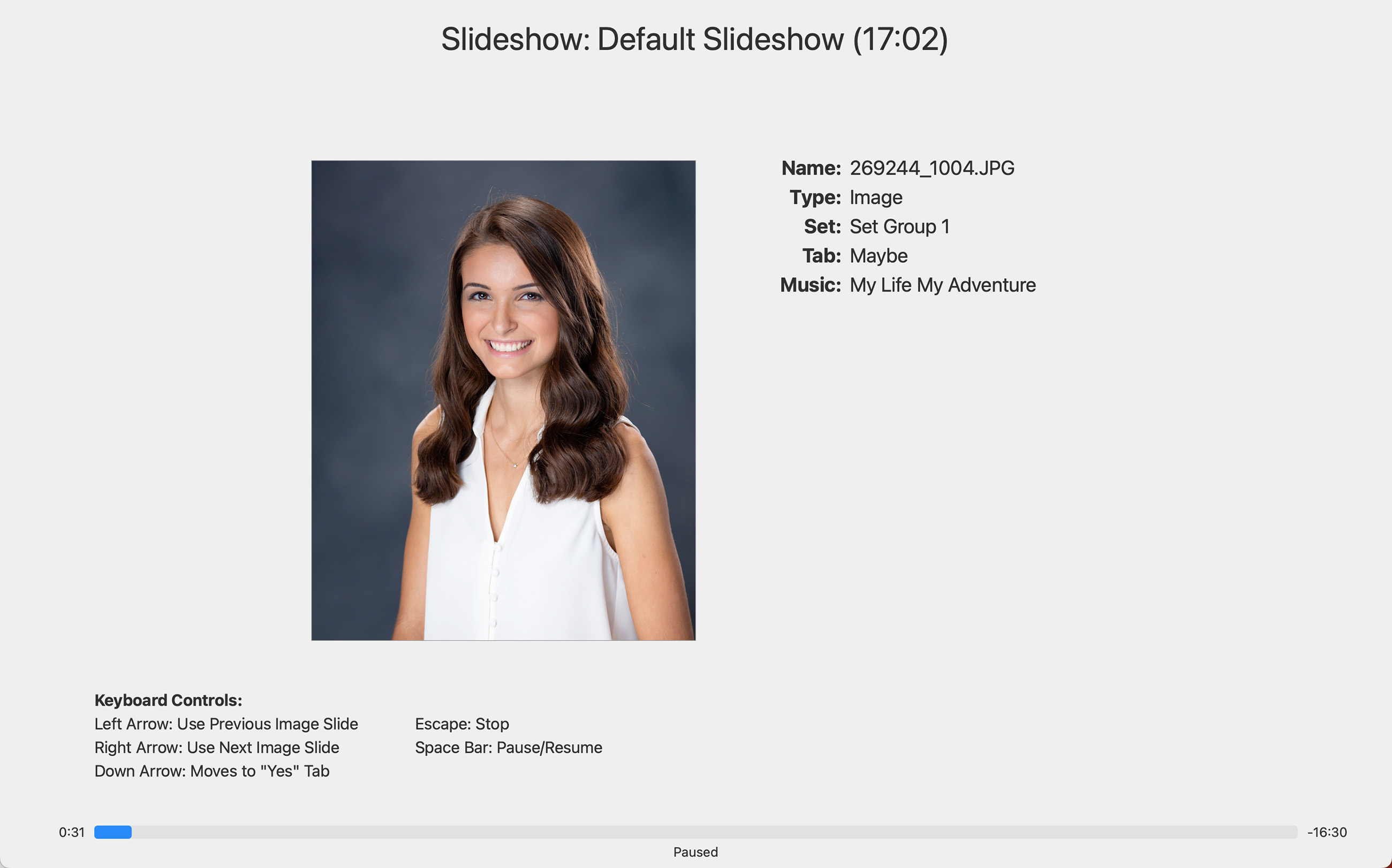
- Pause/Resume Slideshow: Press the Spacebar.
- Stop Slideshow: Press the Escape key. Alternatively, use your mouse and click on the screen.
- Skipping Slides: Use the left and right arrow keys.
When using Presentation Mode, the Presentation Screen will play the slideshow while your main display shows you a control screen.
Right-Click Options
When you right-click on the Slideshow button , a drop-down menu with options appears.
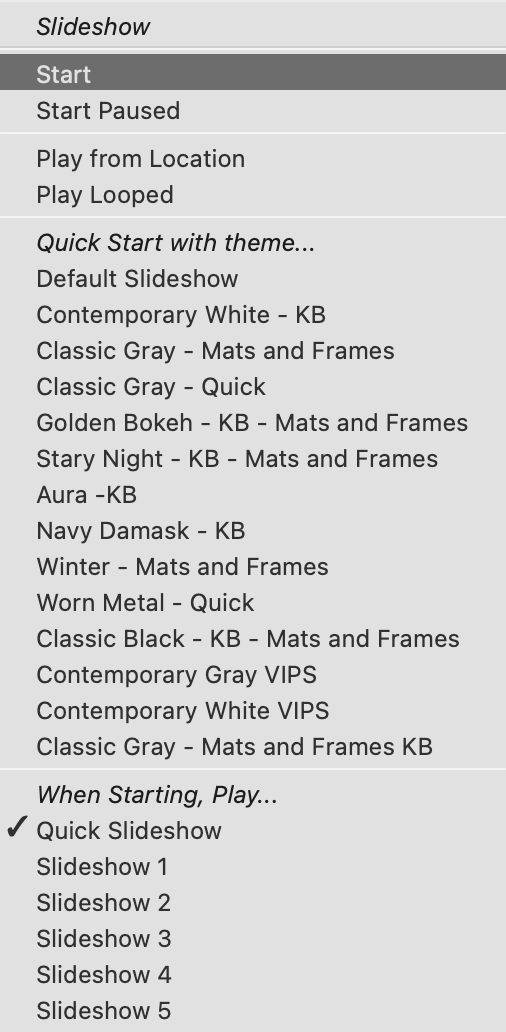
- Start: This will start the slideshow from the beginning of the set.
- Start Paused: The slideshow will open, but it will be paused. When you are ready, push the spacebar to start the slideshow.
- Play from location: The slideshow will begin from the currently selected image/product, not from the beginning of the set.
- Play Looped: The slideshow will play continuously on a loop until it is manually stopped.
- Quick Start with theme: You can choose a slideshow theme other than the default using this list.
- When Starting, Play...: The Quick Slideshow Default will play. If you wish to play a different slideshow, you can select it here. This setting is saved with the album file. To set the default, go to the top menu, ProSelectEdit > Settings > Slideshow > Options > Default.
| Playing Slideshows | |
| Esc or Mouse Click | Stop slideshow |
| Spacebar | Pause/play slideshow |
| Option + Alt + |
Start paused |
| Shift + |
Play from location |
| Cmd + JCtrl + J | Start |
| Option + Cmd + JAlt + Ctrl + J | Start Paused |
| Shift + Cmd + JShift + Ctrl + J | Play from Location |
| Down Arrow | Move image to yes, no, or maybe tab (if enabled in settings) |
| Right Arrow | Jump to next slide |
| Left Arrow | Jump to previous slide |
| Shift + Right Arrow | Jump to next section |
| Shift + Left Arrow | Jump to previous section |