 Working with Books - Layout

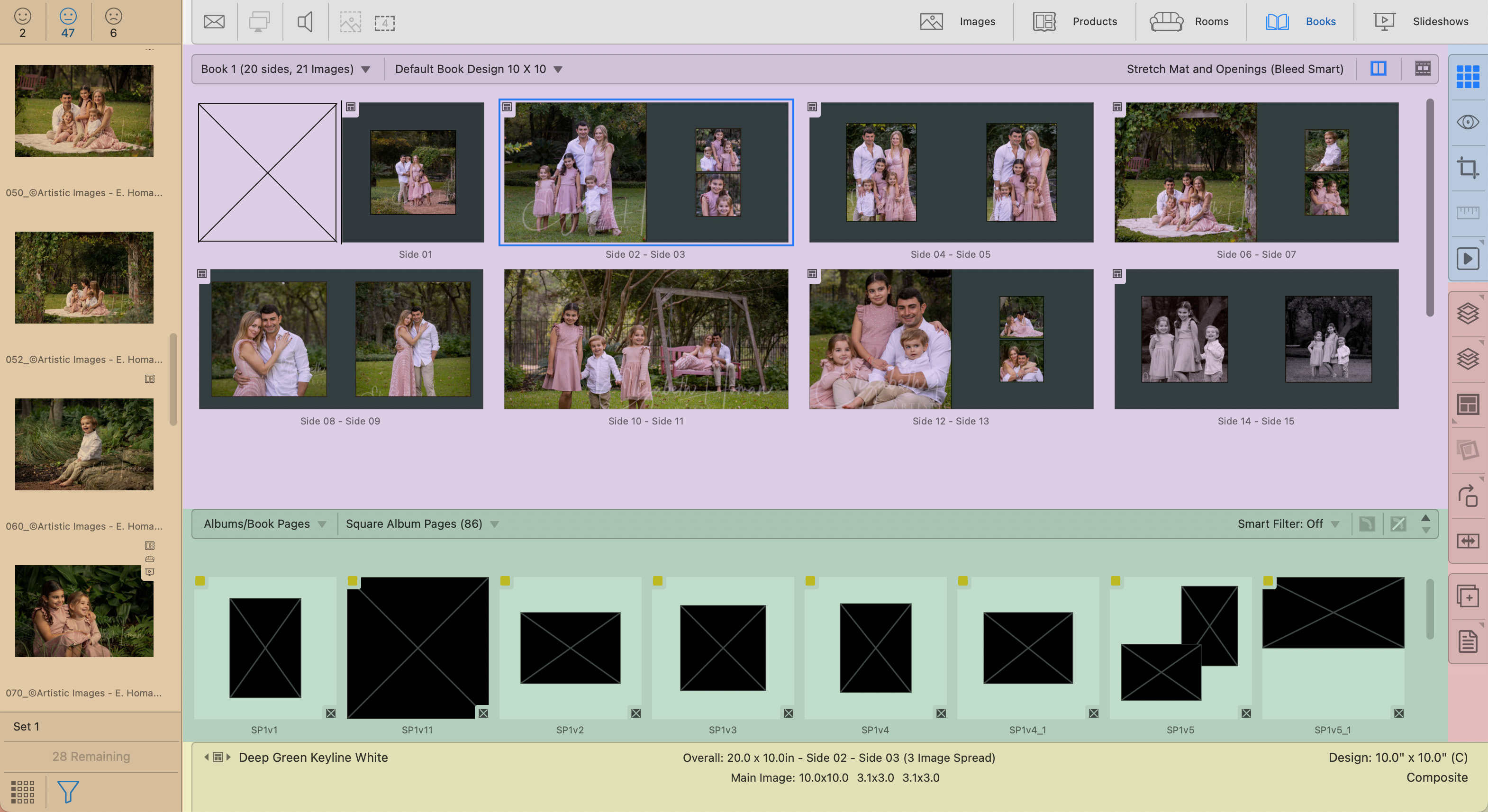
Use the Image List to access all available images in the album. You can drag and drop images into Product Templates, Book Page Templates, and Rooms.
Click on Image List to learn more.
The Display Area is your workspace.
The Book Page Template Resource area holds all the available page templates you can create. Book Page templates are often categorized as "square" or "vertical." They also use stacked sizing. The page templates available reflect the page templates created in the Book Page Manager. Use the up  and down
  arrows on the top-right of this section (next to the smart filter) to show more or less rows of available resources. For more information on this section, see Book Page Template Resource Area.
When a book page is selected, specific details are listed in the Info Bar.
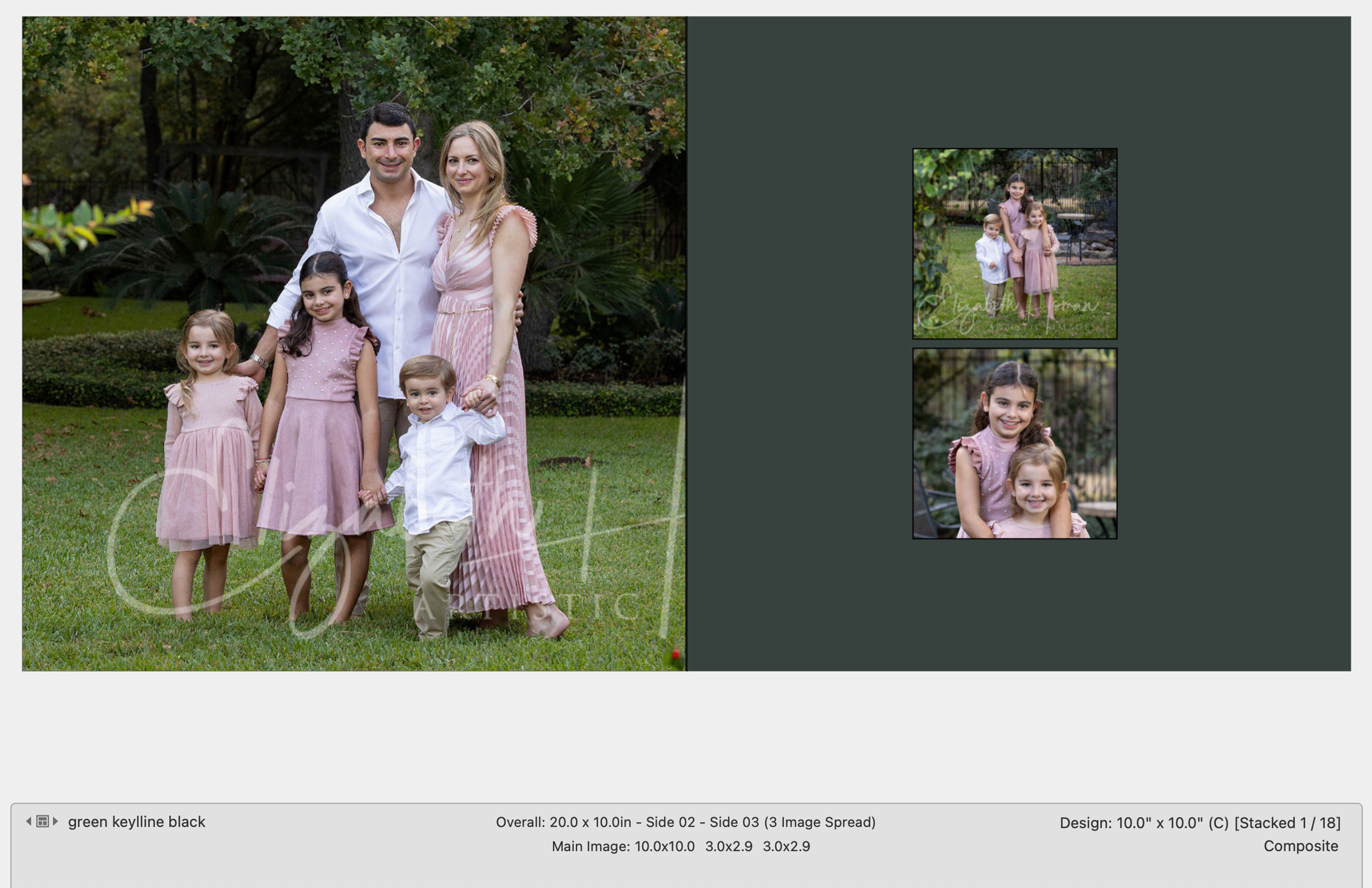
Left Column
- Virtual Style
 : If a virtual style has been applied to the book page, the Virtual Style tool and name will be displayed here. Use the left and right arrows to scroll through other virtual style options.
 - Traditional Mat
 : If a traditional mat has been applied to the book page, the Traditional Mat tool and name will be displayed here. Use the left and right arrows to scroll through other mat options.
 - Mat Overlap: The amount of mat overlap is shown next to the applied mat.
Center Column
- Overall Size: This is the overall size of the book page spread.
- Next to the overall size in brackets is the Page Template name.
- Main Image: The main image opening sizes are listed here.
Right Column
- Design: The Book Design is listed here when in Thumbnail view.
- Stacked: If a stacked template is being used, the stack position (1/18) is listed here.
- The Book Type (Composite or Matted) is listed here.
The following is a list of all the Views available. Unless noted otherwise, they are available in all Working with Modes.
 Thumbnail View
 Show View
 Cropping View *not available in Working with Slideshows
 Actual Size View *not available in Working with Slideshows or Books
 Run Quick Slideshow *not available in Working with Rooms
 Close Up Room View *only available in Working with Rooms
 Show/Edit Ken Burns Focal Points *only available in Working with Slideshows
You will notice as you enter each Working with Mode or View, different tools become available on the right-hand toolbar. If a tool button is grayed out, it is currently unavailable to use on the selected image or product. Some tool buttons are available in multiple Working with Modes and Views. Each View has a recommended workflow. See the page on each View for more information on the options available. For a list of all Toolbar Tools, click here.