Pricing & Ordering Books
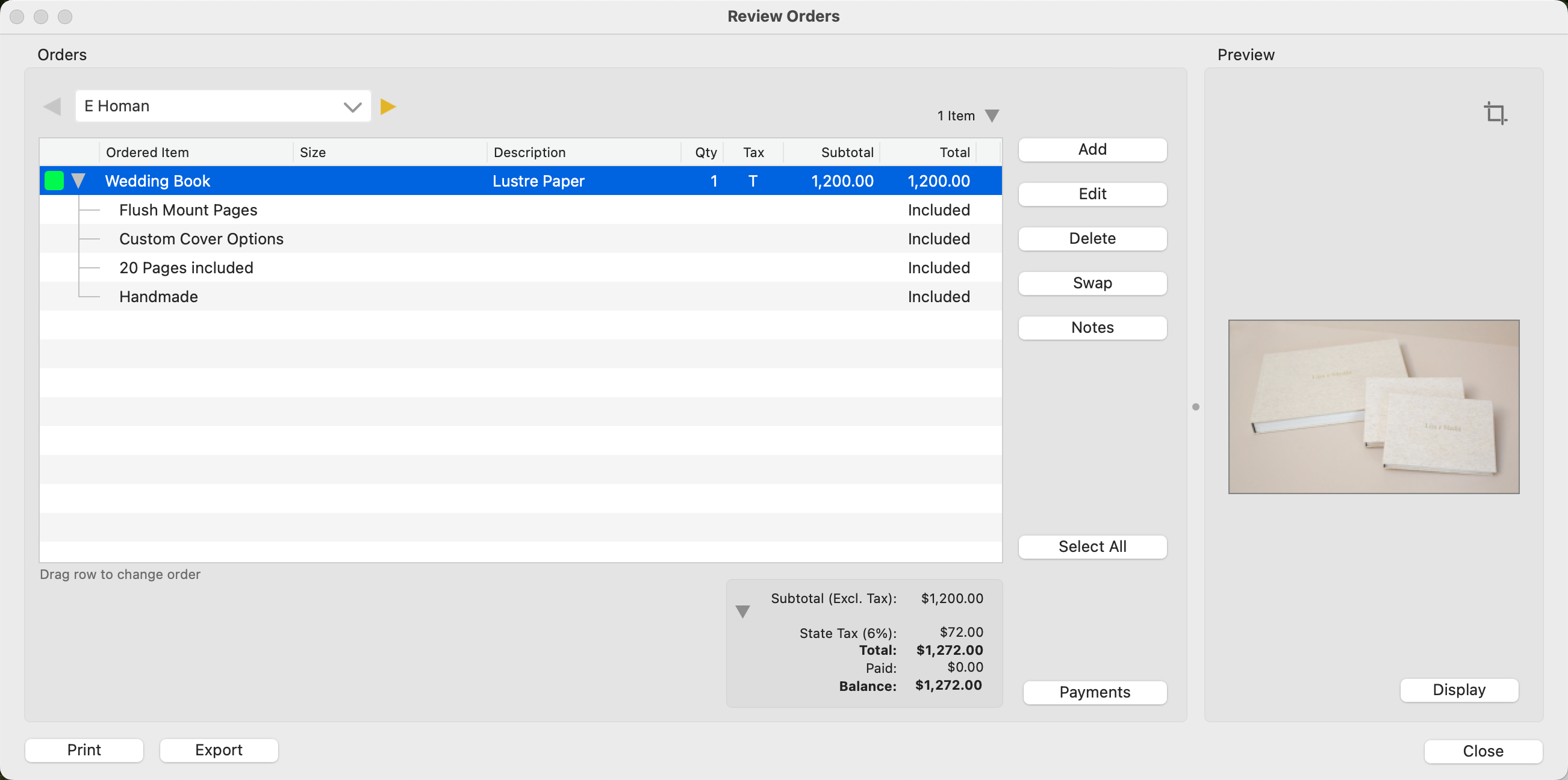
ProSelect does not support adding individual book pages to an order for invoicing purposes. Instead, you can effectively incorporate the cost of the entire book into your Order/Invoice Report through the use of an Order Adjustment or Reference Product.
- The most straightforward method for pricing and ordering books involves using Order Adjustments. This approach suits most users well.
- More advanced users might consider creating a Reference Product. Reference Products allow you to incorporate a visual representation of the book. For example, you can use an image from a supplier's website to visually show what the album will look like. Reference Products have the option to include up to six descriptive line items. These can detail various aspects of the product, such as the type of cover, paper quality, and any additional features, providing a comprehensive description right within the product.
Pricing the Book
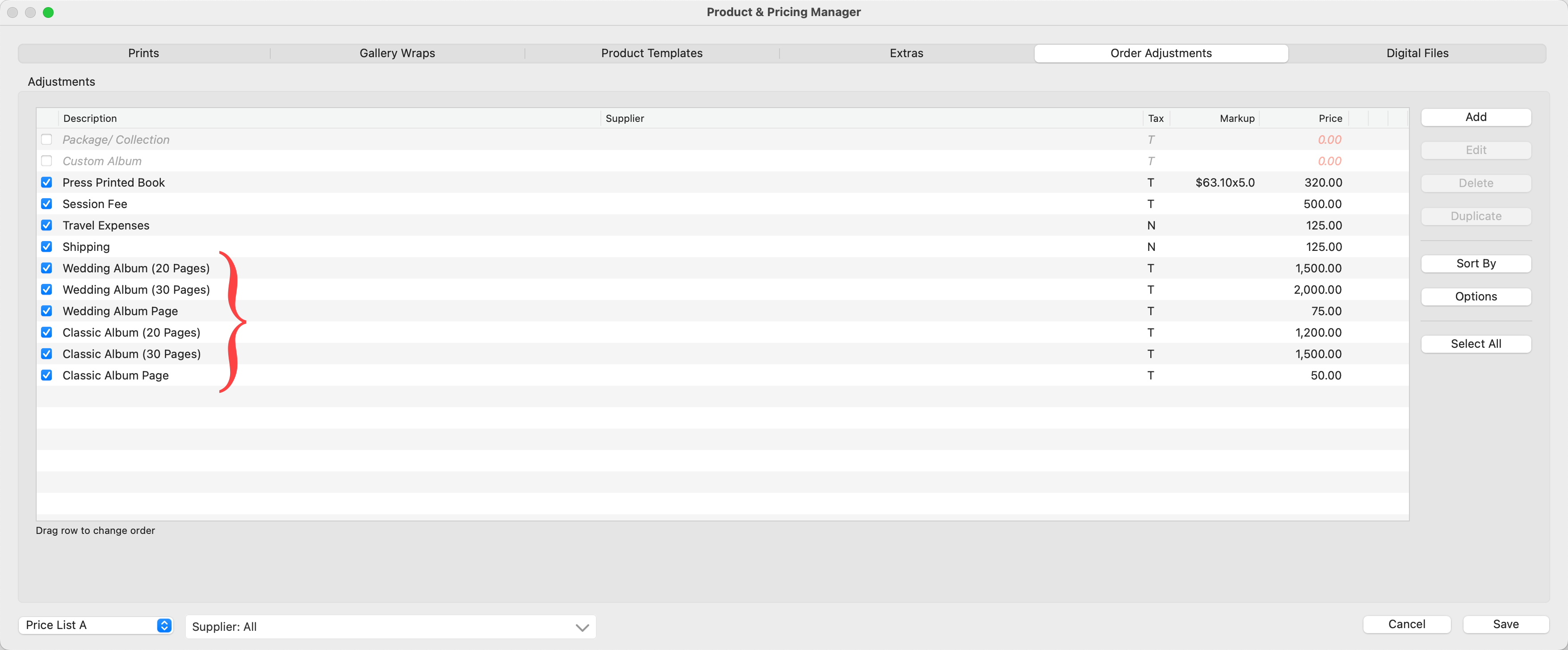
- Go to the top menu, Products > Product & Pricing Manager.
- Select the Order Adjustment Tab.
- Add a new order adjustment item for your book. For instance, you might add an item called “Classic Album (pages)” where the quantity reflects the total number of pages in the book.
- Optionally add an "additional page" line item.
Ordering the Book
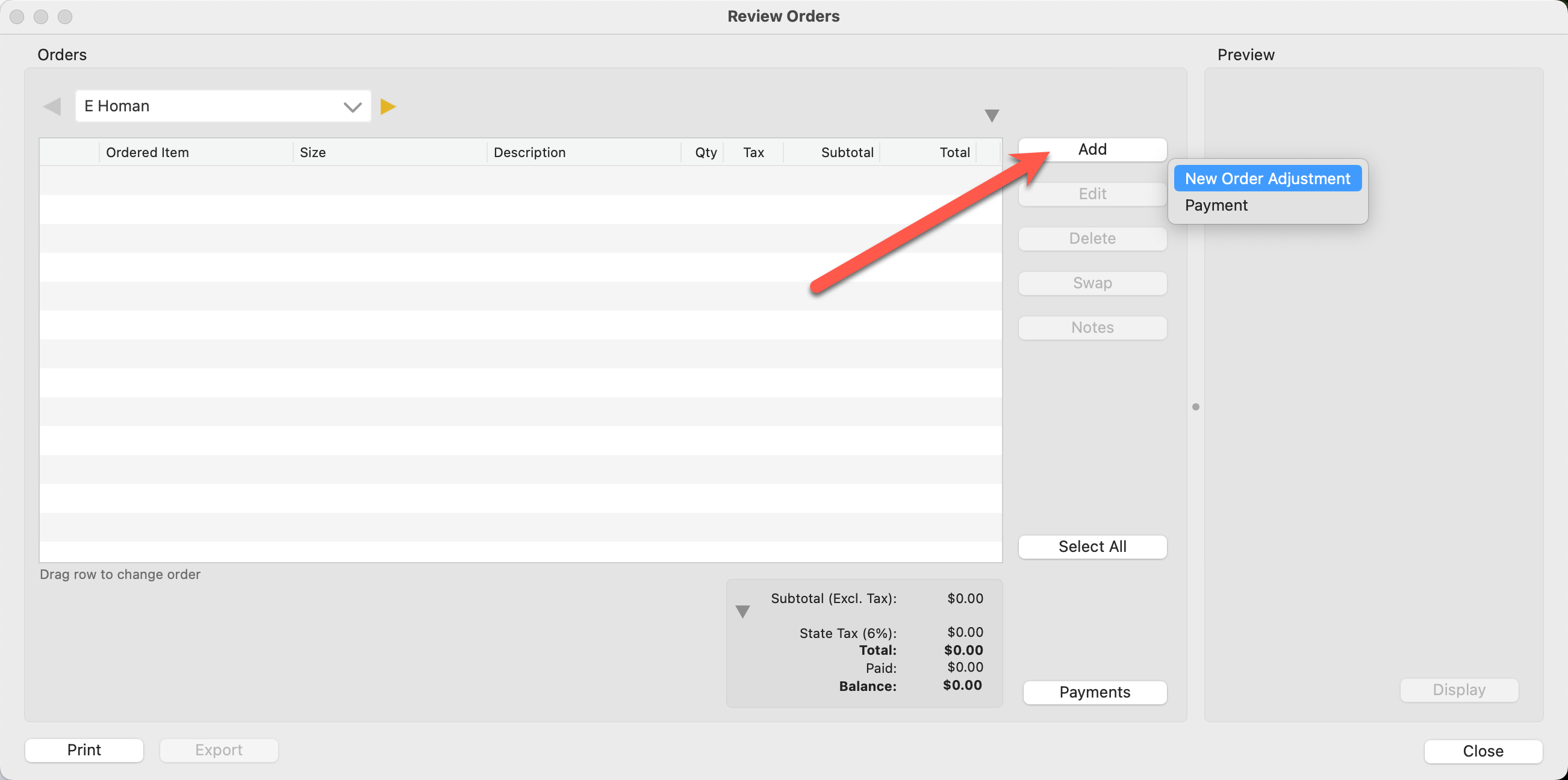
- Go to the top menu, Orders > Review Orders.
- Click on the Add button in the Review Orders window.
- Select "New Order Adjustment" from the list.
- Select your book from the drop-down list.
- Select additional pages (and set a quantity) if applicable.
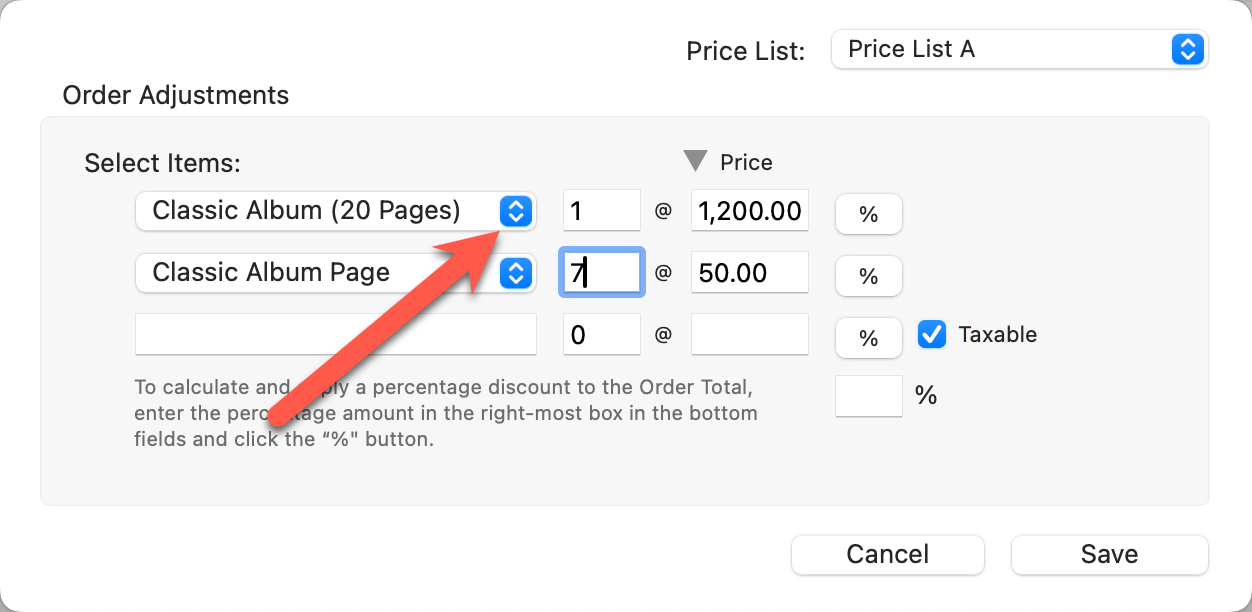
- Click Add.
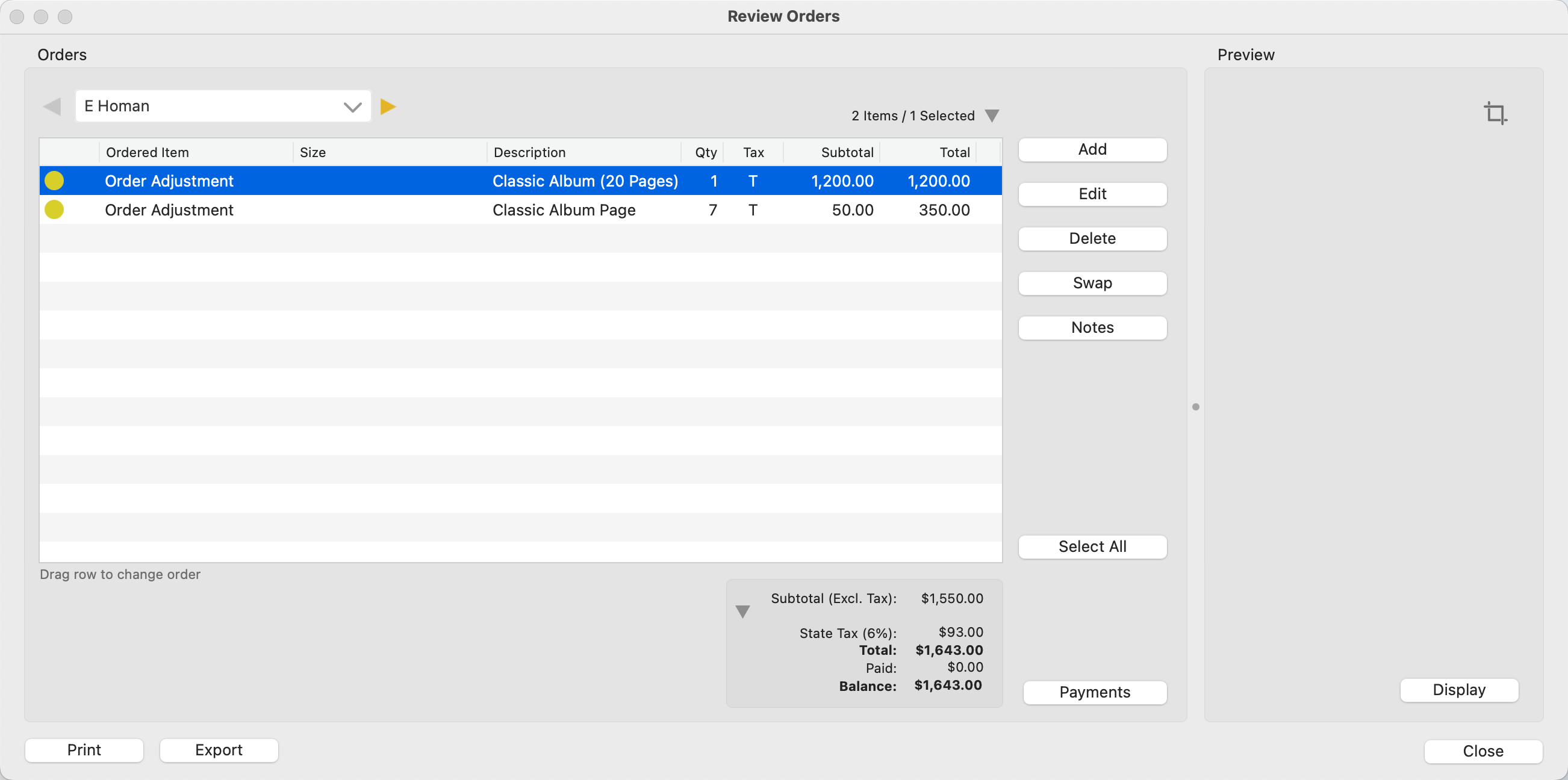
- Your book has now been added to the order.
Creating the Reference Product
- Go to the top menu, Products > Product & Pricing Manager.
- Select the Product Templates Tab.
- Create a new Category and Folder (For example: Albums, Classic Albums).
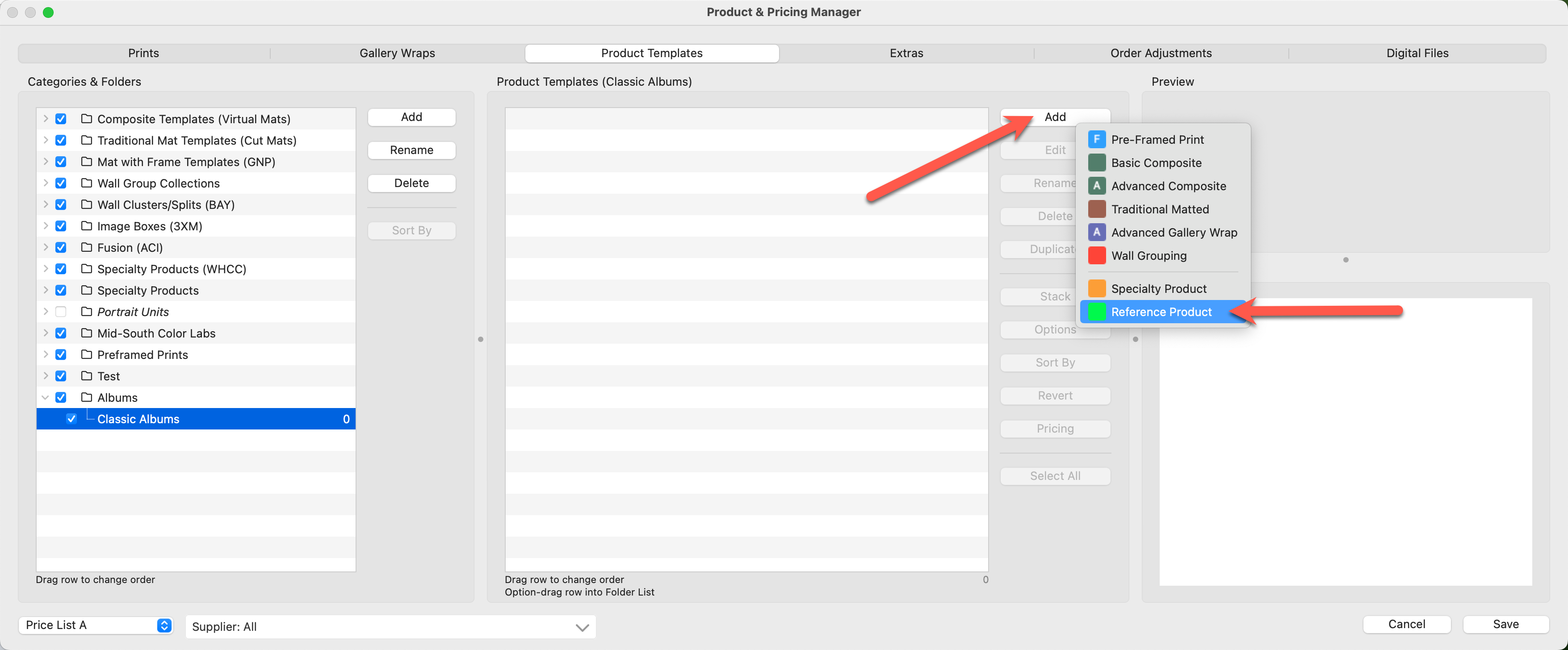
- With your folder selected, click on the Add button in the Product Templates Panel.
- Select "Reference Product."
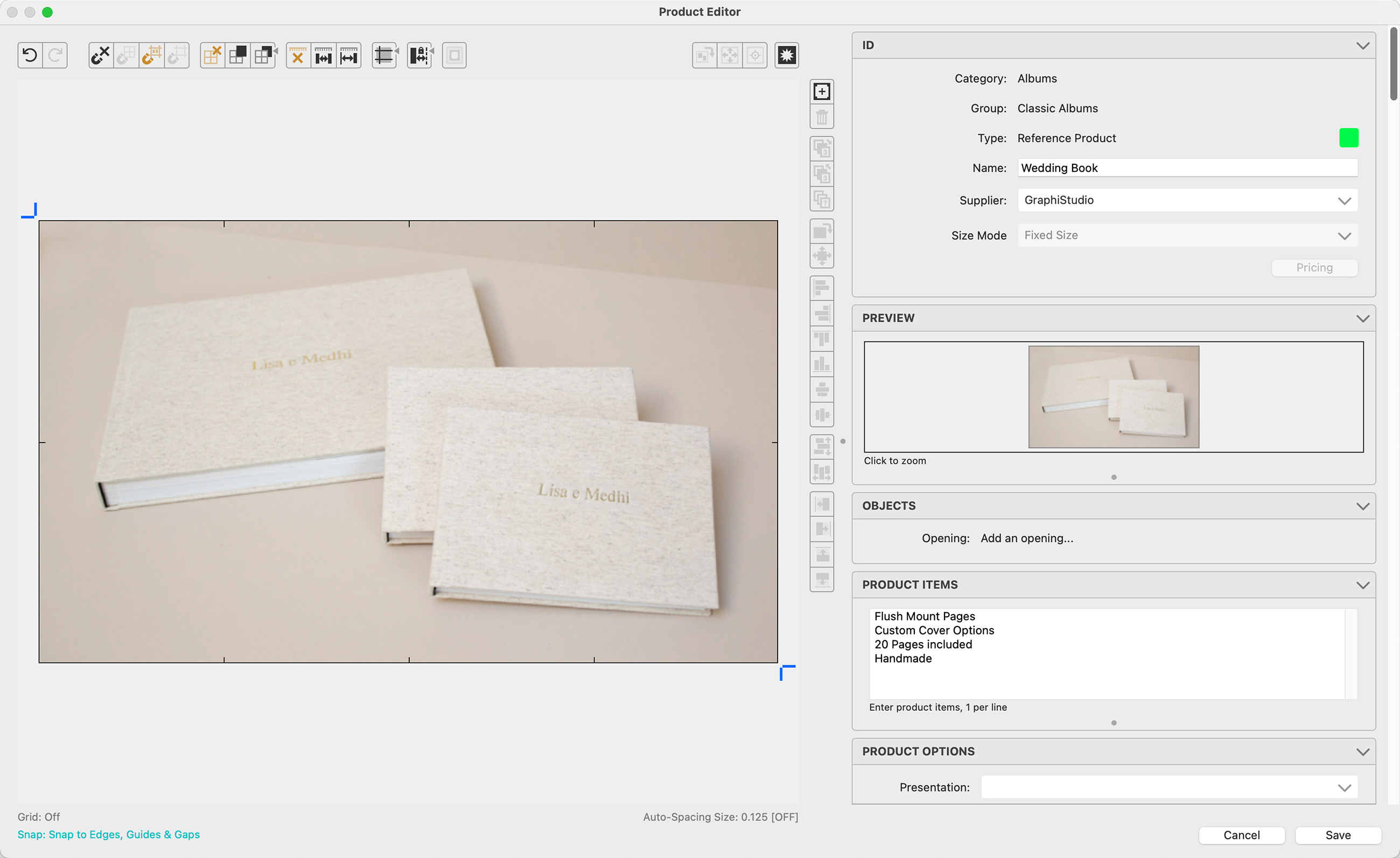
- Follow the guidelines in the Product Editor to create your reference product.
- Repeat this process to add multiple book options.
Pricing the Reference Product
- Select the reference product in the Product & Pricing Manager.
- Click on the Pricing button.
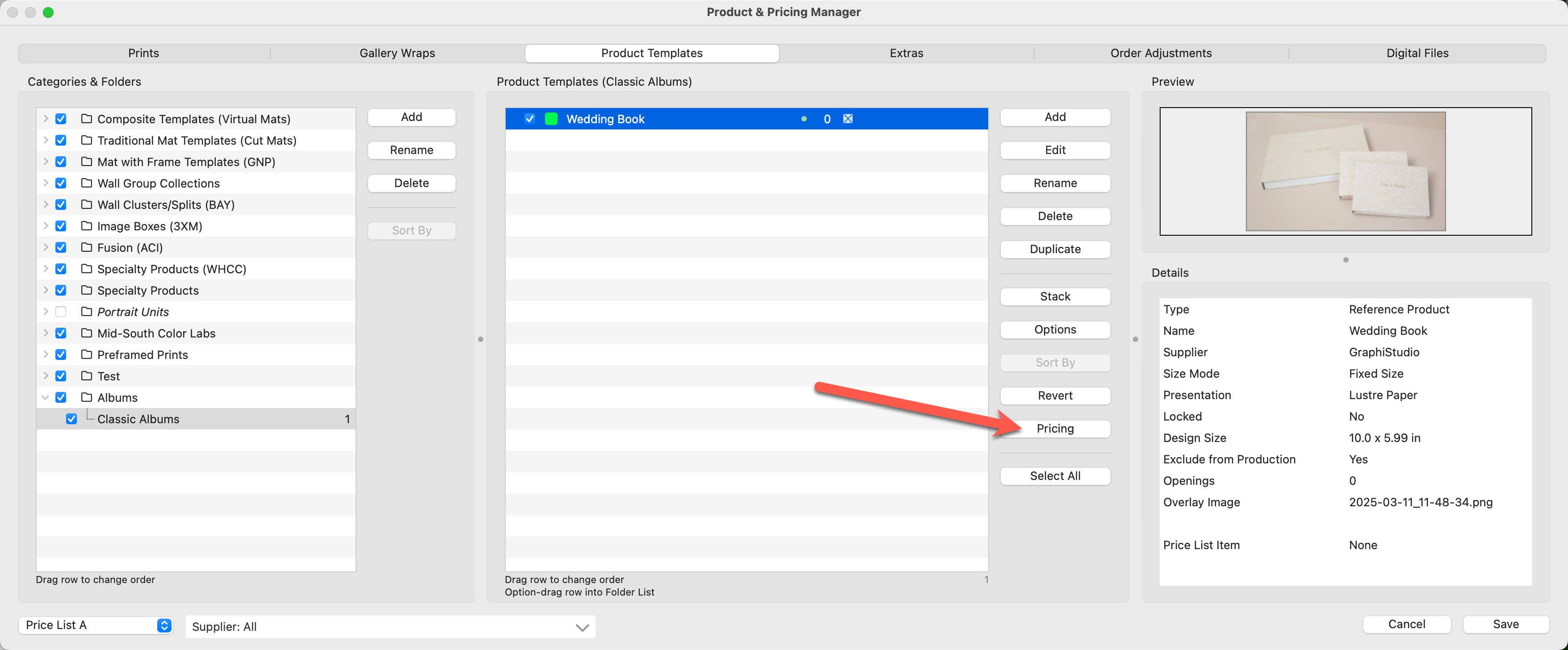
- Follow the steps to price a reference product.
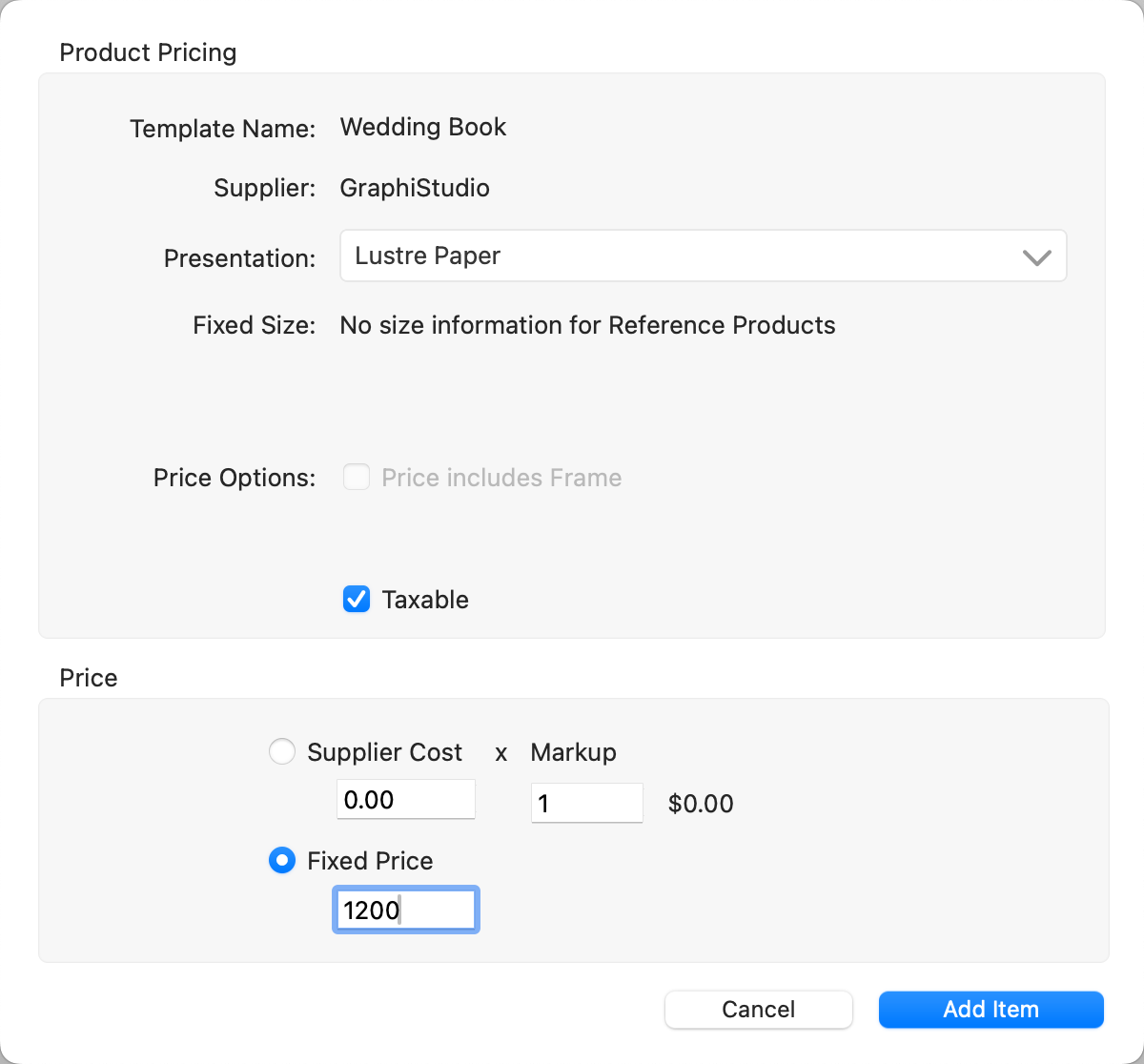
- Click Add Item and Save.
Ordering the Book
- Navigate to Working with Products.
- In the Template Resource Area, locate the reference product you created.
- Drag it up into the display area.
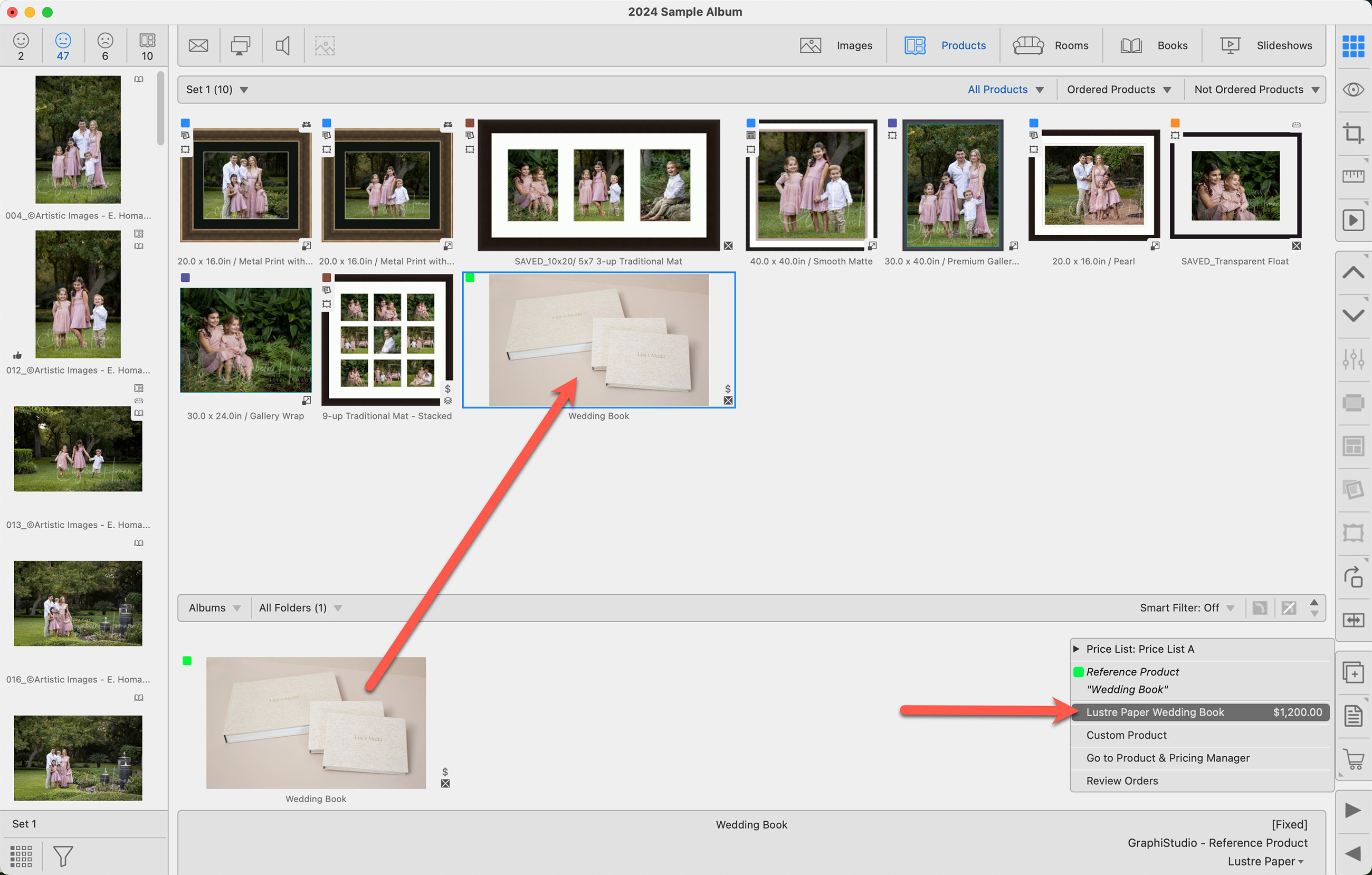
- Click on the Shopping Cart to order the book.
- If you need to add additional pages, use an Order Adjustment.