Using Ambient Music
Ambient music can enhance the atmosphere during sales sessions by seamlessly integrating background music.
- Start/Pause ambient music using the Ambient Music button
 on the left-hand side of the working bar.
 - Set the default ambient music group in the Setup Music window.
- Ambient music automatically fades down when slideshows play.
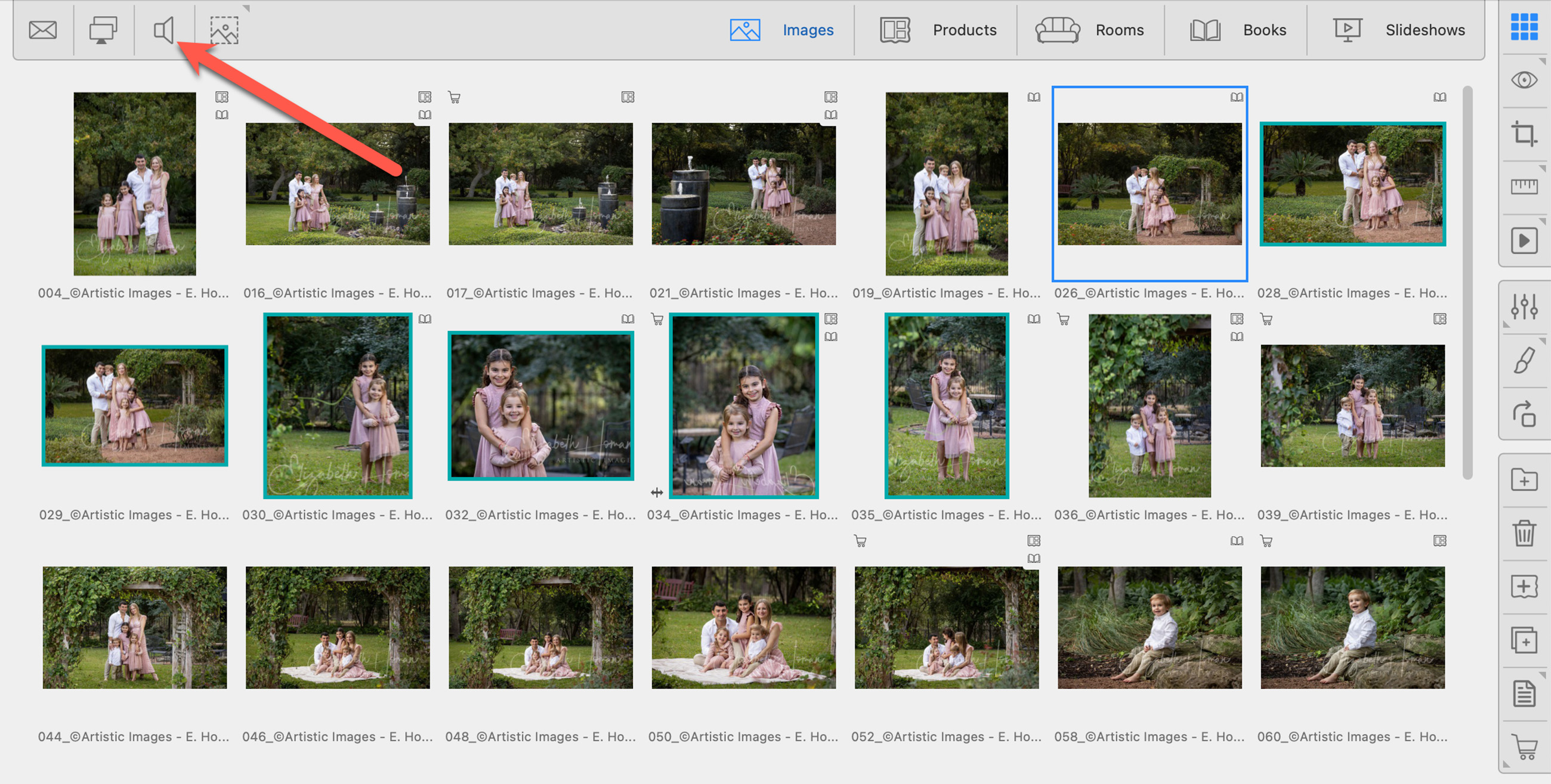

Ambient Music is a Pro feature. Upgrade your subscription to Pro on the Pro Studio Software website.
Ambient music is set up in the Setup Music window. Go to the top menu, Slideshow > Setup Music. ProSelect comes preloaded with an ambient music group, indicated by the Default Ambient Music tag  . Ambient music can be played in the group order or in a random order. Use the Options button to switch between the two:
- : Group order.
 : Random order.
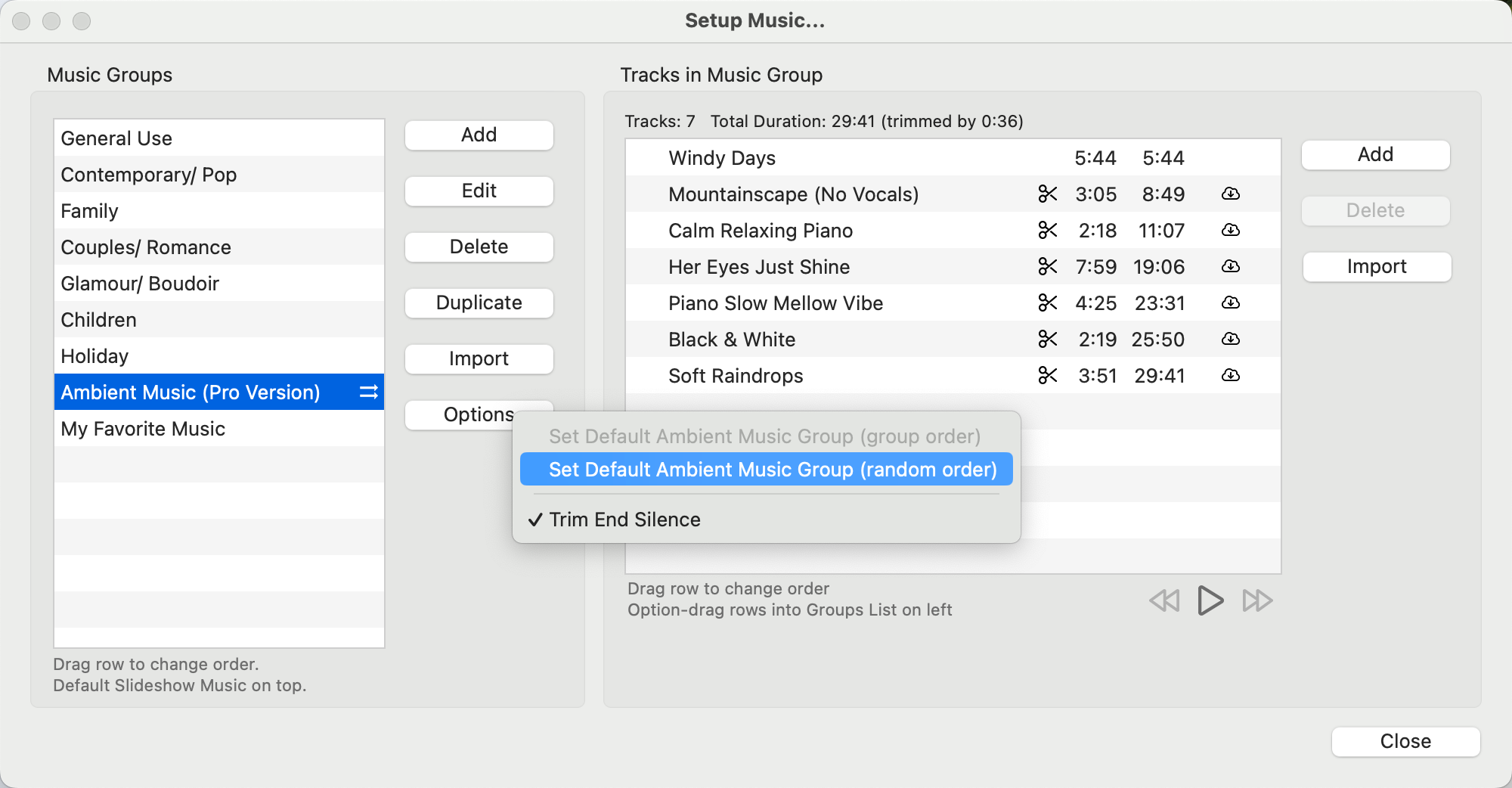
- You can change which music group plays as ambient music by selecting it and using the Options button. Select either "group" order or "random" order. Once you make your selection, the Default Ambient Music tag will move next to the new group.
Managing ambient music is done in the Ambient Music dialog. From here, you can select a different music group to use, adjust the playback order, and change the volume. Important note: any changes here will not affect the default settings you created in the Setup Music window.
- Hold down the OptionAlt key and click on the Ambient Music button.
- Alternatively, go to the top menu, File > Ambient Music > Setup.
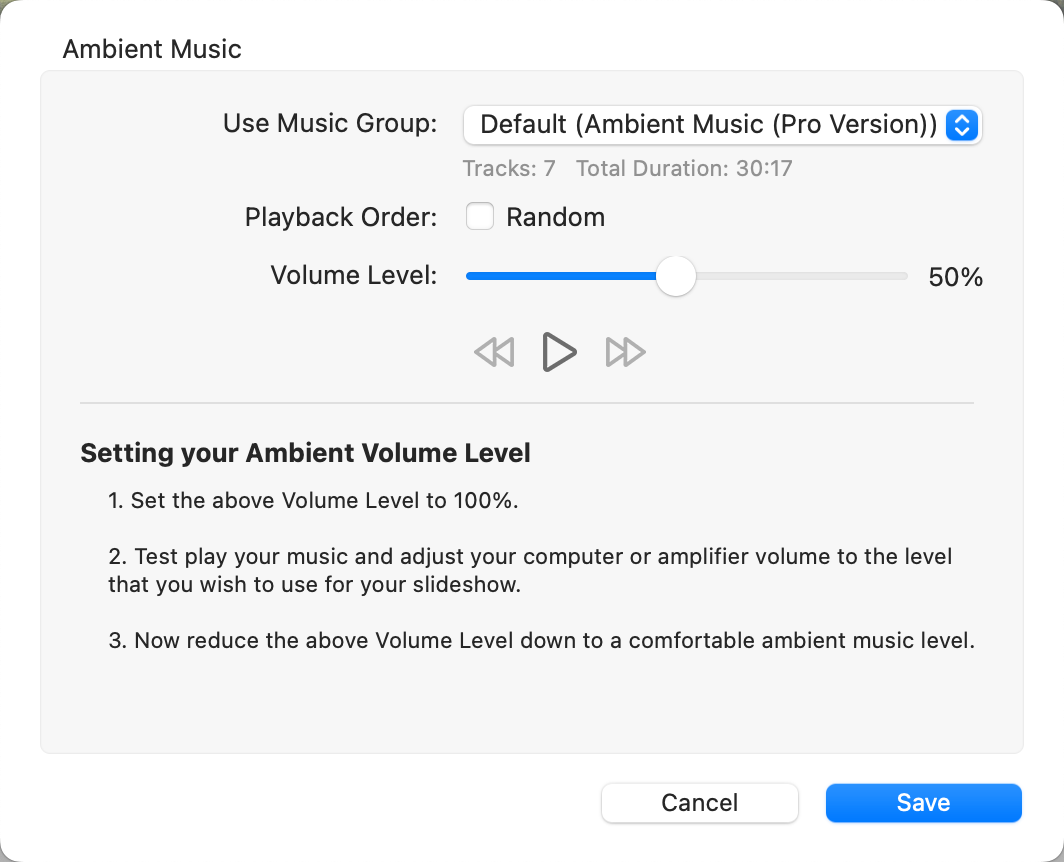
- Use the drop-down menu to select an alternative music group.
- Toggle the playback order using the "Random" checkbox.
- Adjust the volume of ambient music. Use the Play button
 to preview the ambient music volume.

If you choose a different music group from the default for a particular album, this selection is saved with that album file. This allows for unique ambient music settings for each client, which ProSelect will recall each time you open their album.
When a slideshow begins, any ambient music will automatically fade down to allow the slideshow's audio to take precedence and then fade back up once the slideshow concludes. If the slideshow style does not include its own music, the ambient music will continue to play throughout.
| Ambient Music | |
| Cmd + (+)Ctrl + (+) | Ambient Music Volume Up |
| Cmd + (-)Ctrl + (-) | Ambient Music Volume Down |
| OptionAlt + |
Open Ambient Music Dialog |
| Shift + |
Re-shuffle Random Order Tracks |