Registration & Activation
Once you have purchased a subscription to ProSelect, you’ll need to register the software to begin using it fully. If the Registration window doesn’t appear when you launch the program, go to the top menu, Help > Register ProSelect.
- To register, your computer must be connected to the internet.
- Select "Activate ProSelect" and enter your Pro Studio Software login details.
- Click "Activate Now."
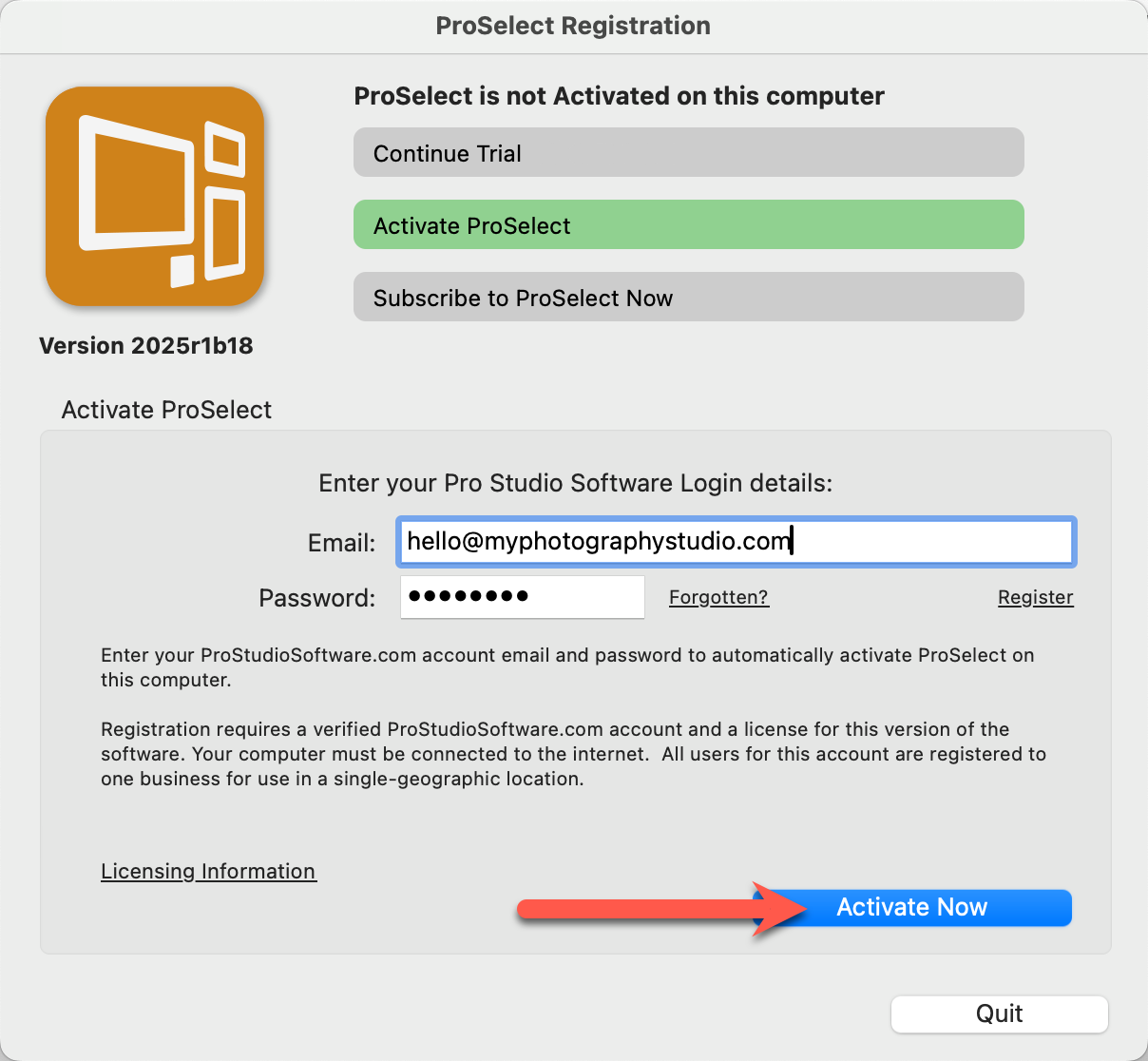
- ProSelect will now open. Your business name will appear in the background of the application.
- If you've purchased optional add-ons such as Collections, any required unlock keys will automatically be downloaded and saved to your computer during registration. These keys are then used when you install the corresponding Collections.
ProSelect must be activated on each computer on which it is installed before it can be used. Activation happens automatically during the online registration process. Your ProSelect subscription allows you to activate the software on one additional computer beyond the number of users included in your subscription. For example, if you have a one-user subscription, you may activate ProSelect on up to two computers (e.g., a studio and a laptop).
- You can install ProSelect on more machines, but you will not be able to activate it unless you first deactivate it on another computer.
- To activate or deactivate ProSelect, go to the top menu, Help > Activate/Deactivate ProSelect.
- Deactivation requires an internet connection. If you're unable to connect, you’ll need to submit a deactivation request via our Support page on the Pro Studio Software website.
- View and manage which computers are currently activated under your subscription by logging into your account at ProStudioSoftware.com and visiting the My Account page.
ProSelect requires a periodic reactivation to keep your subscription current. This reactivation happens automatically every 14 days, as long as your computer is connected to the internet.
Check When the Next Reactivation is Due
- Go to the top menu, ProSelectHelp > About ProSelect.
- Click on the "Registration" tab.
- The "Software Details" area shows the number of days before an activation is required.
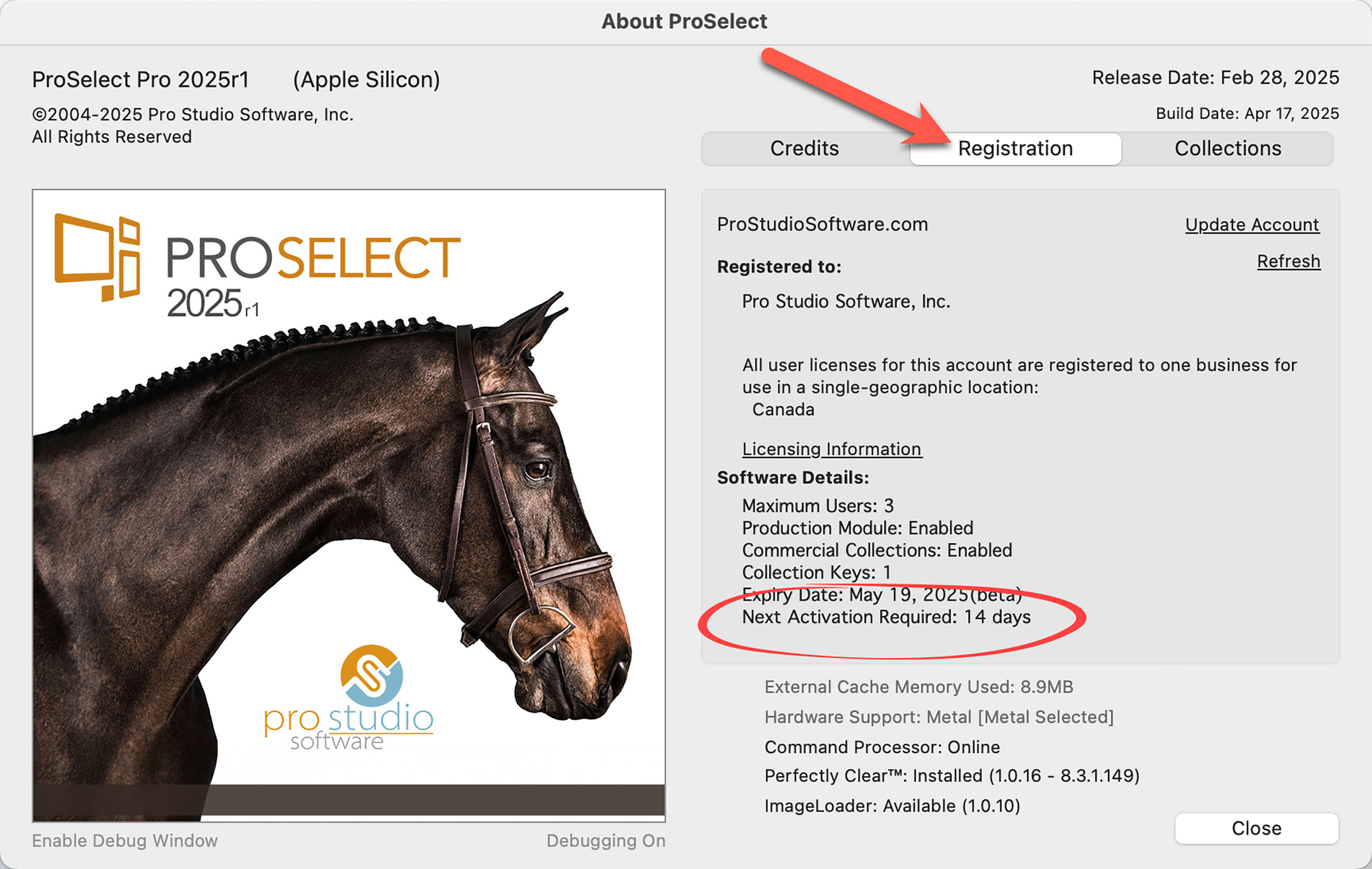
Your ProSelect subscription is linked to your business name and includes details such as the number of users and any additional features you've purchased. You can review your current subscription details and activation status by opening the About ProSelect dialog. Go to the top menu, ProSelectHelp > About ProSelect. Select the Registration tab. This section provides a clear overview of your registration and activation status at any time.
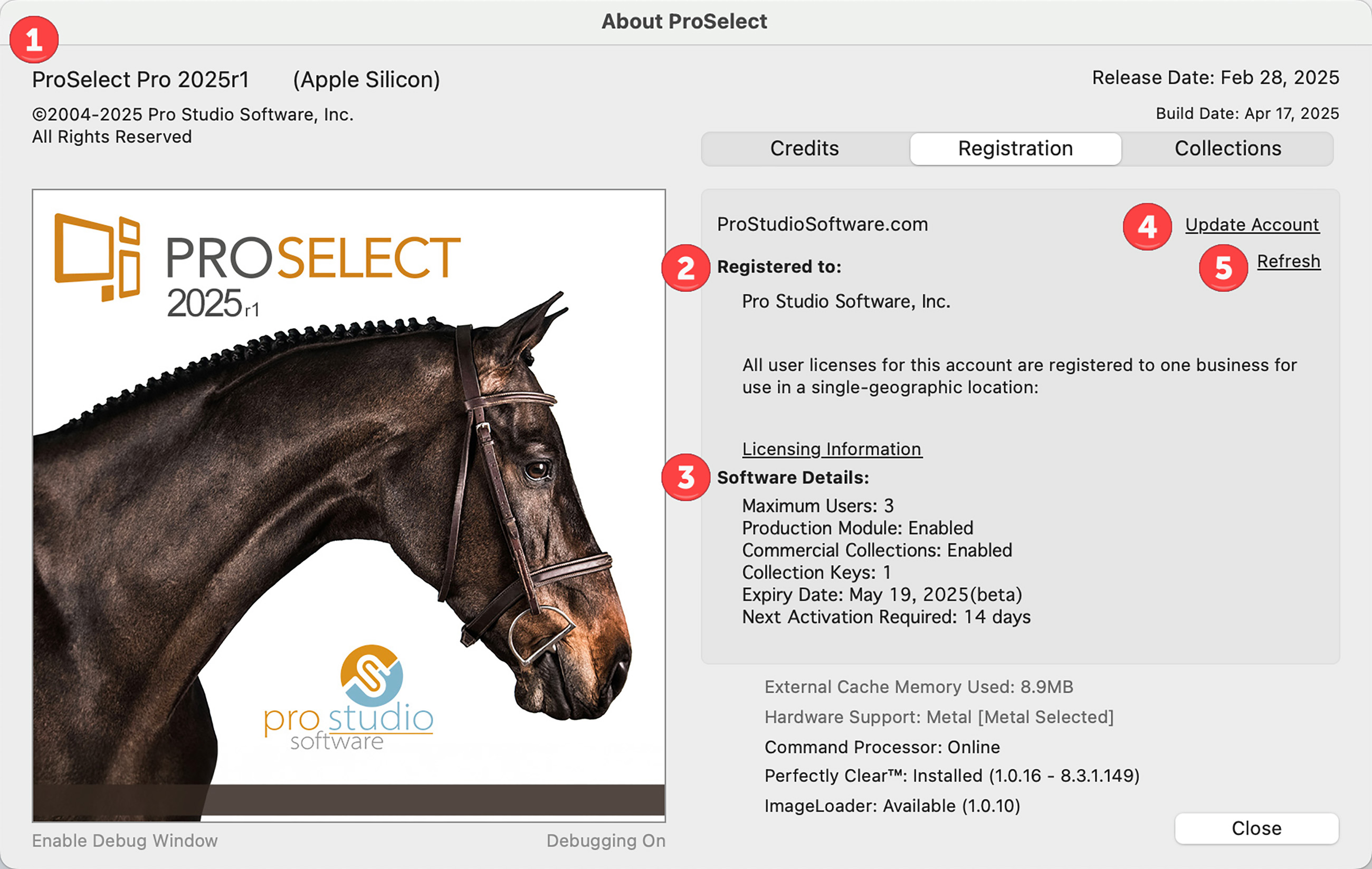
- ProSelect Pro 2025r1: In the top-left of the dialog, the version of ProSelect currently installed and processor information are listed.
- Registered to: The business name, account email, and registration location for software usage are listed here.
- Software Details: This area lists the maximum number of users, enabled features, and the date of the next reactivation requirement.
- Update Account: Use this to switch Pro Studio Software accounts. A login and password are required.
- Refresh: Click here after making changes to your account, including changing a business name or adding additional users.

The "Update Account" and "Refresh" options are also available in ProSelect, under the Help menu.
Once your ProSelect subscription is registered, your business name becomes part of your license record and cannot be changed within the software. If you need to update your business name, this must be done by Pro Studio Software and is subject to their current sales policies. To request a change, please submit a support ticket to Pro Studio Software.
Once a name change has been completed, go to the top menu, Help > Refresh License.
To add more users to your ProSelect subscription, log in to the Pro Studio Software website.
- Navigate to the Store tab.
- Select “Manage Subscription."
- Click on the "My Products" tab.
- Click on the link "Change ProSelect Subscription," which is listed underneath the current subscription you hold.
- From here, you can add user licenses.