Actions Available in StudioCloud
In addition to the integration features available within ProSelect, StudioCloud also allows you to initiate several ProSelect-related actions directly from its interface. These include:
- Linking the currently open ProSelect album to a selected event.
- Creating a new ProSelect album that is automatically linked to the selected event.
- Opening an existing linked ProSelect album.
- Unlinking a ProSelect album from the selected event.
- Viewing the file location of the linked ProSelect album on your computer.
Accessing ProSelect Actions in StudioCloud
- Open and log in to StudioCloud.
- Locate and edit the event you want to work with. This can be done through the calendar, client history, or various other areas within the software, all of which use the same event editing window.
- In the bottom-left corner of the Edit Event window, click the ProSelect tab.
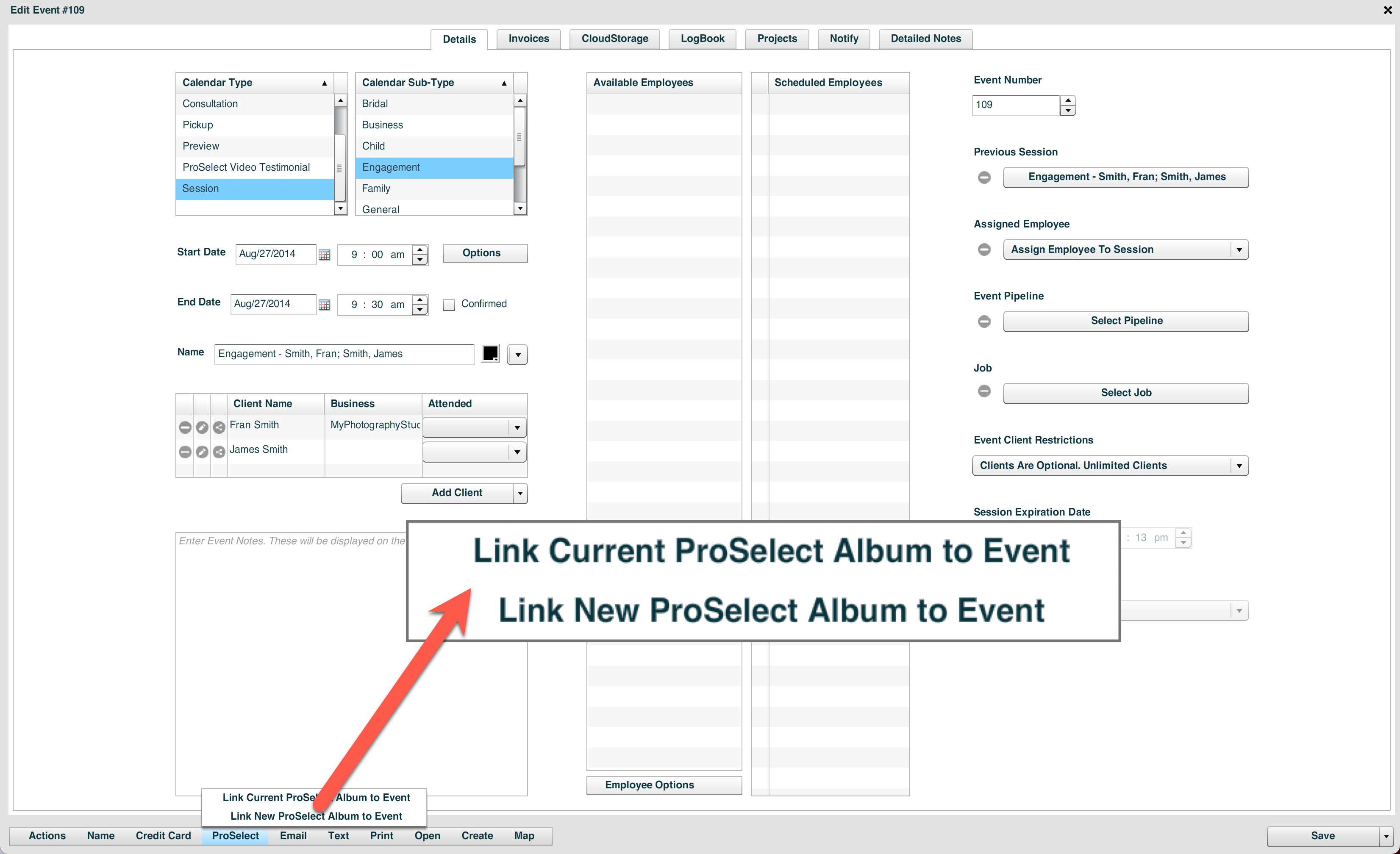
- From the dropdown menu, select the option you want to use.
Connecting to ProSelect from StudioCloud
StudioCloud communicates with ProSelect using its remote commands feature. For these commands to work properly, ProSelect must already be open and showing only its main window. If any other window or dialog box is active in ProSelect, StudioCloud will detect it as "busy" and won’t be able to perform the requested operation.