Exporting Sample Images
You can export low-resolution versions of your images for use on social media, websites, blogs, or for client reference. Before exporting, a dialog will appear where you can choose export settings. The size of exported images is based on your Imported Size setting, found under Settings > Importing Images. All exported images include an embedded sRGB color profile.
Go to the top menu, File > Export > Low Res Images in All Sets, Low Res Images in Current Set, OR Selected Low Res Images.
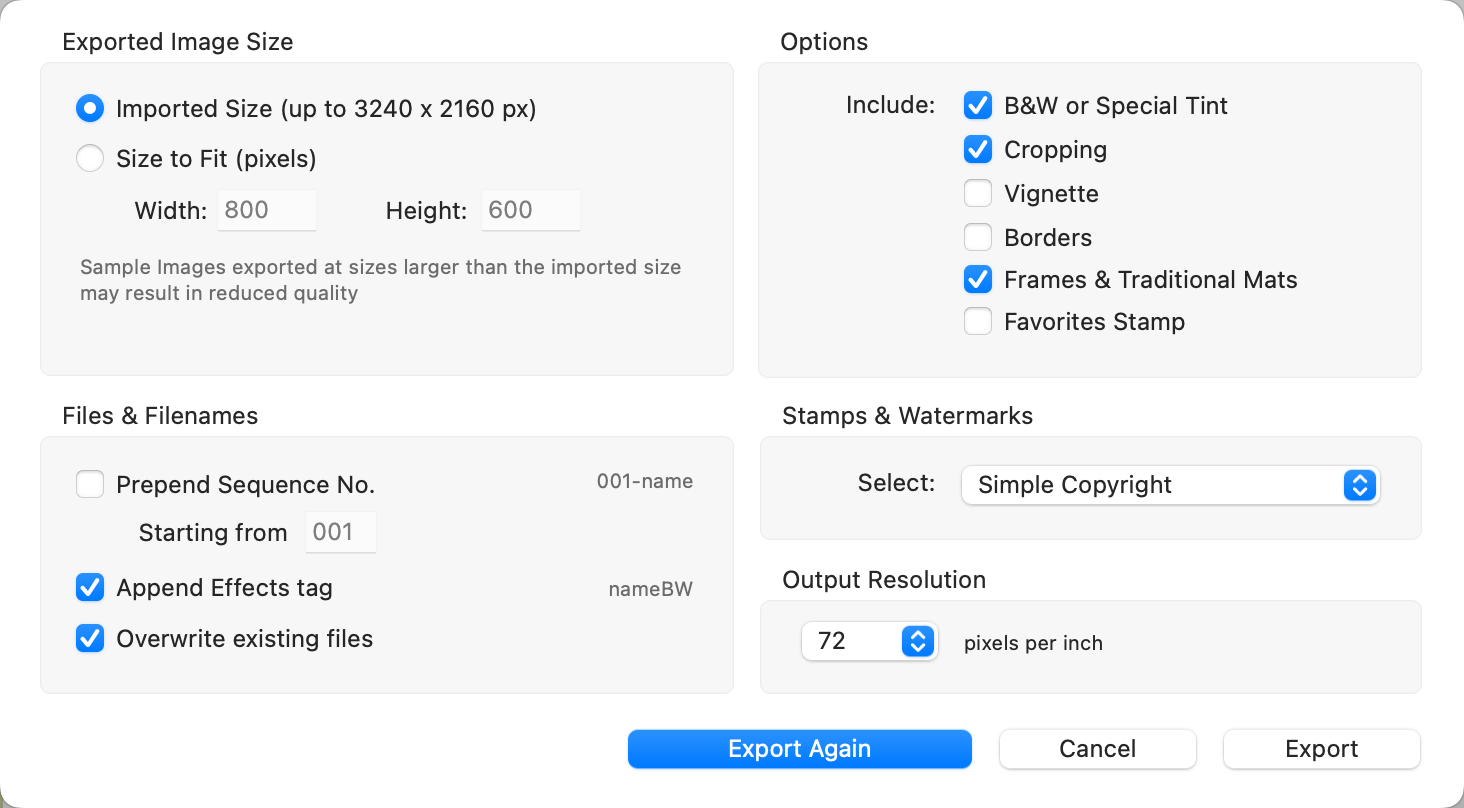
- Prepend Sequence No: Adds a three-digit sequence number to the beginning of each filename to match the image order in ProSelect. You can define the starting number.
- Append Effects Tag: Appends tags to filenames to indicate applied effects:
- RG – Original image
- BW – Black & White effect
- ST – Special Tone effect
- CXX – Custom Effect 1–25
- CXX+ – Multiple custom effects applied. For example: F1234 with a Black & White effect exports as F1234BW.jpg.
- Overwrite Existing Files: When unchecked, any exported files with duplicate names are renamed to avoid overwriting existing versions.
- Options: Choose which ProSelect display elements (such as borders or overlays) to include in the exported image.
- Stamps & Watermarks: Apply a copyright or branding stamp to the image using presets configured under Stamps, Watermarks & Logos.
- Output Resolution: Sets the image resolution (dpi) embedded in the exported file. The default is 72 dpi, suitable for screen display.

Quick Tip - Important Info
- If an image is tightly cropped in ProSelect and exported at Imported Size, the output will reflect the cropped dimensions.
- If pretouching presets have been applied to your images, a ProSelect Pro Subscription is required to export at sizes larger than 1600 x 1600 pixels.