Using QR Codes
QR codes are machine-readable codes that encode short text messages into a scannable image. These codes can be read by handheld QR code readers or most mobile phone cameras. In ProSelect, you can set up multiple QR codes and choose one to be:
- Printed on the Order Report and Order Assembly Report.
- Displayed in the Client Setup window.
Practical Uses for QR Codes
- Open a web-based studio management system using a client account code:
http://www.mysms.com?account=12345&cname=[CLIENTLASTNAME] - Trigger a keyboard shortcut program to launch another application and input data.
These QR codes can contain fixed text and dynamic, client-specific, or album-specific information using text tags. You can insert the following tags into the QR Message field to automatically include relevant data:
- Client First Name
- Client Last Name
- Client Account Code
- Client Email
- Album Name
- Year
- Short Year
- Short Date
- Date
To create or manage QR codes, go to the top menu, Resources > Setup QR Codes.
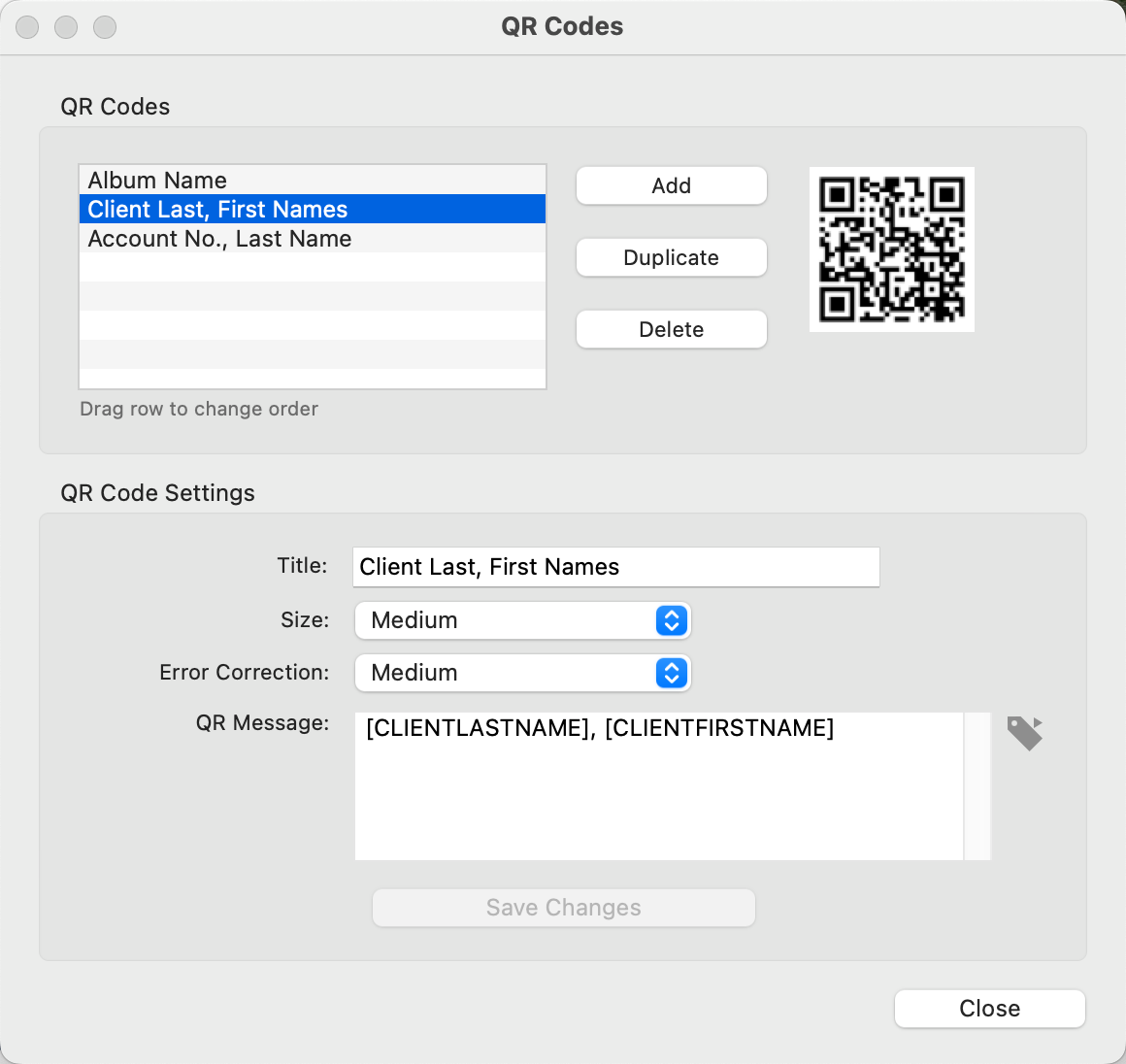
- Add, edit, duplicate, or delete QR codes.
- Assign a name to each QR code.
- Choose a size: Small, Medium, or Large
- Set an error correction level: Low, Medium, Medium-High, or High.
- Enter a QR Message (use the tag icon to insert tag codes)
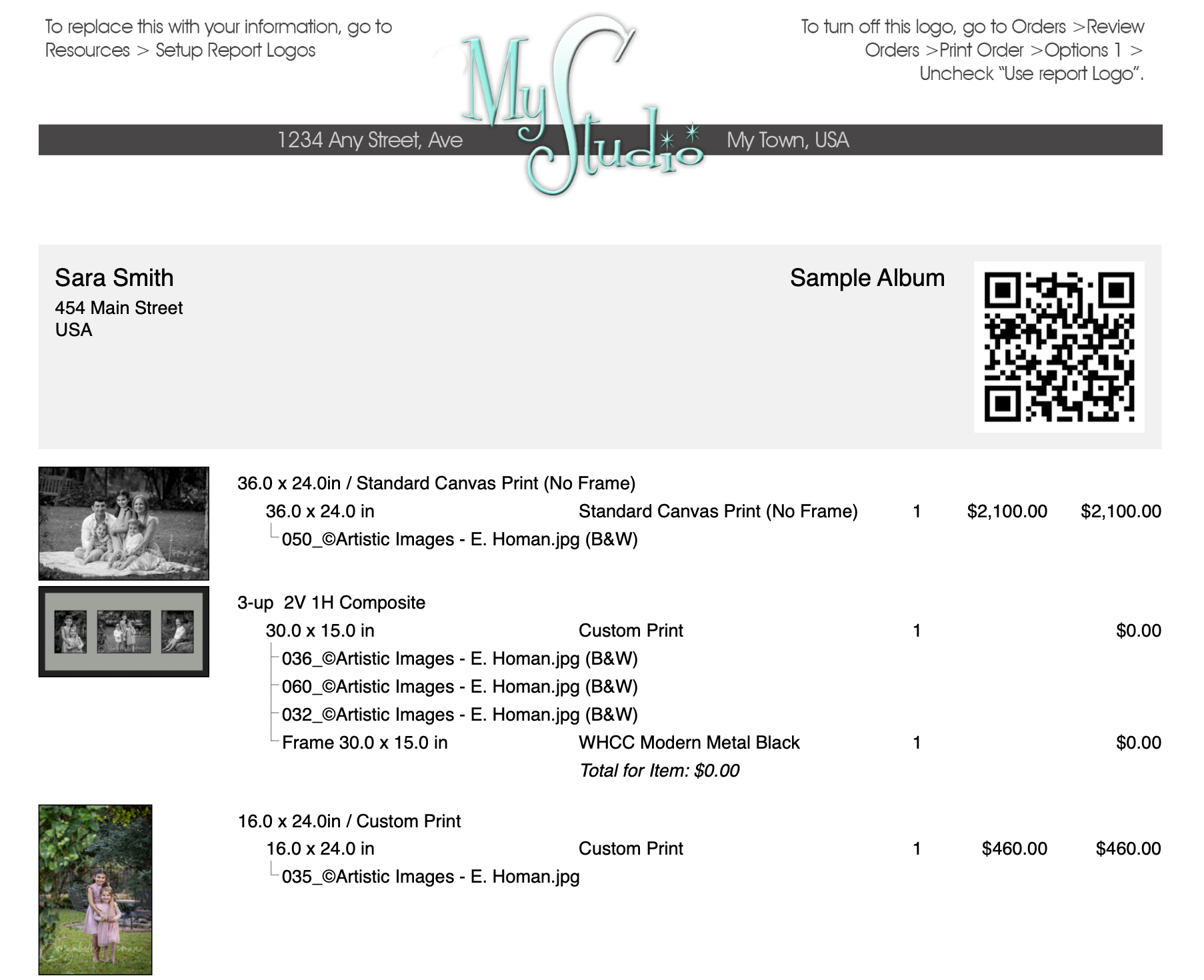
Once your QR codes have been set up, you can have them printed on both the Order/Invoice Report and the Order Assembly Report. When printing these reports, be sure to check the appropriate option in the print dialog.

Sample Order/Invoice Report