Make Text Larger
If you find the text or controls in ProSelect difficult to read during a sales session, there are a few options to make everything appear larger.
Option 1: Lower Your Screen Resolution
One simple approach is to reduce your monitor’s resolution while running ProSelect. This makes all text and interface elements appear larger.

Tradeoff: On some screens—especially in the Pricing & Product Manager—certain controls may extend off-screen. The Save and Close buttons have been adjusted to remain accessible, but lowering the resolution too far could still cause issues. If a dialog cannot be closed normally, you may need to force quit. See Screen Resolution Requirements.
Option 2: Use Built-in Zoom (macOS)
macOS includes an Accessibility feature that allows you to zoom in on any part of the screen.
- Go to System Settings > Accessibility > Zoom.
- Enable Use scroll gesture with modifier keys to zoom.
- Select Control as the modifier key (recommended).
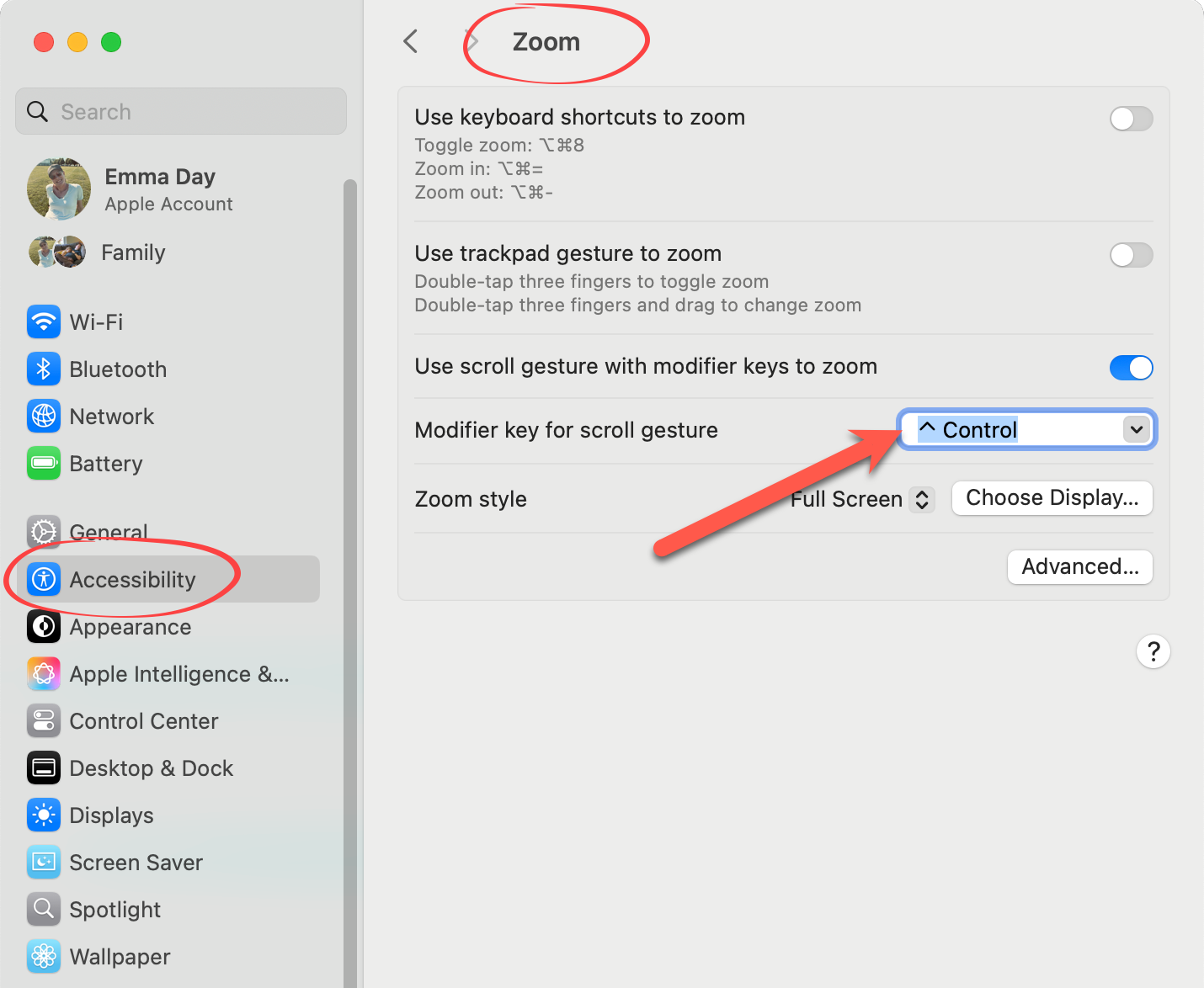
Now, when you hold Control and swipe up with two fingers on your trackpad (or scroll up with your mouse wheel), the screen will zoom in. Swiping down zooms out. The zoom centers around your cursor, making this method quick and precise. This is particularly helpful if you need occasional magnification for “tired eyes.”
Option 3: Use Built-in Magnifier (Windows)
Windows provides a similar tool called Magnifier.
Quick Controls
- Win + Plus (+): Zoom in
- Win + Minus (–): Zoom out
- Win + Esc: Exit Magnifier
To Set Up Zoom with Scroll Wheel
- Go to Settings > Accessibility > Magnifier.
- Turn on Magnifier.
- Under options, enable Zoom with scroll wheel while holding a modifier key.
- Select Ctrl (or another preferred key).
With this enabled, you can hold Ctrl and scroll your mouse wheel up/down to zoom in or out, similar to macOS.