Making Single Book Pages From Spreads
Follow these steps to convert an existing full-page spread into a single-page layout. This is useful when you want to create single-sided layouts based on double-page spread templates.
Overview
- Duplicate a spread template.
- Isolate one side of the spread.
- Re-center and adjust the layout.
- Rename and organize your new single-page template.
Steps
- Open the Book Page Manager. Go to the top menu, Products > Book Page Manager.
- Create a New Folder for Single Page Templates.
- In the Templates section, create a new folder.
- Name the folder "Single pages" or something similar.
- Click OK to create the folder.
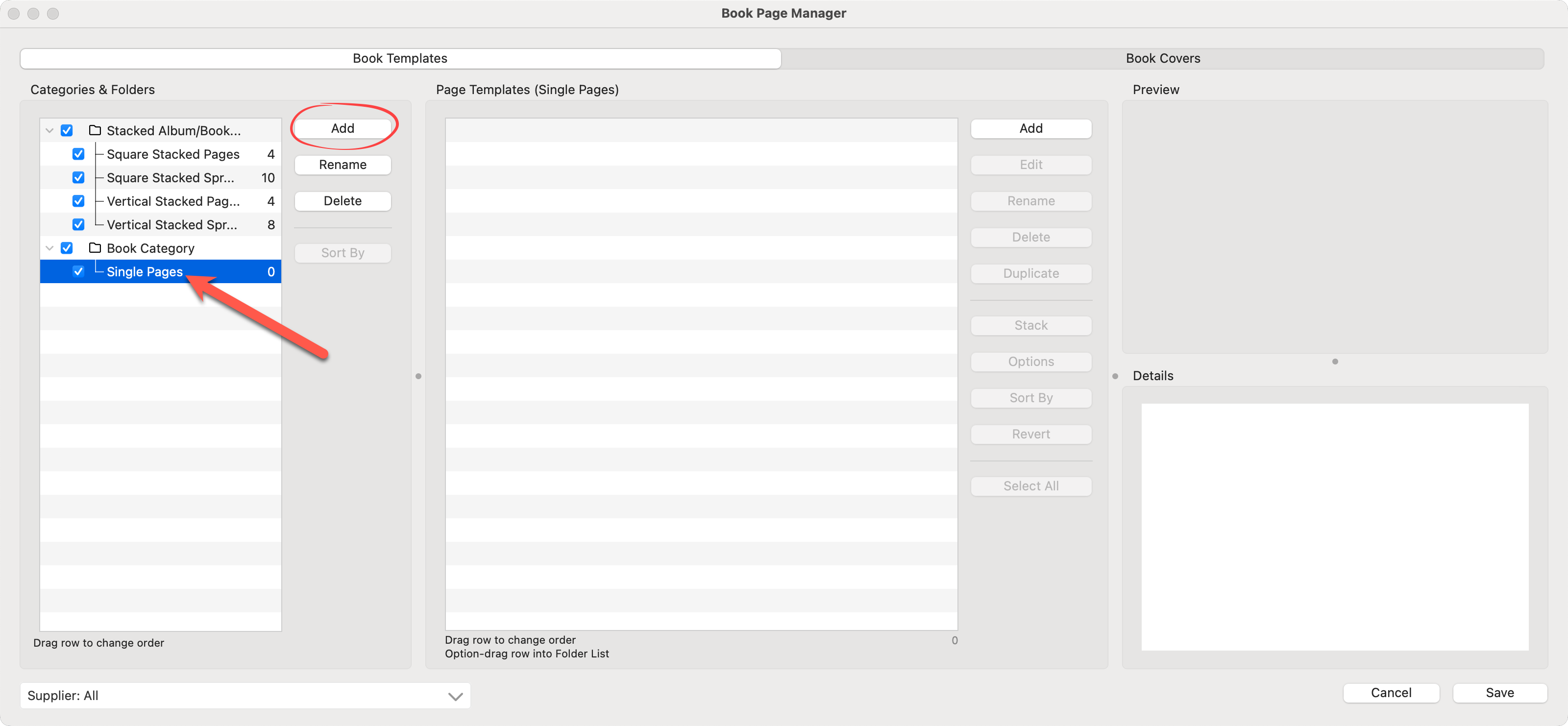
- Choose a Spread Template to Duplicate.
- Locate a template from your spread designs.
- Avoid templates where images or design elements cross over the center divider, as these won’t split cleanly.
- Choose a template where the divider clearly separates the left and right sides.
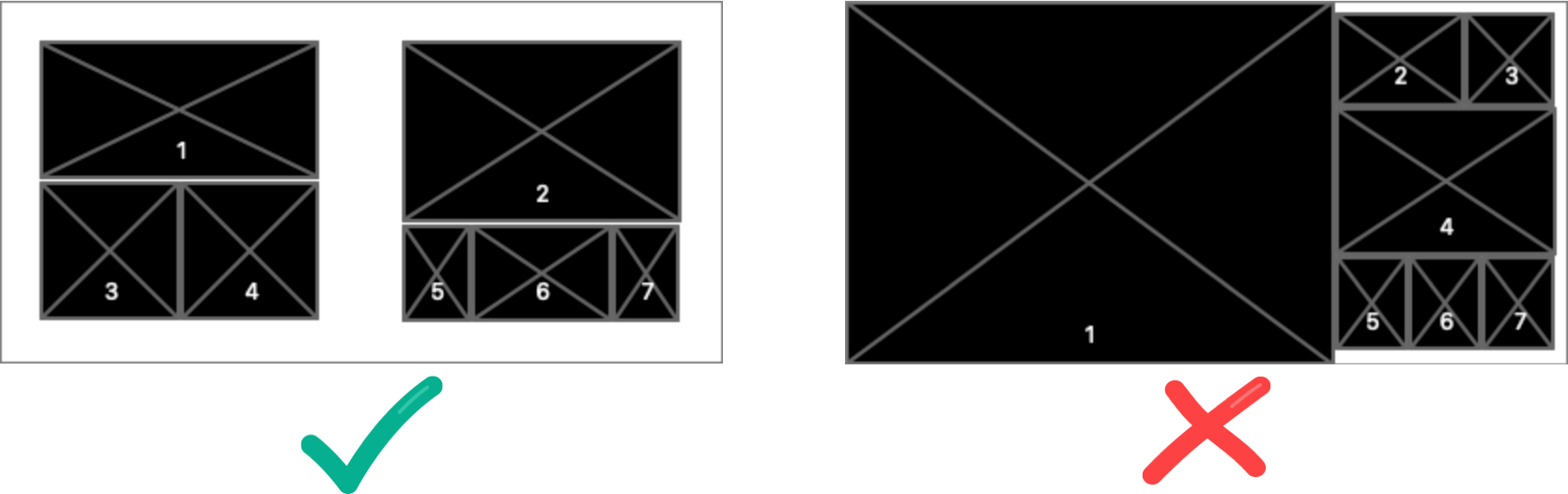
- Duplicate and Rename the Template.
- Right-click on the selected template and choose Duplicate. *Note for stacked templates, you need to duplicate the entire stack.
- Rename the new template using your naming convention. Example: 004_01 (where 004 is the number of openings).
- Hold the OptionAlt key and drag the duplicated template into your new Single Pages folder.
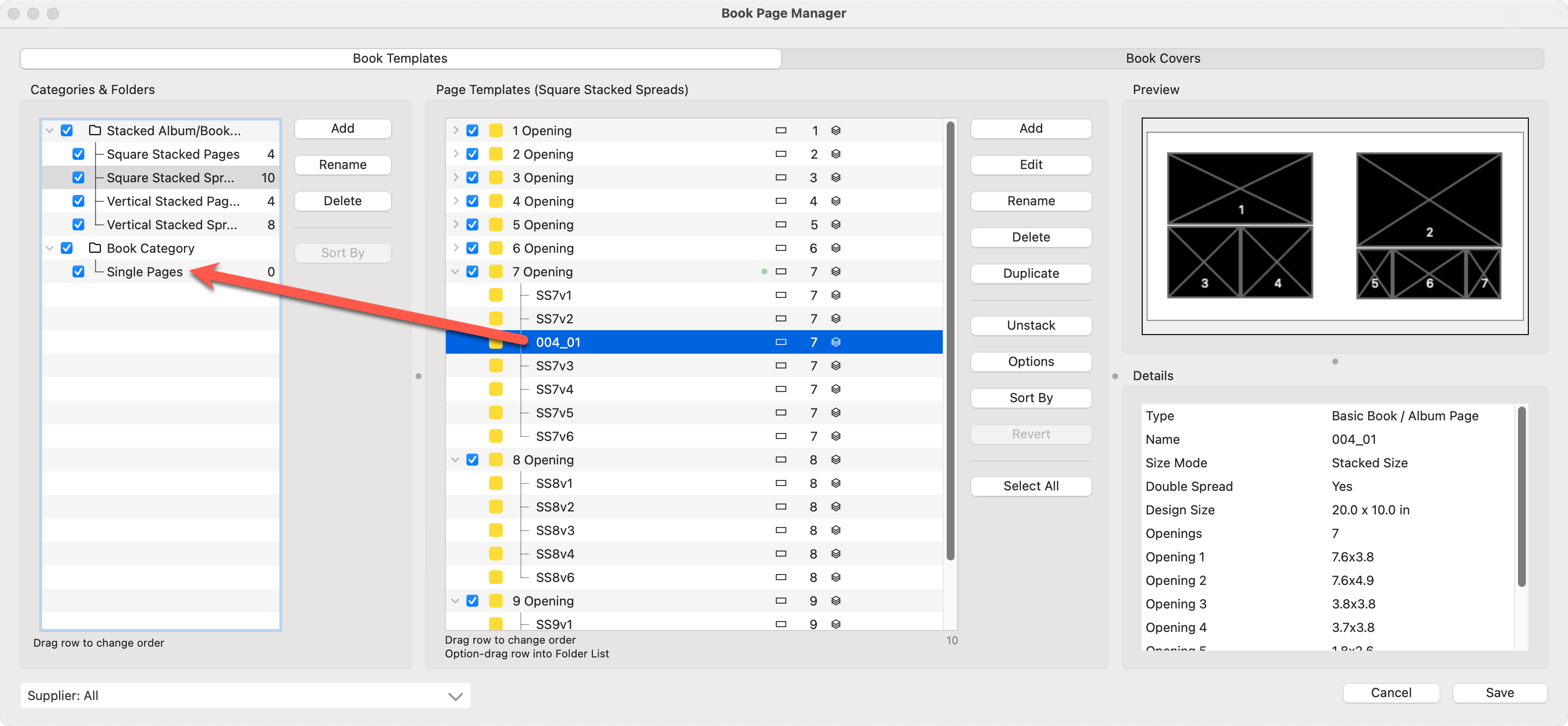
- Edit the Template.
- Select the duplicated template and click Edit.
- Delete the image openings on the side you don’t want (e.g., the right side if you're keeping the left).
- Drag a marquee to select the remaining openings. Or use Command+ACtrl+A.
- Drag the selected elements to center them horizontally in the layout area.
- Adjust the Template Width to 10 inches (or your preferred single-page width).
- Click Apply to confirm changes.
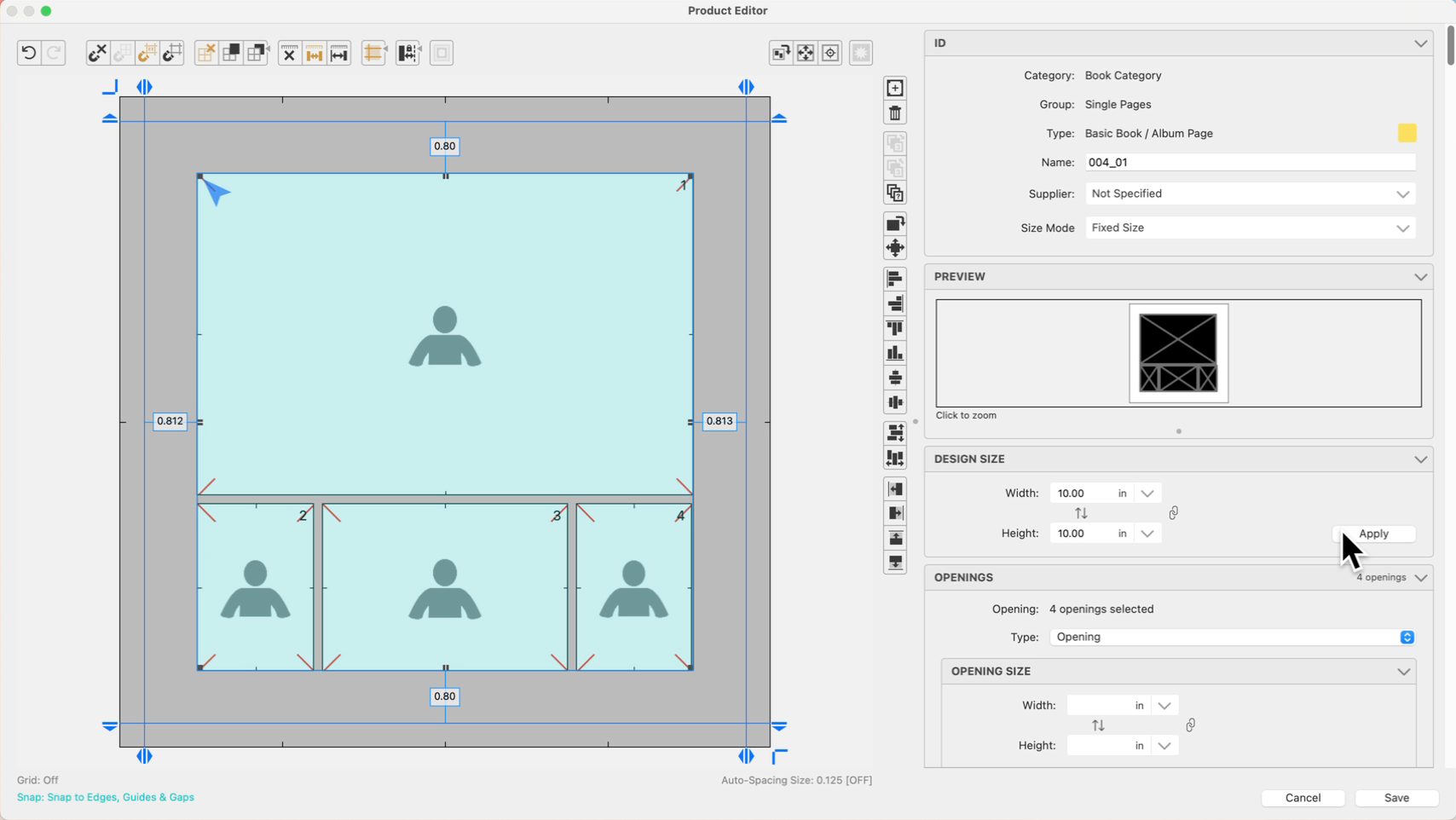
- Verify and Save.
- Check that the template numbering is correct and consistent.
- Click Save.
- Repeat for Additional Spreads.
- Repeat the process for other spread templates you'd like to convert.
- Continue naming each template sequentially (e.g., 006_01, 006_02, etc.).
- Ensure each template is organized into the Single Pages folder.

Quick Tip - Group By Openings
After creating your single-page templates, consider grouping them by the number of openings (e.g., single-opening, two-opening, three-opening) for easier access during your workflow.