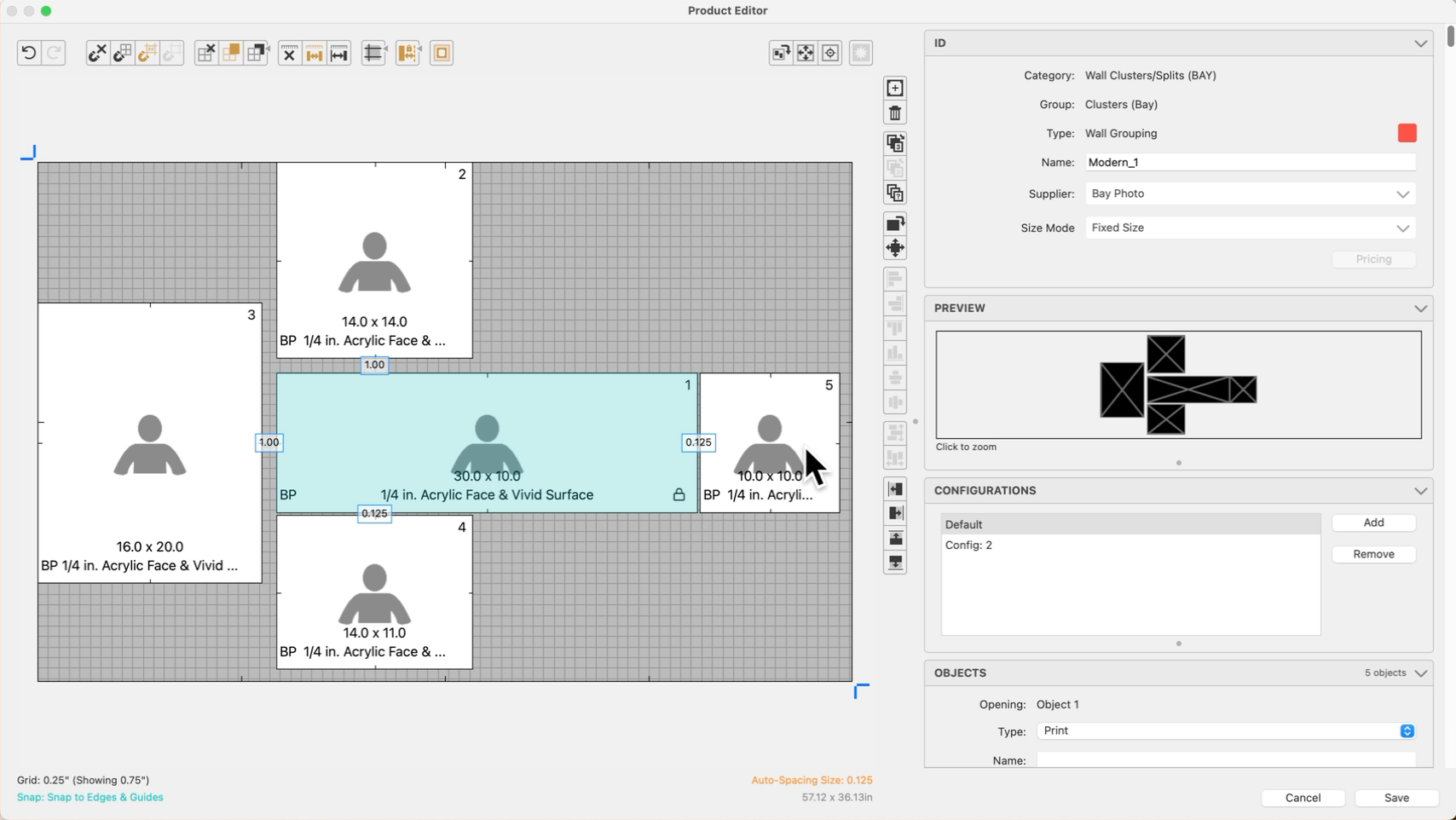
Locking the Size and Position of Openings
When designing wall groupings or multi-opening templates, maintaining consistent spacing and alignment is critical. ProSelect allows you to lock the size and/or position of any image opening to prevent accidental changes during template editing. If both size and position are locked, both actions will be disabled for that opening.
This feature is especially useful when:
- Designing wall groupings with precise spacing.
- Preventing shifts when moving other elements in the template.
- Creating a “master” opening in a template to serve as a reference point.
Steps
- Open the template in the Product Editor.
- Right-click on the opening you want to lock.
- From the context menu, choose one or both of the following:
- Locked Size – Prevents any changes to the opening’s dimensions.
- Locked Position – Prevents the opening from being moved on the canvas.
- Locked Position openings will show a lock icon in the editor.
 Quick Tip - Unlocking
Locked openings cannot be resized or repositioned unless you unlock them first by repeating the right-click action and deselecting the lock.