Add a Handling Fee to an Order
ProSelect does not have a dedicated “Handling Fee” field, but there are two flexible methods to apply a handling fee to client orders:
- Option 1: Add as an Order Adjustment (fixed or percentage-based). The handling fee will appear as a line item on the Order/Invoice.
- Option 2: Add as a Second Tax Option (percentage-based). The handling fee will appear below the subtotal, in the tax area of the Order/Invoice.
Each method is useful depending on whether your fee is a flat amount or a percentage of the order total.
- Go to the top menu, Products > Product & Pricing Manager.
- Select the "Order Adjustments" tab.
- Click the Add button.
- Name the order adjustment (e.g., Handling Fee).
- You have the option of automatically adding the handling fee to new orders.
- Type in a fixed price (or leave the price at 0.00 if you will be applying a percentage based on the total order).
- Click Save.
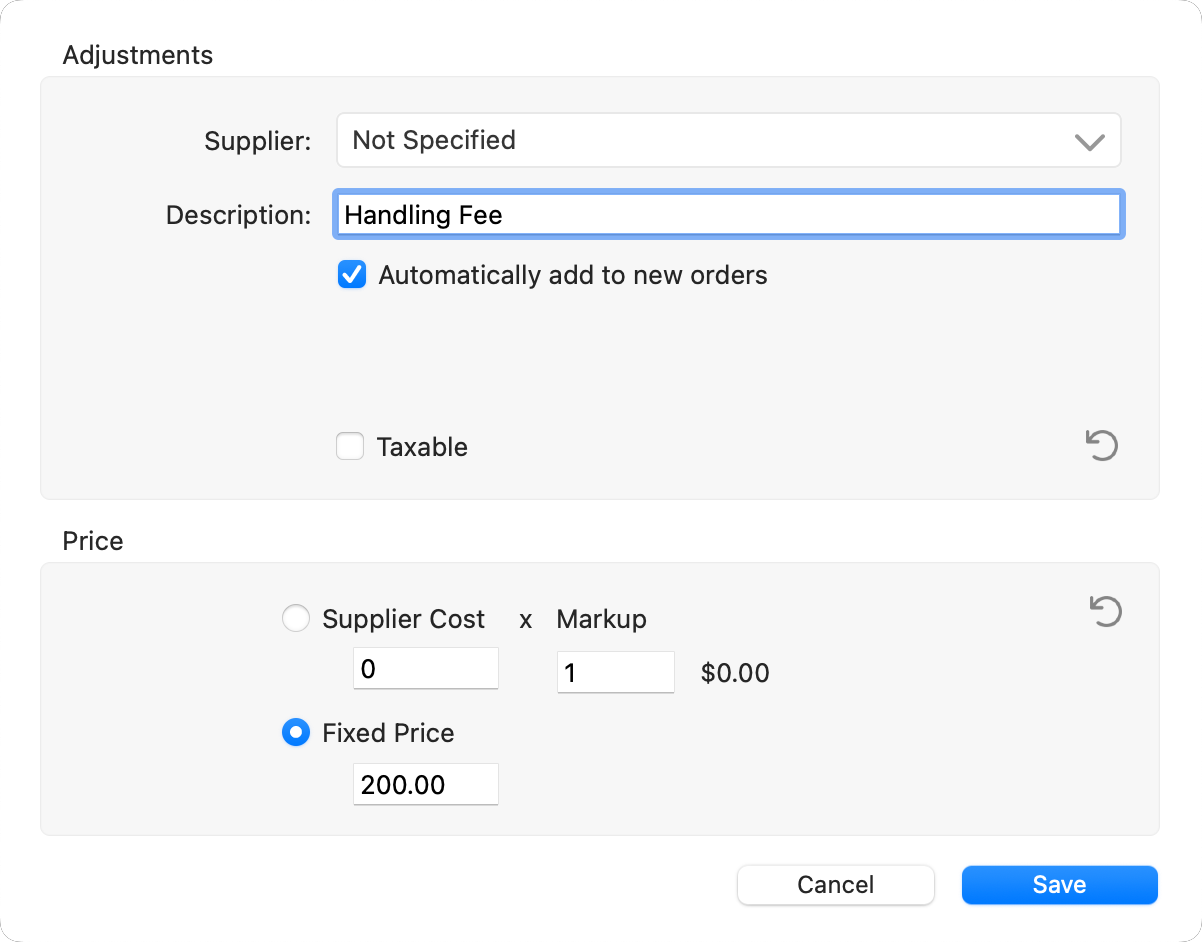
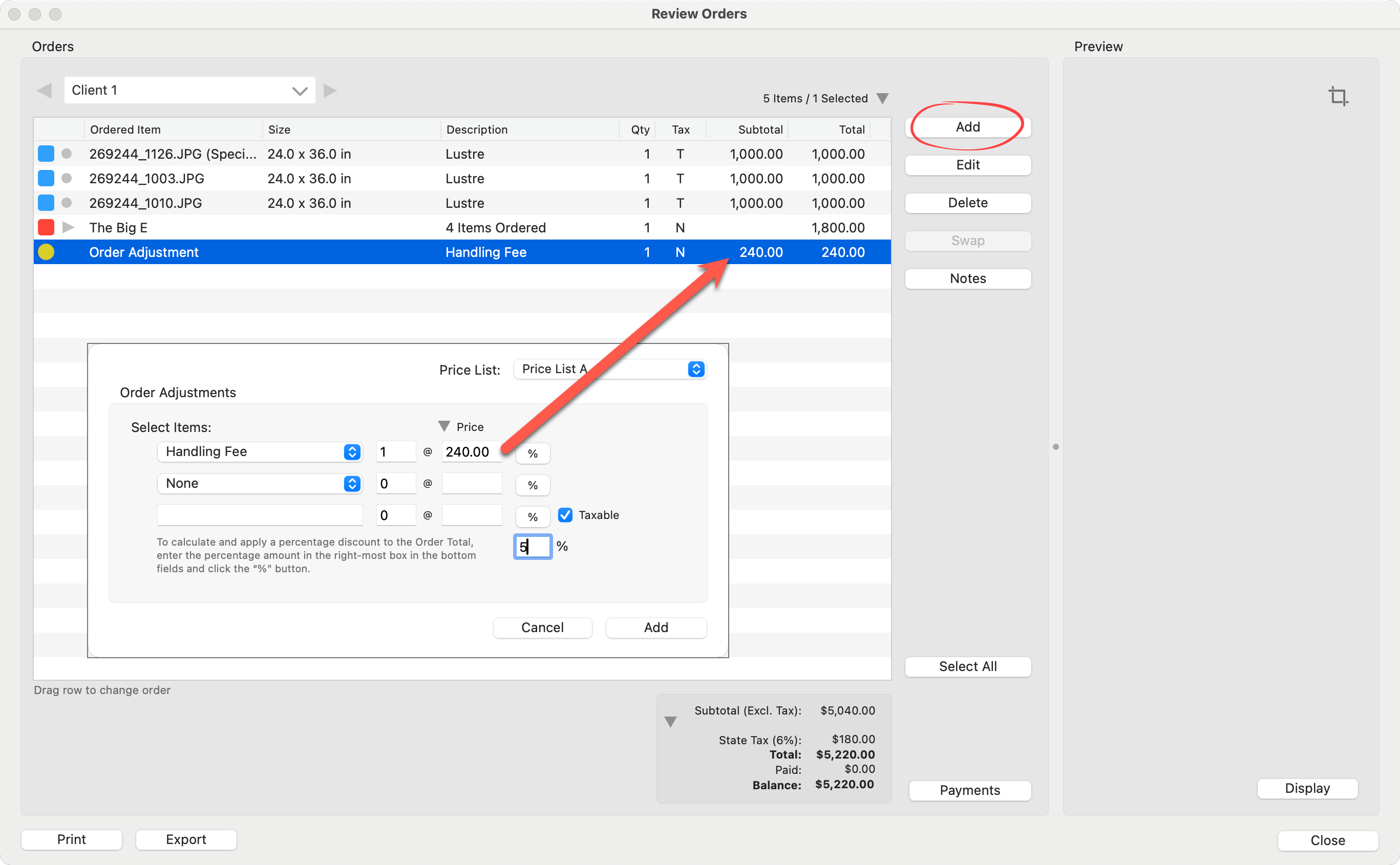
- Use the Add, New Order Adjustment button in the Review Order window to add the handling fee.
- Use the drop-down list and select "Handling Fee."
- The fixed price will appear.
- Alternatively, use a percentage of the order total:
- Type in a percentage number into the bottom-most % box.
- Hold down the OptionAlt key and click on the % button next to Handling fee.
- This will add a dollar amount based on the percentage of the total order.
- Click the "Add" button.
- Your handling fee has been added to the order.
Although a handling fee is not a tax, ProSelect’s Second Tax feature allows you to apply a percentage-based charge in addition to your normal sales tax. This is a common workaround for adding percentage-based handling or processing fees.
To Add a Handling Fee as a Second Tax
- Go to the top menu, Orders > Setup Tax.
- Set up your primary tax option first.
- Do not check the Add Second Tax box yet.
- Click Save.
Now, create the second “tax” (your handling fee):
- Click the Add button.
- Name your Tax Option and Report Label: "Handling Fee."
- Enter the percentage (e.g., 5%).
- Check the Add Second Tax box.
- From the drop-down, select your primary tax option.
- Click Save.
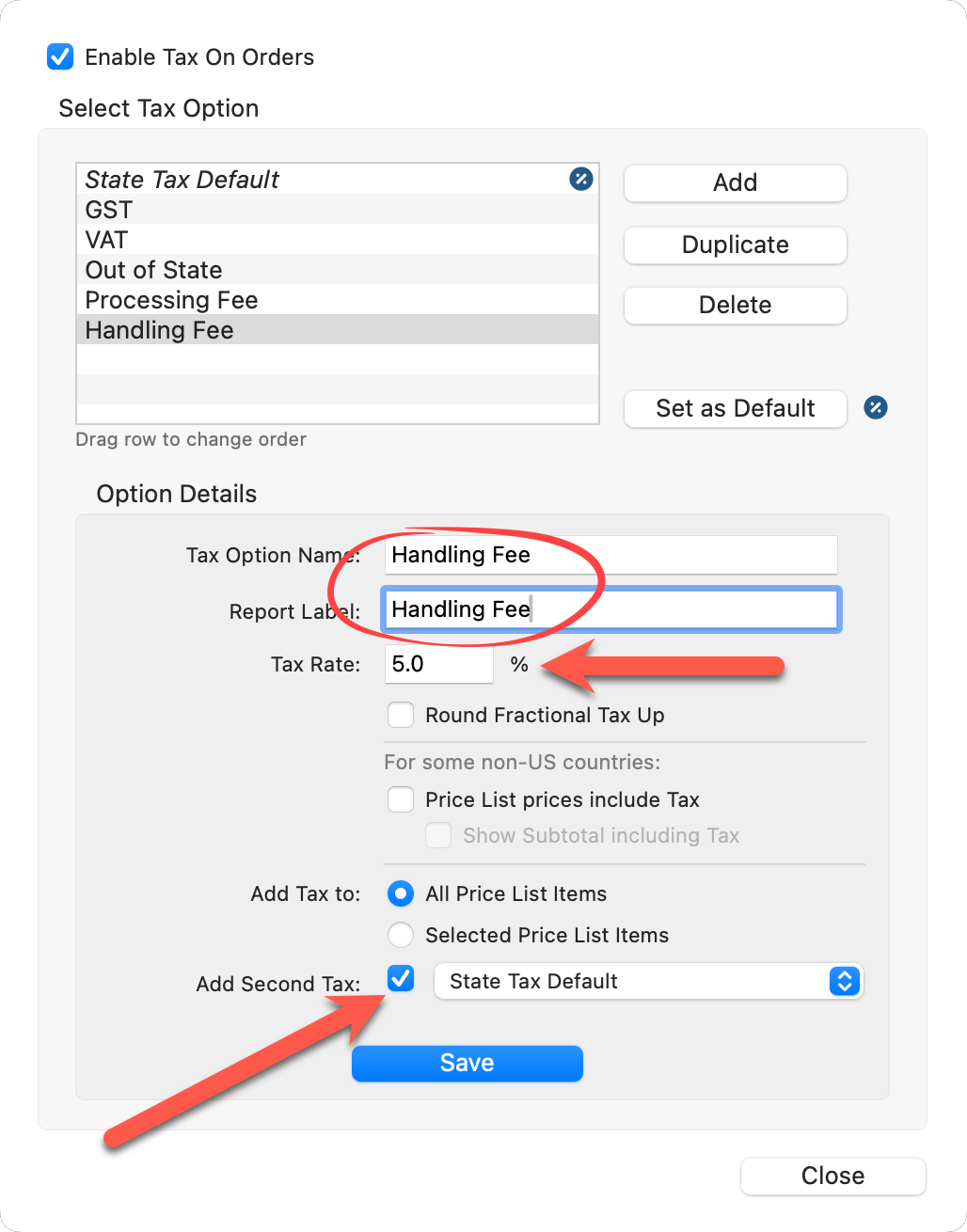
- Both taxes (your primary tax + handling fee) will now be applied to applicable orders when that tax option is selected for a client.
- Close the Setup Tax window.
- Be sure the "Handling Fee" tax option is set for your client.
- Open the Review Order window.
- In the subtotal area, you will see both the Primary and Handling Fees being charged.
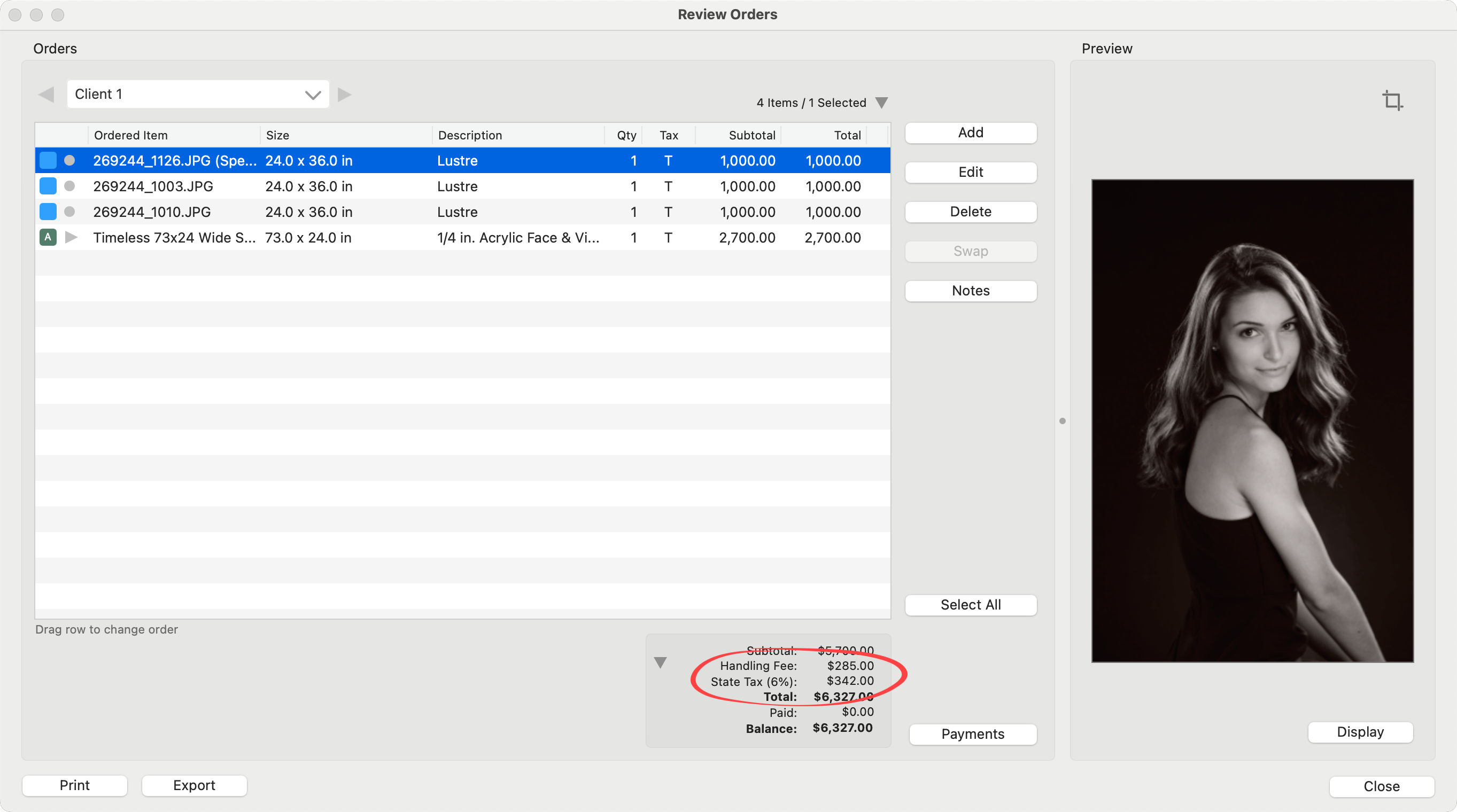

Once the Handling Fee and Primary Tax have been linked, the individual Primary Tax option will no longer be available for separate selection.
If you want the flexibility to choose between charging the Handling Fee or not, create a second Primary Tax (a duplicate of the original) and link it without the Handling Fee. This allows you to toggle between them.