Same Product From Two Different Suppliers
If you offer the same product through more than one supplier (e.g., a triptych from both Bay Photo and ACI), you can use a single product template and configure it for both suppliers using the method below. This allows you to maintain a consistent design while applying different pricing based on the selected presentation option.
Overview
ProSelect does not support assigning multiple suppliers to a single product template directly. However, you can duplicate the template, assign a different supplier, add presentation options and pricing, and "stack" the templates. This way, the design appears as one item in the resource area, but is backed by two versions—each assigned to a different supplier and presentation option.
When you add an image to the template, it populates both versions. You can then select the appropriate supplier version before ordering.

When you duplicate a supplier’s template, it loses its unique ID and is no longer linked to the original collection. This means any future updates from the supplier will not apply to your duplicated version. If you want to keep receiving supplier updates, avoid duplicating. You will need to keep 2 different versions of the template, one for each supplier.
- Open the Product & Pricing Manager.
- Select the template you want to use.
- Click on the Duplicate button.
- Select a Supplier from the drop-down list, then click "Duplicate."
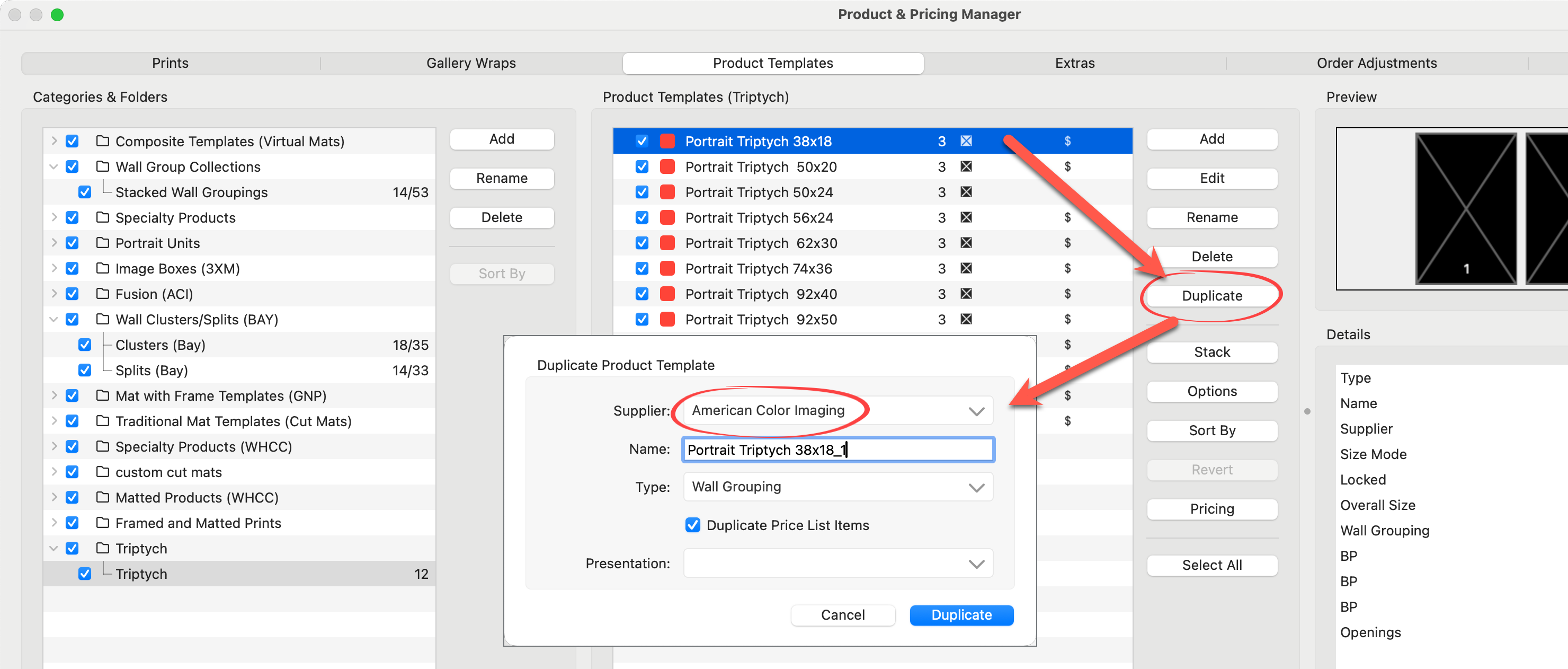
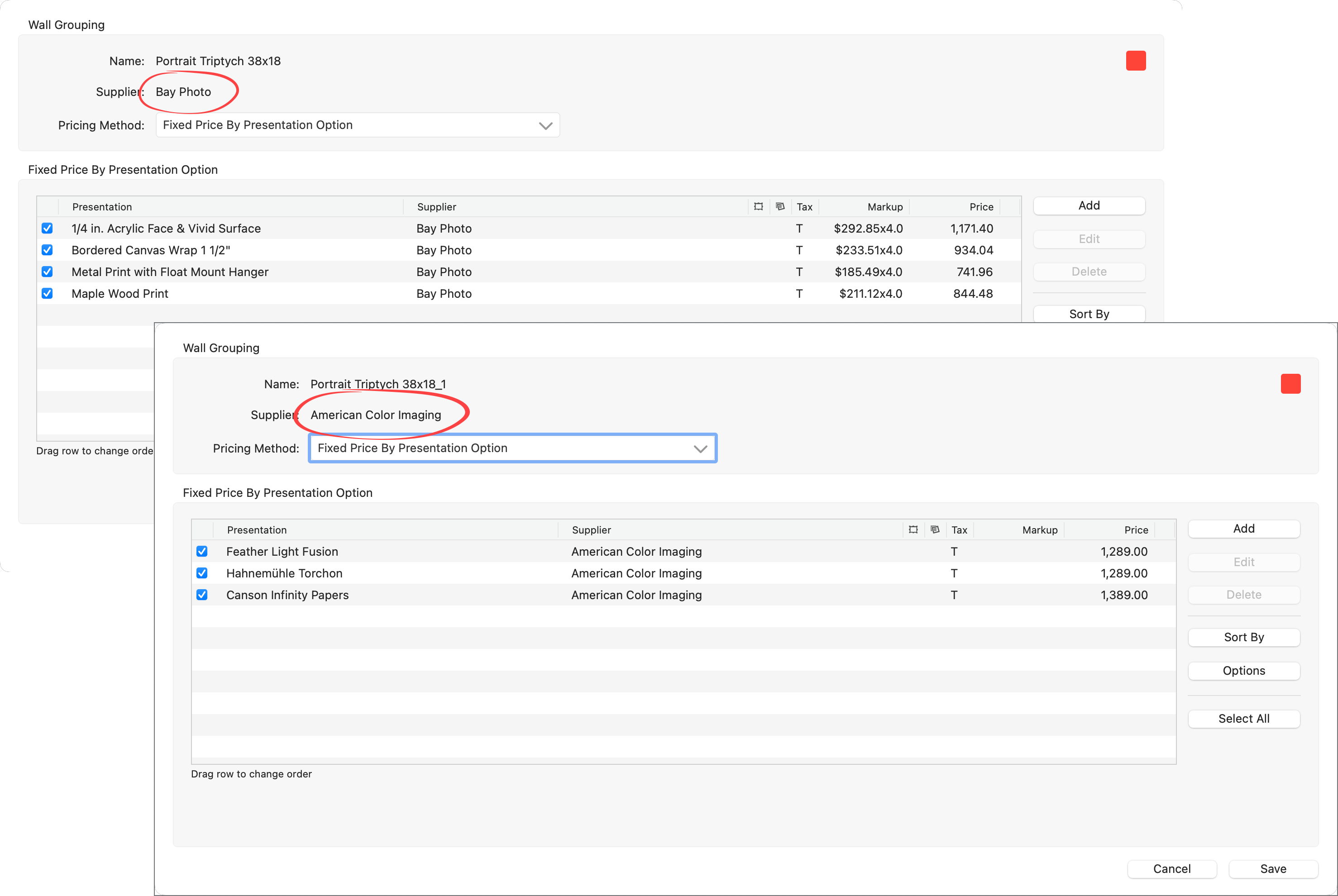
- Select the duplicated template and click the Pricing button.
- When the template was duplicated, any price list items set up were also duplicated. If applicable, delete these price list items.
- We can now add the price list items we want for the new supplier.
- Click "Save."
- We now have two templates, both of which are priced according to their assigned supplier.
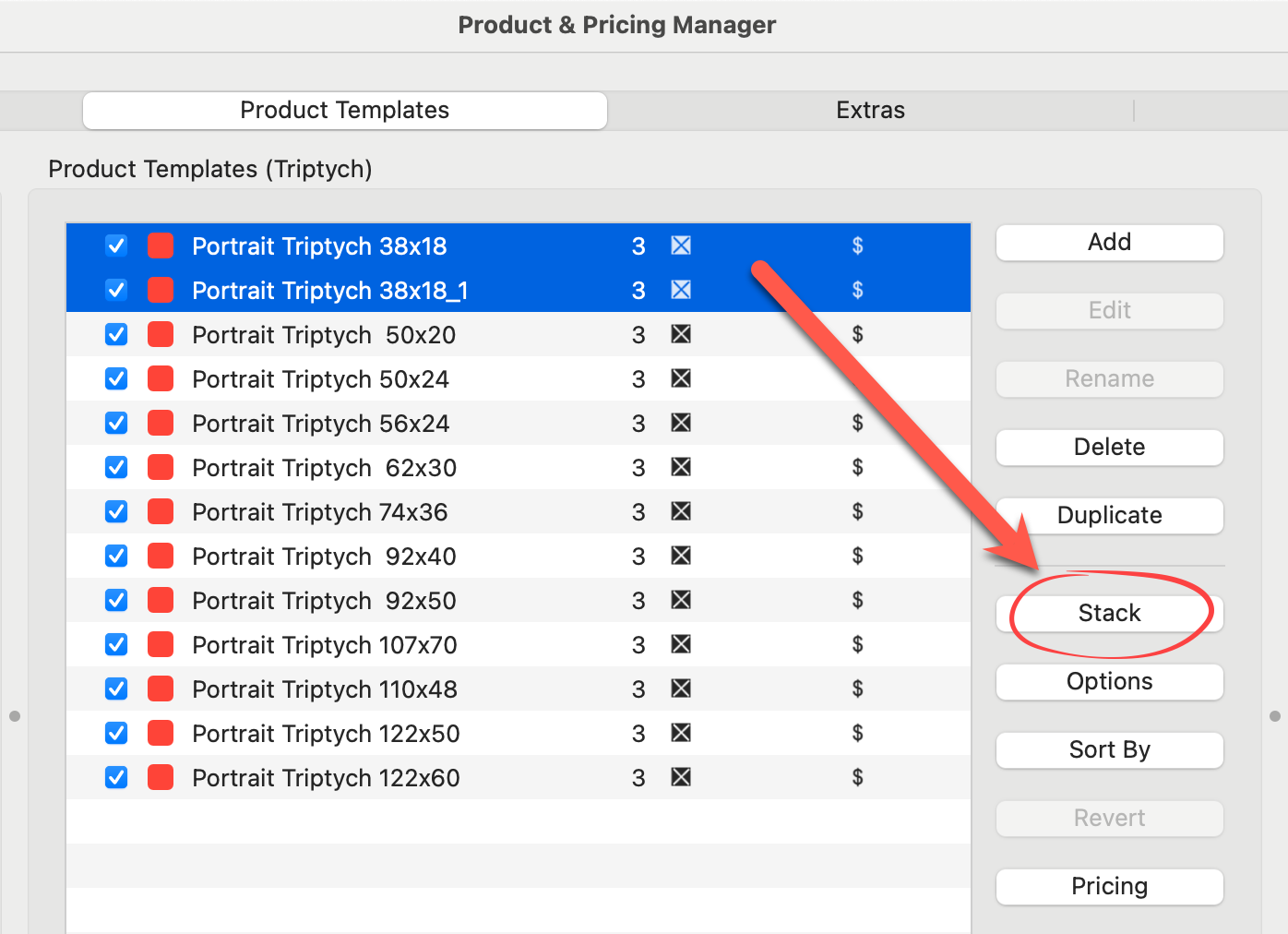
- The final step is to stack the two templates together. In the Product Pricing Panel, select BOTH templates.
- Click on the Stack button.
- Enter a name for the stacked template. Optionally, use the Rename button to change the name of the stacked templates. This may simplify your workflow when choosing which stack to work with.
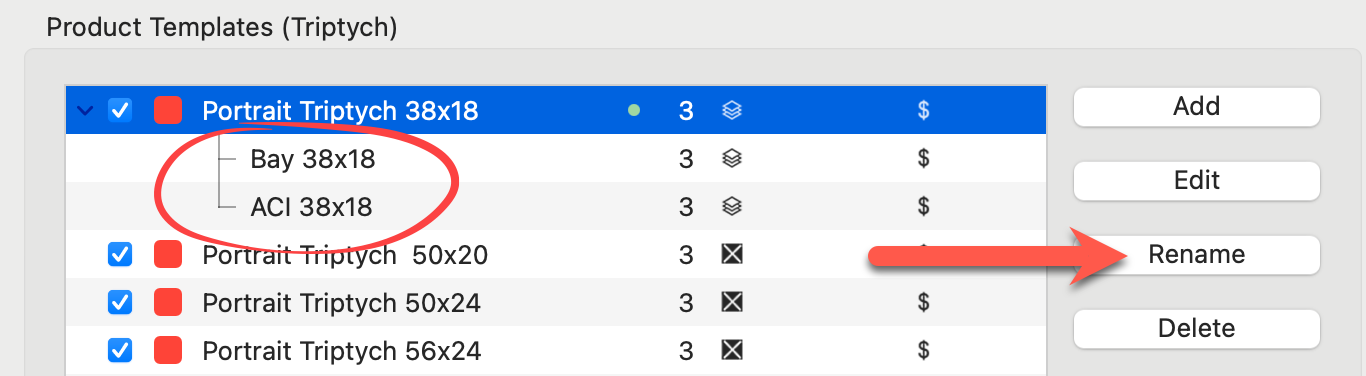
- Save changes.
- All of the options for this particular template (both suppliers) are now available in a single stack. Navigate to the main interface, Working with Products.
- Select the template from the resource area and populate it with images.
- Use the Up and Down arrow keys to move between the 2 templates that were stacked together. Alternatively, right-click on the Stack tools to choose which stack you want to work with.
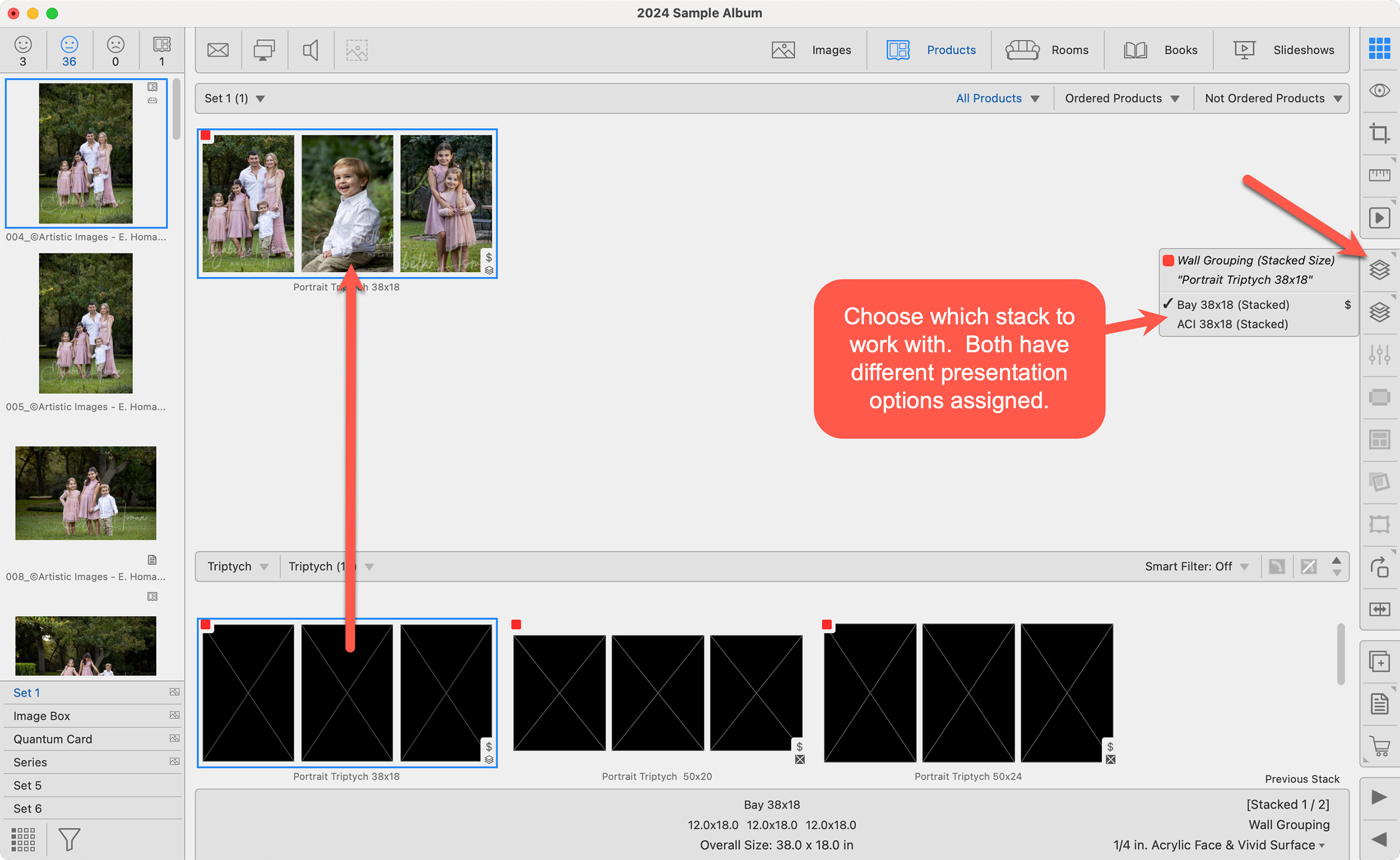
- Select the desired presentation option from the Info Bar (or right-click on the product). If the one you want isn't listed, choose the other stack.