Downloading and Installing ProSelect
The current ProSelect installer is the same for everything: trials, Basic or Pro, subscriptions, and updates to the latest version. Users can start a trial or activate a paid subscription when they launch the software.
There are two installers: one for macOS and one for Windows. ProSelect can only be installed on computers or tablets running a full desktop operating system. For example, it runs on a Microsoft Surface Pro, but not on an Apple iPad or a Google Chromebook. System requirements can be found here.
Downloading ProSelect
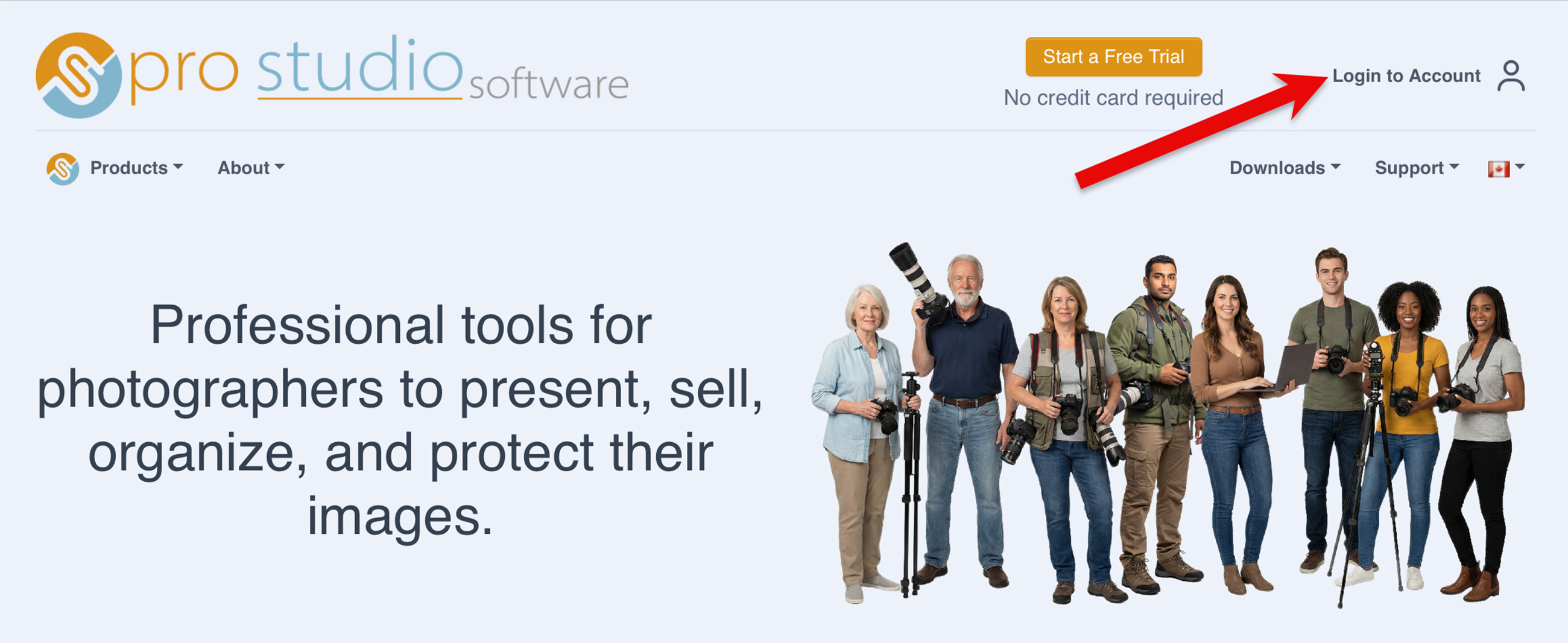
- Using the computer where you want to install the software, log in to your account at ProStudioSoftware.com by clicking the person icon on the menu bar. All system downloads require you to be logged into your account. Use your email address and password to log in.
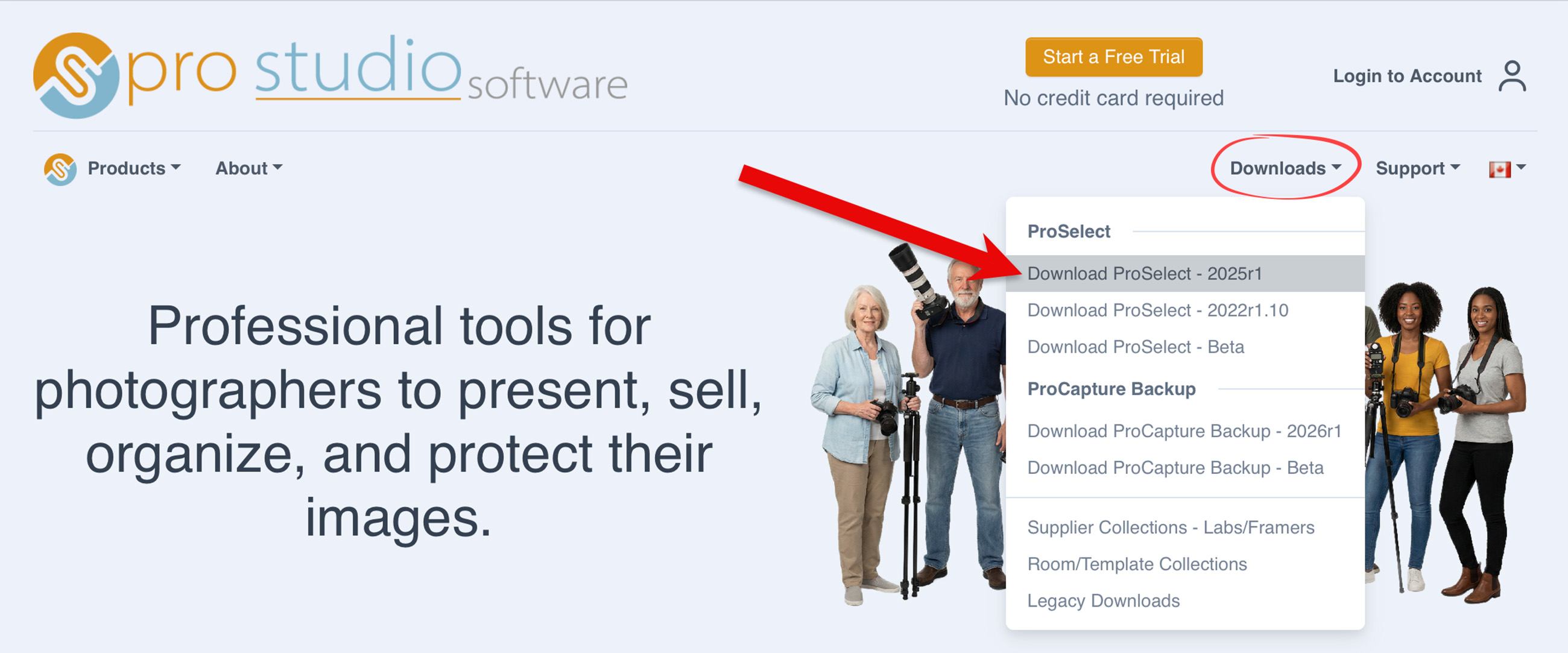
- Click the Downloads tab, then choose Download ProSelect - 2025r1
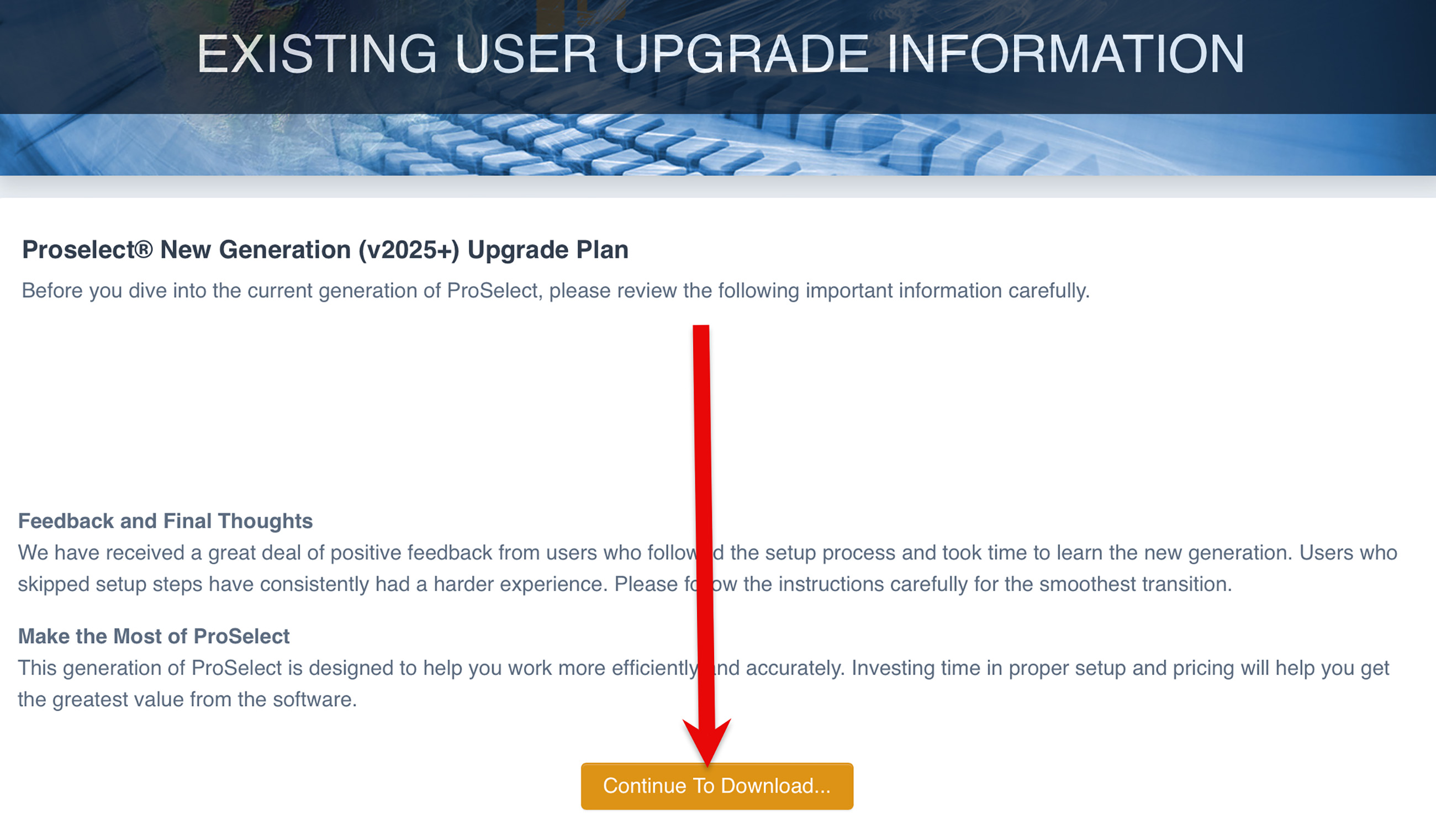
- Existing User Upgrade Information. If you are an existing ProSelect user and are upgrading, please take the time to read the upgrade information. Scroll to the bottom to continue to the download.
- The system will detect your operating system. A Mac or Windows logo appears in the top right. If you are on a Mac and need an installer for Windows, you can switch versions at the bottom of the download window. Click the orange button to start the download.
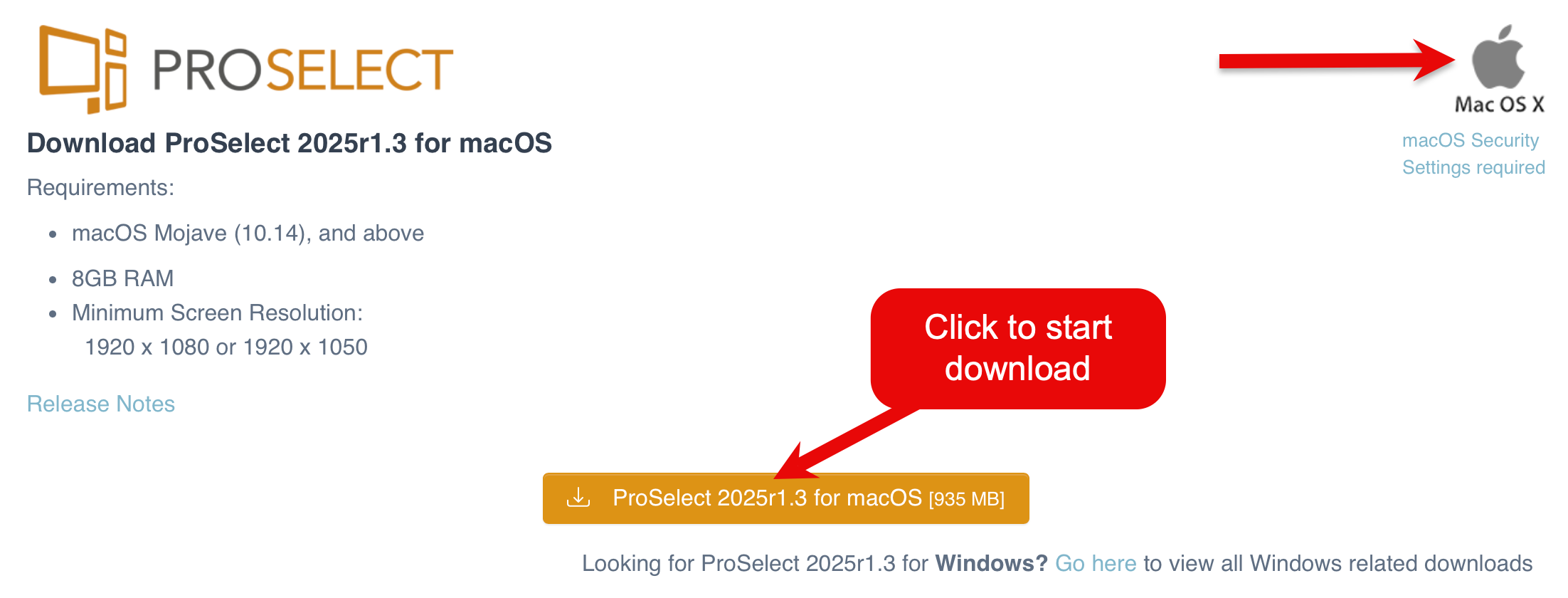
- If you are on a Mac, below the Apple logo is a link to macOS Security Settings required to use ProSelect. Click that link, and a new window will open with information regarding those settings. You'll need that information after you install. Click on Allowing Permissions to learn more.
Installing ProSelect
- Once the file is downloaded to your system, locate the file in your Downloads folder. The file will be named ProSelect with the version number. It is a compressed zip file.
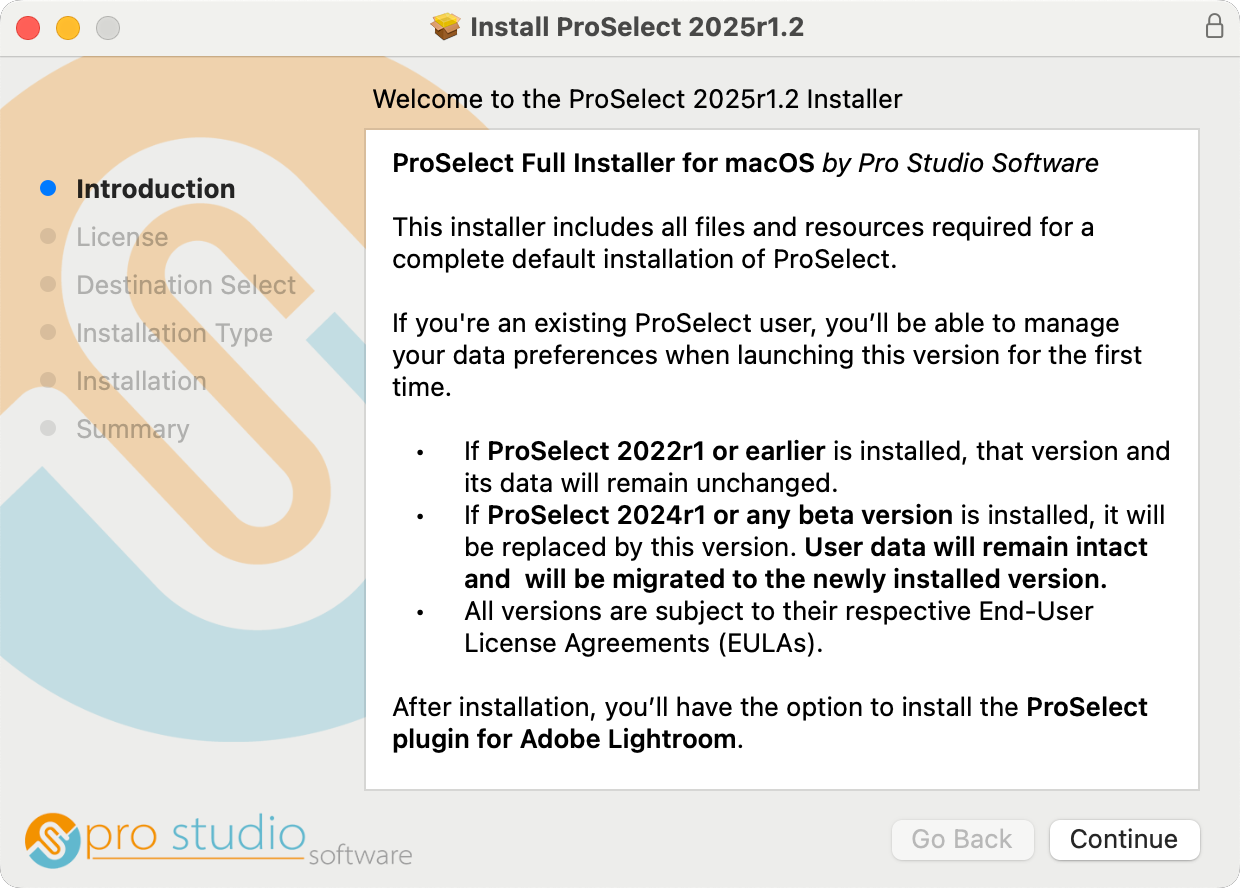
- Double-click the file to unzip. On Windows, the installer file will have a .exe extension; on Mac, a .pkg file. Double-click the installer file to begin the installation. Follow the prompts.
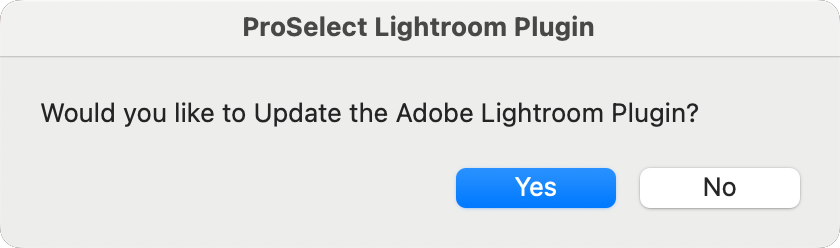
- At the end of the installation, it will ask if you want to install the Adobe Lightroom Plugin. If you are a Lightroom user, click Yes.
- ProSelect is now installed on your system. You can launch ProSelect using the ProSelect icon on your desktop, dock, or start menu.